
Overview
Rhino can create, edit, analyze, document, render, animate, and translate NURBS curves, surfaces and solids, subdivision geometry (SubD), point clouds, and polygon meshes. There are no limits on complexity, degree, or size beyond those of your hardware.
Special features include:
- Uninhibited free-form 3D modeling tools like those found only in products costing 20 to 50 times more. Model any shape you can imagine.
- Accuracy needed to design, prototype, engineer, analyze, and manufacture anything from an airplane to jewelry.
- Compatibility with all your other design, drafting, CAM, engineering, analysis, rendering, animation, and illustration software.
- Read and repair meshes and extremely challenging IGES files.
- Accessible. So easy to learn and use that you can focus on design and visualization without being distracted by the software.
- Fast, even on an ordinary laptop computer. No special hardware is needed.
- Development platform for hundreds of specialty 3D products.
- Affordable. Ordinary hardware. Short learning curve. Affordable purchase price. No maintenance fees.
- Cross-Platform: The world’s most versatile 3D modeler, available on Windows and macOS.
New in Rhino 9
Rhino 9 brings RhinoAI, a completely rewritten Patch, Setback fillets, hybrid SubD modeling, Gumball control point editing, faster 2D drafting with non-rectangular details and GD&T, a Concept display mode, caustics and dispersion, Direct3D on Windows, a refined user interface, new Grasshopper components, Grasshopper 2, and much more…
Patch
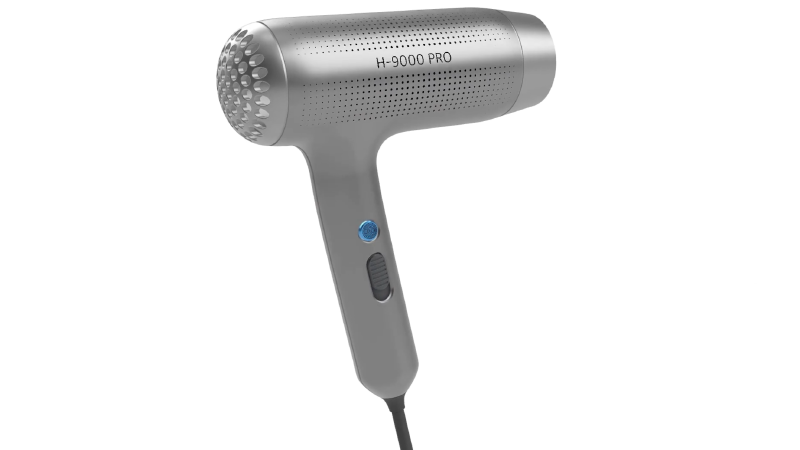
Create trimmed, untrimmed and multiblend surfaces that reach up to curvature continuity to neighboring surfaces in a few clicks.
Rhino 9 | Freeform Modeling
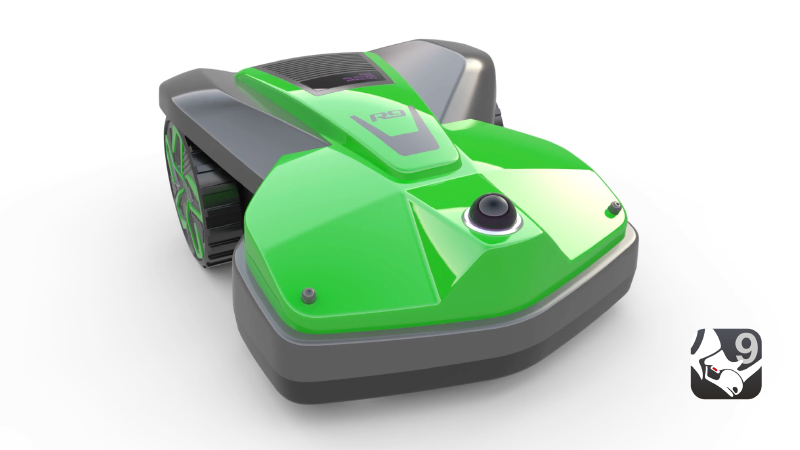
Rhino's model creation tools make it flexible, accurate, open, and very popular.
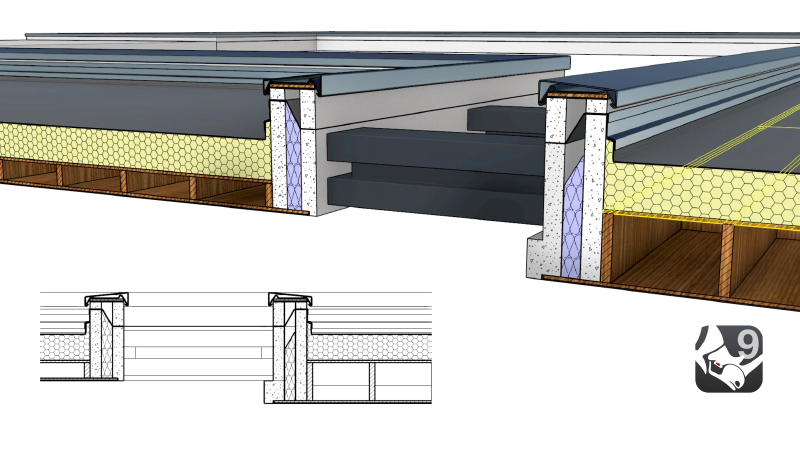
Rhino 9 | Drafting
Get from 3D model to finished drawing faster, with a new Block Editor, section tools, custom hatch patterns and markups in Rhino 9.
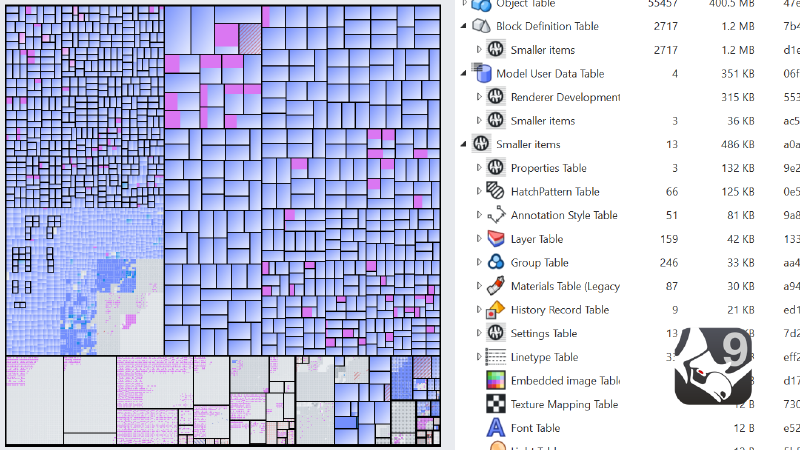
Rhino 9 | Large Projects
Keep big, complex projects under control with better collaboration, file management and performance in Rhino 9.
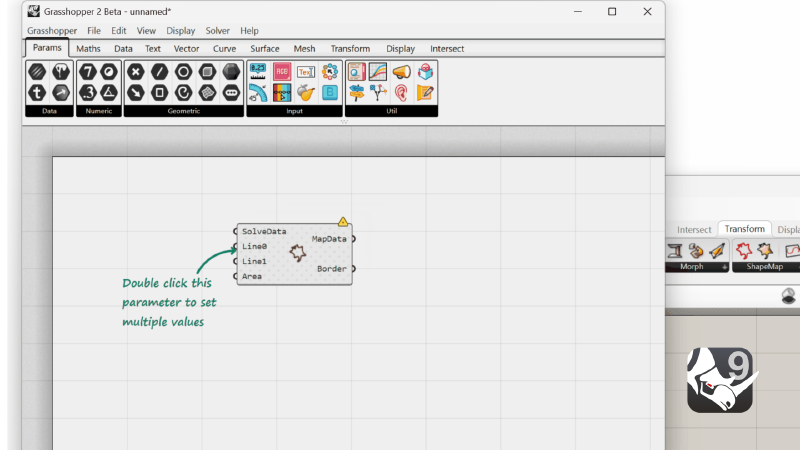
Rhino 9 | Grasshopper 2
Hop onto the next level of Visual Programming: looping, metadata, multithreading / cancelling.
Thanks to thousands of prerelease users, we were able to field test and refine Rhino 9, making it the fastest and most stable version ever.
Model Creation Tools

Points: Points, point clouds, point grid, extract from objects, mark (intersection, divide, draftangle, ends, closest, foci).
Curves: Line, polyline, polyline on mesh, free-form curve, circle, arc, ellipse, rectangle, polygon, helix, spiral, conic, TrueType text, point interpolation, control points (vertices), sketch.
Curves from other objects: Through points, through polyline, extend, continue curve, fillet, chamfer, offset, blend, arc blend, from two views, tween, cross section profiles, intersection, contour on NURBS surface or mesh, section on NURBS surface or mesh, border, silhouette, extract isoparm, extract curvature graph, projection, pullback, sketch, wireframe, detach trim, 2D drawings with dimensions and text, flatten developable surfaces.
Surfaces: From 3 or 4 points, from 3 or 4 curves, from planar curves, from network of curves, rectangle, deformable plane, extrude, ribbon, rule, loft with tangency matching, developable, sweep along a path with edge matching, sweep along two rail curves with edge continuity, revolve, rail revolve, tween, blend, patch, drape, point grid, heightfield, fillet, chamfer, offset, plane through points, TrueType text, Unicode (double-byte) text.
Solids: Box, sphere, cylinder, tube, pipe, cone, truncated cone, pyramid, truncated pyramid, ellipsoid, torus, extrude planar curve, extrude surface, cap planar holes, join surfaces, region, nonmanifold merge, TrueType text, Unicode (double-byte) text.
SubDs: SubD face, SubDPlane, SubDCone, SubDTruncatedCone, SubDCylinder, SubDSphere, SubDEllipsoid, SubDTorus, SubDBox, Revolve, Sweep1SubD, Sweep2SubD, LoftSubD, ExtrudeSubD, MultiPipe, InflateCrv, OffsetSubD, MatchSubD, Bridge, Bevel, CreaseSubDEdge, InsertEdge, Knife, Slide, Reflect, SoftTransform.
Meshes: From NURBS surfaces, from closed polyline, mesh face, plane, box, cylinder, cone, and sphere.
New in Rhino 9:
- Freeform Modeling: Combine precision engineering with artistic freedom. Rhino 9’s Freeform capabilities enable industrial designers to create visually distinctive, manufacturable products.
- Direct Modeling: Directly interact with geometry in the viewport, shape up your ideas in realtime, intuitively and precisely in Rhino 9.
- Organic Modeling: Undo/Redo Selection stack, SubDMatch, and SoftTransform falloff curves for smoother organic sculpting.
- Patch: Create trimmed, untrimmed and multiblend surfaces that reach up to curvature continuity to neighboring surfaces in a few clicks.
- InflateCrv: Give curves a dimensional, puffy look with just a few clicks.
Editing

General Tools: Delete, delete duplicates, join, merge, trim, untrim, split, explode, extend, fillet, chamfer, object properties, history.
Transform Tools: Cut, copy, paste, move, rotate, mirror, scale, stretch, align, array, twist, bend, taper, shear, offset, orient, flow along curve, pull, project, boxedit, smash, squish.
Points and curves: Control points, edit points, handlebars, smooth, fair, change degree, add/remove knots, add kinks, rebuild, refit, match, simplify, change weight, make periodic, adjust end bulge, adjust seam, orient to edge, convert to arcs, a polyline, or line segments.
Surfaces: Control points, handlebars, change degree, add/remove knots, match, extend, merge, join, untrim, split surface by isoparms, rebuild, shrink, make periodic, Boolean (union, difference, intersection), unroll developable surfaces, array along curve on surface.
Solids: Fillet edges, extract surface, shell, Booleans (union, difference, intersection).
Meshes: Explode, join, weld, unify normals, apply to surface, reduce polygons.
New in Rhino 9:
- Direct Modeling: Directly interact with geometry in the viewport, shape up your ideas in realtime, intuitively and precisely in Rhino 9.
- Gumball: Rotate-Extend: Rotate a face and have adjacent faces extend in their natural directions, keeping your walls straight.
- Gumball: Control Polygon: Edit control points in their U, V or N direction, directly in the viewport using the Gumball.
- SoftTransform: Adjust large numbers of control points by applying a falloff influence to surrounding points. Create more organic and natural changes to your shape rather than hard, mechanical ones.
- Fillet and Blend Edge: FilletEdge and BlendEdge fully support Setback corners, for improved surface continuity and aesthetics.
- Surface Fillets: FilletSrf and ChamferSrf have received many workflow and quality enhancements.
- Rebuild: New adaptive rebuild technology to match the shape of the input curve with higher accuracy.
- ArrayCrv: Quickly and easily repeat objects along any curve with full control
- ScaleEach: Add variations to your patterns. Apply random or gradient scaling to your designs.
Interface
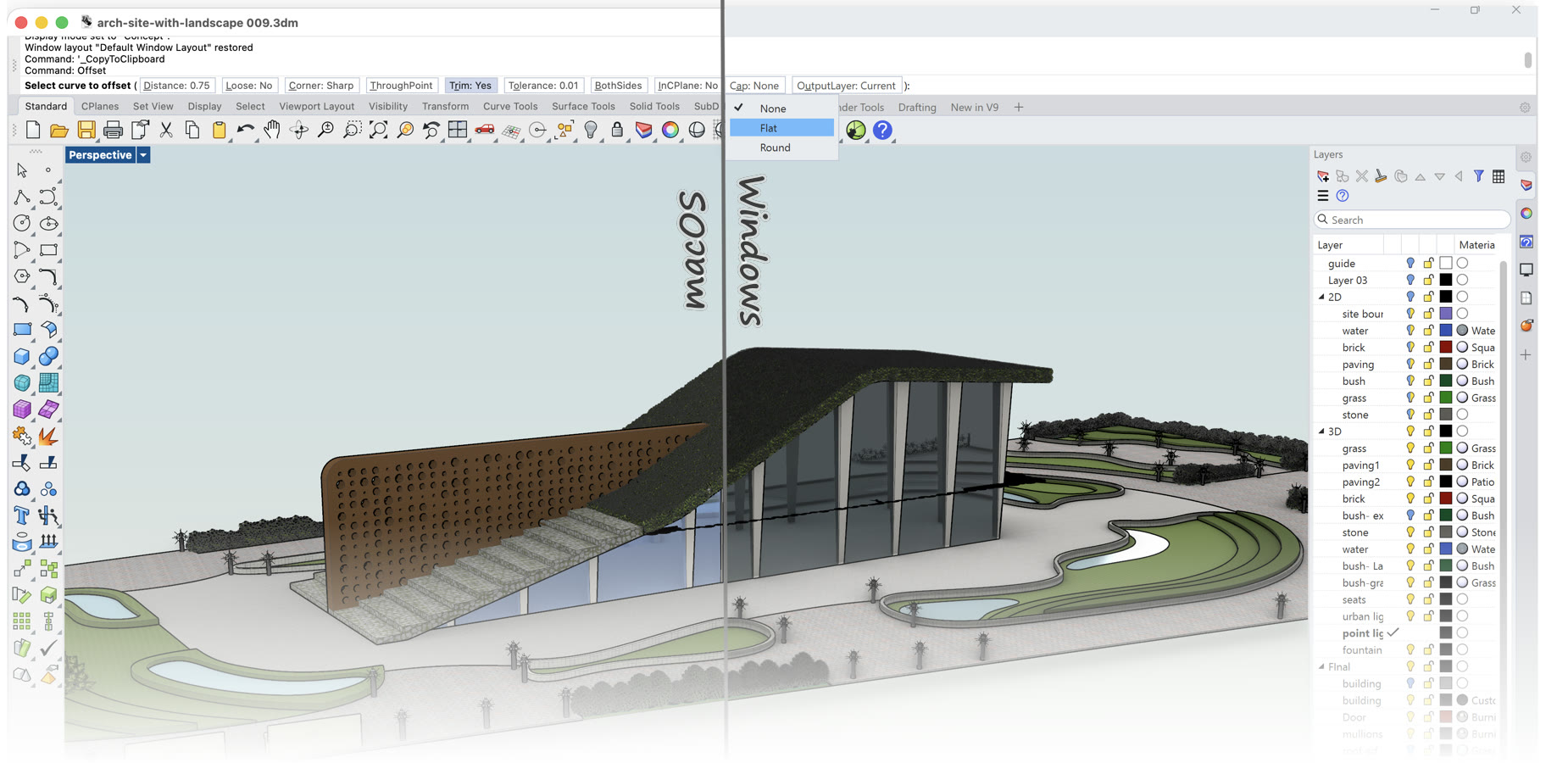
User interface: Coordinate read-out, floating/dockable command area, pop-up recently-used commands, clickable command options, auto-complete command line, customizable pop-up commands, pop-up layer manager, synchronize views, camera-based view manipulation, perspective match image, configurable middle mouse button, customizable icons and user workspace, customizable pop-up toolbar, transparent toolbars, context-sensitive right-click menu, multiple monitor support, Alt key copy and OpenGL hardware support with antialiasing.
Construction aids: Unlimited undo and redo, undo and redo multiple, exact numeric input, units including feet and inches and fractions, .x, .y, .z point filters, object snaps with identifying tag, grid snaps, ortho, planar, named construction planes, next and previous construction planes, orient construction plane on curve, layers, layer filtering, groups, background bitmaps, object hide/show, show selected objects, select by layer, select front most, color, object type, last object, and previous selection set, swap hidden objects, object lock/unlock, unlock selected objects, control and edit points on/off, and points off for selected objects.
New in Rhino 9:
- One UI: Windows and Mac: A unified interface that looks and behaves the same on both platforms. Learn it once and know it everywhere.
- Command Line: A compact layout at the top of the screen with clickable buttons, drop-downs, and toggles. Newcomers can click their options, power users keep typing.
- Panels Tune-up: Analysis panels are smaller and better organized, with the same top row of buttons as other panels. Panel buttons follow a consistent order, and their size can be set from 16 to 24 pixels.
- Icon Redesign: Rhino icons have been updated to be more intuitive and visually appealing.
- Toolbars, Refined: Rhino 9’s toolbar and RUI system has been rebuilt from the ground up for stability, predictable editing, and easier sharing.
- Instant Aliases: Enable Hotkeys for Rhino and accelerate your modeling workflows.
- Transfer Settings: Transfer settings between Rhino easily cross-platform.
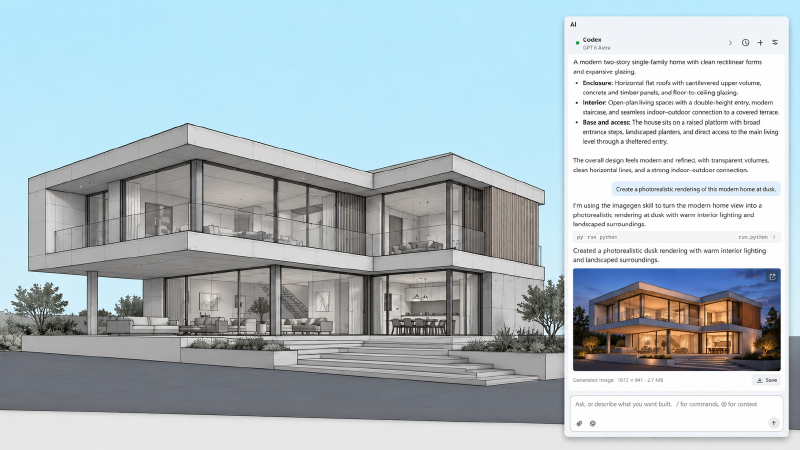
- RhinoAI: Connect an AI assistant to your live Rhino and Grasshopper document.
Display

Features include extremely fast 3D graphics, unlimited viewports, shaded, working views, perspective working views, named views, floating views, full-screen display, draw order support, two‑point perspective, clipping planes, and one-to-one scale to view models at full size.
New in Rhino 9:
- Direct3D: Increased display stability for Rhino.
- Concept Display Mode: Concept, quickly communicate early-stage designs with a presentation-ready look
- Rendered Mode: Transparency: Color preview and refraction simulation in Rendered mode
- Black and White Switch: Automatically flip pure black or white curves and wires to the opposite color of the viewport background.
Rendering and Presentation

High-quality presentations are critical to most design projects.
Features include Rhino Render, a ray trace renderer with textures, bumps, highlights, transparency, spotlights with hotspot, angle and direction control, point lights, directional lights, rectangular lights, linear lights, and shadows, and customizable resolution, realtime render preview, realtime render preview selected objects, turntable, export to many common file formats used by renderers, rendering plugin support, settings saved in file.
Presentation tools: Choose from different display modes for different needs. Rhino offers per-object clipping, Snapshots, NamedView, and NamedPosition to create product documentation or set up client and team presentations that visually convey design and function.
New in Rhino 9:
- Concept Display Mode: Quickly communicate early-stage designs with a presentation-ready look straight from your 3D model.
- Caustics and Dispersion: Caustics and Dispersion are useful for creating realistic images of jewelry or consumer products with reflective or transparent elements.
- Decals: Full fledged materials for Decals
- Markups: Markups are an easy way to communicate changes with your design team or client. Annotate or redline directly on your model or drawing.
- HideInViewports: Make selected objects visible only in the viewports you choose.
Drafting

Every type of physical product design relies on technical illustration and 2D drawing to concisely communicate ideas, specifications, and instructions to people in design, development, and fabrication. Our goal for Rhino was to make it easier to create 2D drawings and illustrations for every discipline in every notation system and visual style used worldwide.
Annotation objects include arrows, dots, dimensions (horizontal, vertical, aligned, rotated, radial, diameter, angle), text blocks, leaders, hidden line removal, Unicode (double-byte) support for text, dimensions, and notes. Dimensions in perspective views are supported.
With Rhino’s section tools, 2D drawings maintain a live connection to the 3D model: sections, clipping drawings, and section styles update as your design changes.
New in Rhino 9:
- Clipping Drawings: Create 2D drawings from your 3D model in a few clicks and maintain the live connection.
- Section Styles: More robust creation and management of Section Styles.
- Non-Rectangular Details: Make your drawings stand out by creating detail borders that adapt to the shape of your design.
- Hatch Patterns: Create custom hatch patterns in Rhino or use the extensive built-in library.
- Linetypes: Linetypes in Rhino 9 can include shape and text. Represent utilities, fences, wall types using linetypes while keeping it connected to the curve.
- GD&T: Add GD&T annotations to your engineering drawings. Ensure precision for manufacturing parts.
- Drafting Symbols: Standard 2D symbols of common 3D objects for drafting.
- Polyline: Offset: Draw walls, roads, and paths faster with automatic offset lines.
- Text Formatting: A full-featured text editor, allowing for bulleted lists, kerning, and more for formatting text annotations.
Digital Fabrication

As you may know, the Rhino development project started more than 25 years ago to provide marine designers with tools for building computer models that could be used to drive the digitally controlled fabrication equipment used in shipyards.
We continue to focus on the fact that designs are only useful once they are built and in the hands of consumers. With the cost of digital fabrication and 3D printing technology dropping quickly, more and more designers now have direct access to 3D digital fabrication equipment.
While we are not experts on all the fabrication, manufacturing, or construction processes, we do focus on ensuring that Rhino models can be accurate enough for and accessible to all the processes involved in a design becoming a reality.
New in Rhino 9:
- GD&T: Add GD&T annotations to your engineering drawings. Ensure precision for manufacturing parts.
- MatchSubD: Hybrid modeling made easy! Connect SubD and surface edges to get the best of both worlds: easy form exploration while respecting manufacturing constraints.
- Patterning: Rhino 9 includes a rich toolset for recreating uniform or gradient patterns in 2D or 3D.
Mesh Tools

Robust mesh import, export, creation, and editing tools are critical to all phases of design, including:
- Transferring captured 3D data from digitizing and scanning into Rhino as mesh models.
- Exchanging mesh data with many applications such as SketchUp® and Modo®.
- Exporting meshes for analysis, rendering, prototyping, and fabrication.
- Converting NURBS to meshes for display and rendering.
- QuadRemesh: Quickly create a quad mesh from existing surfaces, solids, meshes, or SubDs—ideal for rendering, animation, CFD, FEA, and reverse engineering.
New in Rhino 9:
- SoftTransform: Select a mesh vertex, edge, or face and use a falloff curve to influence the surrounding geometry. Sculpt organic shapes effortlessly.
- Knife: Quickly add topology to your SubD or Mesh models.
- InflateCrv: Give curves a dimensional, puffy look with just a few clicks.
- Inset: Inset offsets edges inward on a mesh, SubD, or polysurface face. The group option allows to create a single boundary across multiple faces.
- MeshSelfSplit: Divide meshes into parts at their self-intersections.
- ReduceMesh: Faster, with new options to keep grids, quads, creases and corners.
3D Capture

Capturing existing 3D data is often one of the first steps in a design project. Rhino has always directly supported both 3D digitizing hardware and 3D scanned point cloud data. Rhino now supports:
- Large point clouds. 3D scanners have become faster and cheaper, making huge scan files more common.
- Rhino’s 64-bit support and enhanced support for graphic co‑processors have made working with these large point clouds possible.
- LiDAR captures 3D terrain data for agriculture, archaeology, conservation, geology, land use planning, surveying, transportation, plus wind farm, solar farm, and cell tower deployment optimization. Rhino for Windows has robust support for plugins, such as RhinoTerrain™, that provide specialty tools for these new Rhino users.
3D digitizing support: Microscribe®, FaroArm®, and ROMER - Windows only.
New in Rhino 9:
- SplitPointCloud: Cut a point cloud into parts using a drawn line.
- AlignVertices: Now supports point clouds, points, curves, and sub-selected mesh and SubD elements.
- E57 Import: Reads point cloud normals.
- PLY Import: Reads vertex colors from Gaussian splats.
Inspection and Analysis

Design realization requires high‑quality 3D models in every phase of design, presentation, analysis, and fabrication. Rhino includes tools to help ensure that the 3D models used throughout your process are of the highest possible quality.
Analysis: point, length, distance, angle, radius, bounding box, normal direction, area, area centroid, area moments, volume, volume centroid, volume moments, hydrostatics, surface curvature, geometric continuity, deviation, nearest point, curvature graph on curves and surfaces, naked edges, working surface analysis viewport modes (draft angle, zebra stripe, environment map with surface color blend, show edges, show naked edges, Gaussian curvature, mean curvature, and minimum or maximum radius of curvature).
New in Rhino 9:
- Global Edge Continuity: Quickly analyze position, tangency and curvature continuity between surfaces
- Zebra: A new dialog, more stripe patterns, and transparent stripe colors.
- GCon: Now reports G3 and G4 continuity.
- Point Deviation: An improved interface, scientific notation, and support for SubD targets.
- Overlap: Find duplicate points and overlapping curves, then select or delete them.
Large Projects

File management tools for managing large projects and teams include: Notes, templates, merge files, export selected objects, save small, incremental save, bitmap file preview, Rhino file preview, export with origin point, worksessions, blocks, file compression for meshes and preview images.
New in Rhino 9:
- Block Editor: An improved workflow for managing and editing blocks, now with support for non-uniformly scaled instances and editing nested blocks.
- Worksessions: Refined: Collaborate on large files across Mac and Windows.
- Layout Groups: Flexible and intuitive organization for complex drawings.
- Audit 3dm Files: An interactive tool showing the relative size of objects in your 3dm file. Troubleshooting made visual.
- Performance: Improved performance for handling large projects
Compatibility

Rhino is compatible with hundreds of CAD, CAM, CAE, rendering, and animation products. The openNURBS libraries allow hundreds of other applications to read and write Rhino’s native 3DM files.
New in Rhino 9:
- Navisworks Export: Export NWD and NWC files for project coordination.
- ExportLayout: Export selected layouts to 3DM, DWG, DXF, and other formats.
- DWG/DXF Export: Picture object images saved alongside the file as external references, display colors preserved, extrusions as curves with thickness, hyperlinks, layer descriptions, and customizable export schemes on Mac.
- DWG/DXF Import: Layers sorted alphabetically, AutoCAD layer descriptions imported, and file names shown when importing multiple files.
- Improved support for many formats, including SketchUp, STEP, glTF, FBX, USD, E57, and PLY.
Grasshopper

Grasshopper is a graphical algorithm editor included with Rhino.
Unlike RhinoScript, Rhino.Python, or other programming languages, Grasshopper requires no knowledge of programming or scripting but still allows developers and designers to develop form-generation algorithms without writing code.
New in Rhino 9:
- Render Materials: Create, edit and save materials within Grasshopper.
- Textures: Create and edit procedural or bitmap textures within Grasshopper. Query and modify textures from a Rhino file.
- Texture Mapping: Create, assign and edit the texture mapping of objects with Grasshopper.
- ShapeMap: Grasshopper add-on that maps 2D curves or image-based textures onto a complex 3D shape with minimal distortion.
- Hatch: Hatch patterns are now available for your parametric models in Grasshopper.
- Clip & Section: Clipping planes and sections directly in Grasshopper.
- Viewport Widgets: Drive your Grasshopper definitions directly in the Rhino viewport.
- Content Viewer: Preview geometry and non-geometry data directly on the Canvas
- Value Picker: Find, select, and filter from a long list of values.
- Grasshopper 2: Hop onto the next level of Visual Programming: looping, metadata, multithreading, globals and advanced mathematics
Developer Tools

The world’s most robust 3D development platform for specialty modeling, rendering, analysis, and fabrication tools across a wide variety of disciplines.
- More accessible development tools: RhinoCommon (.NET), Grasshopper, Rhino.Python, RhinoScript, the Zoo license manager for plugins, and the Rhino Package Manager are key ingredients.
- Comprehensive documentation.
- An active developer community.
- Open-source Rhino development tools, including Rhino.Python and RhinoCommon.
- Free developer tools, including technical support, marketing support, and training. Our development tools are available to everyone with a valid Rhino license. No special program registration, contracts, license agreement, or approval is needed.
- Localization and translation services are available. Details…
- Plugins: The Rhino SDK exposes most of Rhino’s internal workings, making it possible for third-party developers to create powerful plugins and add-ons. A programmer’s I/O tool kit with source code is available on openNURBS web site.
New in Rhino 9:
- .NET 10: Target Microsoft .NET 10 on both Windows and Rhino for Mac.
- Scripting: The ScriptEditor adds a testing panel, faster Python, package and assembly search, PEP 723 support, and custom package sources.
- C++ SDK on Mac: Build with C++ for both Windows and Mac
- C++ to .NET Interop: Named Callbacks in C++ for easier access to .NET functionality
- In-Viewport User Interface: Controls and grips directly in the Rhino viewport
- Rhino.Compute on Linux: Access the Rhino and Grasshopper SDKs through a stateless REST API. Now available on Linux Servers.
- Grasshopper 2 Components: Create your first Grasshopper 2 component, or migrate your Grasshopper 1 components.
- RhinoCommon: See what’s new in the RhinoCommon SDK.
RhinoScript
Features include:
- Multi-document script editor
- Online help system
- Documentation and examples
Rhino.Python
Rhino.Python is a powerful scripting language in Rhino on both Windows and Mac. Rhino.Python is built for flexibility and clear syntax.
If you would like to give Rhino.Python a try, explore some of the links on the Rhino.Python site.
RhinoCommon
- RhinoCommon is the cross-platform .NET plugin SDK for Rhino.
- Available for Rhino for Windows, Rhino for Mac, Rhino.Python, and Grasshopper.
- A true .NET style SDK, well organized and easy to learn.
- Improved documentation. Details…
C++ plugins
- Microsoft Visual C++ 2017 for 64‑bit Rhino
- Plugin wizard creates multi-targeted projects for easy project and platform support
- Dozens of SDK additions and enhancements to help create more powerful plugins
- Renderer Development Kit (RDK) now integrated with SDK
- Documentation
- Samples
Renderer Development Kit
Available in Rhino for Windows, the RDK includes a rich set of functionality for renderer developers, including:
- Support for C++, RhinoCommon, and RhinoScript.
- Materials: Define custom material types that fully integrate into the Rhino material editor.
- Environments: Define custom environment types that fully integrate into the Rhino environment editor.
- Textures: Define custom texture types that fully integrate into the Rhino material, environment, and texture editors.
- Built‑in Render Window: Rhino Render Window complete with tone operators, post-effects, multiple channel support, recall of recent renders, built-in zooming, support for HDR output, and window cloning.
- Sun: Automate the new Rhino sun control with full access to the sun position calculation tools for your plugins.
- Custom render meshes: Plugin system for defining render-time custom render meshes that can be used by any render plugin or exported to mesh formats.
- Post‑effects: Plugin system for defining post-render frame buffer effects that any render plugin can use.
- Many minor renderer tools.
Rhino Skins
You can completely wrap your plugin application around Rhino. Here is how using C++.
License Management for plugins
The Zoo features:
- Supports third-party Rhino plugins.
- Runs as a service - automatically restarts when the server reboots.
- Uses Standard Internet Protocol Support. Firewall friendly. Now runs across WANs, routers, and VPN.
- Troubleshooting tools.
- License checkout duration control.
- Updated installation and administration details.
- Third-party plugin developer details.
openNURBS
The openNURBS developer toolkit now supports Rhino 8 (and earlier) native 3DM files. Other 2D and 3D CAD/CAM/CAE and graphic applications can read and write Rhino 3DM files directly. These development tools are free to all software developers.
Localization Services
Our regional office in Europe provides a translation and localization service for third-party developers and anyone else interested in translating their products to French, German, Italian, Spanish, etc. Details…
Marketing Support
If you have developed a Rhino plugin that you would like to make available to other Rhino users, food4Rhino is the place to post the details about your plugins for Rhino and Grasshopper. It is free. Details…
Administration

The major goal for each new Rhino release is to make it easier for managers and system administrators:
- Easy to share (float) licenses in a workgroup and company using The Zoo or Cloud Zoo license manager.
- Tools for easy license deployment in larger installations.
- Take more advantage of current hardware.
- Automatic notification and download of current bug-fix service releases.
- Provide more training and support options.
- Package Manager: Discover, install, and manage your resources.
New in Rhino 9:
- Transfer Settings: Use OptionsMigrate to import or recover a Rhino setup, including compatible plugins, from a previous version, an RHS file, or a backup.
- Package Manager: Sort by popularity and search by author or description.
- Installer: Includes a repair tool, a Blocks content folder, and RhinoAI.
System Requirements and Recommendations
Rhino runs on ordinary Windows and Mac desktop and laptop computers. More details…
License Management, Sharing, and Deployment
Rhino offers flexible licensing options. More details…
Plugin Manager
It is easy to disable plugins. This is important for users who are testing new plugins or having a problem and suspect the problem is caused by a particular plugin.
Service Releases Automatically Update
After the first release of every major new version, there are bug-fix releases that download automatically. The users are prompted to install them.
Splash and About
The splash screen shows the thumbnails of the most recent files, along with details about the Rhino version, event news, and tech tips. It also notifies users when a service release has been downloaded and is ready to be installed.
Training, Support, and Community
Since your team’s productivity and frustration are at stake, we want to make sure help is available when you need it.
As with all versions of Rhino, support is included in the purchase price. There are no maintenance or subscription fees.
Support resources for Rhino include:
- Support forums, telephone, email, and live chat worldwide.
- Communities including Rhino, Rhino in Education, Grasshopper, Rhino FabStudio, Generative Jewelry Design, and food4Rhino.
- Video tutorials and tech tips on Rhino3D.TV, YouTube, Vimeo, etc.
- Blogs, Facebook, Twitter, LinkedIn, etc.
- Live online training classes.
Beyond Rhino 9

Serengeti, named after the largest African savanna, is where Rhino grows.
We like to involve users in every phase of the Rhino development process. As with prior releases, we will invite current users to try, test, and provide feedback on the next release while it is still in development.
Since many development efforts span more than one release, we have set up the Serengeti Project to give users a more direct influence on all future Rhino developments.
That means you can always have access to the weekly Work-In-Progress (WIP) builds of everything we are working on, no matter when or if it will be released. Rhino WIP builds are where we develop future features, including improved SubD support, Grasshopper 2, rendering and display improvements, and much more.
Service Releases
Rhino automatically downloads service releases to your computer and notifies you when they are ready to install. You can control when updates are downloaded in Rhino Options > Updates and Statistics. You can also download them from here.
For prerelease builds, under Rhino Options > Updates and Statistics select:
- Weekly to automatically download prerelease builds of Rhino that contain the most recent fixes and enhancements. The McNeel testing staff tests these builds for stability and reliability, but they may contain bugs we haven’t discovered yet.
- Service Release Candidates automatically download prerelease builds that the development team believes are stable, reliable, and ready for broader testing.
We plan to release new versions of Rhino the 2nd Tuesday of each month.
Wishlist management and discussion
Please post your Rhino 10 wishlist items as topics in the Serengeti category on Discourse.
Rhino 10 Development
Rhino 10 prerelease builds are available to Rhino 9 users in phases:
- Work-in-Progress (WIP) builds include prototyped new ideas and technologies. WIP builds (often called “Alpha” releases) are not production ready, and some ideas and technologies may never be released. Rhino 9 users will be invited to get involved. Your feedback at the WIP stage has the most impact on the design of the features and enhancements.
- Beta: Beta builds are released, once most of the core changes are finished and tested. The beta builds should be production stable but may not have all the features or user interface finished.
- Final: We release a new version only when the beta users tell us it is ready. Beta users are informed when we stop development and release Rhino 10 to production.
Notes
- All Rhino 9 users will be invited to participate in the Rhino 10 development process. There is no charge.
- Each phase typically takes more than six months.
- Each WIP and Beta build expires every few months. A newer build is always available before expiration. This ensures that bugs are reported for the latest build and that we don’t receive reports for bugs that are already fixed.
- The final beta release will not expire for at least two months after the new version starts shipping.

