
Quickly Transfer Your Rhino Settings
 OptionsMigrate
makes transferring Rhino Settings a piece of cake! Share custom workspaces between computers, across teams, or in a classroom environment in a few clicks. Import your settings from a previous version to Rhino 9 or between your Rhino 9 installs.
OptionsMigrate
makes transferring Rhino Settings a piece of cake! Share custom workspaces between computers, across teams, or in a classroom environment in a few clicks. Import your settings from a previous version to Rhino 9 or between your Rhino 9 installs.
Included Settings
- Rhino Options
- Plugins
- Default Toolbars
- Custom Toolbars
- Keyboard Shortcuts
- Aliases
- Window Layouts (Positions)
- Advanced Settings
Try It
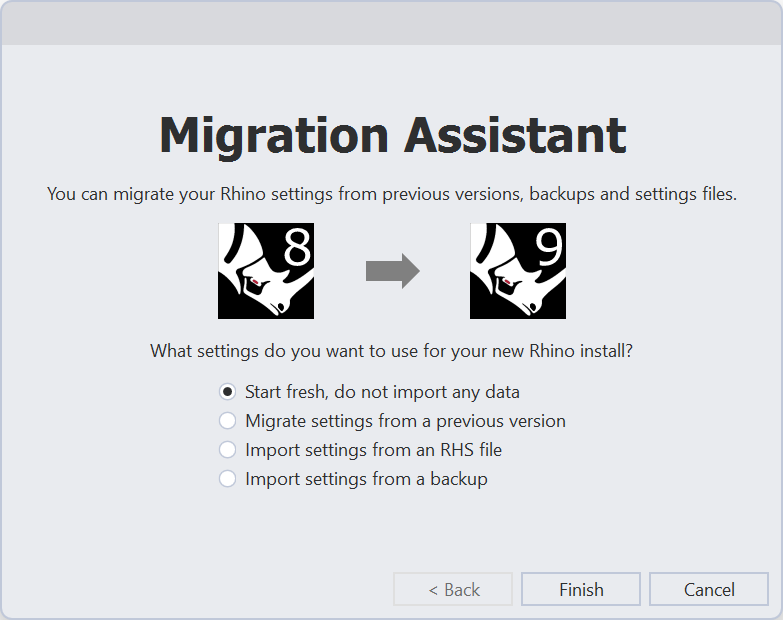
- Download Rhino 9 Evaluation for Windows or Mac.
- Open Rhino.
- Run the OptionsMigrate
command. A dialog will appear.
- Select the option that works best for your situation.
Start fresh, do not transfer any data> Do not import any settings from the previous version.Import data from a previous install> Migrate all of your settings from V7 or V8 (Windows) or V8 (MAC).Load Rhino from exported settings> Import from your own settings file (*.rhs).Import data from a backup> Load settings from a backup.
- Restart Rhino for these changes to take effect.
- If you chose an option that imports settings from a previous version or file, all your previous settings should be applied to your new Rhino 9 installation upon restart.
- Now run the command
 OptionsExport
. This creates a backup file of all your newly created Rhino 9 preferences and allows users to keep it as a backup for future restoration or share a preference file with a class or studio.
OptionsExport
. This creates a backup file of all your newly created Rhino 9 preferences and allows users to keep it as a backup for future restoration or share a preference file with a class or studio. - Please ask questions and give feedback on the Discourse Forum.

