
Full Control of Render Materials
The new  Material
components make it possible to create and edit materials directly in
Material
components make it possible to create and edit materials directly in  Grasshopper
. Seeing a material in its entirety on the canvas can make it easier to understand and edit. The cherry? Obtain multiple material variants from a single definition!
Grasshopper
. Seeing a material in its entirety on the canvas can make it easier to understand and edit. The cherry? Obtain multiple material variants from a single definition!
Deconstruct and Reconstruct Materials
Create advanced materials from your existing Rhino materials using the new  Query Model Materials
component. Existing materials can be pulled from open Rhino files, deconstructed and modified within Grasshopper to create complex effects from a single definition.
Query Model Materials
component. Existing materials can be pulled from open Rhino files, deconstructed and modified within Grasshopper to create complex effects from a single definition.
The Query Material Component Deconstructs a Rhino Material in Grasshopper
Try It
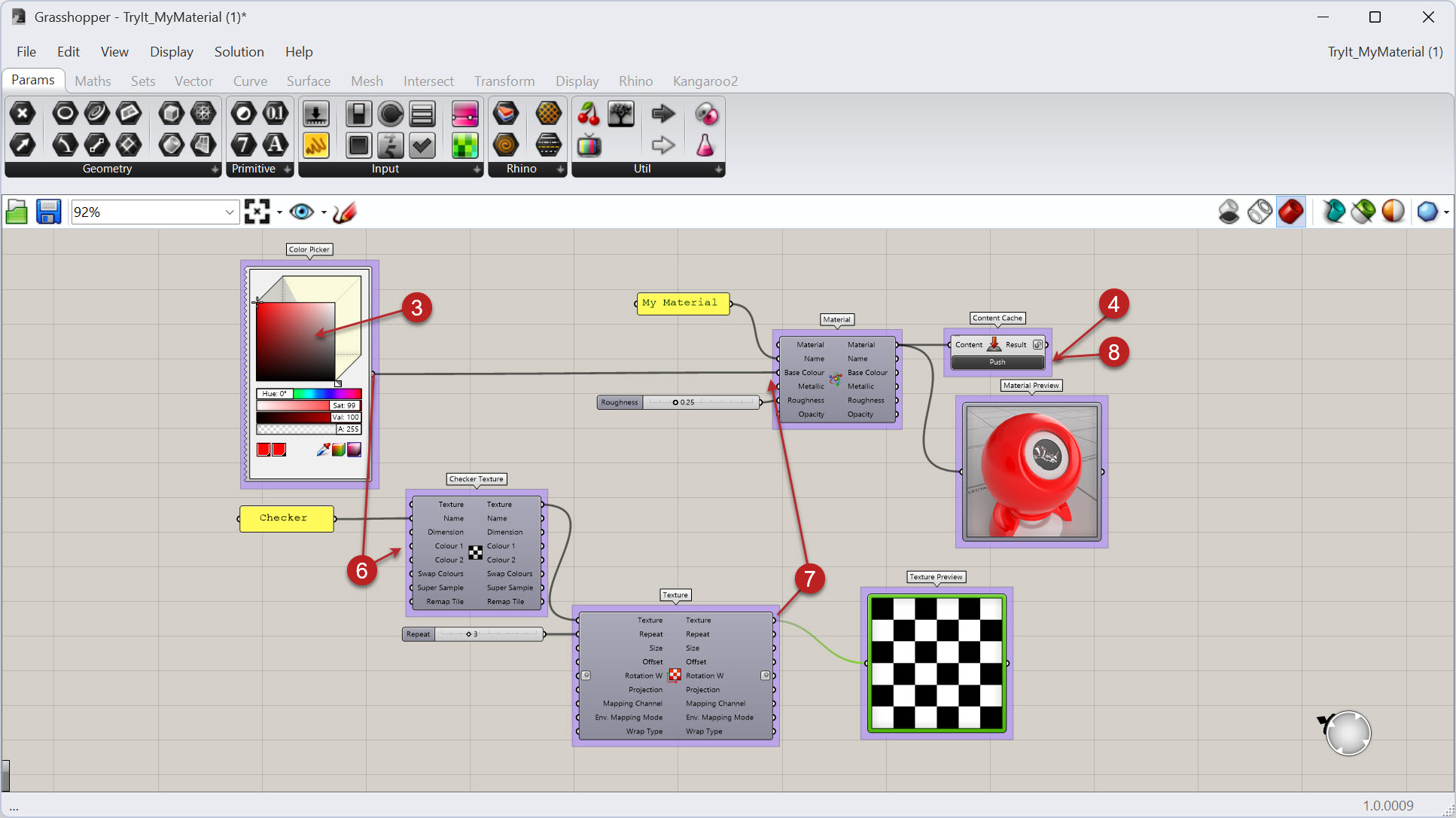
- Download Rhino 9 Evaluation for Windows or Mac.
- Download and open the TryIt_MyMaterial.gh file in Grasshopper
in Rhino 9.
- In the Grasshopper canvas, change the color in the
 Color Picker
and note the Material Preview updates.
Color Picker
and note the Material Preview updates. - Press the
Pushbutton in the Content Cache
component.
Content Cache
component. - In Rhino, open the
 Materials
panel to see the resulting pushed material.
Materials
panel to see the resulting pushed material. - Connect the output of the Color Picker
in Grasshopper to the
Colour 1input on the Texture. - Replace the
Base Colorof the Material component with the repeated Checker Texture. Pushthe content again and note the material updates in the Rhino document.- With each additional push of the content, the objects will be replaced and will always have unique texture mapping for each.
- Try this on your own by changing other parameters in the components.
- Share comments and feedback on the Grasshopper Forum.

