
For workspace perfectionists, toolbars are how you customize the buttons and commands in your interface. In Rhino 9, editing, saving, and sharing that setup is faster and far more reliable.
Easier Editing
All toolbar editing now lives in one unified Toolbar Editor, with undo/redo, cut/copy/paste, macro auto-fill, easy icon reuse, faster searching, and simpler localization for RUI files.
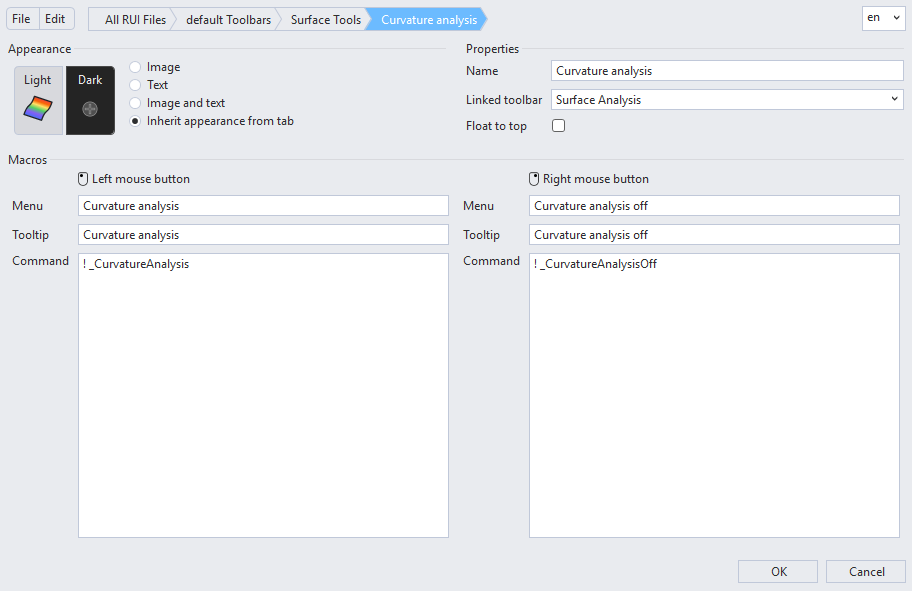
Improved Workflow
Toolbars save directly to the .rui file - no diffs, no unnecessary complexity. The Recently Used toolbar keeps your favorites within reach, and tooltips now show shortcuts and aliases for quicker commands.
Built for Sharing and Teaching
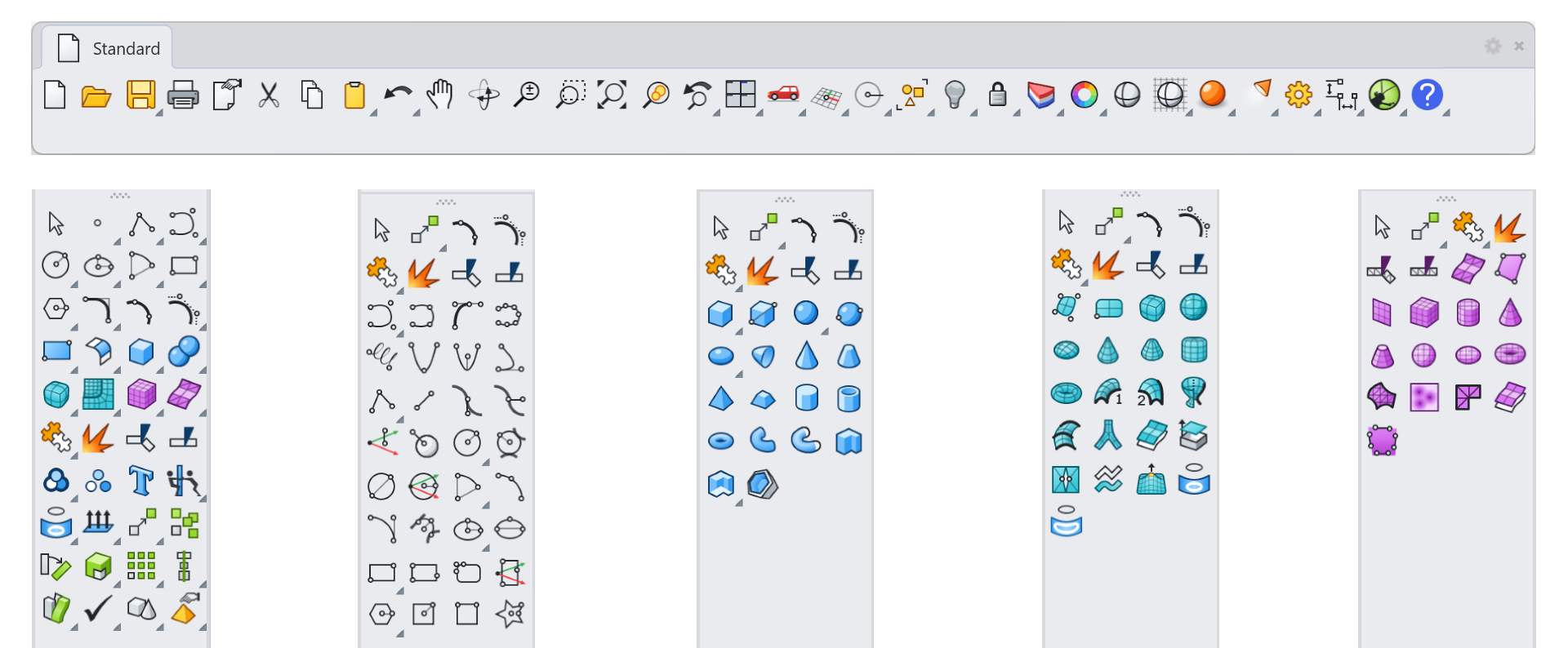
The refined toolbar system makes it easier than ever to build curated collections of buttons and actions. Create custom macros that run anything Rhino and Grasshopper have to offer, then share your workspace with confidence that it opens exactly the way you built it.
Try It
- Download Rhino 9 Evaluation for Windows or Mac.
- Run the
 Toolbar
command.
Toolbar
command. - The New Toolbar Explorer window will show, all toolbar editing is now done here.
- Create a new RUI -
File>New RUI File. You will then select a location to save the new RUI file. - Click the All RUI Files button at the top of the Toolbar Explorer window to show your new RUI in the list.
- Click the Toolbars button on the new RUI.
- Double click your new Toolbar in the list.
- Customize your new Toolbar by editing the name, the buttons and the icons.
- Float your new Toolbar - In the list of new toolbars, show the toolbar by turning on the lightbulb!
- Please ask questions and give feedback on the Discourse Forum.

