
From Reference to Model
For architects and industrial designers working from sketches, photos, and mood boards. Hand RhinoAI a reference image or a concept sketch, agree on an interpretation, and get a model back. You go from idea to editable geometry without starting from a blank viewport.
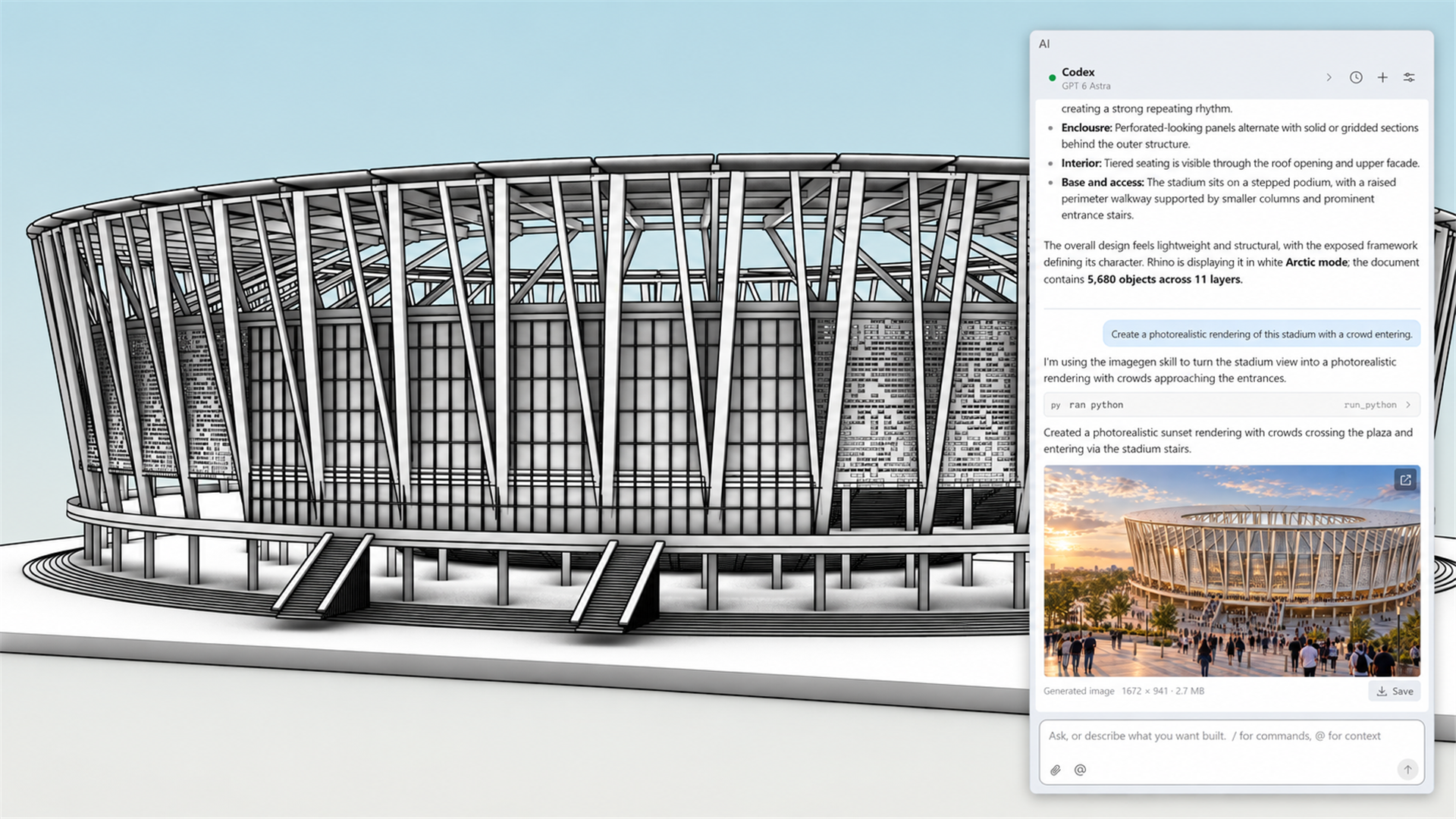
Turn a Prompt Into a Command
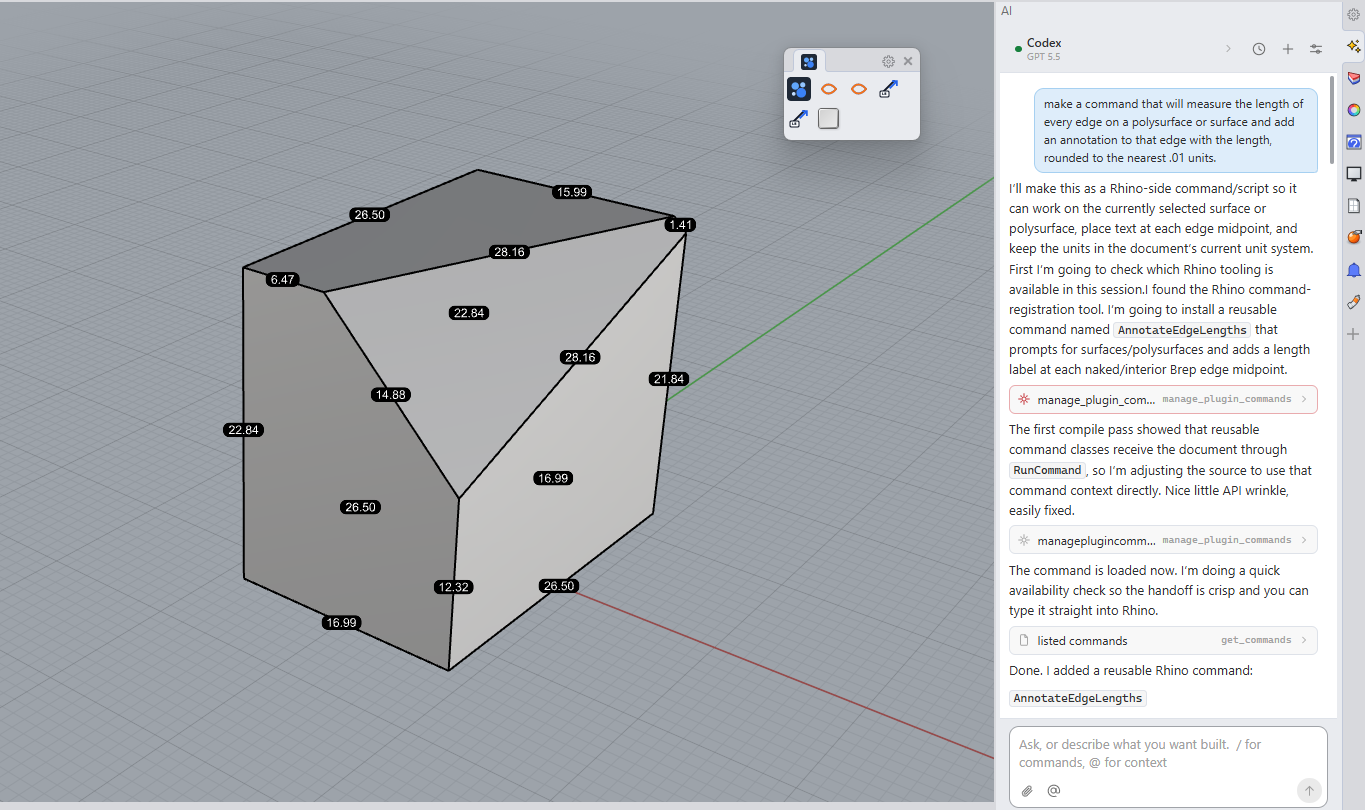
For designers who have never written a script and developers who write them every day. Describe the outcome in plain language, and RhinoAI writes and runs Python or C# against your model. You judge the result in the viewport, and when a prompt gets it right, you can save it as a reusable Rhino command.
Work Inside Rhino, or Drive It From Outside
Either way, the assistant gets the same Rhino tools: commands, Python and C# scripting, and Grasshopper. The difference is where it runs.
Inside Rhino. Run  AIPanel
and the chat docks next to your model, with nothing extra to install. You and the assistant work on what you select and see, and you choose exactly which tools it can reach, from read-only to full control.
AIPanel
and the chat docks next to your model, with nothing extra to install. You and the assistant work on what you select and see, and you choose exactly which tools it can reach, from read-only to full control.
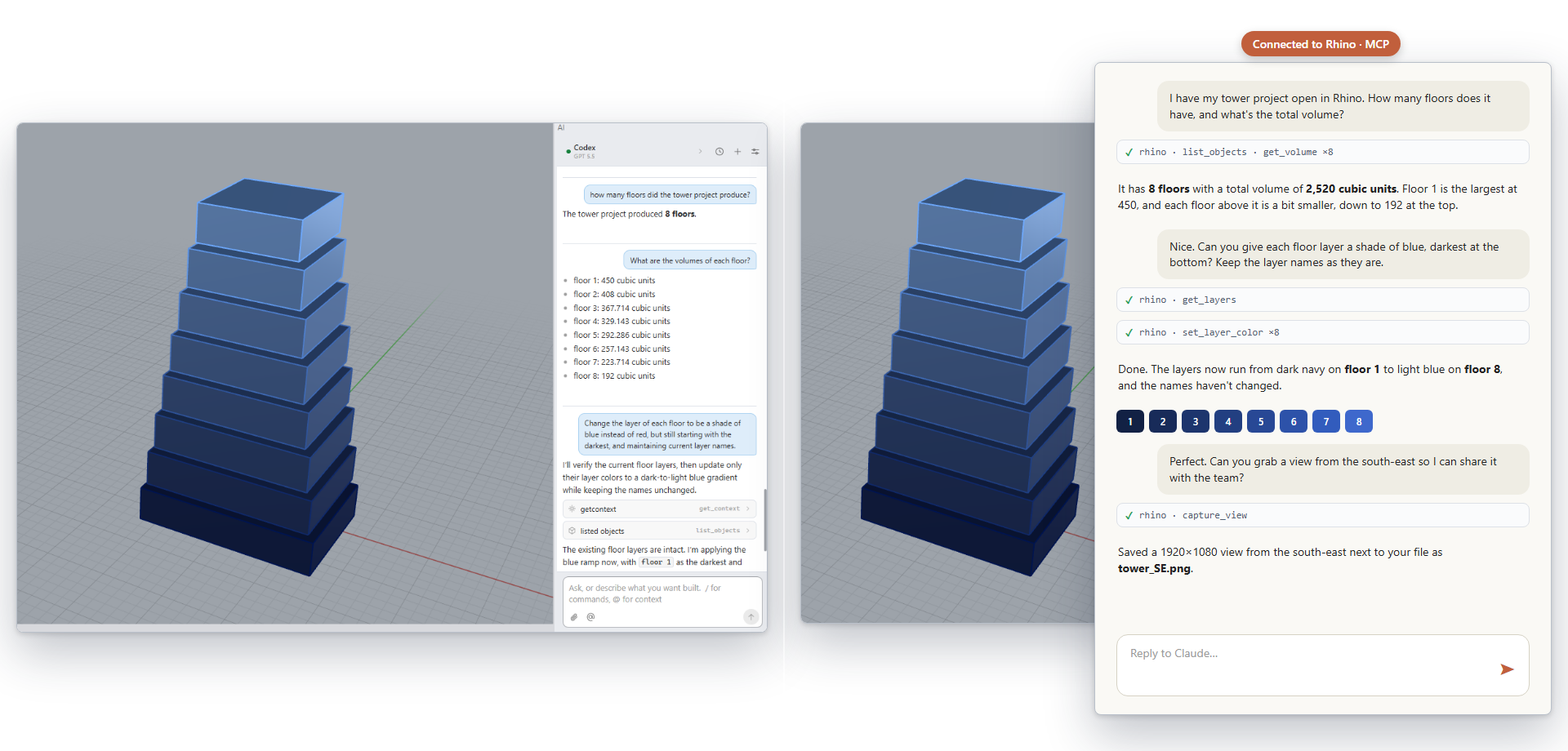
Outside Rhino. Run  MCPConnect
and drive Rhino from the AI app you already use, such as Claude, Codex, Gemini, or Visual Studio. It can launch and restart Rhino, run several Rhino 8 and Rhino 9 sessions at once, and work across files. That makes it a strong fit for batch work and plugin development. Pair it with a local model and nothing leaves your machine.
MCPConnect
and drive Rhino from the AI app you already use, such as Claude, Codex, Gemini, or Visual Studio. It can launch and restart Rhino, run several Rhino 8 and Rhino 9 sessions at once, and work across files. That makes it a strong fit for batch work and plugin development. Pair it with a local model and nothing leaves your machine.
RhinoAI panel (inside Rhino)
Run the AIPanel
command to open a chat panel right inside Rhino. The AI connects directly to Rhino, Grasshopper and the Script Editor.
- Works with you on the model, using what you’ve selected and what’s on screen
- Runs scripts and commands right where you’re modeling
- Can use other MCP servers (add-on AI tools) already set up on your computer
- Can turn a prompt into a macro or a new command
- Nothing extra to install or set up
RhinoMCP (outside Rhino)
Run the MCPConnect
command in Rhino to start the connection. From there, you work with the AI in a separate desktop app such as Claude, Claude Code, ChatGPT Codex, Gemini or Visual Studio.
- Can start, close and restart Rhino for you
- Can work with several copies of Rhino 8 and Rhino 9 at the same time
- Can open, save and switch between files
- Can load, test and debug plugins, and keep working even if Rhino crashes
- Can combine Rhino with the app’s other tools and connections in one conversation
- Can turn a prompt into a macro or a new command
Try it
- Download Rhino 9 WIP for Windows or Mac.
- Inside Rhino: Run the AIPanel
command to dock the chat beside your model. Use the options on the
 AI Settings
to choose your AI provider and set which tools the assistant can use.
AI Settings
to choose your AI provider and set which tools the assistant can use. - Check that it works. Start a new chat and enter the following prompt:
Test Prompt“Make me a box.”
- A box should appear, and the assistant will describe what it did.
- Your Rhino AIPanel
is ready to use!
- Find more RhinoAI Examples here
- Please ask questions and give feedback on the Discourse Forum.

