Hatch: Create your own patterns
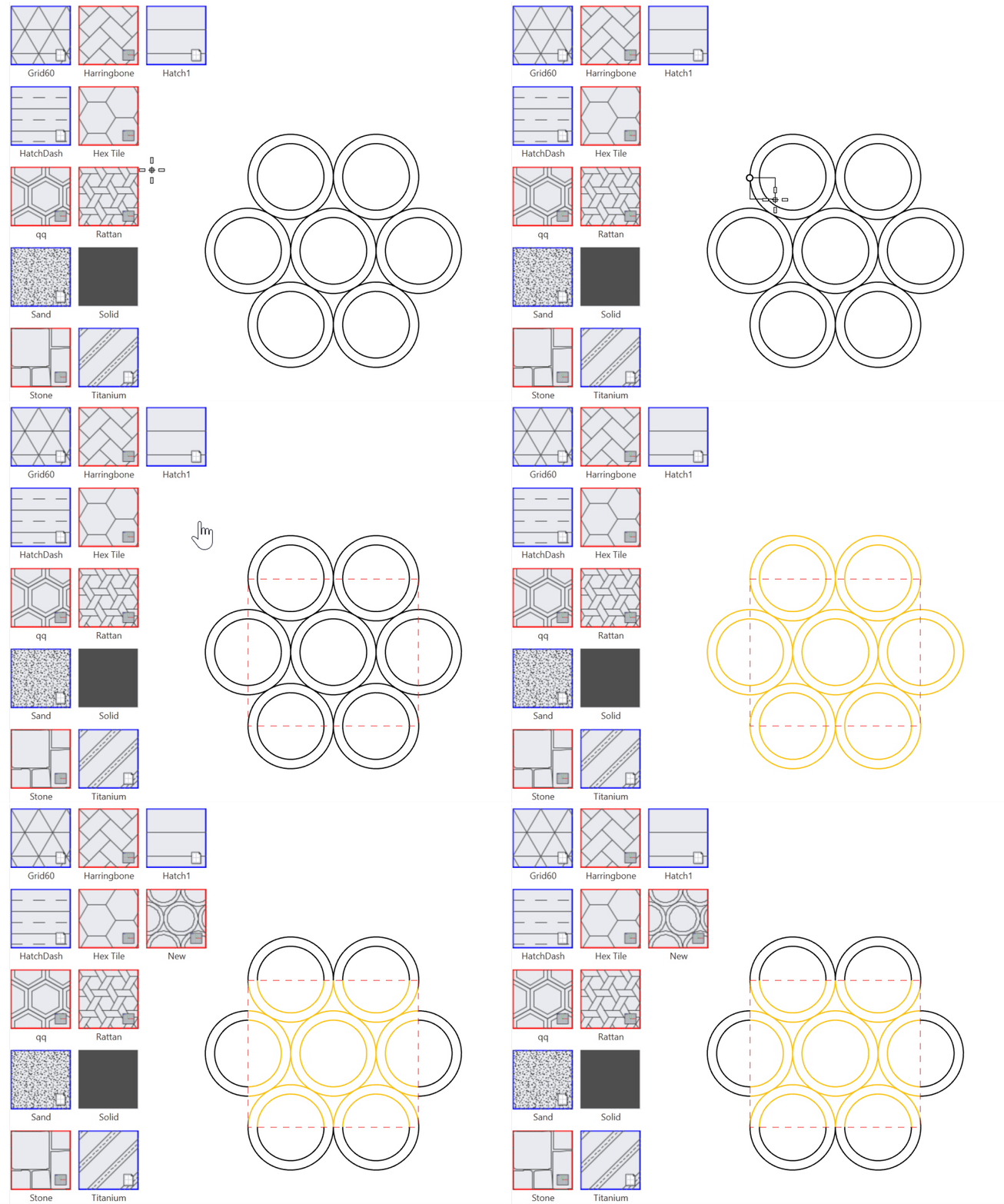
Create your own  Hatch
patterns using Rhino 2D geometry! Use lines, arcs, circles, curves and create custom hatches for project-specific needs. You no longer have to depend on external libraries or be limited to existing *.pat files.
Hatch
patterns using Rhino 2D geometry! Use lines, arcs, circles, curves and create custom hatches for project-specific needs. You no longer have to depend on external libraries or be limited to existing *.pat files.
Hatch: Better access, more patterns!
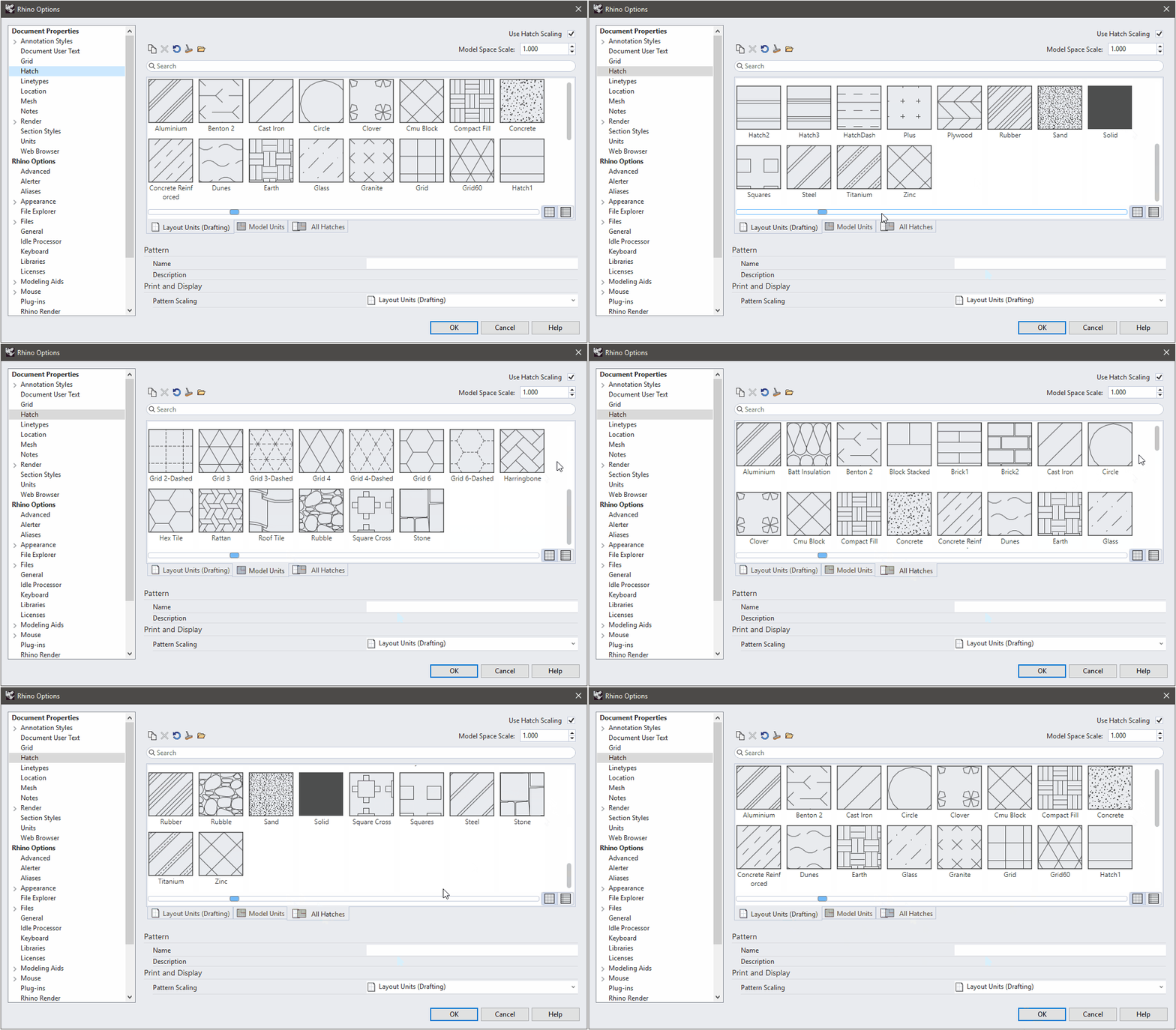
Rhino’s Hatch
definitions include new and complex patterns such as Concrete, Rattan, Rubble, and Stone. No need to struggle finding commonly used *.pat files to import!
Hatch: Edit your patterns
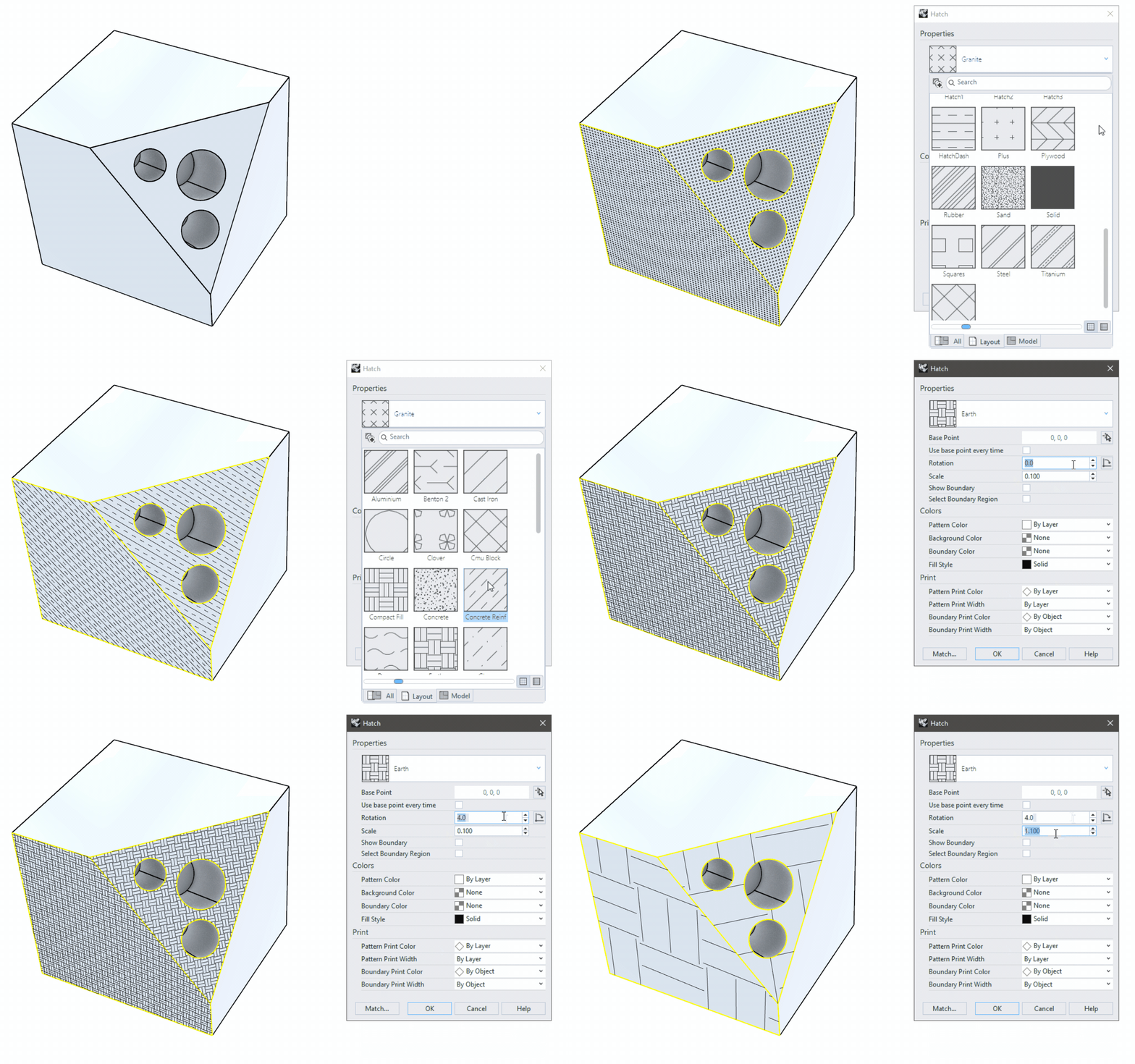
With an easy access to the Hatch
Properties, modify all settings and see the preview on the fly!
Hatch: Deform and transform
Edit and deform your Hatch
in Rhino with commands such as: Split, Taper, Untrim and Bend. Adapt your hatches to your geometry!
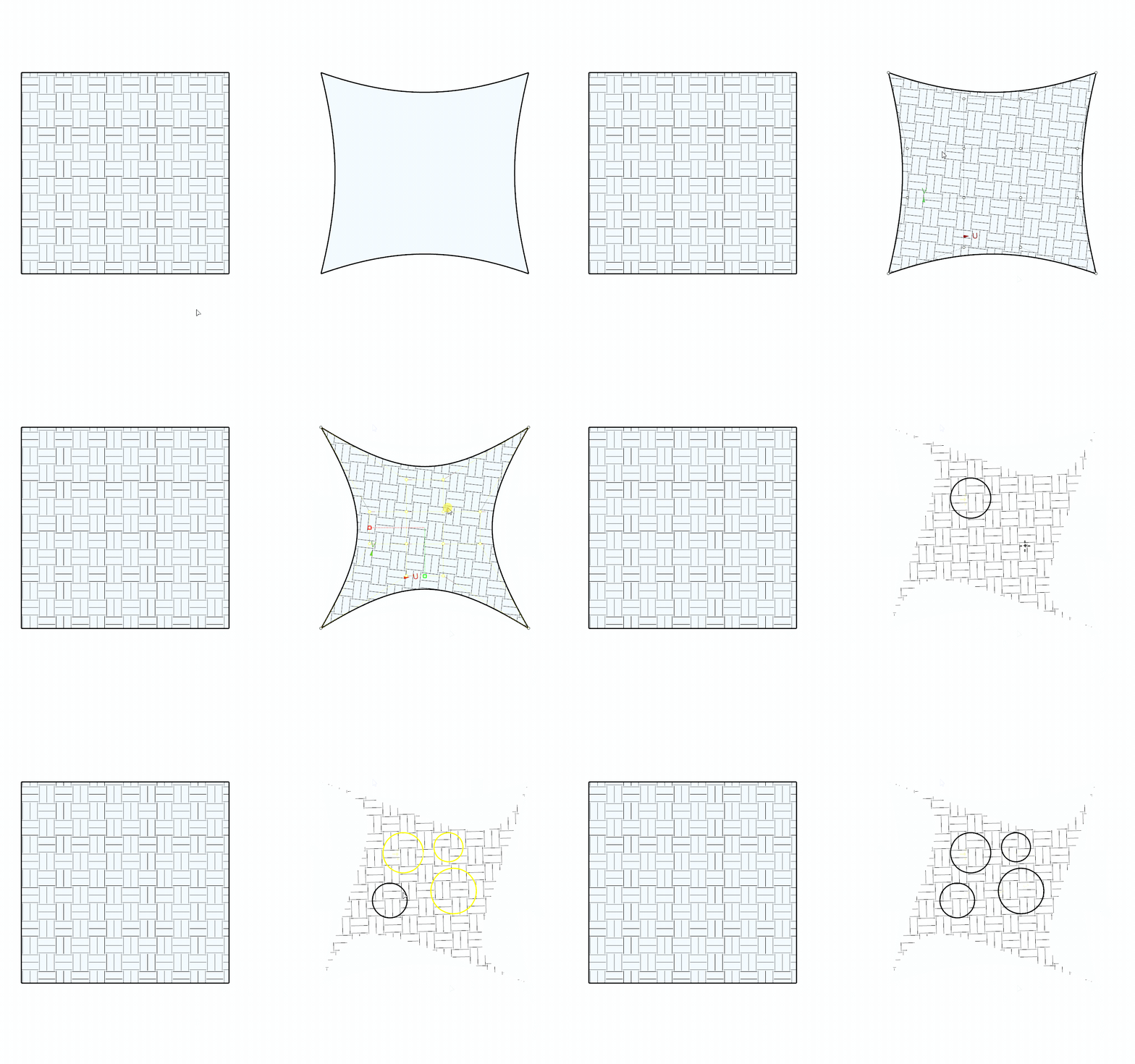
Hatch: In-viewport widgets
The new in-viewport widgets allow you to interact with the object’s Hatch visually. Place the base point and play with the rotation of your object directly in the viewport!
Try It
- Download Rhino 9 WIP for Windows or Mac.
- Open HatchPattern_Example.3dm in Rhino .
- Run the
HatchPatterncommand. - Select the Add option in the
Command Line. - Define the Pattern tile rectangle by snapping to P1 and P2 with the End object snap.
- Window-select the lines inside the Pattern tile rectangle. Press Enter.
- Enter a name for the new pattern. Press Enter.
- Run the
Hatchcommand. - Select the closed curve on the right side.
- Select the new pattern from the list.