Caustics
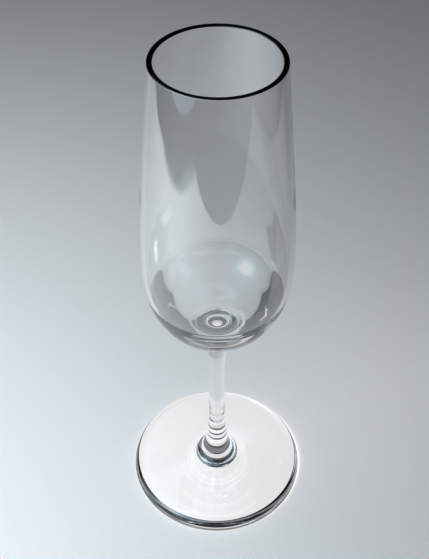
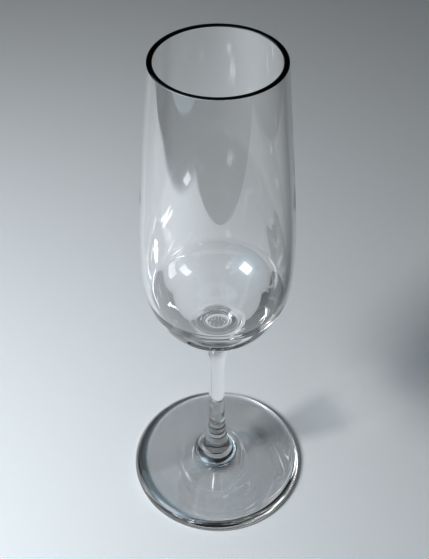
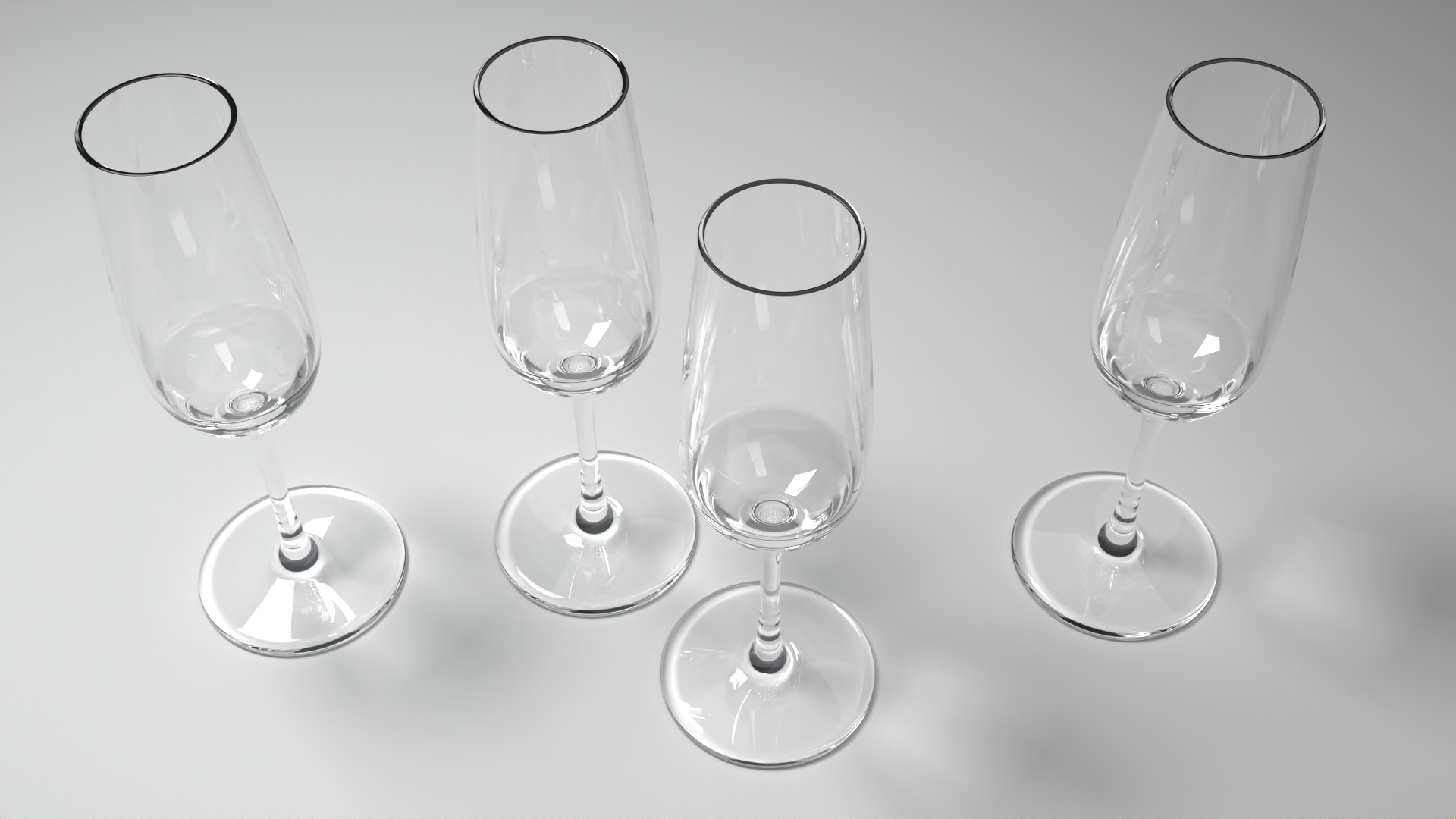
Capture the bright light patterns cast by glass, liquids, and polished surfaces with Caustics. Rhino now simulates light as it is focused through transparent objects and off reflective ones, so a wine glass, perfume bottle, or watch crystal casts realistic highlights onto the surrounding surfaces.
Dispersion
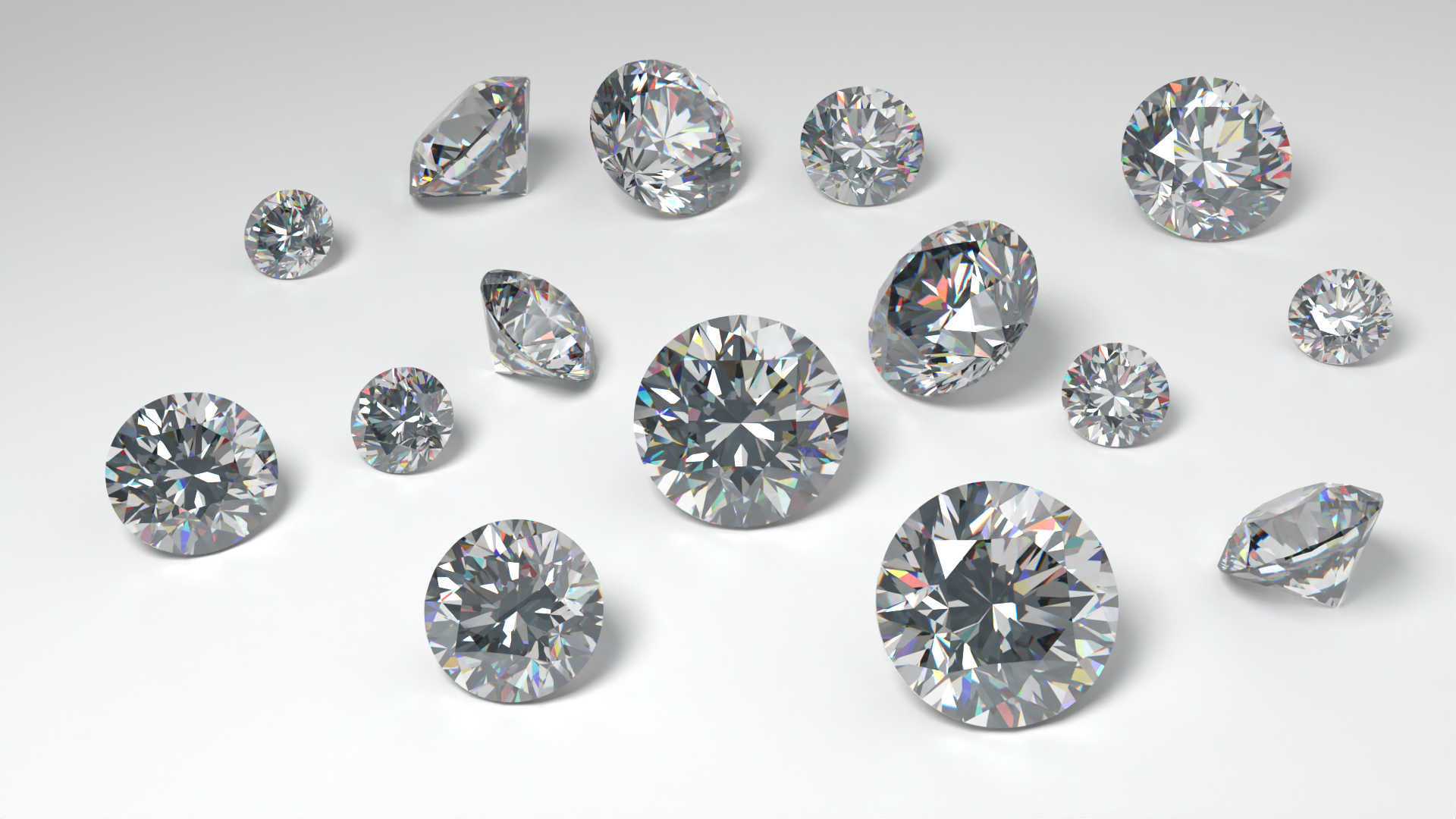
Bring out the fire in your gemstones with Dispersion. Gem materials now split light into its spectral colors as it passes through, producing the colored flashes you expect from a diamond or cut stone.
One Preset, Cleaner Results
Turn on both effects with the new Product preset in the  Rendering
panel. Switch back to the Architecture preset at any time to render exactly as earlier versions of Rhino did.
Rendering
panel. Switch back to the Architecture preset at any time to render exactly as earlier versions of Rhino did.
Clean up caustic-heavy renders with the new Despeckle post effect. Despeckle removes isolated bright “firefly” pixels while leaving the rest of the image untouched.
Try It
- Download Rhino 8 Evaluation for Windows or Mac.
- Download and open the tryit-caustics.3dm model. You’ll find a scene with a champagne glass, ready to render.
- Click in the Perspective view to make it the active viewport.
- The file is set to render at the viewport resolution, using the
Architecturepreset, which is the standard - No caustics or dispersion are enabled. - If you would like to see the scene rendered with these standard settings, simply run the
 Render
command.
Render
command. - In the Rendering
Panel, enable the
Productoption underRhino Render Advanced Settings > Presets. - Then Render
the same scene to see how the light and transparent glass material interact differently than before, resulting in more realism.
- Try it on your own! Experiment with your own lighting and material setups.
- Share comments and feedback on the Rhino Forum.