For Freeform Surfaces
 SoftTransform
enables Industrial Designers to refine form while maintaining smooth, continuous
surfaces
. Control point massage your surfaces by setting up a radius or the number of control points that the falloff will influence. Create crowns and other gradual changes to your product’s shape.
SoftTransform
enables Industrial Designers to refine form while maintaining smooth, continuous
surfaces
. Control point massage your surfaces by setting up a radius or the number of control points that the falloff will influence. Create crowns and other gradual changes to your product’s shape.
Continuity Constraints
Use the Boundary Constraints in SoftTransform
to remove the first, second, or third row of control points from a falloff influence. Preserve your G0, G1, or G2 continuity to surrounding surfaces while making subtle changes to your product’s shape.
For SubD Geometry
For Concept Modelers and 3D Artists, select a
SubD’s
vertex, edge, or face and use a SoftTransform
falloff curve to influence surrounding geometry. Sculpt organic shapes effortlessly!
For Mesh Geometry
Select a
Mesh’s
vertex, edge, or face and use a SoftTransform
falloff curve to influence surrounding geometry with a user-defined influence. Sculpt organic shapes effortlessly!
A Variety of Falloff Shapes
Select one of four different falloff curves that determine the outcome shape of your geometry.
Try It
- Download Rhino 9 WIP for Windows or Mac.
- Download and open the soft-transform-demo.3dm model. You’ll find a clip with a rubber grip.
- Open the NamedSelections and SoftTransform panels (Window menu: Panels).
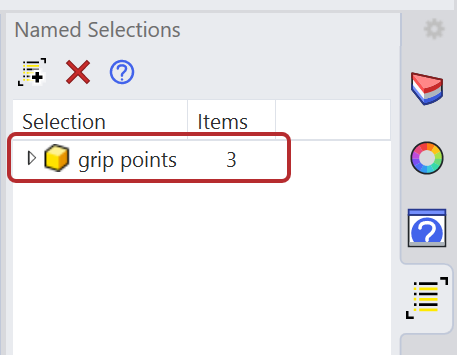
- Double-click the grip points in the NamedSelection panel:
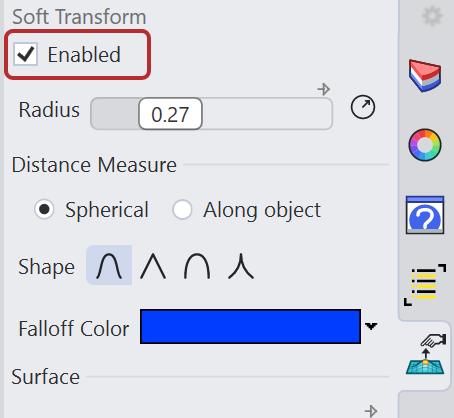
- Click the Enabled button in the SoftTransform panel:
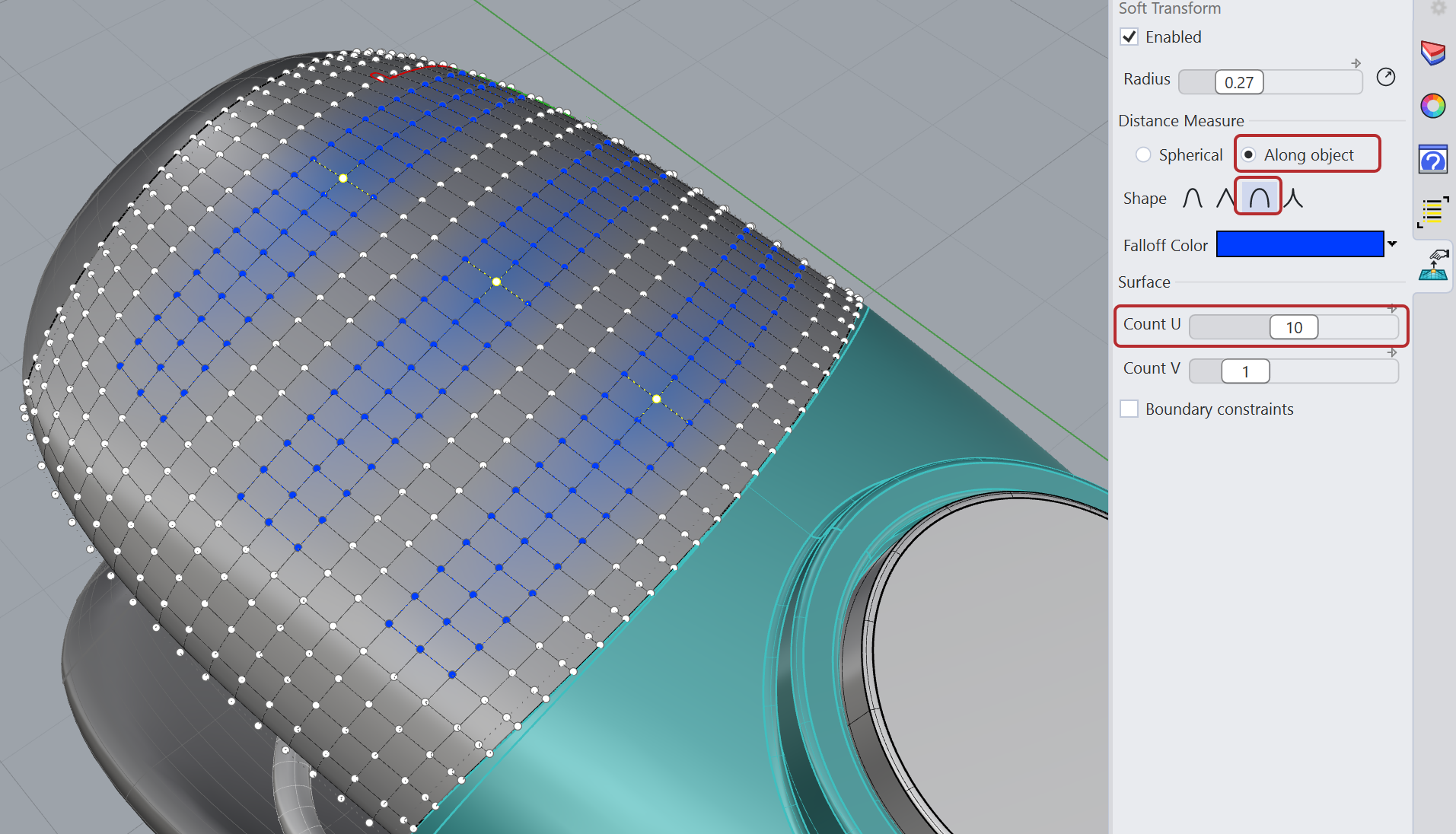
- In the panel, set:
- Set the Distance Measure to Along Object
- Set the Shape to Round
- Set the Count U to 10
- Gumball Move the points in the Z direction to create the surface grip.
- Try it on your own! Experiment with different falloff shapes or by using the Radius slider when the measure is set to Spherical.