
Preamble
The basic premise of Grasshopper is that parameters store data, while components create and modify data. There are however some cases where parameters adopt data creation and modification roles. This blurring of the functional boundary between parameters and components is there to reduce the visual complexity of Grasshopper documents, by eliminating the need for some components. Parameters can affect data in two ways, these being the automatic type conversions, and the data modifiers, the latter of which are the focus of this topic.
User Interface
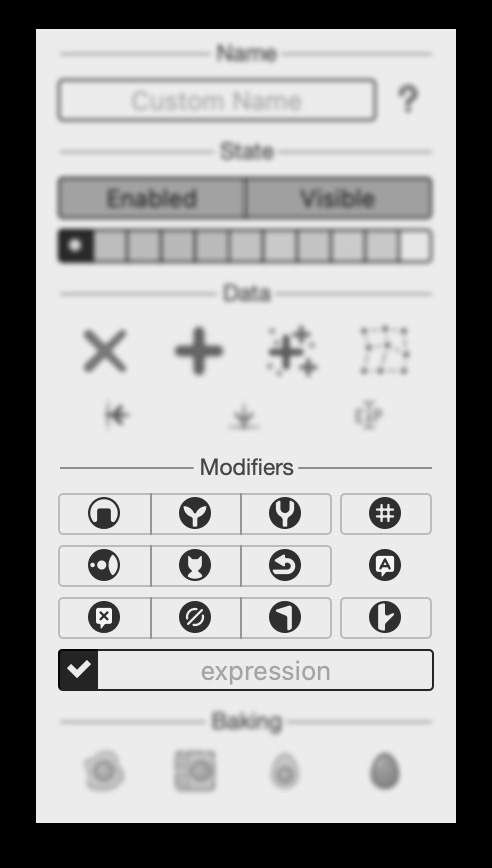
There are a number of very common operations, which would pollute the visual clarity of Grasshopper documents were they to require the insertion of dedicated components. These operations include—but are not limited to; flattening and grafting data trees, sorting lists, and removing null or invalid values. There are in fact thirteen separate modifier operations which are available in every single parameter. Figure 1 shows the standard modifier options in all parameter popup menus. Note that some parameters add additional modifiers, which only make sense for the specific data types supported by those parameters. Tables F to J at the bottom of this topic list all these special modifiers.
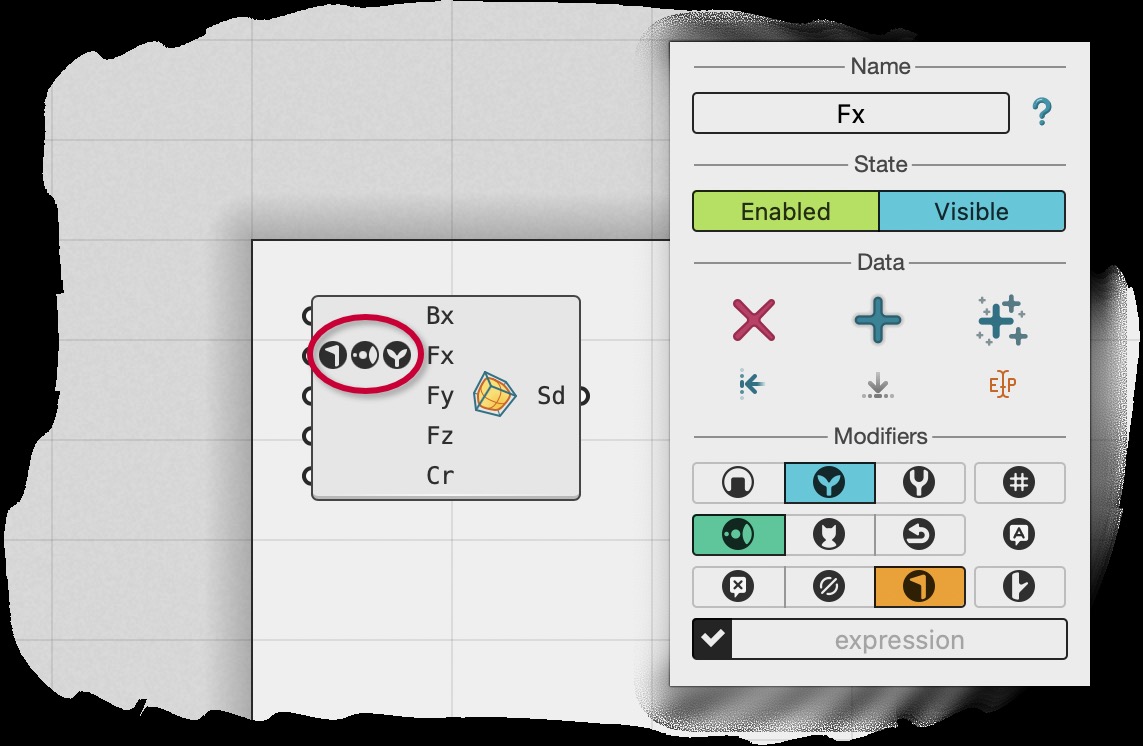
When enabled, each modifier places a small circular icon next to the parameter name to indicate it is active, as shown in Figure 2. These icons are necessarily small and fairly abstract, but one can hover over them with the mouse to get more information about each one.
Standard Modifiers
We shall begin our discussion on the standard modifiers with the eleven simple ones which can only be on or off, then move on to the more complex meta data and expression modifiers which require textual input from the user, before finally discussing the order of operations amongst all of these, in case more than one is active.
The simple modifiers can be grouped into three categories; structuring, ordering, and cleaning. The structural modifiers operate on the level of data trees, either removing, adding or otherwise changing paths and twigs. The ordering modifiers operate on the level of lists, where they affect the order in which items appear in the twigs of the data trees. Finally, the cleaning modifiers will remove various kinds of unwanted data.
Structure Modifiers
The first row of modifier toggles contains the structural tools which affect the layout of the data tree stored in each parameter. Flatten and graft are often needed when a component pairs up input values in unwanted ways. There are many ways in which data can be misaligned, and knowing when to apply which modifier is one of the fundamental skills each Grasshopper user must cultivate. See the Data Trees topic on more details regarding flatten, graft and other data tree restructuring tools.
Simplify is more likely to be an aesthetic choice to reduce the complexity of data trees. Components will append path integers to data trees they operate on, when twigs may otherwise become entangled. However, quite often these added path integers are unnecessary, since a component might not operate on the most complex possible inputs. It is up to the user to decide when it makes sense to enable simplification and avoid a lot of appended zeroes in data tree paths.
Renumbering is the least useful modifier in this category and one may never need to enable it. In a nutshell, renumbering a tree makes it as simple as possible without merging any of the twigs. However, this process does wipe out all relatedness information between all the twigs.
| Icon | Name | Effect |
|---|---|---|
 |
Flatten |
Collect all items in the various twigs of a data tree and move them all into a single list. |
 |
Graft |
Move each item in a data tree into a separate twig, each containing only that one item. |
 |
Simplify |
Simpify the paths of the data tree by removing integers shared amongst all the paths. |
 |
Renumber |
Modify all paths of the data tree by renumbering them in order of appearance, removing all deeper structure. |
Ordering Modifiers
The second row of modifier toggles contains the ordering tools which affect the order of items within each twig. Items can be sorted, randomized and reversed. Do note that not all data types have a meaningful sort order, or at least a single obvious sorting order. Sorting is especially ill-defined when twigs contain more than one type of value. It is entirely possible that the default sorting behaviour is not helpful, in which case a dedicated Sort component will be required.
Randomisation relies on a random seed derived from the topological description of the data tree. That is, the randomised order will remain consistent provided only the values in the tree change. If, however, twigs are added or grown or reindexed, the randomised order of all the twigs in that tree will be affected. If a more consistent randomisation is required, then dedicated Churn or Shake components are needed.
| Icon | Name | Effect |
|---|---|---|
 |
Sort |
Sort the items in all twigs based on the intrinsic type sort order. Null entries will be collated at the start of the sorted twigs. |
 |
Randomise |
Fully randomise the order of items in all twigs. |
 |
Reverse |
Invert the order of all items in all twigs so that the first values now come last and vice versa. |
The fourth button in the second modifier row is not related to ordering. It will be discussed below in the Meta Data Modifier section.
Cleaning Modifiers
The third row of modifier toggles contains the cleaning tools which remove various unwanted elements from data trees.
| Icon | Name | Effect |
|---|---|---|
 |
Meta |
Strip all meta data from items in all twigs. |
 |
Null |
Remove null values from all twigs. This may cause some twigs to become empty, if they contain only null values. |
 |
Invalid |
Remove all invalid values from all twigs. This may cause some twigs to become empty, if they contain only invalid values. |
 |
Empty |
Remove all empty twigs from the tree. This may introduce jumps in consecutive tree paths. |
Meta Data Modifier
Every parameter has the ability to blanket assign meta data to all values that pass through it. This assignment is indiscriminate and there is no way to limit it to only certain values.
The fourth button on the second row of the modifiers opens up the parameter Meta Data editor shown in Figure 3. The notation is identical to the meta data pop up window in the persistent data editor; the meta name is written to the left of the arrow symbol and the meta value to the right. The icon at the end of each row signals what data type the written value is assumed to be. In the case of the image below the four values are interpreted as text, colour, integer and text again respectively.
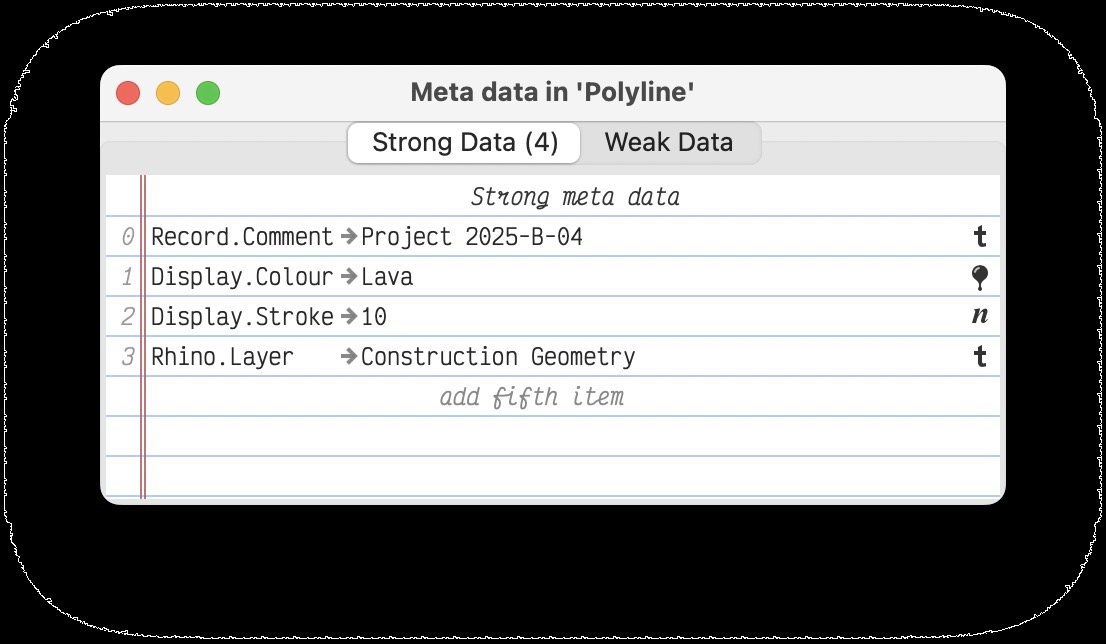
Unlike the meta data editor which is part of the persistent data entry window, parameter level meta data come in two levels of importance; strong and weak. Strong meta data is always assigned to values, even if those values already contain a meta data entry with the same name. Weak data is only assigned if it does not overwrite an already existing meta entry.
Expression Modifier
Lastly, the Expression modifier allows for the post-processing of individual values flowing through the parameter. It is not possible to remove or add values from or to the parameter data tree, nor can expressions be leveraged to change the order of items in twigs. They are only applied to each value individually, overwriting the old value with the result of the expression. Expressions can access the old value via the x placeholder.
The most common use of expressions is to perform simple operations on numbers. For example x+1 to increment all numbers in the parameter by one, or min(x, 100) to ensure no values in the parameter exceed one hundred. But expressions in Grasshopper 2 are very powerful and could be made to perform high level operations on values, although since modifier expressions are limited to single line statements, complex expressions quickly become very hard to read.
One major improvement to the expression language in Grasshopper 2 is the ability to refer to globally available values. For example, Figure 5 shows a file containing a Text parameter with the modifier expression—visible in Figure 4—which references both x and Offset, where Offset is a global value provided by a Shout object.
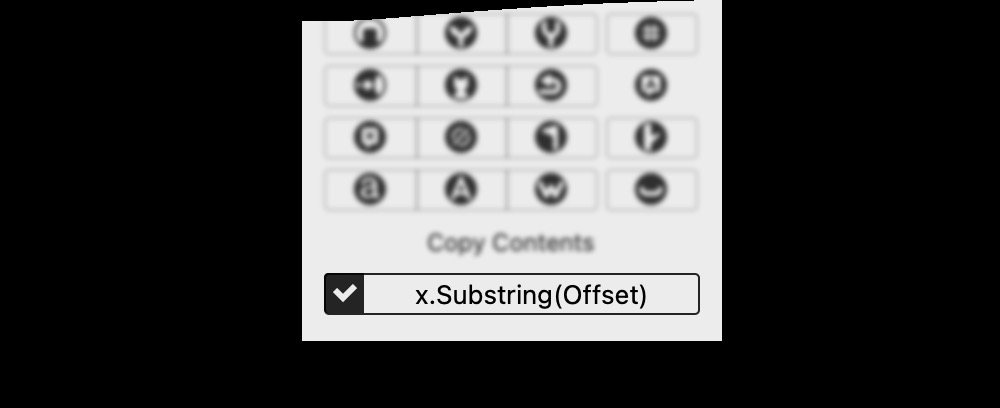
When an expression relies on an external value, Grasshopper sets up a causal relationship between the parameter containing the expression and the object providing the external value. When the other object changes, the parameter is automatically expired and recalculated, despite the lack of wires connecting the two.
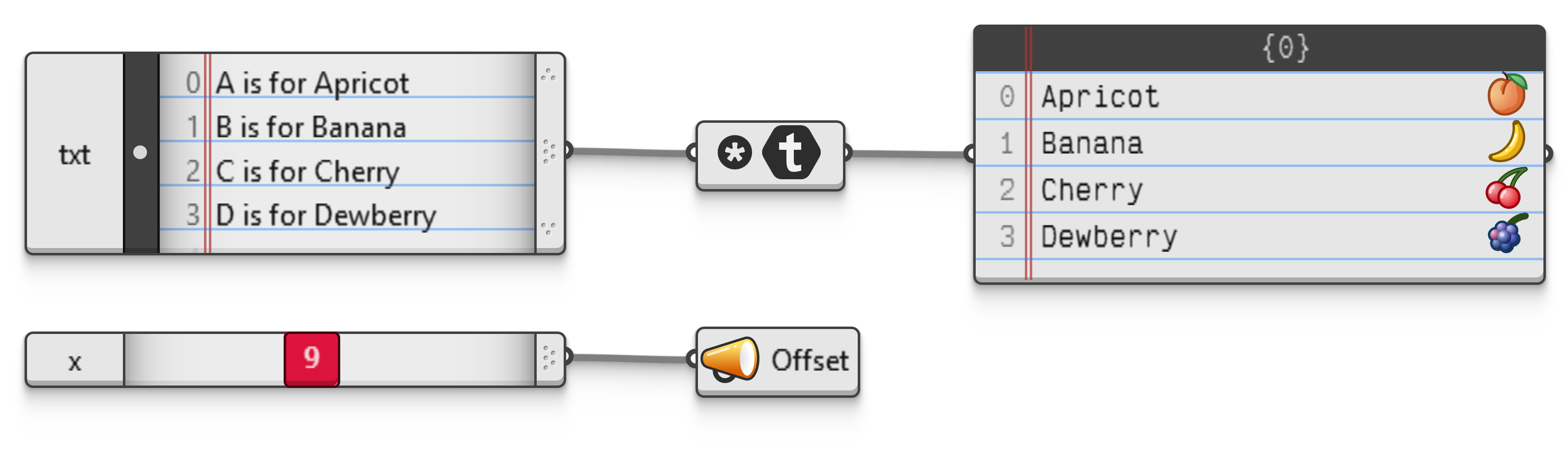 Interactive in Grasshopper 2
Drag Figure 5 onto the Grasshopper canvas to load that file and see how it behaves when the slider is moved.
Order of Operations
When multiple modifiers are active simultaneously, the order in which they are applied can be very significant. Table D lists the most important rules for ordering modifiers, along with their rationale. Table E lists which modifiers are mutually incompatible, although note that Grasshopper will neither warn about, nor prevent these clashes.
| First | Second | Rationale |
|---|---|---|
Expression |
____ |
Expressions are always applied first, as they may change the validity, null-ness and sort order of values. |
Flatten |
Graft |
If flatten were to come second, the graft operation would have been meaningless. Note that in Grasshopper 1.0 it was not possible to enable both flatten and graft. |
Flatten |
Sort |
If flatten were to come second, the final flattened list might not be in proper sort order. |
Sort |
Graft |
Sort must happen before graft, as there is nothing left to sort after a grafting operation. |
Sort |
Reverse |
If sorting were to happen second, the reverse operation would have been meaningless. |
Reverse |
Graft |
Reverse must happen before graft, as there is nothing left to reverse after a grafting operation. |
Remove Nulls |
Remove Empty |
Null items need to be removed from twigs before empty twigs are removed from trees, as null removal may create empty twigs. |
Remove Invalids |
Remove Empty |
Invalid items need to be removed from twigs before empty twigs are removed from trees, as invalid removal may create empty twigs. |
Remove Empty |
Renumber |
Renumbering must happen after twig removal, otherwise there may be jumps in the renumbered path integers. |
Trim |
Renumber |
Renumbering must happen after path trimming, otherwise there may be jumps in the renumbered path integers. |
Trim |
Graft |
Trimming must happen before grafting, because these two operations cancel each other out if they are performed in the reverse order. |
Trim |
Simplify |
If trimming were to come second, the final tree may still end up with simplifiable paths. |
Remove Metas |
Assign Metas |
Strong and weak meta data are assigned only after pre-existing meta data are removed. |
| A | B | Conflict |
|---|---|---|
Sort |
Randomise |
The items in a twig cannot be both randomised and sorted. Randomisation is skipped when Sort is enabled. |
Flatten |
Trim |
Flatten yields the same result with or without trimming. Trimming is skipped when Flatten is enabled. |
Flatten |
Simplify |
Flatten yields the same result with or without simplification. Simplify is skipped when Flatten is enabled. |
Flatten |
Renumber |
Flatten yields the same result with or without renumbering. Renumber is skipped when Flatten is enabled. |
Renumber |
Simplify |
Renumbering yields the same result with or without simplification. Simplify is skipped when Renumber is enabled. |
Parameter Specific Modifiers
In addition to the standard modifiers available on all parameters, some parameters provide modifiers specifically for the data types they store. This section briefly lists all parameters with type specific modifiers.
| Icon | Name | Effect |
|---|---|---|
 |
Negate |
Negate the states of all boolean values. I.e. false becomes true and true becomes false. |
 |
NullToFalse |
Replace all null values with false constants. This modifier is applied prior to negation, so if negation is active the inserted false values are flipped. |
 |
NullToTrue |
Replace all null values with true constants. This modifier is applied prior to negation, so if negation is active the inserted true values are flipped. |
| Icon | Name | Effect |
|---|---|---|
 |
Lowercase |
Convert all text to lower case using culture invariant casing rules. |
 |
Uppercase |
Convert all text to UPPER CASE using culture invariant casing rules. |
 |
Wordcase |
Convert all text to Word Case using culture invariant casing rules. |
 |
Whitespace |
Clean up whitespace in all text. I.e., remove all leading and trailing whitespace, and replace all consecutive whitespace characters on the interior of the text with a single space. |
| Icon | Name | Effect |
|---|---|---|
 |
Degrees |
Convert all angle values into angles specified in degrees. |
 |
Radians |
Convert all angle values into angles specified in radians. |
 |
Turns |
Convert all angle values into angles specified in turns. |
 |
Reduce |
Simplify all angle values to within a single full turn. I.e., angles are reduced to (0° to 360°) degrees, (0 to 2π) radians, or (0.0 to 1.0) turns. |
| Icon | Name | Effect |
|---|---|---|
 |
Unitise |
Unitise the lengths of all vectors. I.e. divide each vector by its current length. Vectors with zero length or invalid vector cannot be unitised. |
 |
Flip |
Reverse the direction of all vectors. |
| Icon | Name | Effect |
|---|---|---|
 |
Normalise |
Normalise the domain of all curves. I.e. adjust the domain to always be (0 to 1). This may necessitate converting the underlying curve data into different types, as not all curve types allow for custom domains. |
 |
Length |
Adjust the domains of all curves to be (0 to length). This may necessitate converting the underlying curve data into different types, as not all curve types allow for custom domains. |
 |
Natural |
Adjust the domains of all curves to be the most natural for each curve type. |
 |
Flip |
Reverse the direction of all curves. |