For
Modeling Simplified
Rhino's model creation tools make it flexible, accurate, open, and very popular.
Rhino 8 adds new features to make modeling more playful and accessible. Combining these tools reduces friction for common solid creation/editing tasks. This allows you to stay in single Perspective view while modeling.
PushPull
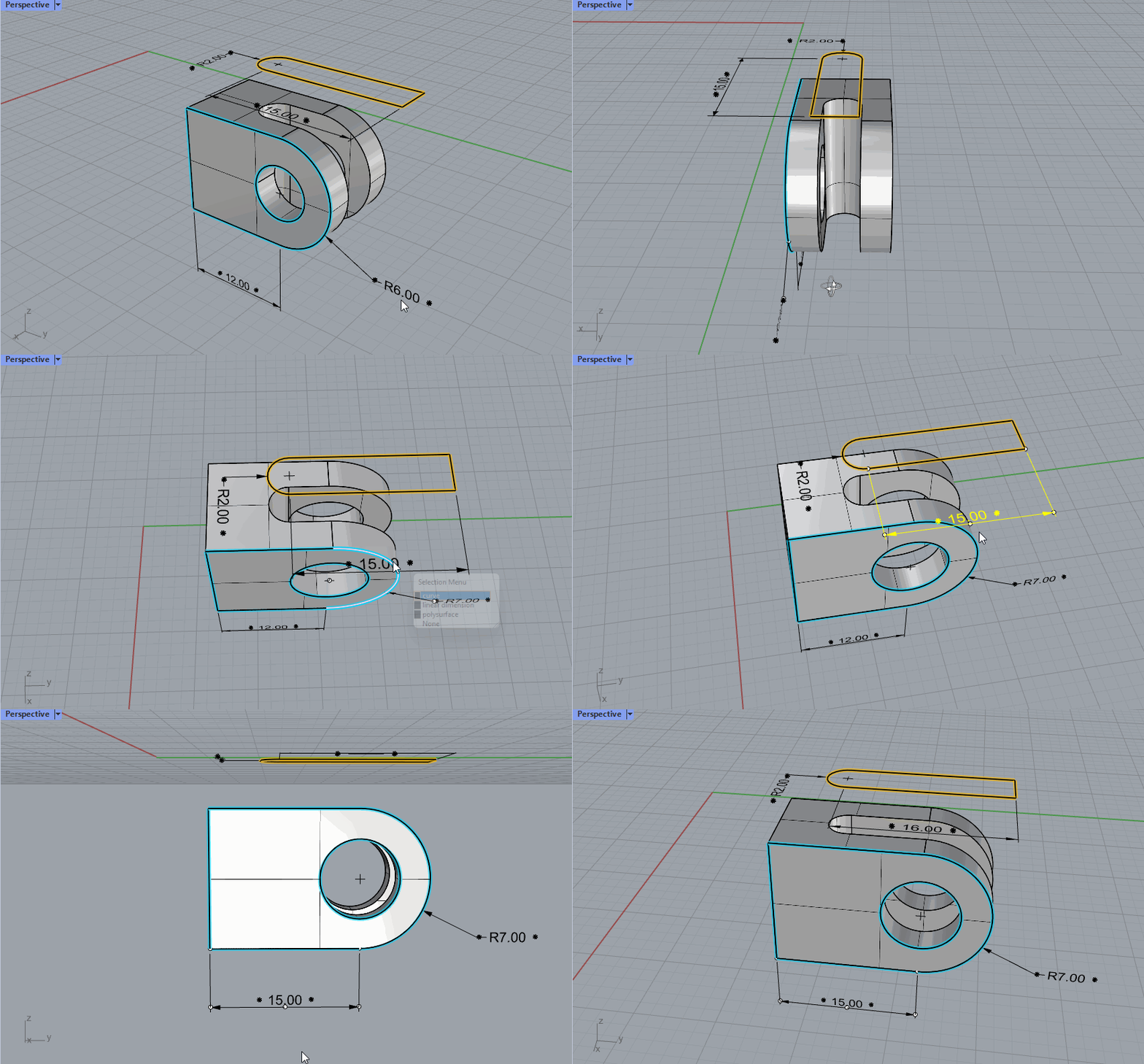
PushPull simplifies and speeds up Solid Modeling by using curves to add or remove volumes from existing geometry.

Gumball
Quickly Move, Rotate, Scale, Copy, Cut, and Extrude geometry without typing commands or clicking a toolbar button. This makes the Gumball a versatile direct modeling tool for concept modeling interior and exterior architectural forms, certain furniture styles, SciFi models, and working with SubD objects.
Inset
Inset offsets edges inward on a mesh, SubD, or polysurface face: an easy way to make sub-faces that can be PushPulled to define a concept in a few clicks.
Auto CPlanes: Keep Your Perspective
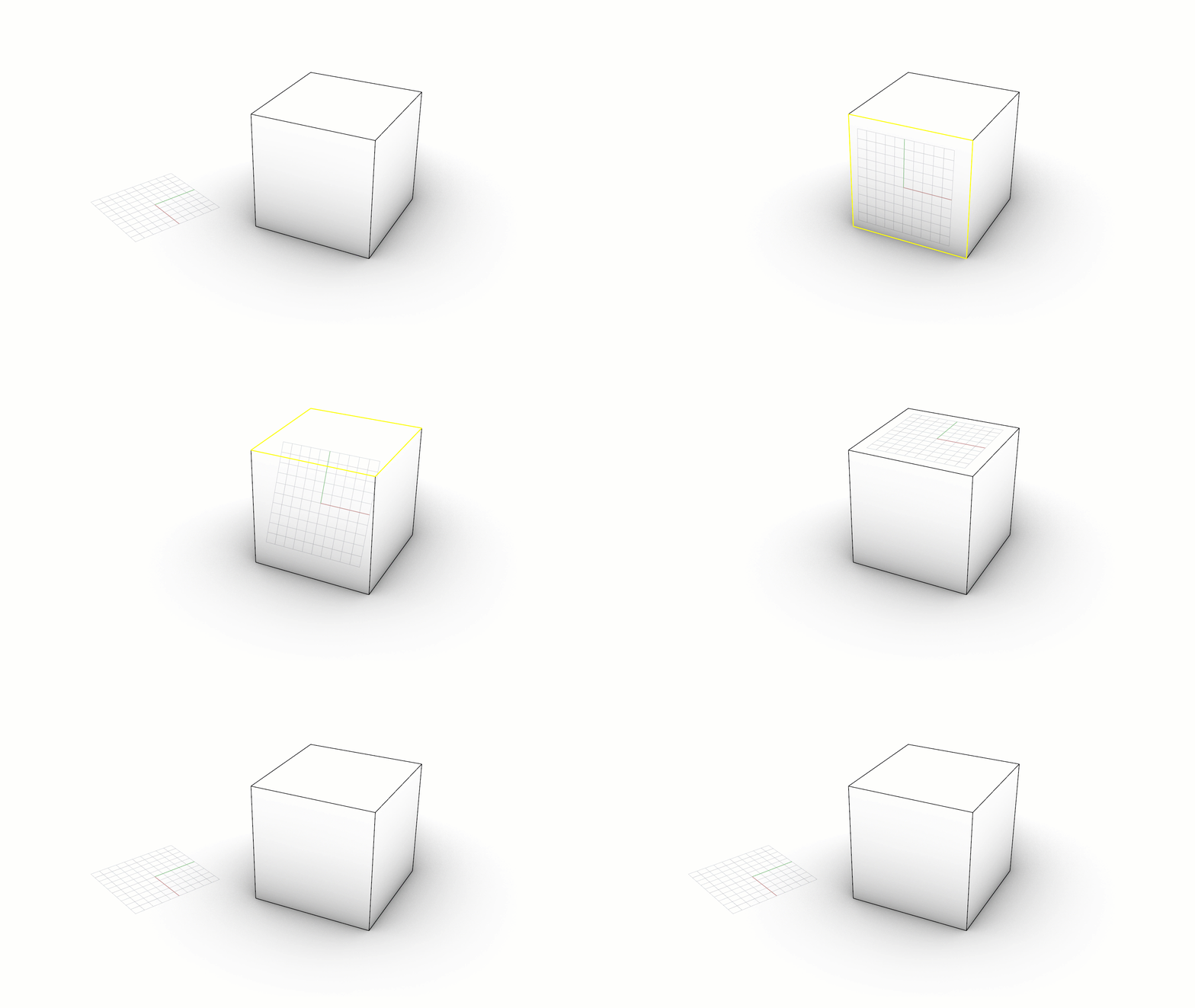
Smarter CPlanes automatically align to eligible selections. It’s now easier to place and edit geometry in the right orientation, without having to cycle through multiple views.
Editing

General Tools: delete, delete duplicates, join, merge, trim, untrim, split, explode, extend, fillet, chamfer, object properties, history.
Transform Tools: cut, copy, paste, move, rotate, mirror, scale, stretch, align, array, twist, bend, taper, shear, offset, orient, flow along curve, pull, project, boxedit, smash, squish.
Points and curves: control points, edit points, handlebars, smooth, fair, change degree, add/remove knots, add kinks, rebuild, refit, match, simplify, change weight, make periodic, adjust end bulge, adjust seam, orient to edge, convert to arcs, a polyline, or line segments.
Surfaces: control points, handlebars, change degree, add/remove knots, match, extend, merge, join, untrim, split surface by isoparms, rebuild, shrink, make periodic, Boolean (union, difference, intersection), unroll developable surfaces, array along curve on surface.
Solids: fillet edges, extract surface, shell, Booleans (union, difference, intersection).
Meshes: explode, join, weld, unify normals, apply to surface, reduce polygons.
Workflows
Tools to streamline your creation process
Have you tried Instant Aliases in Rhino 9? How about concatenating it with the New Undo Selection? Check out the different improvements in Rhino 9 to make your modeling life easier!
Undo / Redo your Selections
Browse back and forward through your selections, without undoing geometry changes!
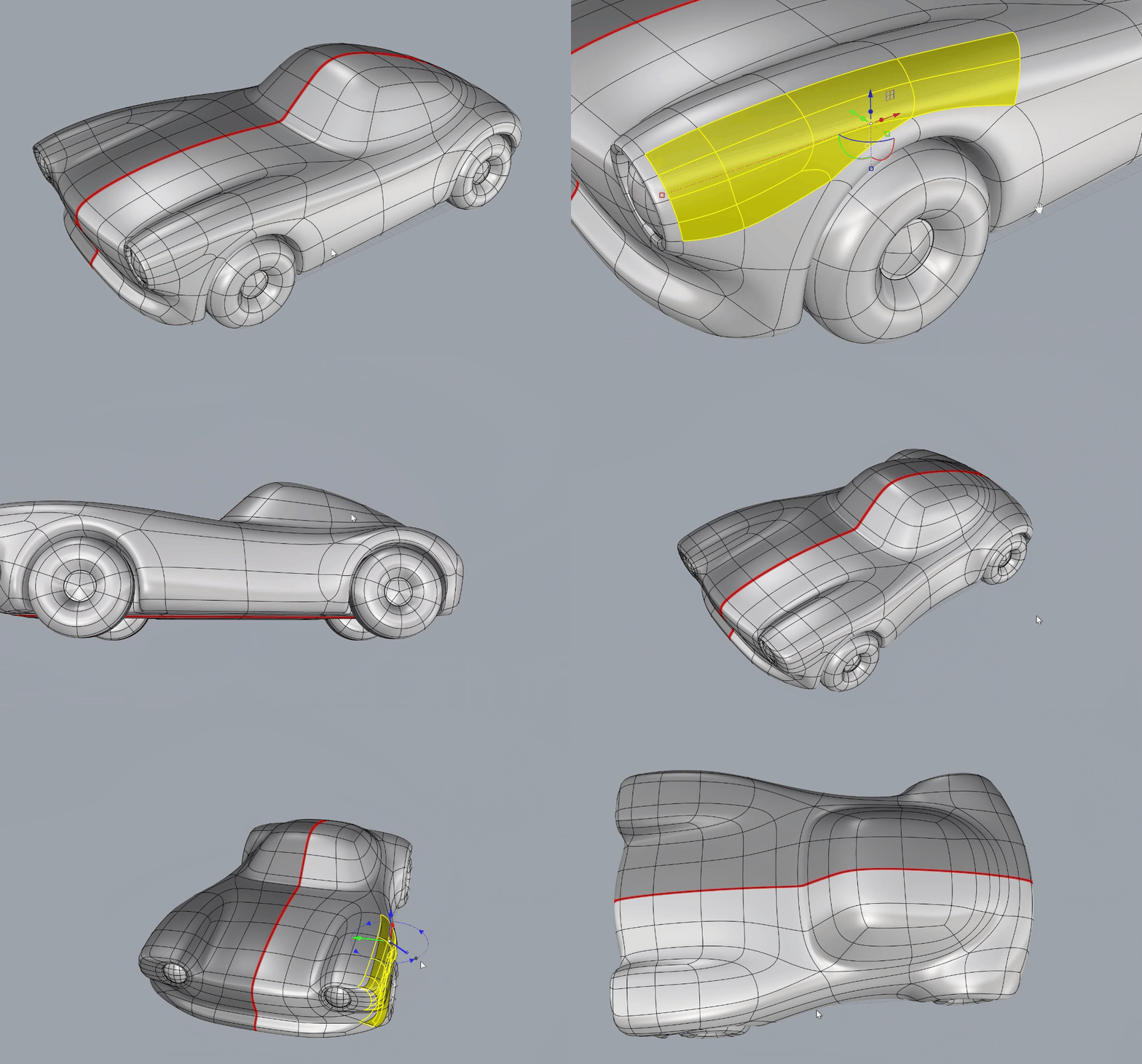
The Selection Undo stack is separate from the regular Undo stack. Use
 UndoSelection
to browse back through your previous selections, without undoing geometry changes. Use RedoSelection to browse forward in this stack. To clear the stack, use ClearUndoSelection.
UndoSelection
to browse back through your previous selections, without undoing geometry changes. Use RedoSelection to browse forward in this stack. To clear the stack, use ClearUndoSelection.
Create Hotkeys for your Aliases
Instant aliases enable users to run Rhino shortcuts as a single keystroke with out pressing Enter. Try instant aliases for your your most common commands and streamline your modeling process!
Interface
User interface: coordinate read-out, floating/dockable command area, pop-up recently-used commands, clickable command options, auto-complete command line, customizable pop-up commands, pop-up layer manager, synchronize views, camera-based view manipulation, perspective match image, configurable middle mouse button, customizable icons and user workspace, customizable pop-up toolbar, transparent toolbars, context-sensitive right-click menu, multiple monitor support, Alt key copy and OpenGL hardware support with antialiasing.
Construction aids: unlimited undo and redo, undo and redo multiple, exact numeric input, units including feet and inches and fractions, .x, .y, .z point filters, object snaps with identifying tag, grid snaps, ortho, planar, named construction planes, next and previous construction planes, orient construction plane on curve, layers, layer filtering, groups, background bitmaps, object hide/show, show selected objects, select by layer, select front most, color, object type, last object, and previous selection set, swap hidden objects, object lock/unlock, unlock selected objects, control and edit points on/off, and points off for selected objects.
Rhino for Mac takes advantage of the macOS user interface conventions.
Presentation
Use Rhino to communicate, getting buy-in from clients, customers, and collaborators.
Documentation
Communicate how to build your model.
Modeling is just one part of the design process; you also need to show how to build what is on the screen. We’ve refined many parts of the documentation workflow, from a completely reworked annotation-style interface, to better DWG support, and RichText throughout. Rhino makes it easy to convey accurately and clearly the what and the how of your design.
Grasshopper
The world's most beautiful programming language.
3D Printing
Fabrication
Mesh Tools
Robust mesh import, export, creation, and editing tools critical to all phases of your design.
3D Capture
Capturing existing 3D data in your project.
Analysis
Ensure that the 3D models used throughout your process are the highest possible quality.
Large Projects
File management tools for managing large projects and teams.
Compatibility
Rhino is compatible with hundreds of different CAD, CAM, CAE, rendering, and animation products.
Development Platform
Rhino's rich ecosystem of plugins and an open set of development tools.
Licensing and Administration
Easily install, license, and configure, and share within Rhino.
Administration
The major goal for each new Rhino release is to make it easier for managers and system administrators:
- Ease to share (float) licenses in a workgroup and company using The Zoo or Cloud Zoo license manager.
- Tools for easy license deployment in larger installations
- Take more advantage of current hardware
- Automatic notification and download of current bug fix service releases
- Provide more training and support options
System Requirements and Recommendations
Rhino runs on ordinary Windows and Mac desktop and laptop computers. More details…
Serengeti
Serengeti, named after the largest African Savanna, is where Rhino grows.

Overview
Serengeti, named after the largest African Savanna, is where Rhino grows.
We like to involve users in every phase of the Rhino development process. As with prior releases, we invite current users to try, test, and provide feedback on the next release while still in development so you can participate in the development beyond the upcoming release.
Since many development efforts span more than one release, we have set up the Serengeti Project to give users more direct influence on all future Rhino developments.
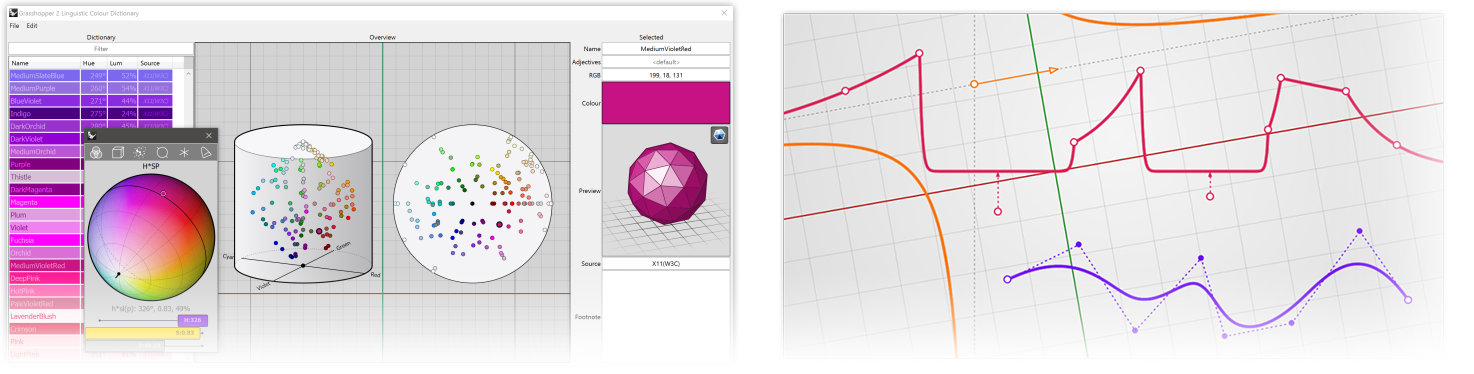
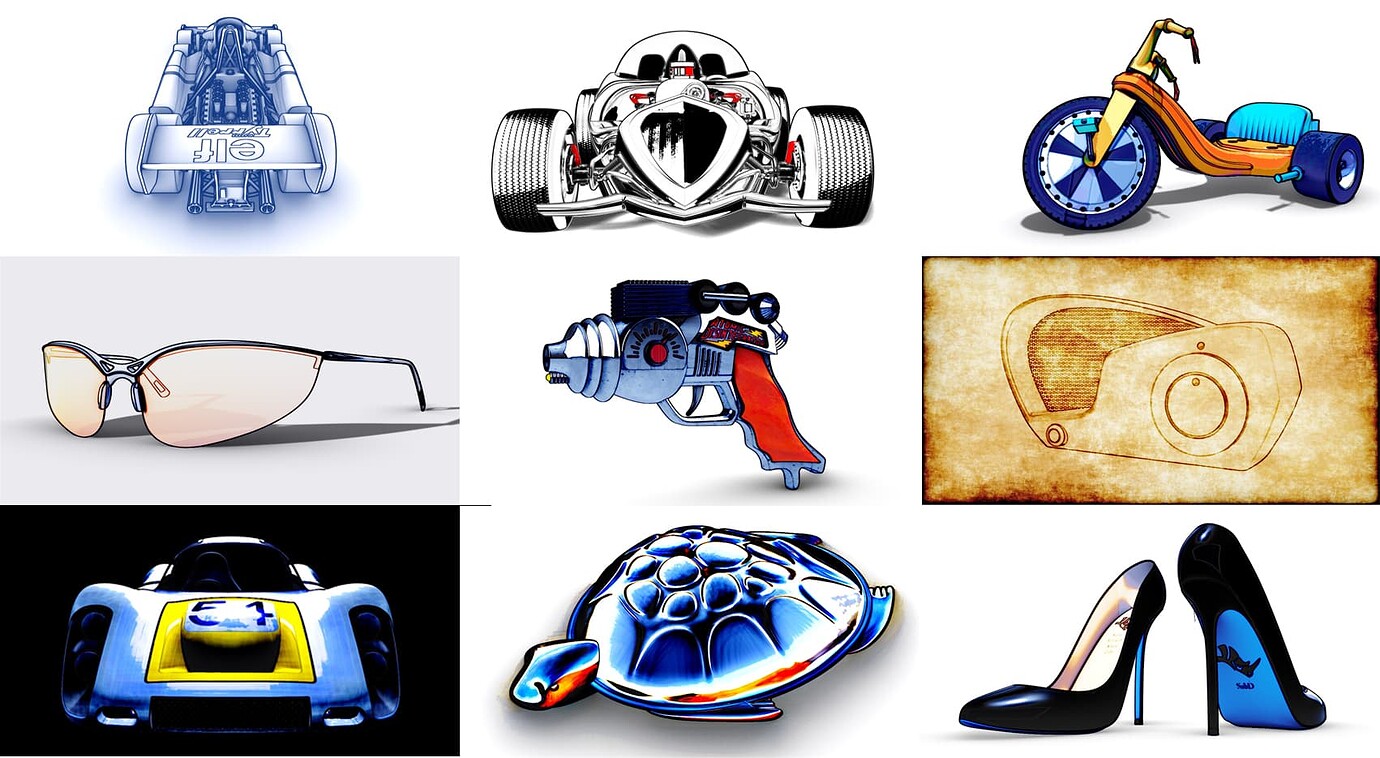
That means you always have access to the weekly Work-In-Progress (WIP) builds of everything we are working on, no matter when or if it will be released. Rhino WIP builds are where we develop future features, like Grasshopper 2, Flair: Non-Photorealistic Display Styles, Constraints, and more.
You will also have access to our developer discussions, developer notes, and issues tracking system.
We look forward to your input on future releases of Rhino and the Serengeti Project infrastructure.
What’s Beyond Rhino 8?
Rhino 8 owners can download and test Work-In-Progress versions of Rhino in-development (Rhino WIP access).

Access
Join the Serengeti forum to discuss and help prioritize features in development with expert users and developers.
Experiment
Test out the early beta versions of the Rhino WIP (Work-In-Progress) builds, including:
- Grasshopper 2
- Flair: Non-Photorealistic Display Styles
- Constraints
- More to come.
Reverse Engineering
SectionTools Integrated
Dynamic 3D Sectioning and 2D Drawings.

SectionTools creates dynamic sections and drawings, enabling new modeling, drafting, and fabrication workflows. Now a part of Rhino, it takes advantage of the new clipping and sectioning features such as Section Styles and Selective Clipping.
The following is a description of different SectionTools workflows and how they integrate into Rhino 8.
Clipping Sections: Create, View and Edit
Rhino 8 introduces a new command to create clipping planes called ClippingSections that is geared towards drafting and sectioning workflows. It helps select sectioned objects, set sections orientation, name, label, and also save to Named Views for easy access in modeling and Layout spaces.
- SectionTools commands are located in the drafting toolbar and the menu under Drafting > Sections.
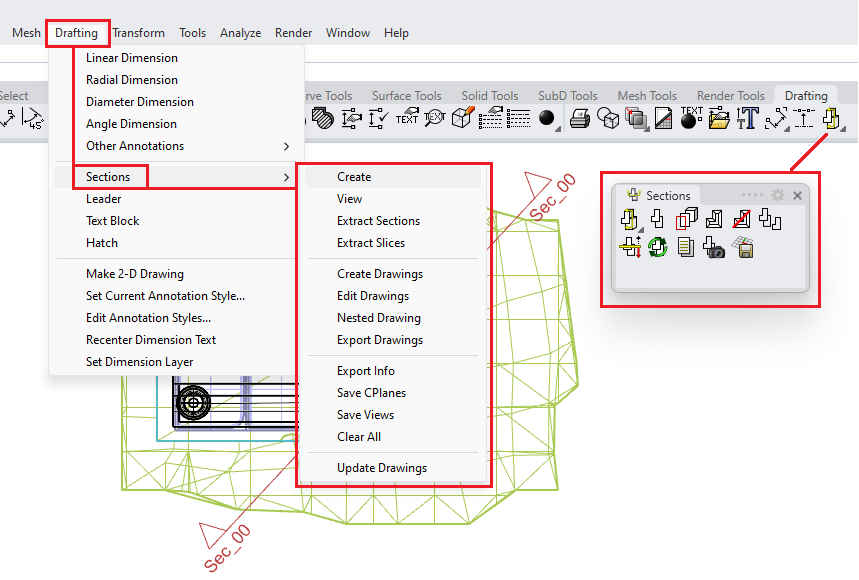
- The ClippingSections is the main section creation command. It creates clipping planes that cut through selected objects (or all objects). It has options to set the direction, depth, name prefix, label and saving to named views.
- Clipping planes properties such as name, depth, label, clipped objects, and views can be edited directly from the clipping plane property panel.
- The clipping plane widget has been updated in Rhino 8 to indicate the Up and Normal viewing directions. The widget is labeled with the clipping plane name. The center grip points of the widget are used to change the location and depth of the clipping plane. The grip points at the two ends of the clipping plane help scale the widget size.
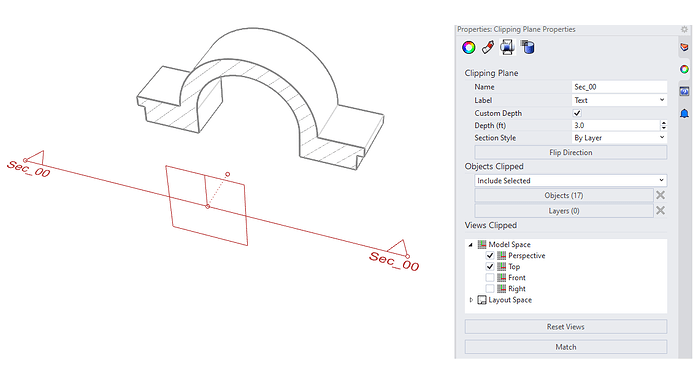
- Sections are visible in clipped views only, and update dynamically with model changes. The sections are in display only, however, you can still snap to them. If you need to vector the geometry of your sections, you should extract in-place using ExtractClippingSections and ExtractClippingSlices commands. You can enable History to update with model changes.
- You can select the section clipping plane and copy, delete, and transform using regular Rhino commands. Copying a section that is saved to named views creates a new named view for all copies. Deleting a section also deletes the associated named view and the drawings layers of that section.
Extract Sections
Rhino supports extracting curves, hatches, surfaces, and slices of clipping planes for modeling and fabrication. Use ExtractClippingSections command to extract curves and hatches in place and ExtractClippingSlices to extract surfaces and slices in place. Both these commands support history. You can also use NestedClippingDrawing command to generate sections curves that are projected and nested on World XY-plane with tags which can be used in laser cutting workflows.
Dynamic 2D Drawings: Create, Edit and Export
SectionTools has been updated to support extracting not only the sections geometry but also the background geometry. The drawings are projections of clipping planes’ views on the XY-Plane. Use ClippingDrawings to create the drawings of a clipping plane. The geometry is organized in layers to control visibility in modeling and layout. Drawings dynamically update when editing the associated clipping plane. You can also use UpdateClippingDrawings command to update when adding and removing objects from the model or changing objects’ properties.
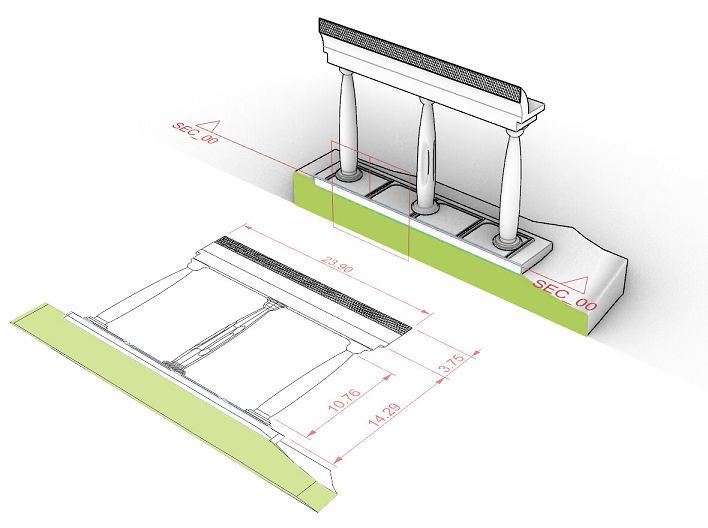
Use EditClippingDrawings command to edit the 2D drawing’s properties, such as grip point, label visibility, placement point, background, and projection. You can also export the 2D drawings to 3dm and dwg files using ExportClippingDrawings command.
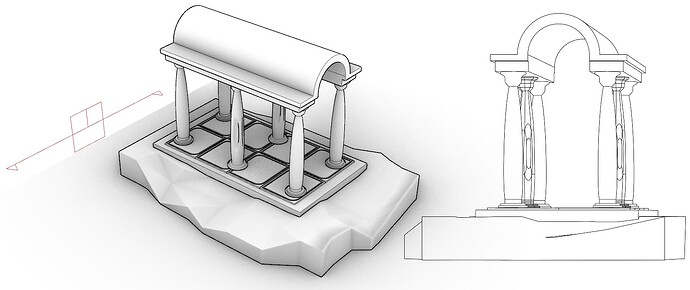
Sectioning Workflows: From 3D Model to 2D Layout
Rhino has several new features that enhance the flow between 3D modeling space to 2D layout paper space when it comes to sectioning data extracted from clipping planes. The following present two workflows.
1) Set Details to Clipped Views Create clipping planes for section, plans and elevations, then save to named views using SaveClippingSectionViews command with Clip=Yes option. Reference the saved named view from a detail in layout. You can set the depth of the clipping plane to zero to view the section without the background geometry.
2) Extract Vector Drawings and Reference in Layout You can generate dynamic drawings of clipping planes sections, plans and elevation and their background geometry, and place on the World XY-Plane using ClippingDrawings command. You can then reference the drawing in layout from the Top view. The section geometry is organized in layers that you can turn on and off in layout. Turning off layers in model space and keeping on in layout is now possible. This helps to view the drawings in layout only.
Notes
- Files created with SectionTools in Rhino 7 should load correctly. However, section hint and layers will be updated to use the new layer organization and features in Rhino 8, so please make backups of your files before loading into Rhino 8.
- SectionTools commands in Rhino 8 will work with clipping planes created using the ClippingPlane command. For example, it is possible to use any clipping plane to extract 2D drawings and save to named views.
- Ask questions and give feedback on the Discourse Forum.