Is the LAN Zoo Right for You?
Rhino licenses can be assigned to the LAN Zoo, the Cloud Zoo, or a single computer. The Cloud Zoo is the best choice for most people. Read more about Rhino licensing options, or use Choosing the Best License Management Method to help you decide.
The LAN Zoo is designed for:
- Managing licenses for a group of lab computers on the same LAN.
- Air-gapped networks, where Rhino computers do not have internet access.
- Giving people access to Rhino without individual Rhino accounts.
- Managing many licenses in one place when you have more users than licenses.
The Cloud Zoo is probably a better choice if:
- Your users work at different sites or in different countries.
- Your users’ computers have regular internet access.
- You don’t maintain a LAN or servers.
Features
The LAN Zoo shares Rhino and compatible plugin licenses among users on the same local area network. When a product that uses the LAN Zoo starts, it asks the LAN Zoo for a license. If one is available, the product runs. When the product closes, the license returns to the LAN Zoo.
- Free: the LAN Zoo costs nothing.
- No special installation: standard versions of Rhino and its plugins work with the LAN Zoo.
- No special hardware or software: the LAN Zoo runs on any Windows computer that supports Microsoft .NET Framework 4.8.
- Simple setup: install the LAN Zoo on one Windows computer, and enter your license keys there instead of on each computer.
- Checkout: commercial and Educational Lab licenses can be checked out, so laptop users can disconnect from the network. Educational Lab licenses are limited to a 30-day checkout. Single-user Educational licenses do not work with the LAN Zoo.
- Robust: Rhino keeps working even if the network connection or the server goes down.
- Routable: works on single-segment networks and on networks where computers are separated by routers.
- Runs as a service: restarts automatically when the server restarts.
- Third-party plugin support: plugin developers can add LAN Zoo support to their own products.
Getting Started
System Requirements
- A currently supported version of Windows or Windows Server, with all Windows Updates installed. Virtual machines are supported.
- Microsoft .NET Framework 4.8
- A wired or wireless network connection configured for TCP/IP
- TCP Port 80 open (details)
Compatibility
License Editions Supported
✅ Commercial
✅ Educational Lab
❌ Educational
❌ Evaluation
Product Versions Supported
✅ Rhino 8
✅ Rhino 7
✅ Rhino 6
✅ Rhino 5 for Windows
✅ Rhino 5 for Mac
✅ Bongo 2.0
✅ Brazil 2.0
✅ Flamingo nXt 3.0
✅ Flamingo nXt 5.0
✅ Penguin 2.0
Setting Up the LAN Zoo
- Choose one Windows computer on your network to host the LAN Zoo. See System Requirements.
- Download and install the LAN Zoo on that computer.
- Make sure TCP Port 80 is open in the firewall.
- Start Zoo Administrator.
- Add your licenses.
Determine the LAN Zoo Server Name
You need the server name to connect Rhino to the LAN Zoo. On the LAN Zoo server, start Zoo Administrator (ZooAdmin.exe). The title bar shows the server’s fully qualified domain name.
Support
- Read the Troubleshooting tips.
- See Network Requirements for ports, IP binding, and the data the LAN Zoo sends.
- Ask on the Support Forum.
Adding Licenses to the LAN Zoo
Add your license keys to the LAN Zoo server with Zoo Administrator. Each license must be validated before Rhino can use it.
Adding a Rhino License
- Open Zoo Administrator (ZooAdmin.exe).
- Click Edit → Add.
- Select your Rhino product from the list.
- Enter the registered owner and organization.
- Enter your license key.
- Click OK to start license validation.
- Follow the steps to validate your license.
Admins: if the server is behind a firewall, allow HTTPS access (TCP port 443) to api.mcneel.com.
Validating Your License Online
When you add a valid Rhino license key to the LAN Zoo, the Rhino License Validation Wizard opens. Follow the instructions on the screen.
If you get an error during validation, contact McNeel Technical Support and include the error description.
Validating Your License Offline
If your LAN Zoo server is not connected to the internet, you can validate the license offline.
To Validate Offline
- Add the license to the LAN Zoo. Because the server is offline, you see instructions for offline validation, including a Device ID.
- Write down the Rhino license key, Rhino Device Name, and Device ID.
- Go to a computer with internet access.
- In a web browser, open the web page shown in the offline validation instructions.
- Enter your email address and your Rhino license key.
- Enter the Rhino Device Name and Device ID from step 2.
- If you are upgrading, also enter the license key for your previous version of Rhino.
- Your validation code is displayed. Print it or save it to a text file. Use the code within 24 hours.
- Return to the LAN Zoo server.
- In Zoo Administrator, add your Rhino license key and click OK.
- Enter your validation code in the Validation Wizard and click Next.
The license is now validated.
Upgrading from Previous Versions
When you validate an upgrade license, the validation pairs it with a license for the previous version of Rhino. Each previous-version license can be used to upgrade only one license. For example, a company that owns four Rhino 5 licenses and upgrades them to Rhino 8 must pair each Rhino 8 upgrade with a different Rhino 5 license.
See Upgrading Your License for how upgrade validation works with the Cloud Zoo or a single-computer license.
Configuring Rhino to Use the LAN Zoo
On a Single Computer
- Install or deploy Rhino.
- Start Rhino.
- From the Tools menu, click Options, then click Licenses.
- Select your Rhino license and click Change your license key.
- Select Use LAN Zoo, then enter your LAN Zoo server name.
In a School Lab
- Download and install the LAN Zoo and add your Rhino Lab license key.
- Log in to the student computer as Administrator.
- Download Rhino and install it.
- Right-click the Rhino icon on the desktop, then click Run as Administrator. This lets Rhino write the LAN Zoo server name to the HKEY_LOCAL_MACHINE registry hive, so every user on this computer gets the same setting.
- The Rhino needs a license to run dialog appears. (If Rhino is already licensed, click Tools → Options → Licenses, then click Change your license key.)
- In the lower-left corner, click Options, then click Use LAN Zoo.
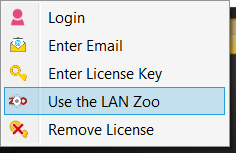
- Select Use the Zoo server with the following hostname or IP address.
- Enter your LAN Zoo server’s host name or IP address.
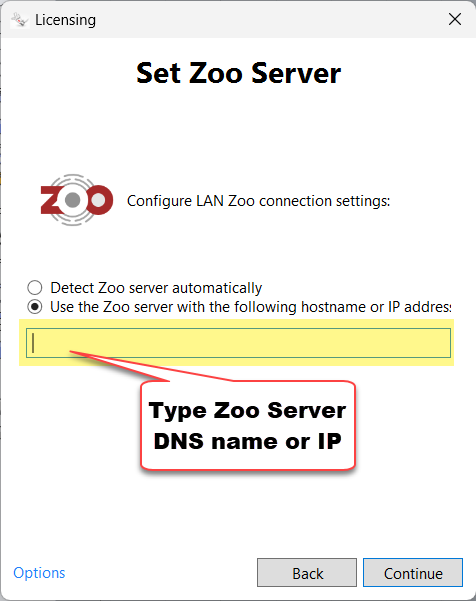
- Click Continue.
- Close Rhino and log out.
- Log in as a student, without administrator permissions.
- Start Rhino.
For details, see How Does Rhino for Windows Find a LAN Zoo Server? and How Does Rhino for Mac Find a LAN Zoo Server?
For All Users on a Windows Computer
- Right-click the Rhino icon on the desktop, then click Run as Administrator.
- The Rhino needs a license to run dialog appears. (If Rhino is already licensed, click Tools → Options → Licenses, then click Change your license key.)
- In the lower-left corner, click Options, then click Use LAN Zoo.
- Select Use the Zoo server with the following hostname or IP address.
- Enter your LAN Zoo server’s host name or IP address.
- Click Continue.
- Close Rhino and log out.
Move a Single-Computer License to the LAN Zoo
Rhino 6 and Later for Windows
- Start Rhino.
- From the Tools menu, click Options.
- Click Licenses.
- Select the Rhino license and click Change your license key.
Rhino 5 for Windows
- Start Rhino 5.
- From the Tools menu, click Options.
- Click Licenses.
- Select the Rhino license and click Convert.
Rhino for Mac
- Start Rhino.
- From the Rhino 8 (or Rhino 7) menu, click Settings. In Rhino 6 and earlier, click Preferences from the Rhinoceros menu.
- Click Licenses.
- Select the Rhino license and click Change your license key.
Move a LAN Zoo License to a Single Computer
- Start Rhino.
- From the Tools menu, click Options, then click Licenses.
- Click Change your license key.
- Click Enter a license key.
- Follow the instructions to enter your license key.
On a Mac, open Settings from the Rhino 8 (or Rhino 7) menu, then click Licenses and Change your license key.
If Change your license key isn’t available, remove the LAN Zoo license file by hand, then enter your license key. See Manually Removing a Rhino License.
Checking Out Licenses
Users can check out a license from the LAN Zoo, take it off-site, and use it without a connection to the LAN Zoo. The LAN Zoo administrator sets how long a checkout can last.
To Check Out a License
License checkout must be enabled on the LAN Zoo server. It is disabled by default.
- Open Zoo Administrator.
- From the Tools menu, click Options.
- Select Enable license check out.
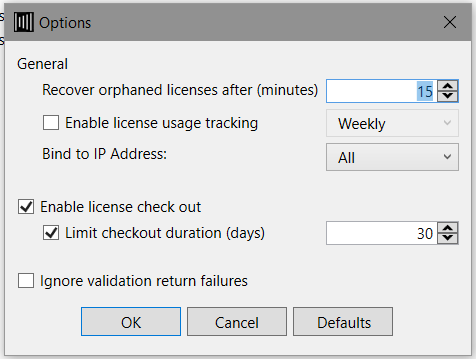
Users check out a license with Rhino’s CheckOutLicense command. If checkout is not enabled, Rhino reports: License check out not enabled on this Zoo server. Please contact your system administrator for assistance.
To Recover a Checked Out License
If a license is checked out but no longer in use, you can recover it manually. A license that is in use stays on the user’s computer until Rhino closes.
- Open Zoo Administrator.
- Select the license to recover.
- From the Edit menu, click Recover.
The license is now available.
Monitoring and Tracking License Usage
- Open Zoo Administrator.
- From the Tools menu, click Options.
- Select Enable license usage tracking.
- Visit your server’s status page:
http://<zoo_server_host_name>/status
Anyone on your network can open the status page in a web browser to see which licenses are in use. For example, if your LAN Zoo server’s host name is zooserver.mycorp.com, visit http://zooserver.mycorp.com/status.
To find which version of the LAN Zoo you are running, open Zoo Administrator and click Help → About.
Zoo Plugin for Nagios
Nagios is open-source software for monitoring computer systems, networks, and infrastructure. It watches servers, switches, applications, and services, alerts you when something goes wrong, and alerts you again when the problem is resolved.
A Zoo plugin for Nagios checks LAN Zoo servers for activity and license use per product. When all licenses of a product are in use, it raises a warning. If the LAN Zoo server is down, it reports a critical state.
Upgrading Your LAN Zoo Server
To support the latest version of Rhino, you need to upgrade your LAN Zoo server.
Download the latest LAN Zoo and install it on the same server as your current LAN Zoo. The LAN Zoo requires Microsoft .NET Framework 4.8 (see System Requirements).
When you upgrade:
- The new LAN Zoo replaces the old one.
- Your licenses move to the new LAN Zoo automatically.
- Users running Rhino during the upgrade are not affected.
Moving a LAN Zoo Server
Gather your license keys
- Visit the license report page
- Login with your Zoo admin email address
- Copy/paste your license keys into a text file
- Open Zoo Administrator
- From the File menu, click Export
- Compare the serial numbers in the report to the serial numbers exported from LAN Zoo
To Move Your LAN Zoo Server
- Download and install the LAN Zoo on the new Windows computer.
- Make sure TCP Port 80 is open in the new server’s firewall.
- Ask all users to close Rhino so every license returns to the old LAN Zoo.
- Install the latest LAN Zoo on the old server. The latest version contacts our license server when you remove licenses, so they can be added to the new server.
- Start Zoo Administrator on the old server.
- Remove your license keys: select them and click the red X.
- Start Zoo Administrator on the new server.
- Add and validate your license keys.
- Point your Rhino computers to the new LAN Zoo server, either in the Windows Registry or with your DNS server’s default Zoo server name. See How Rhino Finds the LAN Zoo Server.
- Uninstall the LAN Zoo from the old server.
- A license can’t be in two LAN Zoo servers at the same time.
- You can’t remove a license that is in use. If you’re sure a license is not in use but it still shows as checked out, use Recover. This shuts down any Rhino that is using the license.
How Rhino Finds the LAN Zoo Server
How Does Rhino for Mac Find a LAN Zoo Server?
When Rhino needs a license from a LAN Zoo server, it looks for the server’s name in these places, in this order:
- The ZooClient settings XML file, which contains the host name or IP address of your LAN Zoo server.
- Your Domain Name System (DNS) server, which it queries for the default LAN Zoo server name.
Finding LAN Zoo via ZooClient Settings File
Rhino first looks for one of these files:
- Rhino 8: /Users/Shared/McNeel/Rhinoceros/8.0/License Manager/LicensesZooClient.Settings.xml
- Rhino 7: /Users/Shared/McNeel/Rhinoceros/7.0/License Manager/LicensesZooClient.Settings.xml
- Rhino 6: /Users/Shared/McNeel/Rhinoceros/6.0/License Manager/LicensesZooClient.Settings.xml
The file contains your LAN Zoo server’s host name or IP address, and can be edited with a text editor:
<?xml version="1.0" encoding="utf-8"?>
<!--Zoo client settings file written by Rhino-->
<ZooClient>
  <Software_McNeel_Rhinoceros_6.0_License_Manager Server="host name or IP address" />
</ZooClient>
Finding LAN Zoo via DNS
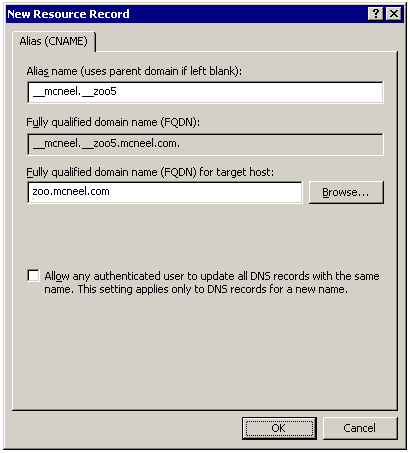
If the LAN Zoo server name isn’t found in a LicensesZooClient.Settings.xml file, Rhino queries your DNS server for an alias (CNAME) named __mcneel.__zoo5.
Set an alias for __mcneel.__zoo5 to your LAN Zoo’s fully qualified domain name or IP address. For example, if your company’s domain is mcneel.com, add a DNS alias of __mcneel.__zoo5.mcneel.com that points to your LAN Zoo server.
How Does Rhino for Windows Find a LAN Zoo Server?
When Rhino needs a license from a LAN Zoo server, it looks for the server’s name in these places, in this order:
- The HKEY_CURRENT_USER hive of the Windows Registry.
- The HKEY_LOCAL_MACHINE hive of the Windows Registry.
- Your Domain Name System (DNS) server, which it queries for the default LAN Zoo server name.
The registry keys below were set in Rhino 6 and apply to Rhino 6 and later. For Rhino 5, see How Rhino 5 Finds LAN Zoo.
Registry Lookup via HKEY_CURRENT_USER
Hive:  HKEY_CURRENT_USER
Key:   Software\McNeel\Rhinoceros\6.0\License Manager
Name:  Server
Type:  REG_SZ
Value: <host name or IP address>
Registry Lookup via HKEY_LOCAL_MACHINE
Hive:  HKEY_LOCAL_MACHINE
Key:   SOFTWARE\Wow6432Node\McNeel\Rhinoceros\6.0\License Manager
Name:  Server
Type:  REG_SZ
Value: <host name or IP address>
Both deploying Rhino and licensing Rhino while running it as Administrator write the LAN Zoo server name to the HKEY_LOCAL_MACHINE hive.
Finding LAN Zoo via DNS
If the LAN Zoo server name isn’t found in the Windows Registry, Rhino queries your DNS server for an alias (CNAME) named __mcneel.__zoo5.
Set an alias for __mcneel.__zoo5 to your LAN Zoo’s fully qualified domain name or IP address. For example, if your company’s domain is mcneel.com, add a DNS alias of __mcneel.__zoo5.mcneel.com that points to your LAN Zoo server.
Additional DNS Details
- If Rhino finds a LAN Zoo server name in the Windows Registry, it only tries to get a license from that server.
- If that name resolves to a DNS A record and the computer it points to is off, Rhino can’t get a license.
- If that name resolves to a DNS CNAME record, DNS resolves it to whichever computer is currently running the LAN Zoo. This is standard DNS behavior, and makes it easier to move the LAN Zoo later.
- If Rhino doesn’t find a server name in the Windows Registry, it tries to resolve the default server name __mcneel.__zoo5.
Network Requirements
TCP Port 80
The LAN Zoo communicates with Rhino over TCP Port 80 (HTTP). The Windows computer that hosts the LAN Zoo must not already run other software that uses TCP Port 80, such as:
If the LAN Zoo service doesn’t start, install these updates:
- The latest Microsoft Visual C++ Redistributable
- .NET Framework 4.8, which normally comes with Windows Update. You can also download .NET Framework 4.8 directly.
See also LAN Zoo Service Does Not Start.
Opening TCP Port 80
After installing the LAN Zoo, make sure TCP Port 80 is open for both incoming and outgoing traffic in the firewall on the LAN Zoo server.
Using Control Panel
These instructions are for Windows Firewall, which is included with Windows. If you use a different firewall, see its documentation.
-
From the Windows Start menu, open Control Panel.
-
Select Windows Firewall.
-
In the left column, select Advanced settings.
-
In the left column of the Windows Firewall with Advanced Security window, select Inbound Rules.
-
In the right column, select New Rule.
-
In the New Inbound Rule Wizard, select Port, then click Next.
Note: Do not create a Program rule. You must create a Port rule.
-
Select TCP, select Specific local ports, type 80, then click Next.
-
Select Allow the connection, then click Next.
-
Select when the rule applies (select all of them to keep the port open), then click Next.
-
Name the rule, then click Finish.
TCP Port 80 is now open.
Using Netsh
Netsh is a command-line utility included with Windows. You can use it instead of Control Panel to automate opening TCP Port 80. Run these commands from a command prompt started with Run as administrator:
netsh advfirewall firewall add rule name="Zoo TCP Port 80" dir=in action=allow protocol=TCP localport=80
netsh advfirewall firewall add rule name="Zoo TCP Port 80" dir=out action=allow protocol=TCP localport=80
Alternate Port Assignment
The LAN Zoo can only listen on TCP Port 80. It can’t use any other TCP or UDP port.
IP Address Binding
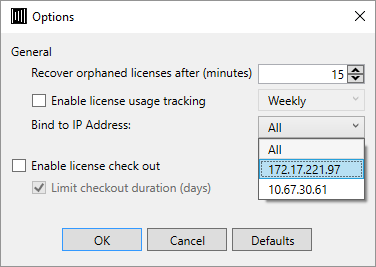
If the LAN Zoo server has more than one network interface, you can bind the LAN Zoo to a specific IP address so it only listens on that interface. In Zoo Administrator, click Tools → Options, then choose an address from the Bind to IP Address list.
What Data Is Sent Between Rhino and the LAN Zoo Server
When Rhino requests a license, it sends:
- The computer name
- The user name
- The ID of the product license it is requesting
The LAN Zoo responds with the license to lend to Rhino.
The LAN Zoo tracks which computers have licenses in use. Several instances of Rhino in the same login session on one computer use only one license.
Troubleshooting
Diagnostic Utility

The Zoo Diagnostics utility runs on a Windows computer with Rhino installed. It:
- Runs network tests to troubleshoot connections between Rhino and the LAN Zoo server.
- Shows and changes the LAN Zoo server name that Rhino uses. The name is stored in the Windows Registry.
Download
Download Zoo Diagnostics, unzip it, and run ZooDiagnostics.exe.
Diagnostics
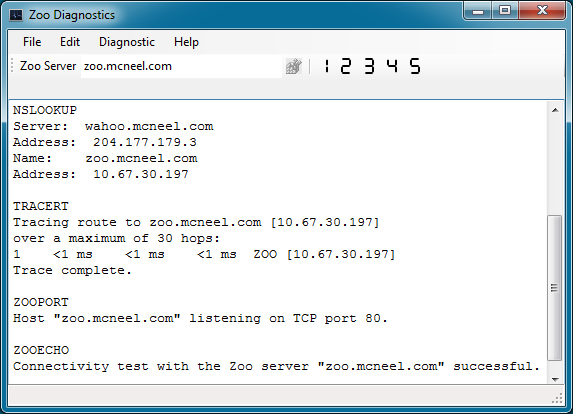
Zoo Diagnostics runs these network tests:
-
Ping: checks basic connectivity to another computer by sending Internet Control Message Protocol (ICMP) Echo Request messages, and shows each reply with its round-trip time. Ping is the main tool for troubleshooting connectivity, reachability, and name resolution.
Note: Windows Firewall blocks ping requests by default. To allow them, go to Control Panel → Windows Firewall → Advanced settings → Inbound Rules and enable File and Printer Sharing (Echo Request - ICMPv4-In) in the active profile.
-
Nslookup: shows how your Domain Name System (DNS) server resolves a name, to help diagnose DNS problems.
-
Trace Route: shows the route packets take to the LAN Zoo server, one router (hop) at a time.
-
Zoo Port Check: checks that a LAN Zoo service is listening on TCP Port 80.
If this test fails, make sure the LAN Zoo service is running, using either Zoo Administrator or the Services app in Control Panel. Also make sure TCP Port 80 is open for incoming and outgoing traffic in the LAN Zoo server’s firewall.
Also check the Trace Route results. If they show more than one subnet, you probably need to change the LAN Zoo server’s firewall rule to allow connections from those subnets. See Using Netsh.
-
Zoo Connectivity: checks that the LAN Zoo service responds to requests.
If this test fails and all the others succeed, make sure the LAN Zoo service is running, using either Zoo Administrator or the Services app in Control Panel. Also make sure TCP Port 80 is open for incoming and outgoing traffic in the LAN Zoo server’s firewall.
This test can fail if Rhino and the LAN Zoo server are on different subnets. By default, the LAN Zoo installer opens Windows Firewall on port 80 for the local subnet only. Change the firewall rule’s Scope property to allow the other subnets.
This test can also fail if the computer uses a proxy server to reach the internet, because the test never reaches the LAN Zoo server. Make sure the proxy settings bypass local addresses. See Using LAN Zoo with a Proxy Server.
-
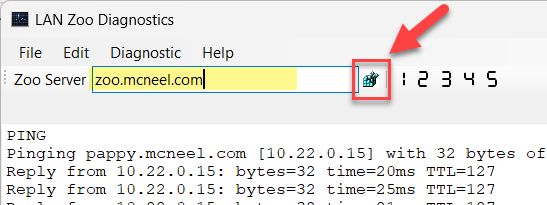
Set Your Zoo Server Name: type your LAN Zoo server’s name or IP address, then click the button to save it to the registry. (The name in the screenshot is ours. Use your own.) The name is written to HKEY_LOCAL_MACHINE\SOFTWARE\WOW6432Node\McNeel\Rhinoceros\x\License Manager, where x is the Rhino version.
Related Topics
On a Mac, use the Terminal app to run network tests that troubleshoot connections between Rhino and the LAN Zoo server.
Diagnostics
Run these tests in Terminal, replacing zoo.mcneel.com with your LAN Zoo server’s name:
- ping: checks basic connectivity to another computer by sending Internet Control Message Protocol (ICMP) Echo Request messages, and shows each reply with its round-trip time.
ping zoo.mcneel.com
A successful response looks like this:
> ping zoo.mcneel.com
PING zoo.mcneel.com (192.168.0.100): 56 data bytes
64 bytes from 10.22.0.15: icmp_seq=0 ttl=127 time=9.981 ms
64 bytes from 10.22.0.15: icmp_seq=1 ttl=127 time=8.630 ms
64 bytes from 10.22.0.15: icmp_seq=2 ttl=127 time=9.774 ms
A failed response looks like this:
> ping zoo.mcneel.com
PING zoo.mcneel.com (192.168.0.100): 56 data bytes
Request timeout for icmp_seq 0
Request timeout for icmp_seq 1
Request timeout for icmp_seq 2
Request timeout for icmp_seq 3
Press Ctrl+C to cancel the ping command.
- nslookup: shows how your Domain Name System (DNS) server resolves a name, to help diagnose DNS problems.
nslookup zoo.mcneel.com
A successful response looks like this:
> nslookup zoo.mcneel.com
Server: 192.168.0.1
Address: 192.168.0.1#53

Non-authoritative answer:
Name: zoo.mcneel.com
Address: 192.168.0.100
A failed response looks like this:
> nslookup zoo.mcneel.com
** server can't find zoo.mcneel.com: NXDOMAIN
- traceroute: shows the route packets take to the LAN Zoo server, one router (hop) at a time.
traceroute zoo.mcneel.com
A successful response looks like this:
> traceroute zoo.mcneel.com
traceroute to zoo.mcneel.com (192.168.0.100), 64 hops max, 52 byte packets
 1  192.168.0.100 (192.168.0.100)  9.391 ms  6.558 ms  8.538 ms
A failed response looks like this:
> traceroute zoo.mcneel.com
traceroute to zoo.mcneel.com (192.168.0.100), 64 hops max, 52 byte packets
1.  * * *
- nc (port scan): checks whether a TCP port is open. For the LAN Zoo, check TCP Port 80.
nc -z -v zoo.mcneel.com 80
A successful response looks like this:
> nc -z -v zoo.mcneel.com 80
Connection to zoo.mcneel.com port 80 [tcp/http] succeeded!
If the test fails, nc does not return. Press Ctrl+C to cancel it.
If this test fails, make sure the LAN Zoo service is running on the server, using either Zoo Administrator or the Services app in Control Panel. Also make sure TCP Port 80 is open for incoming and outgoing traffic in the LAN Zoo server’s firewall.
LAN Zoo Service Does Not Start
When the server restarts, the LAN Zoo service does not start. The Windows Event Log (Control Panel → Administrative Tools → Event Viewer) shows this error:
The Zoo service on the Local Computer started and then stopped.
Some services stop automatically if they are not in use by another
service or program.
The error details report:
Address already in use by another process.
Run 'netstat -o -n -a' from a command line to find the conflicting
process ID, then look in Task Manager to find the name of that process.
Another application is already using TCP Port 80. Only one application can listen on a port at a time, so the LAN Zoo cannot bind to it. To find the application:
- Run
netstat -o -n -afrom a command prompt and note the PID of the process using port 80. - In Task Manager, find the process with that PID.
To fix the conflict, either:
- Move the LAN Zoo to a computer that is not running web services, such as a print server, a workstation that is left on, or another virtual server.
- Configure the other application to use a different port. Both Apache and IIS can run on a different port.
Running LAN Zoo in VMware Fusion on a Mac
If the LAN Zoo runs in a Windows virtual machine under VMware Fusion on a Mac, Rhino may report “An unknown exception has occurred. Please contact your system administrator for assistance.” The virtual machine needs extra network configuration, because the LAN Zoo uses TCP Port 80 just like a web server:
- If the Mac hosts no web services and runs a single virtual machine, set the virtual machine’s network adapter to Bridged mode. This is the simplest option.
- If the network adapter must use NAT, configure VMware Fusion to forward TCP Port 80 to the virtual machine.
Rhino and VDI
See Does Rhino Support VDI? for the full list of supported platforms, licensing notes, and where to get help.
Using LAN Zoo with a Proxy Server
Many organizations use a proxy server, which sits between users and the internet, to protect users and to reduce the number of public IP addresses they need. The proxy receives every request to the internet, fulfills it, and passes the result back.
Bypassing a Proxy Server
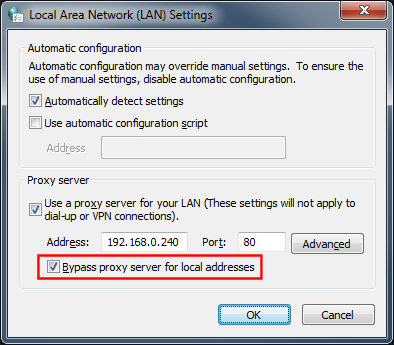
Rhino needs to reach local resources like the LAN Zoo server directly, not through the proxy. To bypass the proxy for local addresses on Windows:
- Click Start, then click Control Panel.
- Click Network and Internet, then click Internet Options.
- Click the Connections tab.
- Click LAN Settings.
- Select Bypass proxy server for local addresses.
- Click OK.