UI Overview
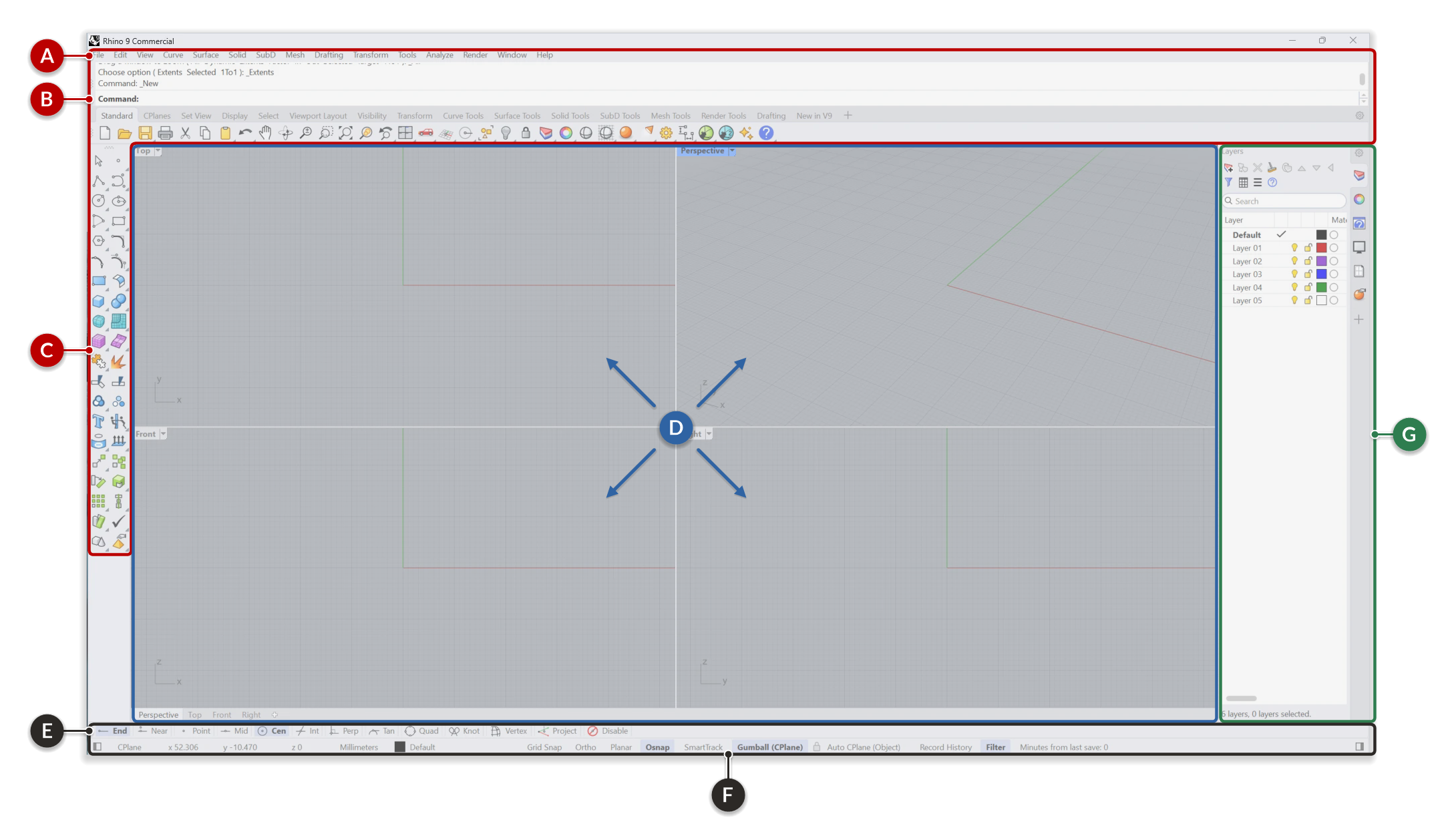
Rhino’s interface is centered around four main components:
- Command Access: A B C
- Viewports: D
- Modeling Aids: E F
- Panels: G
The default arrangement is shown below:
1. Command Access
Rhino is a command-driven program. In other words, all actions are activated by named commands such as  Line
or
Line
or  Rotate
. Commands are how you tell Rhino to build, edit, and analyze geometry. In the image above, command access is marked A, B & C.
Rotate
. Commands are how you tell Rhino to build, edit, and analyze geometry. In the image above, command access is marked A, B & C.
There are three main ways of running commands in Rhino:
A Menus
B Command Window (Prompt)
C Toolbars
The commands are the same, independent of how you run them. You may find one method easier than another.
 CommandHelp
Panel or run a command and press
to open its online Help topic. To cancel a command, press the
key.
CommandHelp
Panel or run a command and press
to open its online Help topic. To cancel a command, press the
key.2. Viewports
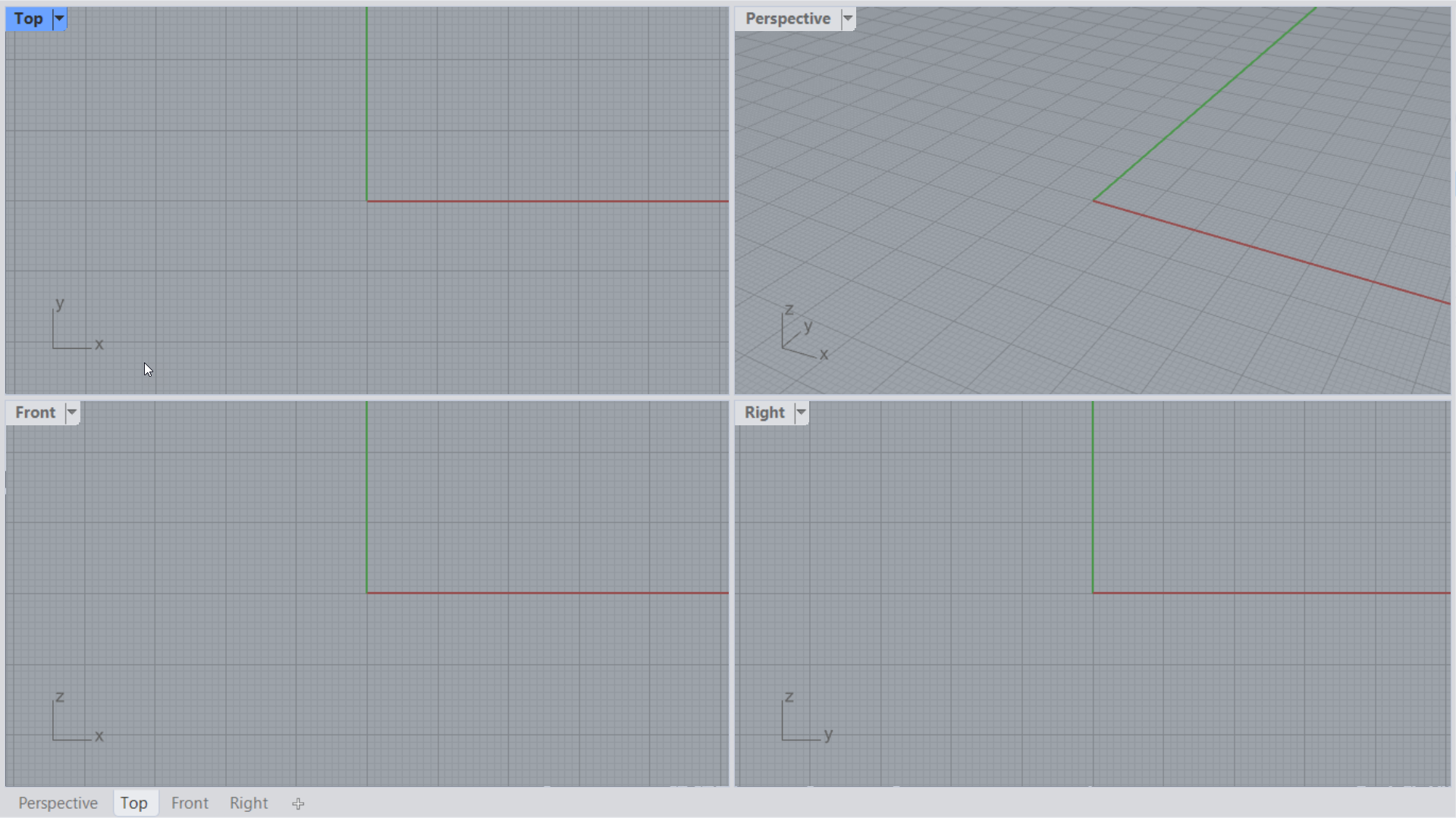
D Viewports are windows into your model. They let you visualize and navigate around the geometry you create in 3D space. Rhino opens with four viewports by default:
- (parallel projection)
- (parallel projection)
- (parallel projection)
- (perspective projection)
3. Modeling Aids
Modeling Aids facilitate precision modeling in Rhino. There are two main locations to find these modeling helpers:
E Osnaps
F Status Bar
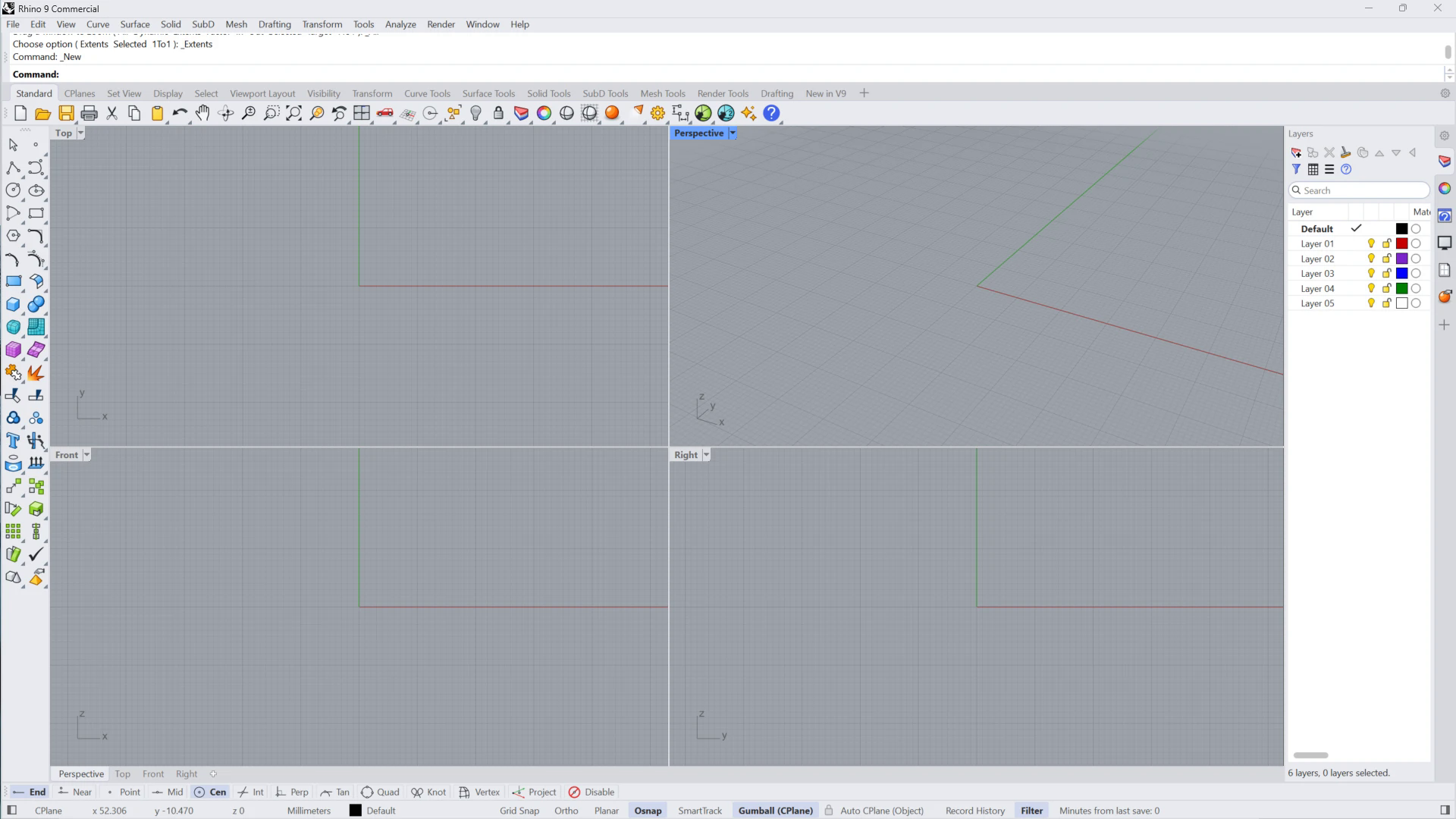
The Osnap Control allows you to activate and deactivate Object Snaps (Osnaps). These magnetic points help you snap new geometry to existing geometry precisely. They guarantee the precision necessary to create a model for exporting or manufacturing. For example, use the Cen Osnap to snap the start of a line to the center of an existing circle.
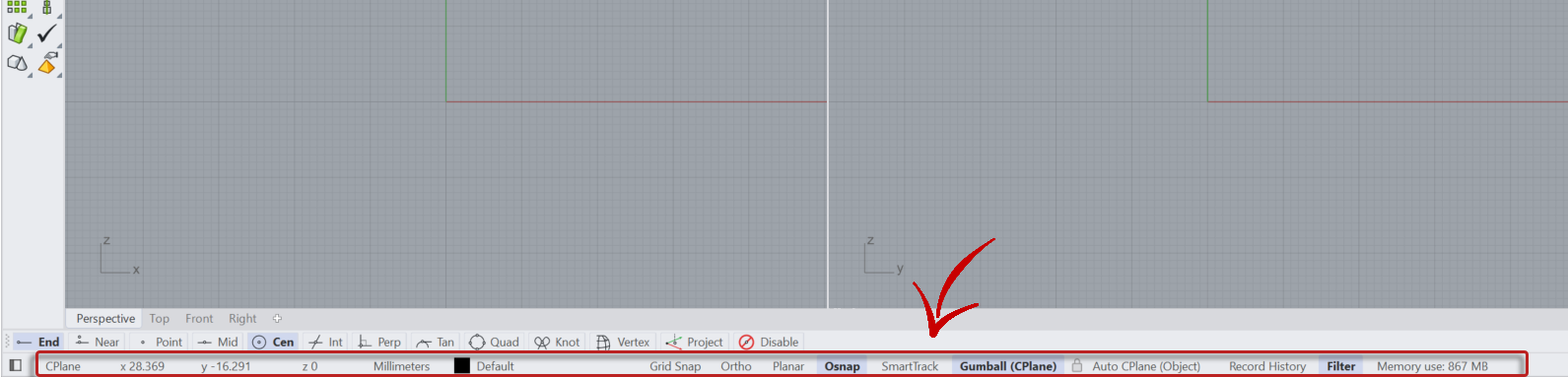
The Status Bar displays the current coordinate system, the cursor location, file unit, and quick access to layers and Modeling Aids.
Modeling Aids include Grid Snap, Ortho, SmartTrack, and Gumball. These tools activate modes that help you place or edit geometry in the viewport with precision.
4. Panels
G Panels are dockable windows for managing layers, object properties, display settings, and more. Rhino’s default user interface comes with the following 6 docked panels, located on the right sidebar:
Accessing Panels
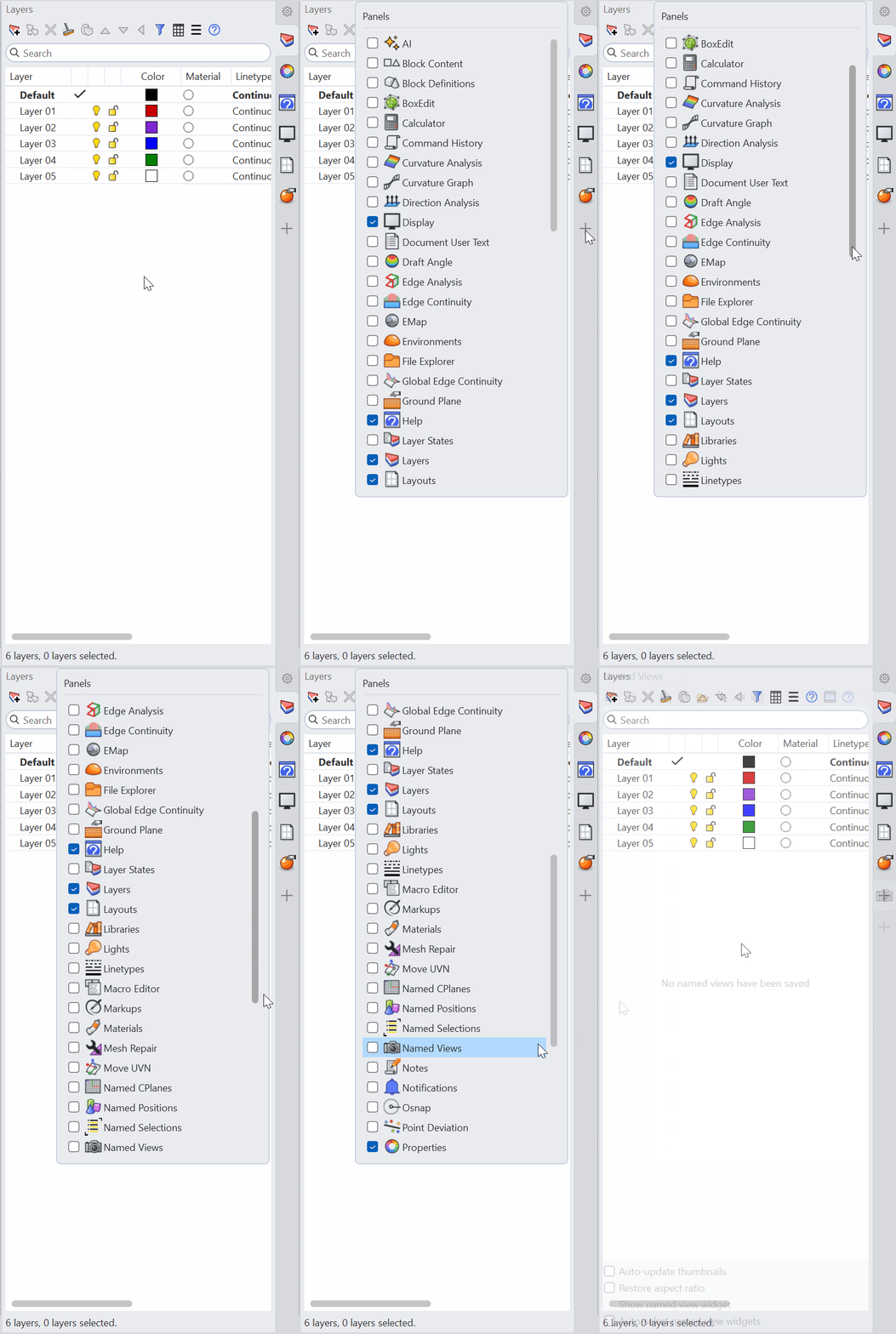
Rhino ships with 47 panels. To open these panels, go to the Window menu → Panels or select the + sign on the Panel tabs sidebar:
Mouse & Keyboard Basics
Rhino uses the same mouse and keyboard controls in every command. Learn these before you start modeling:
| Input | What it does |
|---|---|
| Left-click | Selects objects and places points in a viewport. |
| Right-click | Finishes the current command, like . When no command is running, it repeats the last command. |
| Right-drag | Rotates the viewport. Pans the parallel viewports ( , , ). |
| + right-drag | Pans the viewport. |
| Mouse wheel or + right-drag | Zooms in and out. |
| or Spacebar | Finishes the current command. When no command is running, it repeats the last command. |
| Cancels the current command. | |
| + Z | Undoes the last action. |
| + Y (Windows) / + + Z (Mac) | Redoes the last undone action. |
| Opens the Help topic for the current command. |
The Command Window
The Command Window is divided into the Command History and the Command Prompt.

The Command History displays the previous commands and prompts. It records most of the activity that happens in Rhino. Maximize it by pressing the key. The Command History cannot be edited.
The Command Prompt is where you type command names, set options, enter distances and angles for drawing, and read the prompts for the commands. It is the way Rhino communicates with you. When Rhino needs you to select objects, enter a point or information, it prompts you through the Command Prompt .
As you start building objects, prompts become increasingly important because they tell you what to do next.
Command Options
Options give you alternate methods for using the command. For example, when you draw a circle, you normally draw it from center to radius. The  Circle
command has several options, such as 2Points, which allows you to draw the circle by clicking two points that determine the diameter instead.
Circle
command has several options, such as 2Points, which allows you to draw the circle by clicking two points that determine the diameter instead.
Command options are displayed in the Command Prompt in parentheses.
To activate an option:
- Type the option name
- Type the underlined letter in the option
- Click the option with the mouse

Some Command options can have multiple choices, in which case they show a dropdown list which you can select from:

 CommandMode
command allows you to configure your Command Prompt style. You can modify its location as well as the option’s style.
CommandMode
command allows you to configure your Command Prompt style. You can modify its location as well as the option’s style.Repeat the Last Command
Many tasks in Rhino are repetitive. You might want to  Move
several objects or
Move
several objects or  Fillet
multiple corners.
Fillet
multiple corners.
To repeat commands:
- Press when no command is active.
- Press the spacebar.
- Click the right-mouse button in a viewport.
Some commands such as  Undo
and
Undo
and  Delete
do not repeat. Instead, the command prior to these commands is repeated. This prevents you from accidentally undoing too many commands or deleting objects accidentally. Also, you often want to repeat the command you were using before undoing a mistake.
Delete
do not repeat. Instead, the command prior to these commands is repeated. This prevents you from accidentally undoing too many commands or deleting objects accidentally. Also, you often want to repeat the command you were using before undoing a mistake.
To suit your own way of working, you can define the list of commands that do not repeat by running the  Options
command in the General page: Never repeat these commands.
Options
command in the General page: Never repeat these commands.
Undo a Command
If you did something you did not want to do, you can undo your actions by:
- Running the Undo
command. Also available through the Edit menu.
- Pressing + Z on the keyboard.
If you wish to redo an action, you can:
- Run the
 Redo
command. Also available through the Edit menu.
Redo
command. Also available through the Edit menu. - Press + Y on Windows or + + Z on Mac.
Cancel a Command
Whenever you run the wrong command or do something wrong in the command procedure, you can cancel the active command in several ways:
- Press the key on your keyboard. The Command Prompt is cleared.
- Click a toolbar button or click another command on a menu. The current command is canceled immediately, and the chosen command runs.
Start a New File
A template is a 3dm file that is a starting point for a new Rhino model. Rhino’s default templates have units appropriate for the model size, default layers, and a standard four-viewport layout.
To start a new Rhino document:
- Run the
 New
command.
New
command. - Select an existing 3dm file from the list.
- Select Open.
Open Template File dialog on Windows & Mac
A new file with units and grid spacing defined by the template you chose will be created. For example, if you’re a jeweler based in Europe, you can select the Small Objects - Millimeters.3dm template. If you’re an interior designer based in North America, you might opt for Large Objects - Feet, Feet & Inches.3dm.
Create a custom template containing specific information and settings that you commonly reuse in all projects. You may create a layer hierarchy, colors, materials, lights, and even geometry. It’s a shortcut to the start of any project. These templates can be shared across a team.
To create a custom template:
- Run the New
command and choose a 3dm file best adapted to your modeling needs.
- Modify the
 Layer
structure and properties.
Layer
structure and properties. - Modify any settings in
 DocumentProperties
- Add geometry, materials, lights, or any other object type.
- Run the
 SaveAsTemplate
command. It will be available anytime you run the New
command.
SaveAsTemplate
command. It will be available anytime you run the New
command.
Your First Rhino Exercise
In this exercise you will start a new file and learn how to run common commands like  Curve
,
Curve
,  Cone
or Undo
.
Cone
or Undo
.
Run a Command from the Menu
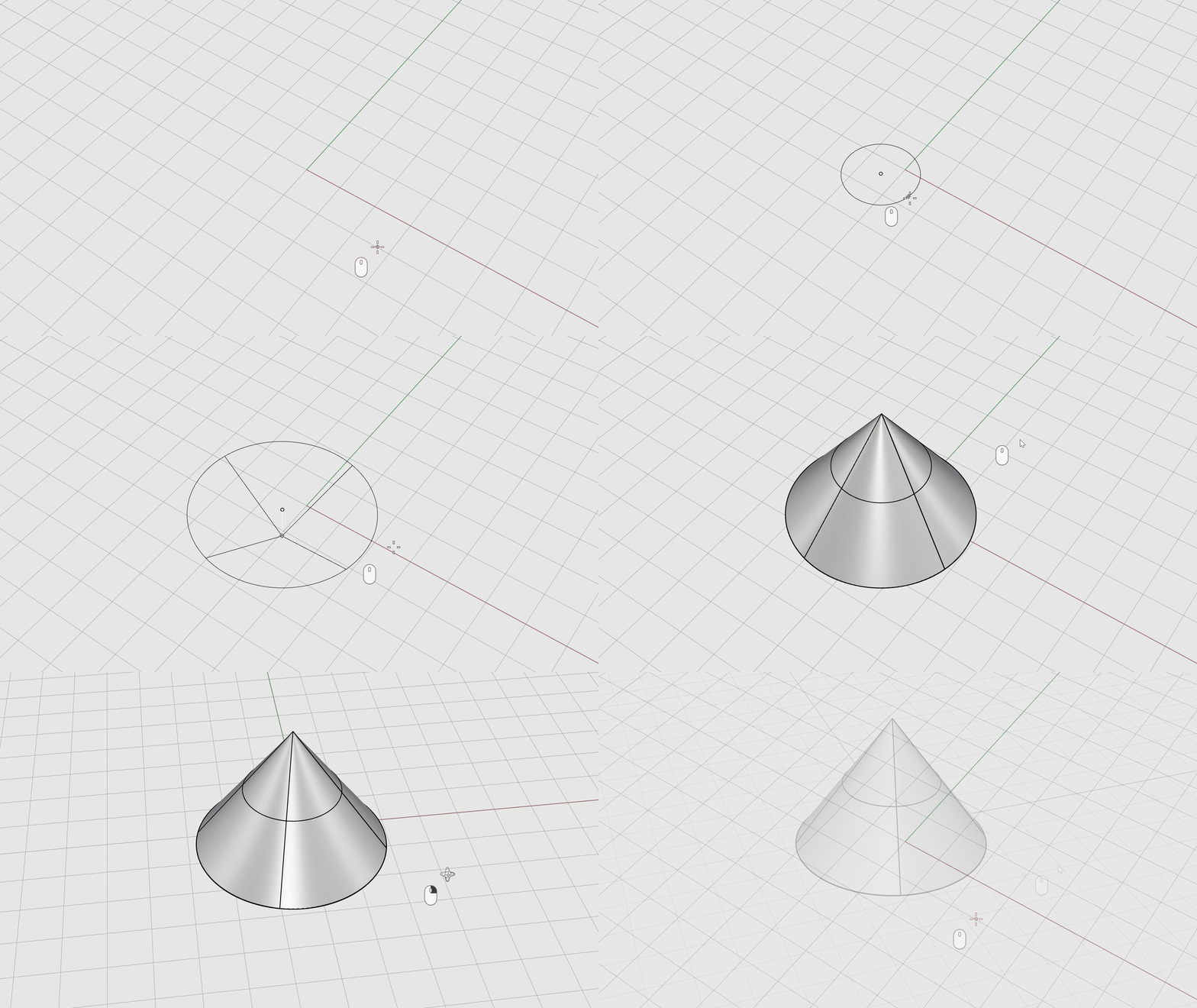
Most Rhino commands are located in the menus. You will create a basic solid, starting the command from the menu.
-
Run the
New
command. -
Select the
Small Objects - Millimeters.3dmtemplate. -
From the Solid menu, start the
Cone
command. -
At the
Base of coneprompt , in the viewport, left-click to select a point on the grid. This will be the cone’s center base. -
At the
Radiusprompt, in the viewport, left-click to select a second point on the grid. This defines the radius of the cone base. -
At the
End of coneprompt, drag the mouse up or down. Watch what happens in the different views. -
Place a third point anywhere in the or viewport to set the height of the cone.
Run a Command from a Toolbar Icon
Toolbars enable you to run commands by clicking buttons. Most commands have an icon. In this exercise, you will create a freeform curve from an icon:
-
Hover over the
Curve
command from the Main Toolbar. You’ll notice a
Tooltip
appears. It describes the function of the icon. You can run two commands: one with the mouse’s left-click and a second with the right-click.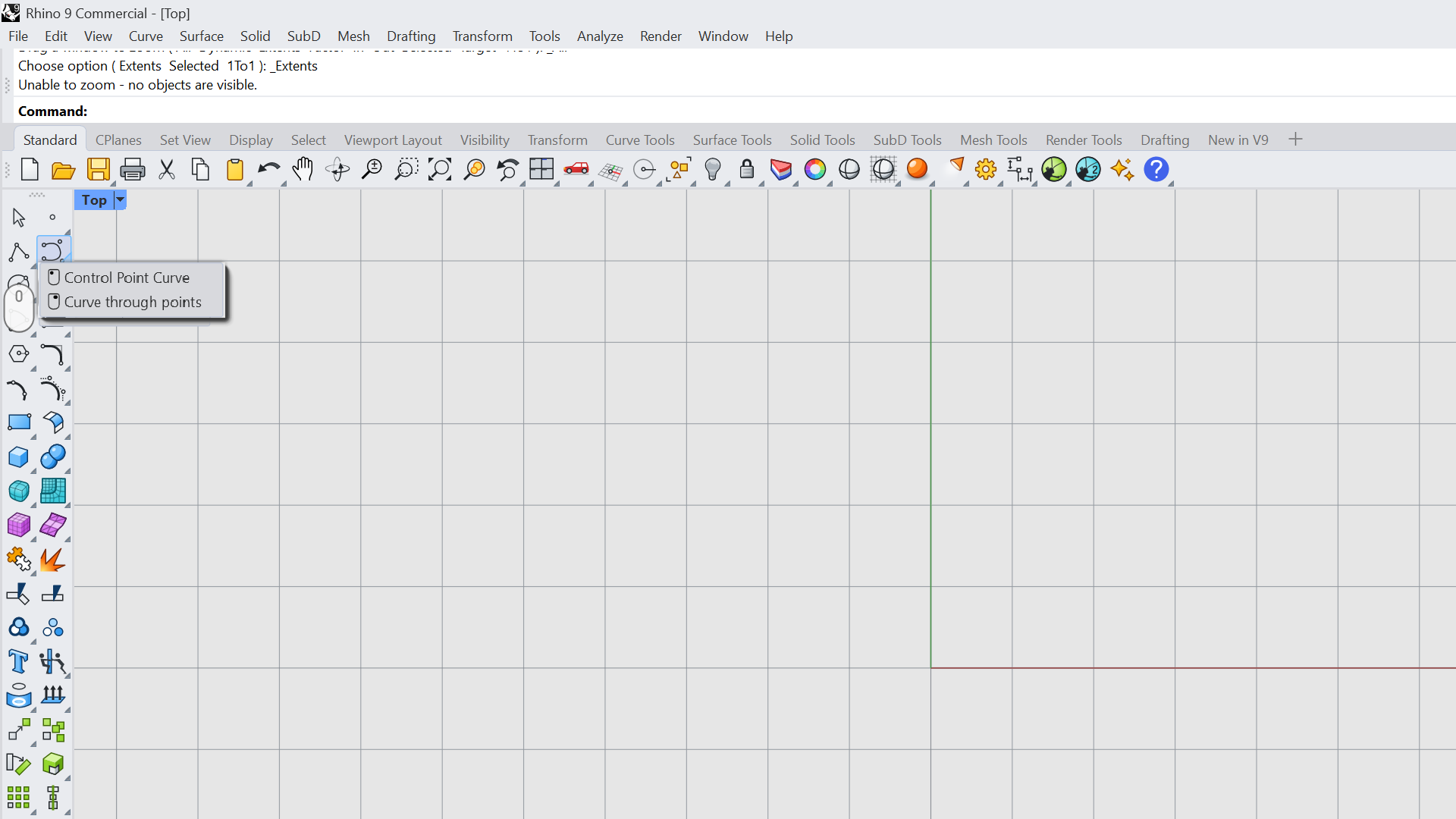
-
Select the icon with your left-click to run the
Curve
command. -
At the
Start of curveprompt , in the viewport, place a first point anywhere in the view. -
At the
Next pointprompt, continue selecting a couple more points.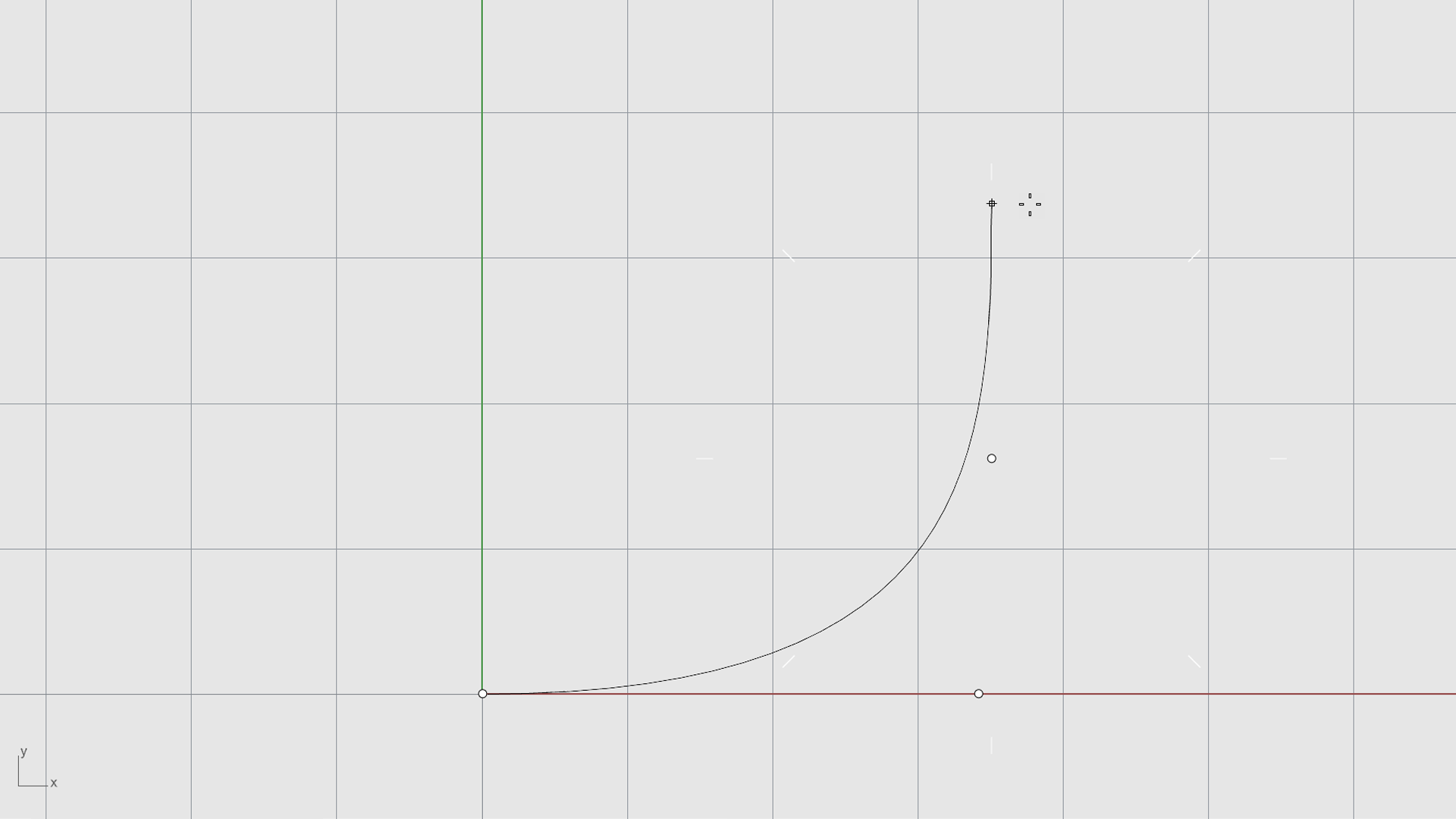
-
At the
Next pointprompt, move the mouse into the viewport and place a few more points along the Y axis (green axis).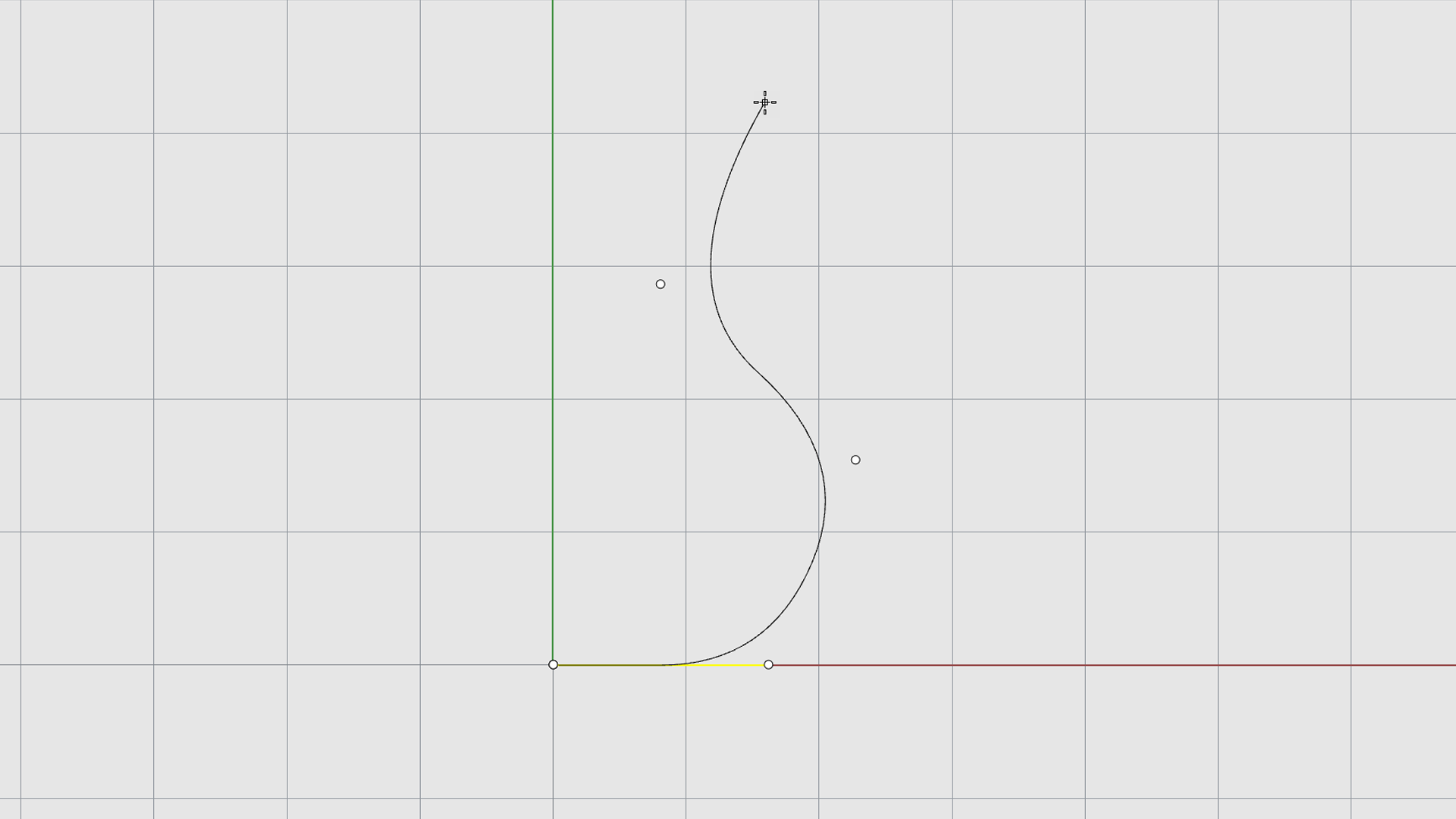
-
Right-click, press , or press the spacebar to end the command.
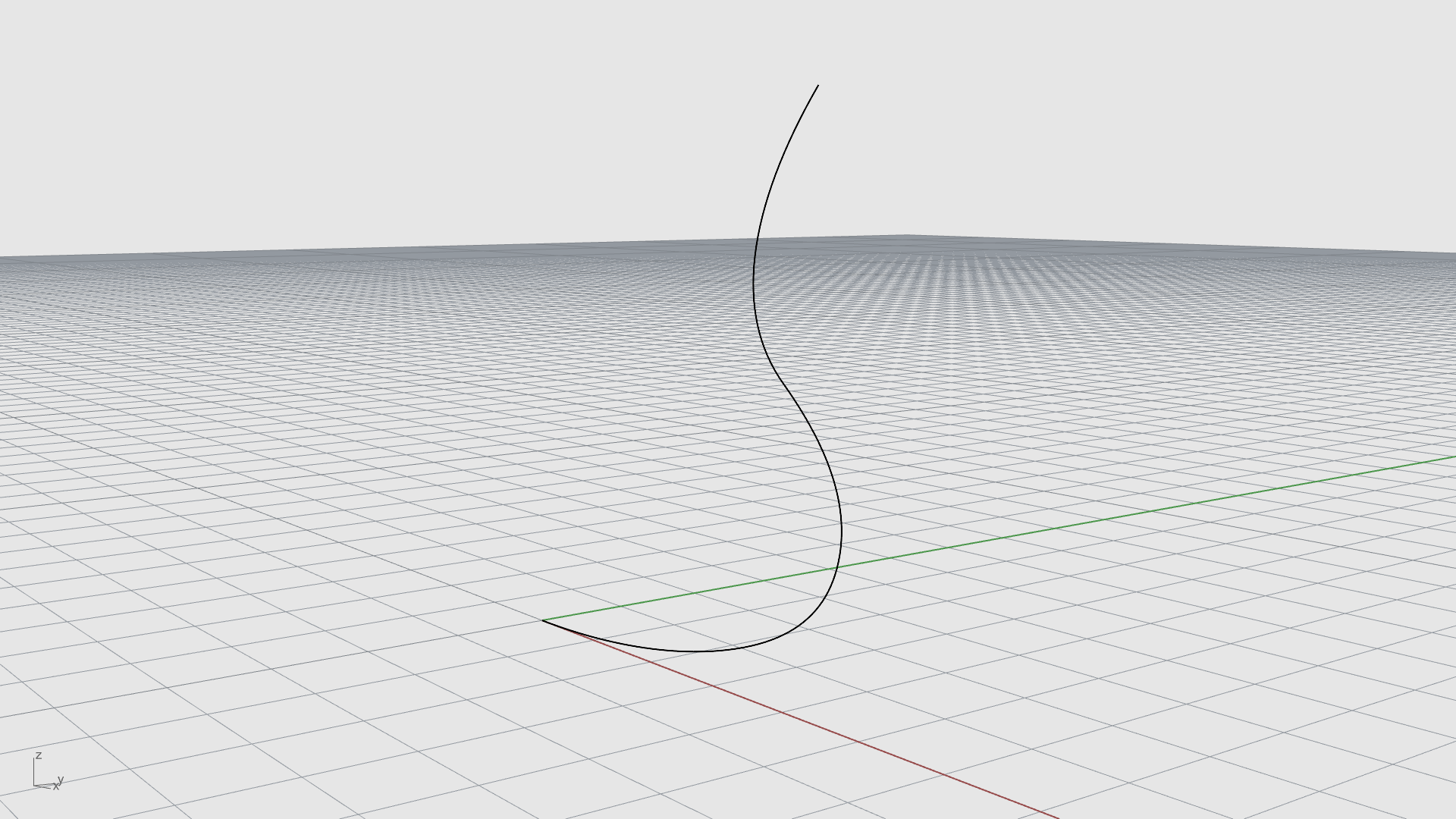
-
Look at the result in the viewport.
-
Admire your work! Rotate the view by right-clicking and dragging the mouse.
Run a Command from the Command Prompt
You can start a command by typing the command name. All commands can be executed by typing them into the Command Prompt . In this exercise, you will create a sphere by typing the command name in the Command Prompt.
-
Make sure the Command Prompt is clear and no commands are running. Otherwise, press the key.
-
Type Sphere and press .
-
At the
Center of sphereprompt , in the viewport, left-click with your mouse anywhere in the viewport to place the center point for the sphere. -
At the
Radiusprompt, in the viewport, move the mouse away from the center point and left-click to place a second point. This point determines the sphere’s radius.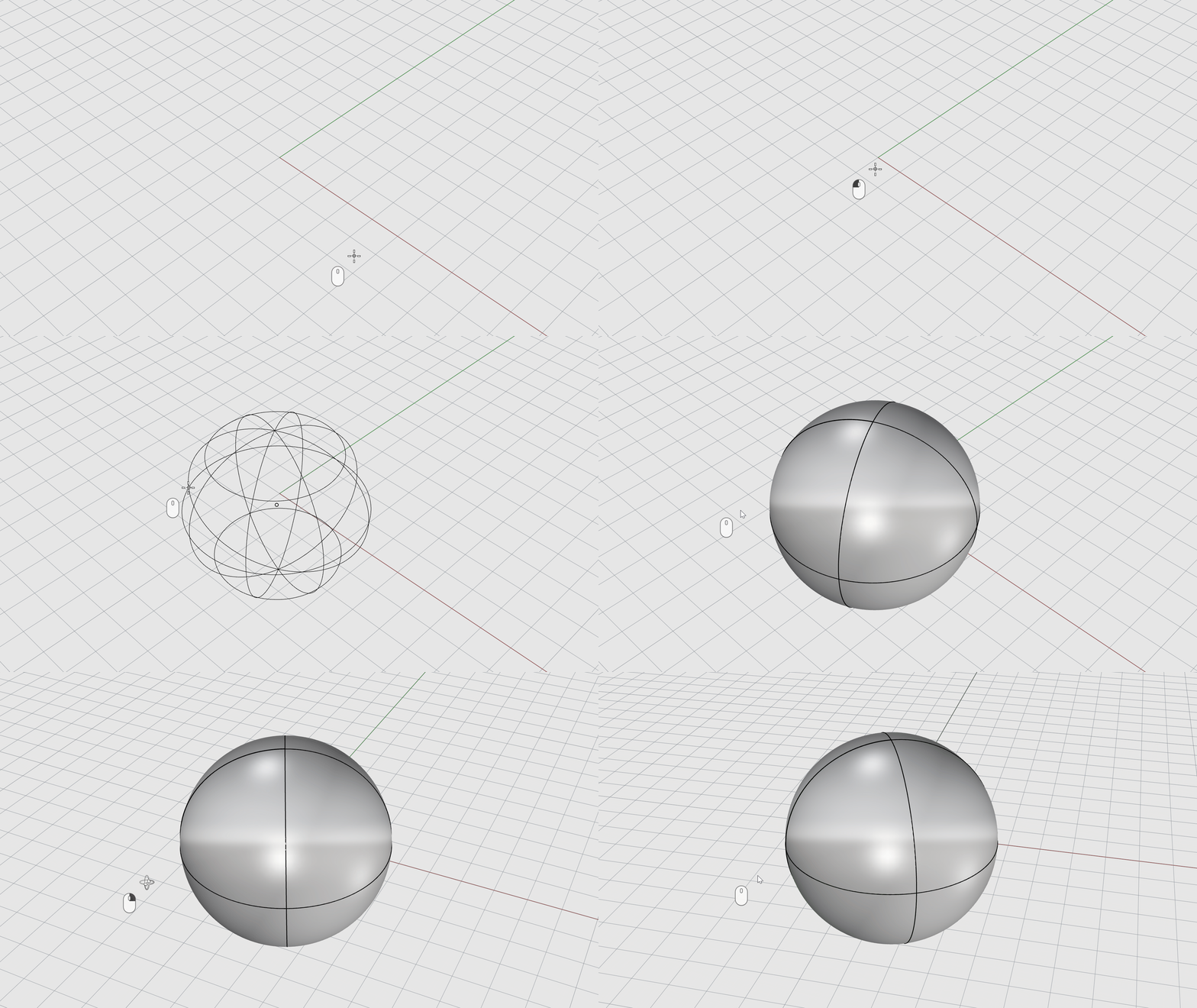
Notice how the sphere is shown in Shaded. This is a display mode that draws objects using opaque and with wires, called edges and isocurves. The object uses the color of the layer it is in.
-
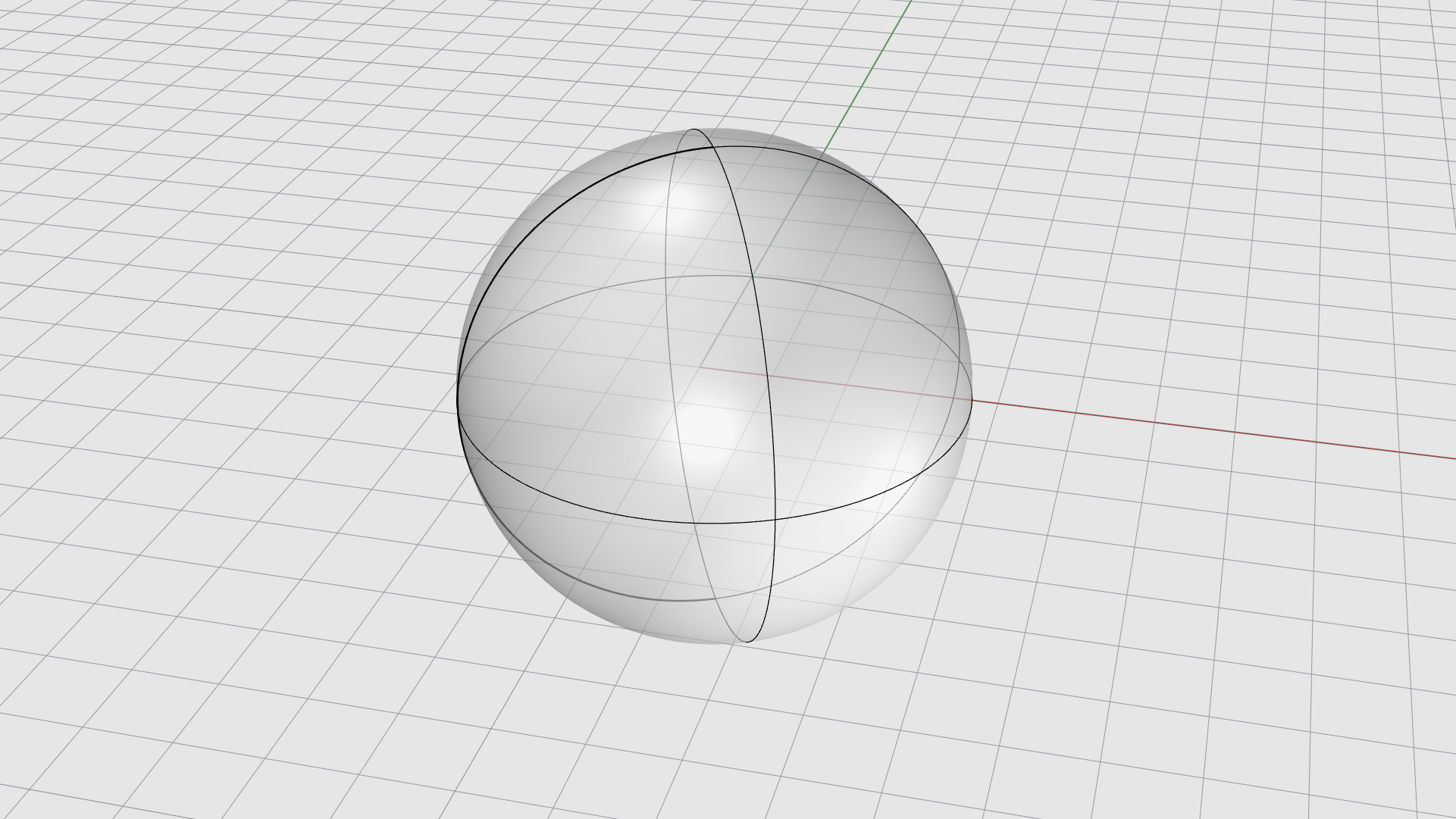
In the viewport, select the arrow of the viewport title and select Ghosted. The sphere is now semi-transparent, along with the edges and isocurve display. Try the other Display Modes listed.
-
Run the
Undo
command or press
+ Z to undo the sphere. The sphere is gone. -
Now, run the
Redo
command or press
+ Y (Windows) or
+
+ Z (Mac) to bring back the sphere.
Save Your Model
- Run the
 Save
command or press
+ S.
Save
command or press
+ S. - Choose a folder, type a file name, and click Save. Rhino saves your model as a 3dm file.
Menus
Menus in Rhino contain most commands, organized by task or geometry type:
| Menu | Contains |
|---|---|
| File, Edit, View | Commands common to other applications, such as saving, printing, or changing views. |
| Curve, Surface, Solid, SubD, Mesh | Commands specific to each geometry type. |
| Transform | Commands that modify any type of geometry. |
| Drafting, Analyze, Render | Commands specific to those tasks. |
The geometry menus all follow the same order: commands for creating geometry first, then commands for editing it:
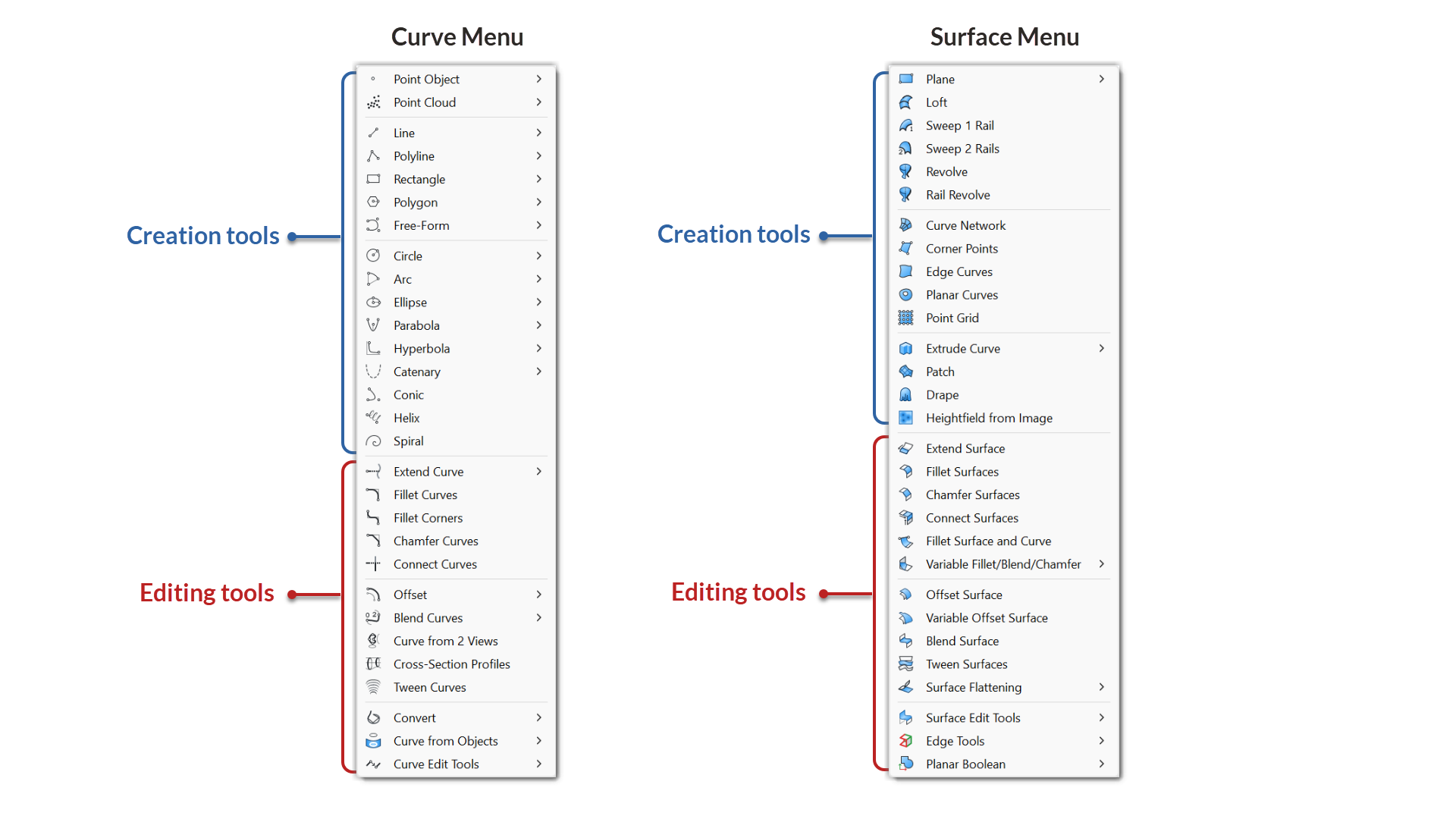
Note that menus contain the command icons to help visual recognition and association with the toolbar icons.
Toolbars
Toolbars regroup a series of icons that relate to each other. The two main toolbars in Rhino are the Main Sidebar and the Standard Toolbar:
Toolbar Environments
Notice the tabs sitting by the Standard tab. This is referred to as the Standard tab group. As you select different tabs, the top and side toolbars change to show the most commonly used commands for that geometry type or task:
Toolbar Actions
Icons with a triangle in the bottom-right corner contain flyout toolbars you can expand. By pressing and holding on the icon, the toolbar will fly out. You can then:
- Select an icon to hide the toolbar again.
- Grab it by the top bar to dock it on screen.
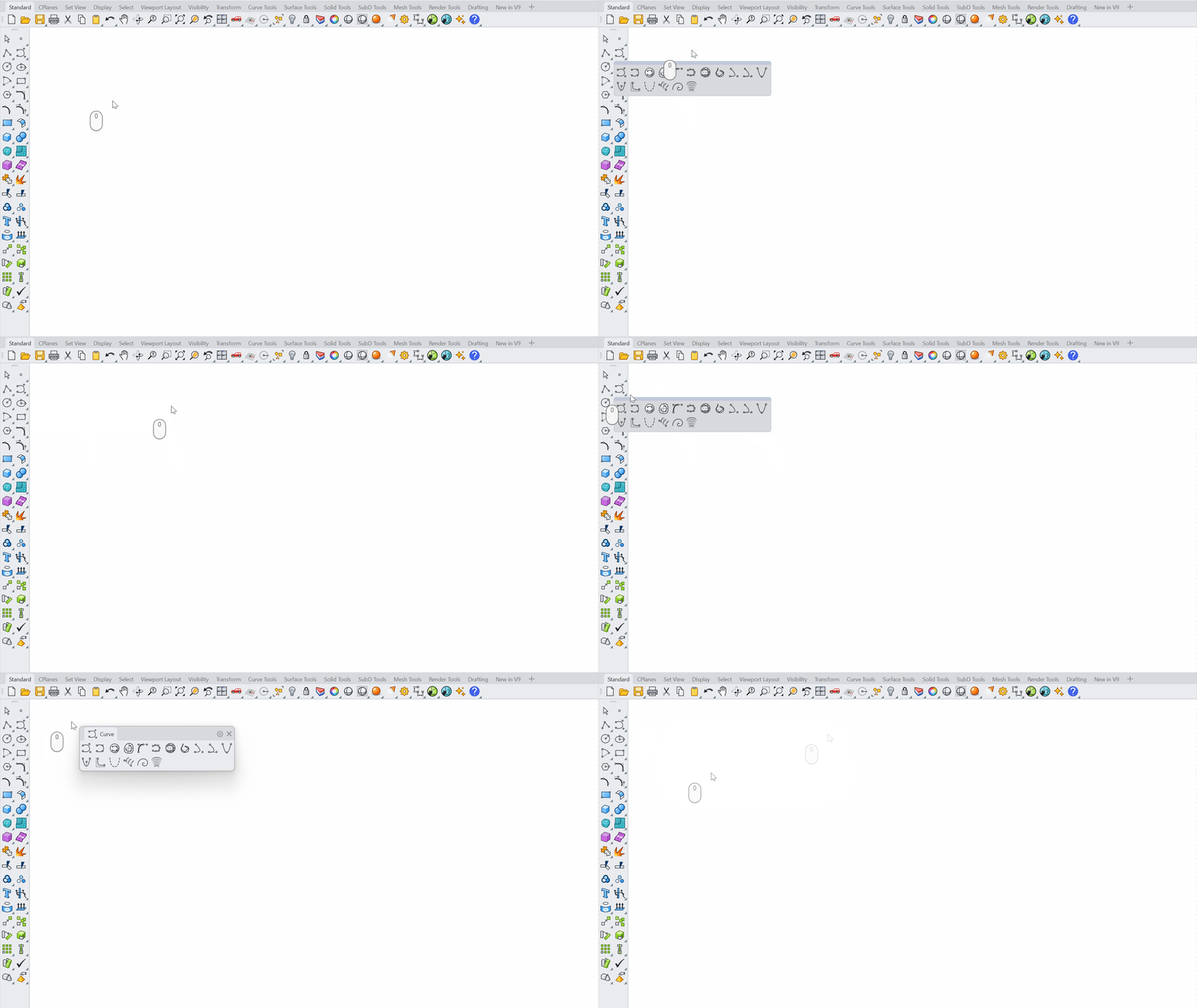
Remember that many icons execute two commands. One with the left-mouse button and a second one with the right-mouse button:

Customizing the UI
Rhino has a highly customizable user interface. It is an advanced topic that we won’t cover in this guide. However, here are two actions that can help a beginner.
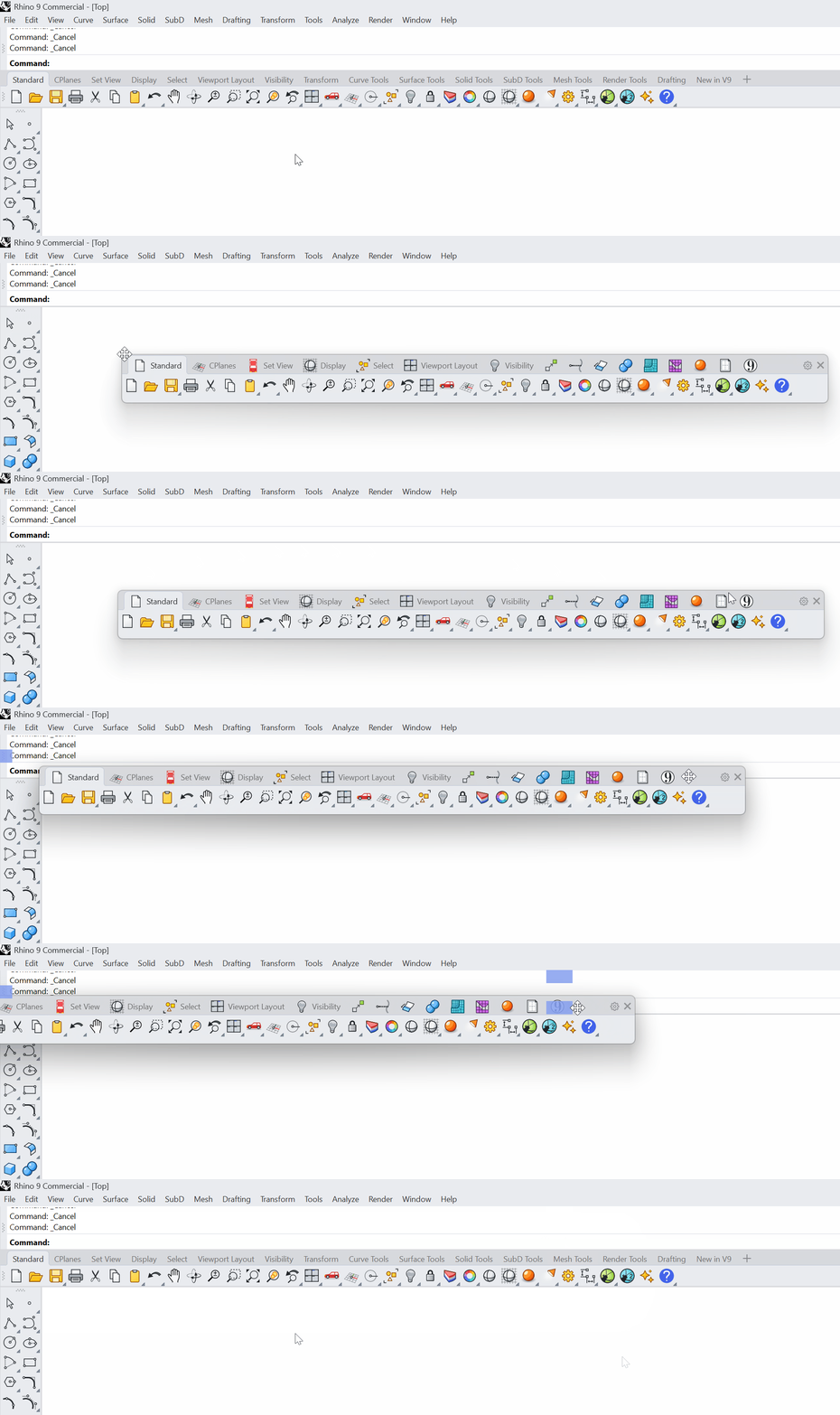
Docking UI Windows
Panels, toolbars, and other UI elements can be moved around in the interface. For example, the Standard toolbar group is docked at the top of the interface. To float or undock it, drag it by the gripper on the left side. To dock it back, drag the title bar around. As you drag it, blue shaded squares appear at locations where the window can be dropped.
Window Layouts
 WindowLayout
are saved user interfaces. You can customize your interface and save it to share with colleagues or across computers. If you modify the user interface and wish to restore Rhino’s Default UI, go to the Window menu → Window Layouts → select Default Window Layout.
WindowLayout
are saved user interfaces. You can customize your interface and save it to share with colleagues or across computers. If you modify the user interface and wish to restore Rhino’s Default UI, go to the Window menu → Window Layouts → select Default Window Layout.
Finding Help
If you get stuck on how a command works, the Rhino Help file is the major resource for detailed information on specific commands. You can access it in several ways:
- To get Help for a command, press while the command is running. The Help file will open in your default browser, with the specific command topic visible.
- Run the CommandHelp
command. The Help panel will open to the right of the viewport. Select Auto-Update to dynamically display the Help topic for the current command.
Next Steps
Now that you know your way around the Rhino interface, continue with:
- Navigation & Display: move around your model and change how it is displayed.
- Object Selection: select the objects you want to work with.
- Accurate Modeling: use Osnaps and Modeling Aids to model with precision.