
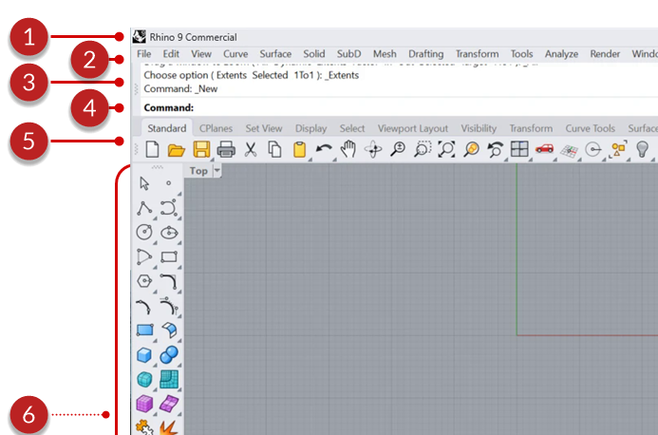
The image below illustrates some of the major features of the Rhino user interface
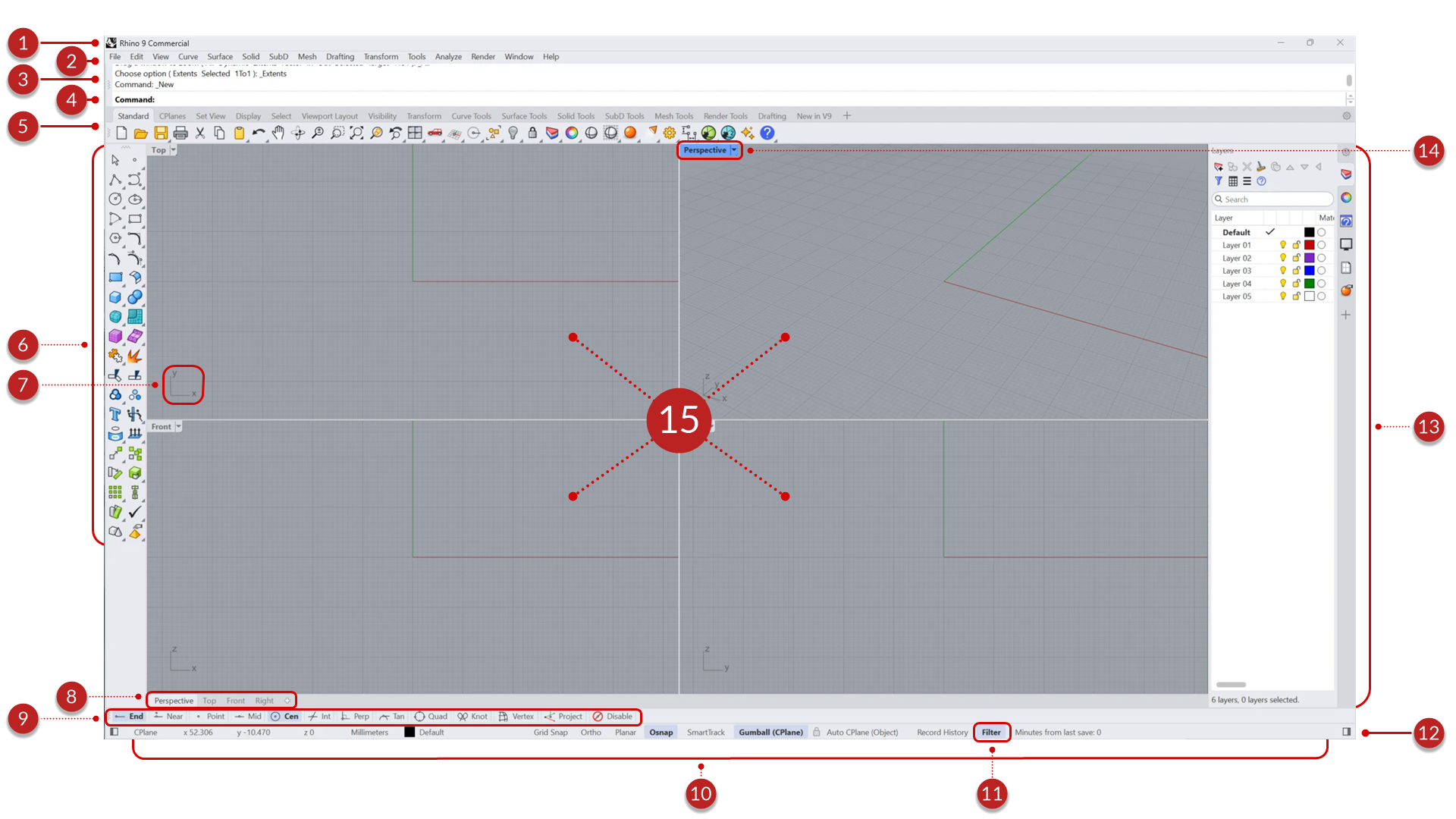
User interface elements include:
1 Title Bar - Displays the file name and the Rhino version used.
2 Menu Bar - Access commands, options, and help through text-based drop-down menus.
3 Command History - A record of all commands that have been used along with results or error messages.
4 Command Prompt - An interactive window to type and run commands, select command options, and see information displayed by the command while running.
5 Standard Toolbar Group - The Standard Toolbar contains commands that help you with file management, view and object manipulation. It’s the first tab in its group. Switch tabs to access geometry- or task-specific tools.
6 Main Sidebar - Contains quick access to some of the most useful commands for creating, editing, and analyzing geometry. As you switch to other tabs in the Standard Toolbar Group, the Sidebar updates with tools relative to the tabbed toolbar topic.
7 World Axis Icon - Displays the viewport axis in world coordinates. It’s useful for viewport navigation and as a reference to World coordinates when working with custom CPlanes.
8 Viewport Tabs - Tabs allow you to switch viewports when the view is maximized or to change which viewport is active. Also, use the “+” to add more viewports and Layouts (paper space).
9 Osnap Control - Used to enable/disable different object snaps. Osnaps are magnetic points you reference on existing geometry to help model with precision.
10 Status Bar - The status bar displays the current coordinate system, the cursor location, and the system unit. It also provides quick access to layers and toggles of modeling aids.
11 Selection Filter - Used to limit the type of objects that can be selected, including filtering by sub-object selection.
12 Sidebar Visibility - Toggles the sidebar’s visibility on the left and right of the interface. A quick way of enlarging the drawing area.
13 Panels - Six panels are open by default: Layer, Object Properties, Help, Display, Layouts and Rendering. Panels help you organize your model and objects, manage and edit geometry, and more. Select the + sign by the Panel tabs to toggle other panels on / off.
14 Viewport Title - Shows the viewport projection and name. Viewport Title can be customized in the viewport properties. Selecting the arrow of the title gives you access to a series of viewport options.
15 Viewports - A viewport displays the Rhino modeling environment, including object display, viewport title, background, construction plane grid, and world axis icon. When no object is selected, the Properties panel displays the viewport properties.

