
Licensing Methods
Choosing a Licensing Method
A Rhino license can be assigned to your Rhino Account, a Team, a LAN Zoo, or to a single computer. Answer two questions and we'll guide you through assigning your license.
Cloud Zoo
Free, cloud-based licensing through your Rhino Account. Log in on any computer, alone or as part of a team. Best for most individuals and organizations.
LAN Zoo
Float licenses among users on your private network, with no internet connection required. Best for educational labs and networks without reliable internet access.
Single Computer
Lock a license to a single computer. The simplest option, and the only one that needs no network at all.
Licensing Guides
Changing Your Licensing Method
Remove a license from a single computer, a LAN Zoo, or a Cloud Zoo, then add it wherever you are moving it to.
Upgrading Your License
Validate an upgrade license on the same device as your previous license, and find a previous license key you've lost track of.

Educational Lab Licensing
Learn what options exist to license Rhino for an educational lab, and find the best license type to fit your situation.
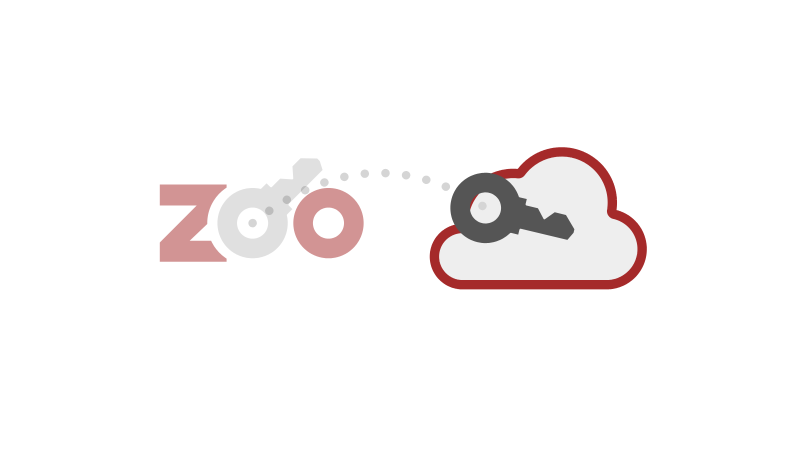
Migrating from LAN Zoo to Cloud Zoo
Move the licenses on your Zoo server into the Cloud Zoo so your users can log in from any computer in the world.
Deployment
Automate installing and licensing Rhino across your organization, on Windows and Mac, and uninstall it.
Offline Installation
Install and validate Rhino on computers that have no internet access, including offline help.
90-Day Evaluation
Try the full version of the latest Rhino free for 90 days, and see what happens to your work when the evaluation ends.

Educational Licensing
Who qualifies for a student or faculty license, what it can and cannot be used for, and how to upgrade it after you graduate.

