
Applies to Rhino 6 and later.
The Rhino installer makes sure Windows has everything it needs to run Rhino, including the .NET Framework and the Microsoft Visual C++ Runtime packages. Because many computers already have these packages, they aren’t built into the installer. Instead, the installer downloads them as needed.
To install offline, you need to download these packages ahead of time.
Updating Windows Offline
On the offline computer, install all Windows updates first. This is a critical step: without it, Rhino may fail to install. See Installing Windows Updates Offline (a third-party article) for one way to do this.
Downloading Rhino Packages for Offline Installation
On a computer with internet access:
- Download the latest Rhino installer.
- Create an empty folder named Rhino Offline Install.
- Move the Rhino installer into the Rhino Offline Install folder.
- Run the installer.
- Click the gear icon next to the Install Now button.
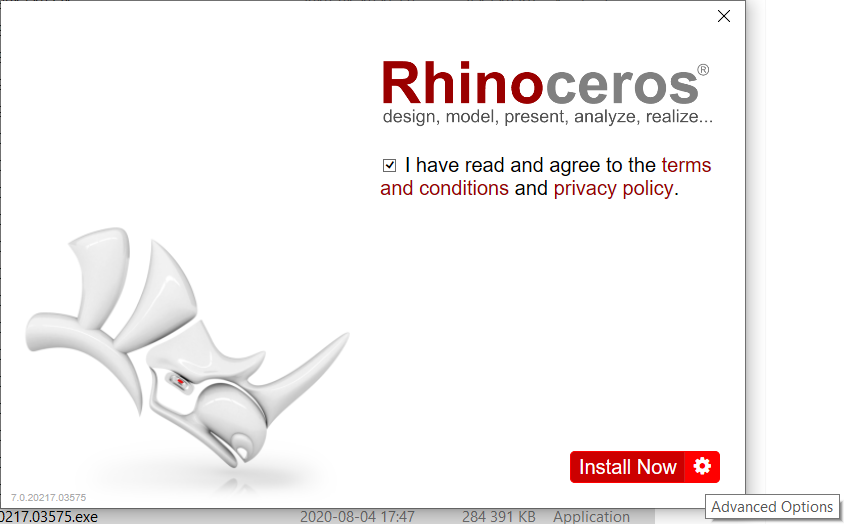
- Click Download packages for offline installation.
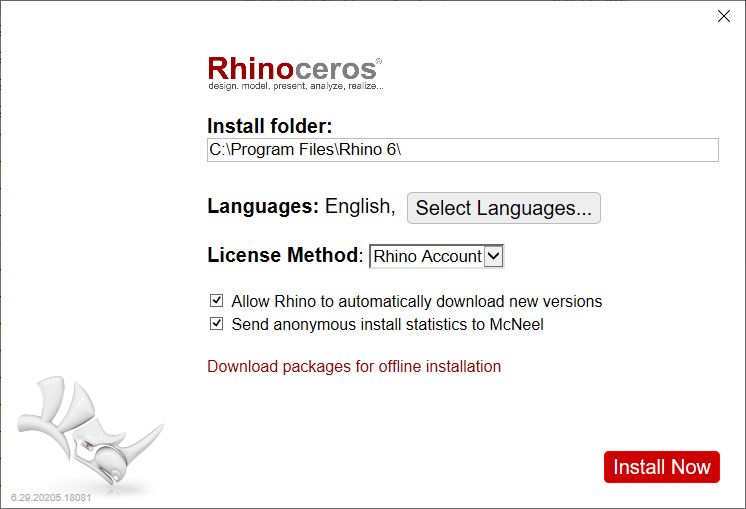
- Rhino downloads the packages and shows a progress dialog.
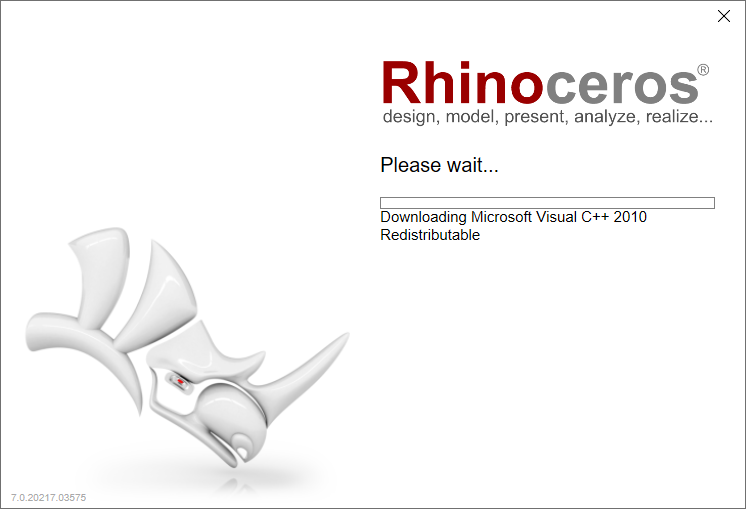
- When the download finishes, a Layout Completed Successfully dialog appears with further instructions.
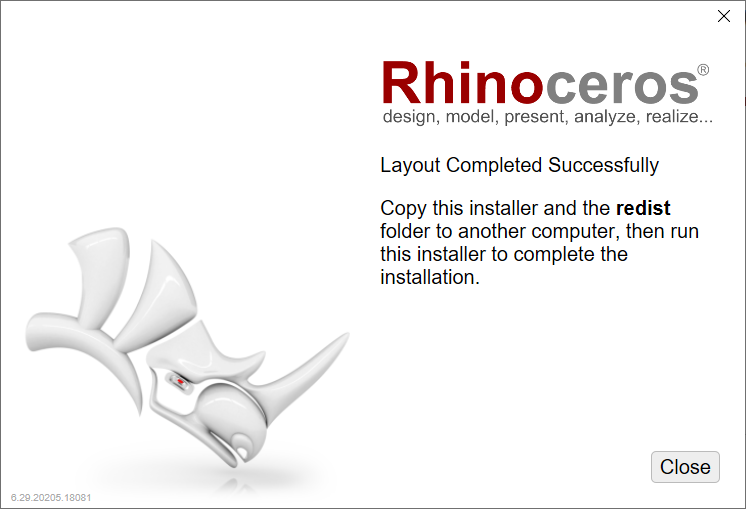
- The Rhino Offline Install folder now contains a Bootstrapper.exe file and a redist folder next to the installer.
Installing
- Copy the Rhino Offline Install folder to the offline computer or to a network drive.
- On the offline computer, run Bootstrapper.exe.
To deploy across a network, follow the deployment instructions.
Validating an Offline Installation
Rhino licenses must be validated before they can be used. On an offline computer, you can validate the license offline.
- When you start Rhino, it tells you it can’t connect to the validation server.
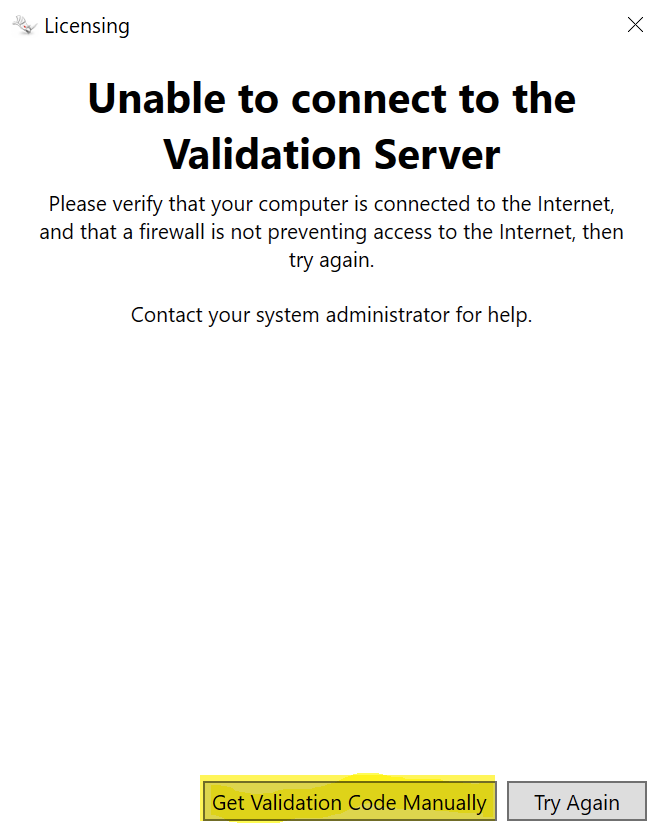
- Click Get Validation Code Manually.
- The Get Validation Code Manually dialog appears.
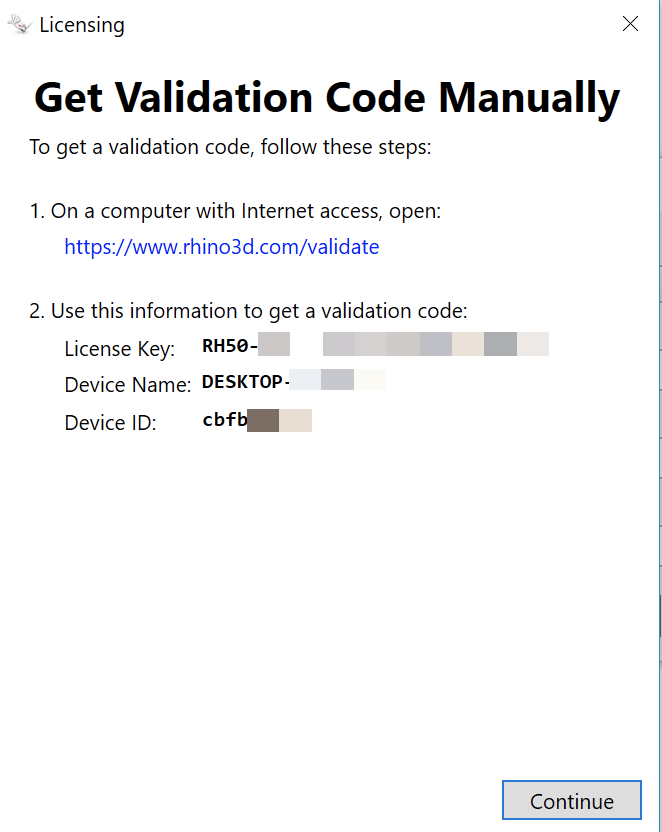
- Write down the License Key, Device Name, and Device ID.
- Go to a computer with internet access.
- In a web browser, go to https://www.rhino3d.com/validate.
- Enter your email address, Rhino license key, Device Name, and Device ID.
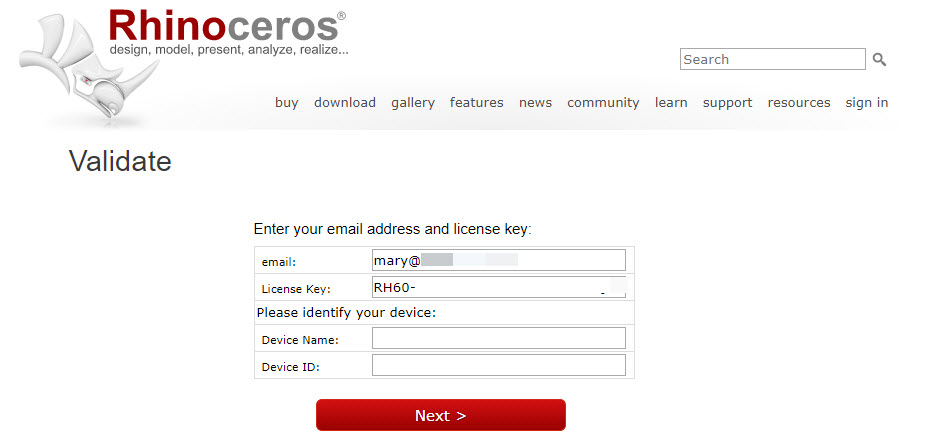
- If you are upgrading, also enter the license key for your previous version of Rhino.
- Your validation code is displayed. Print it or save it to a text file. Use the code within 24 hours.
- Return to the offline computer and click Continue.
- Enter your validation code in the Validation Wizard and click Next.
Rhino is now validated.
Help Files
The Rhino help system is online. To use it offline on Windows, install the offline help for your version of Rhino.
Rhino 8
- Update Rhino 8 to the latest version.
- Download the offline Rhino 8 help self-extracting archive for All Users.
- Double-click the downloaded .exe file.
Rhino 7
- Update Rhino 7 to the latest version (7.32 or later is required).
- Download the offline Rhino 7 help self-extracting archive for All Users.
- Double-click the downloaded .exe file.
Rhino 6
- Download the offline Rhino 6 help installer.
- Run the installer, and select For All Users during installation.
- Learn more about Installing RHI files for All Users.

