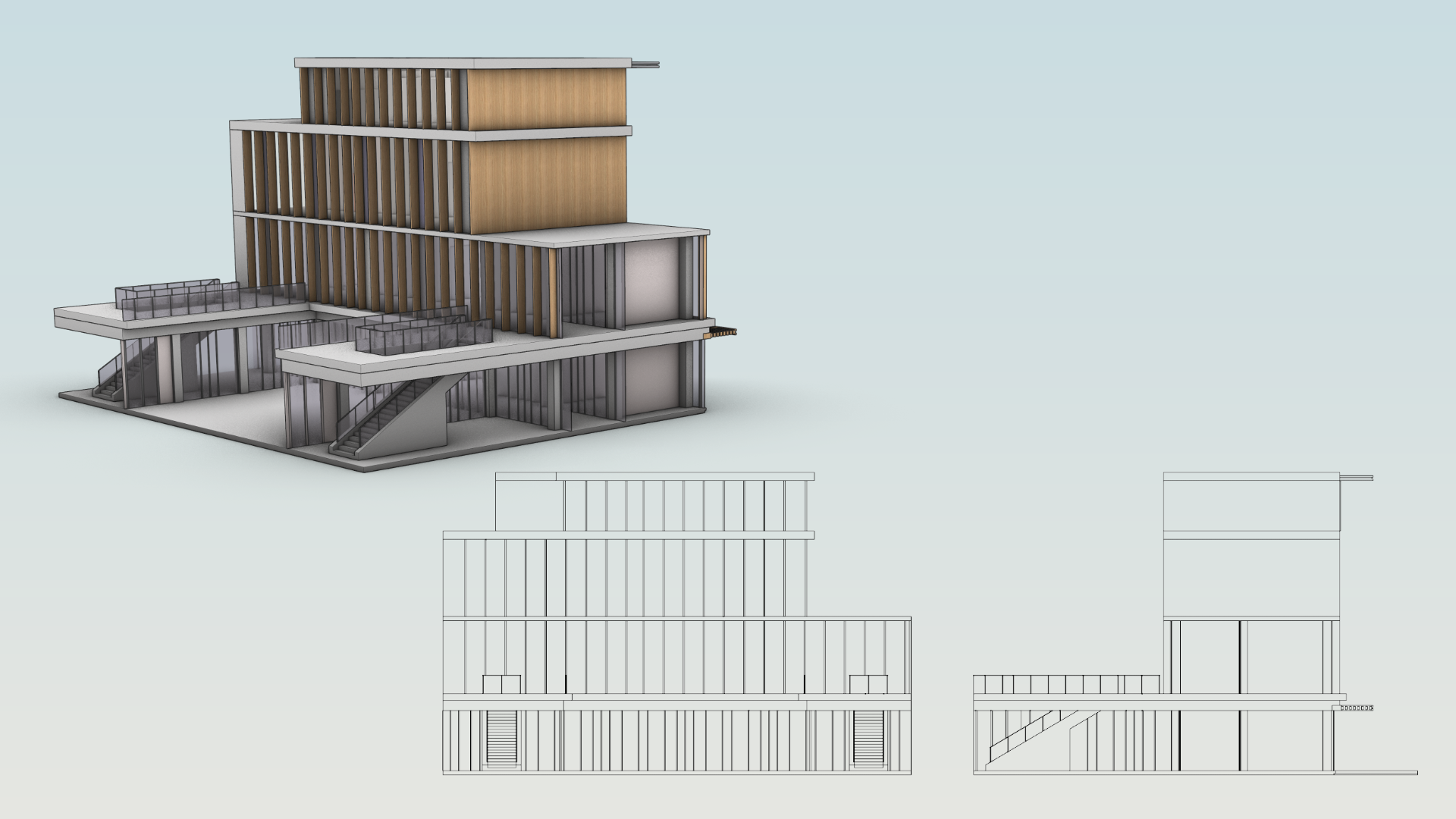
In this tutorial, you’ll learn how to create Elevation drawings in Rhino 9 while keeping them in sync with the 3D model as the project evolves. We’ll address how to output the drawings to a team- or project-specific layer structure and control linework and other drawing properties through layers.
What you'll learn
- Create a section with
 ClippingSections
and a 2D drawing with
ClippingSections
and a 2D drawing with  ClippingDrawings
.
ClippingDrawings
. - Control the Clipping Drawing options, including output layers and annotations.
- Turn clipping planes into live North and South Elevations.
- Add and remove content from ClippingDrawings
using layers and the Objects Clipped property.
- Use curves and annotations in ClippingDrawings
to show design alternatives.
Create the 2D Drawing
We’ll start by cutting a section through the building with ClippingSections
, then extract it as a 2D drawing.
- Download and open the model Elevation Drawings. The model represents a small portion of a larger building. The file has a nested layer structure that divides the model into floors and the components they contain. Component detail has been simplified for clarity.
- Maximize the viewport and change the Display Mode to Shaded.
- Run ClippingSections
.
- At the
Select objects to sectionprompt , press to select all the geometry. - At the
Place sectionsprompt, set the following options:- Direction =
X - Custom Depth =
No - Clip =
No - Name =
Section - Label Mode =
Text - Saved to Named View =
No - Flip =
Yes
- Direction =
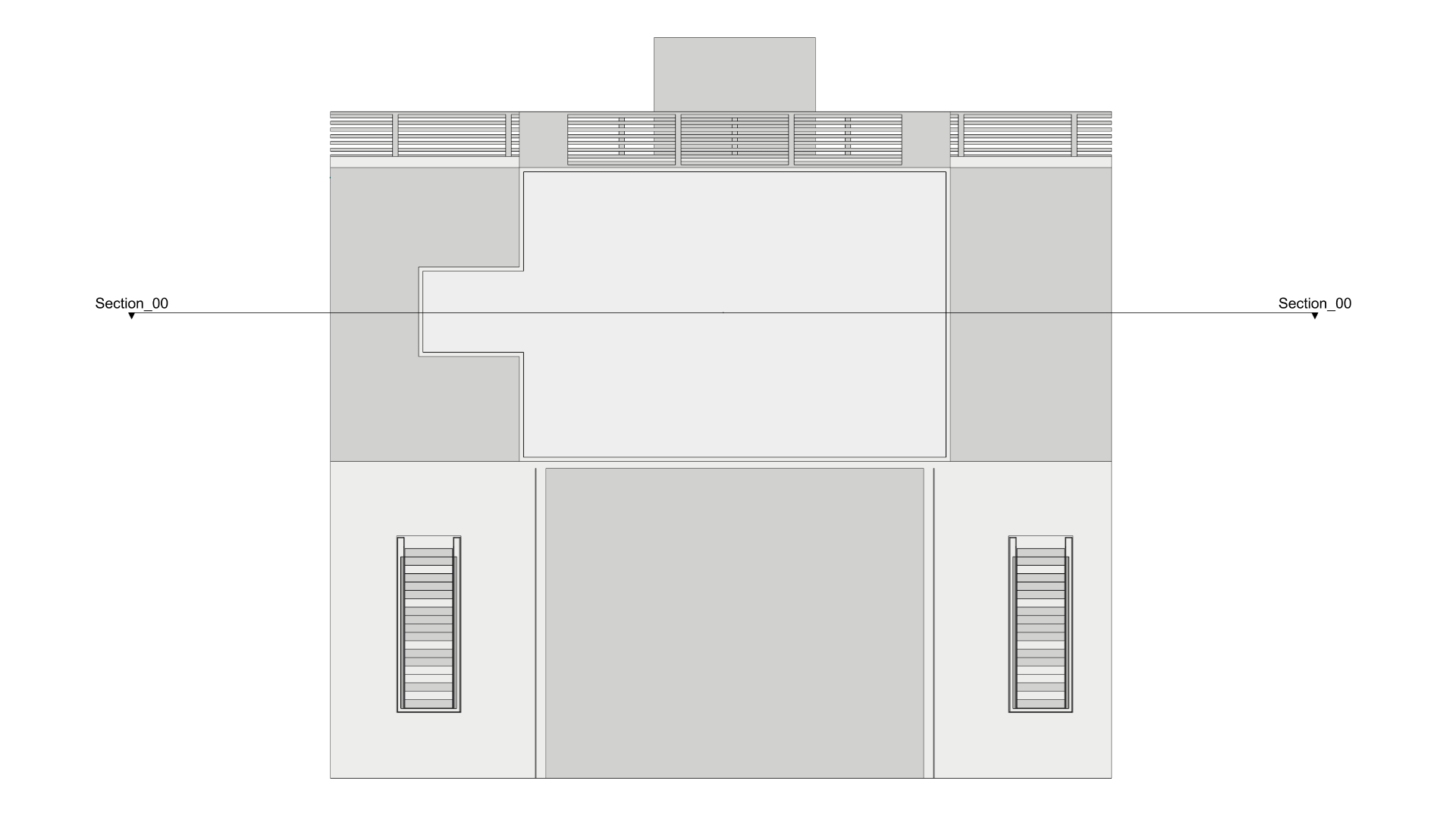
- Place the section so it passes through the building.
- Run ClippingDrawings
to create a new 2D Drawing.
- At the
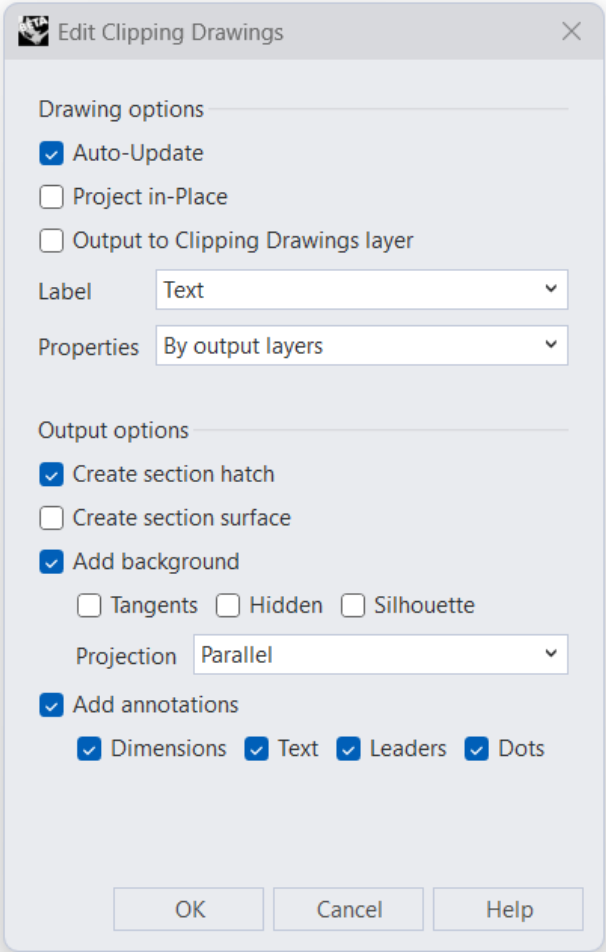
Select clipping planesprompt, select theSection_00Clipping Plane widget and press . - In the Clipping Drawings dialog, set the following options:
- Auto-Update =
Yes - Project in Place =
No - Output to Clipping Drawings layer =
No - Label =
Text - Properties =
By output layers - Create section hatch =
Yes - Create section surface =
No - Add background =
Yes- Tangents =
No - Hidden =
No - Silhouette =
No - Projection =
Parallel
- Tangents =
- Add annotations =
Yes- Dimensions =
Yes - Text =
Yes - Leaders =
Yes - Dots =
Yes
- Dimensions =
- Auto-Update =
- Press OK to confirm.
- At the
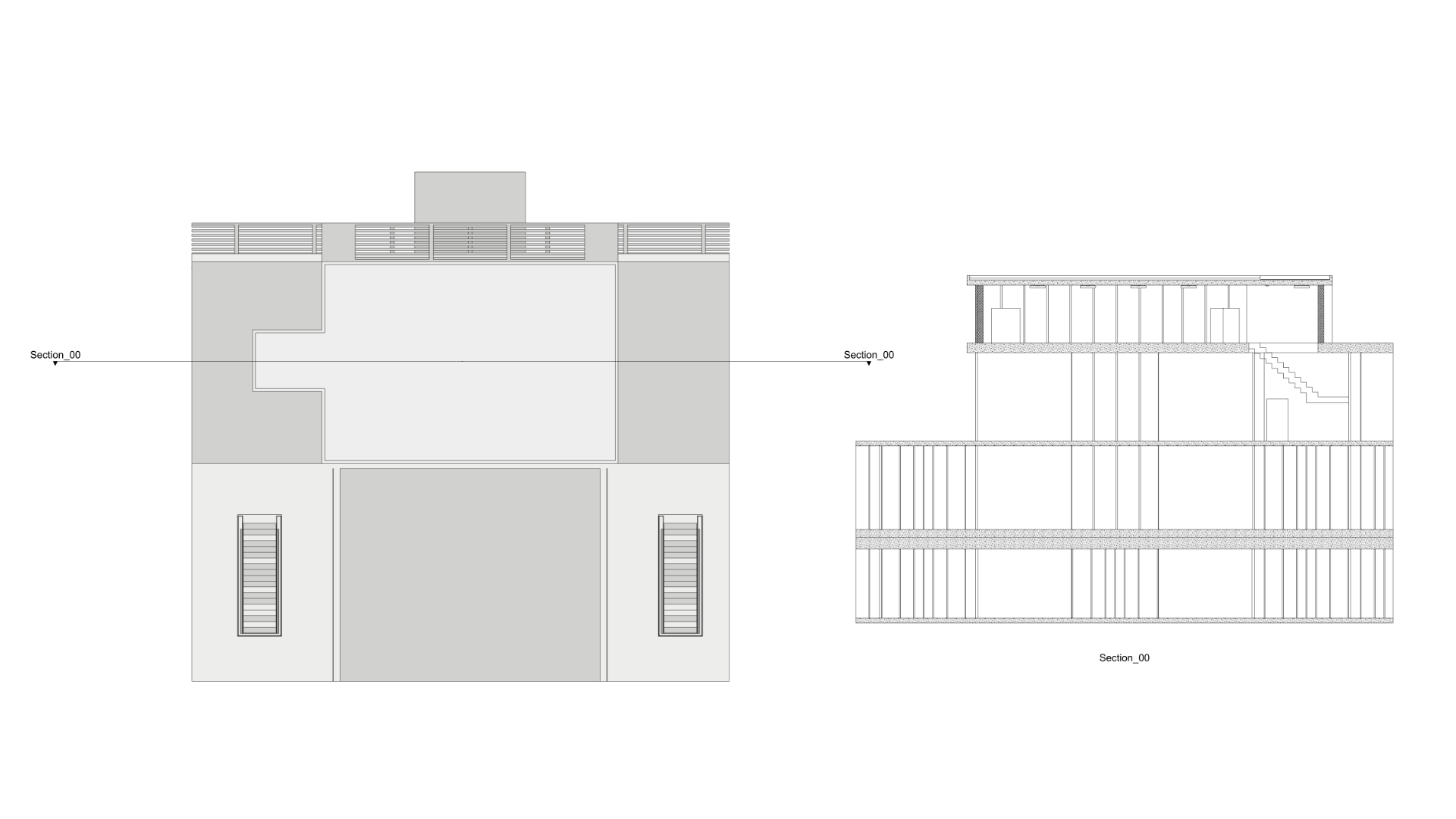
Placement pointprompt, select a point in the viewport to place the drawing next to the model. You might need to zoom out to avoid overlapping the model.
Create the Elevations
A distinct advantage of using Clipping Planes and Clipping Drawings to create elevations and plans is that the drawings update when you change the model.
- Continue with your file or download and open the model Elevation Drawings 01.
- In the
viewport,
select
the
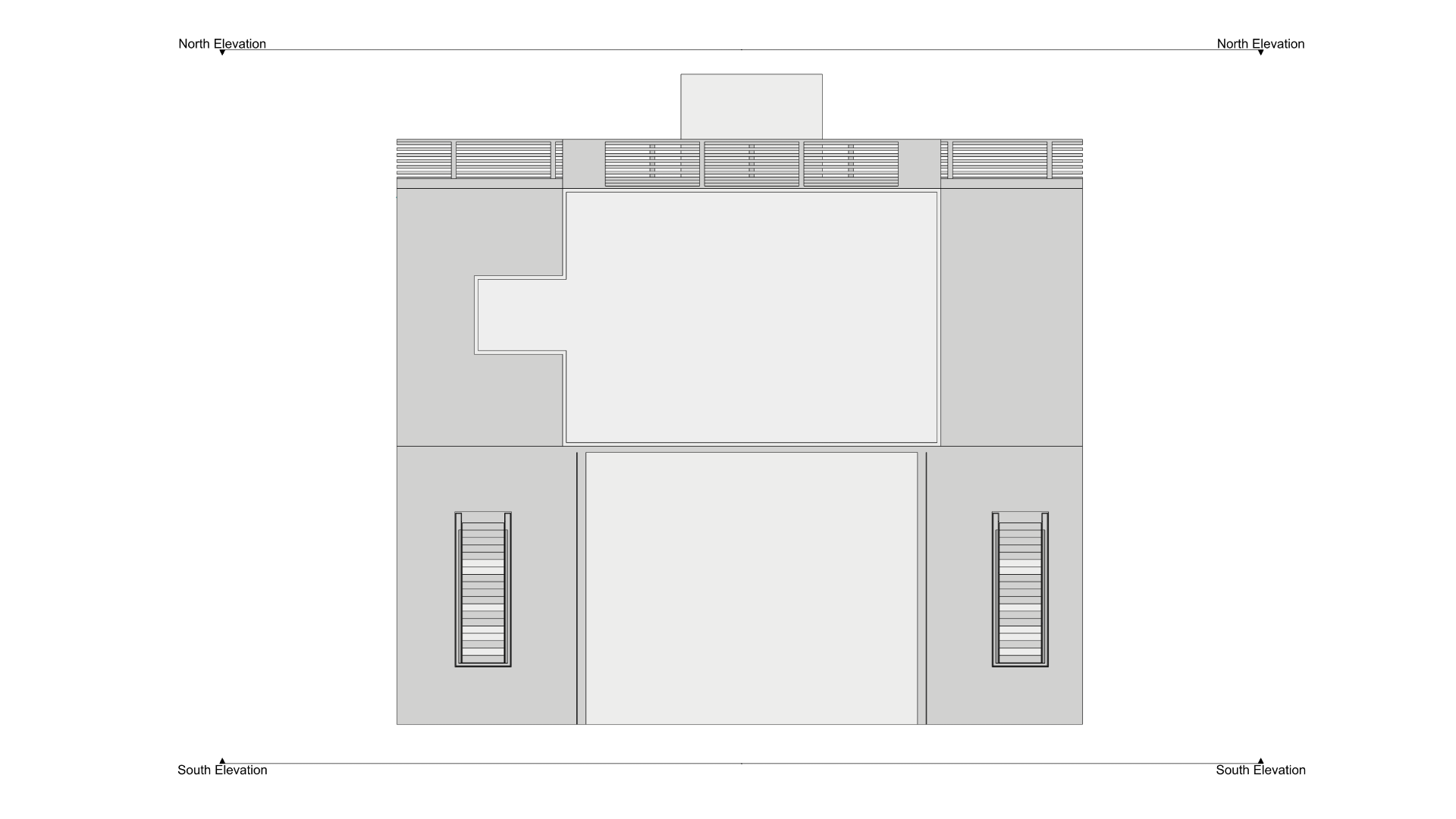
Section_00Clipping Plane widget and drag to move it above the building. It should no longer pass through it. - Notice that the Clipping Drawing now shows an elevation. The key here is the Add background option: the section doesn’t cut through any geometry, but the elevation is visible in the background.
- With
Section_00selected, go to the Properties
panel, under Clipping Plane, rename
Properties
panel, under Clipping Plane, rename Section_00toNorth Elevation. - With the
Section_00still selected, run the Copy
command.
Copy
command. - At the
Point to copy to. Press Enter for automatic.prompt , press Enter. - At the
Point to copy to.prompt, select a point below the building. - Select the new Clipping Plane:
North Elevation_00. - In the Properties
panel, on the Clipping Plane Properties page, rename
North Elevation_00toSouth Elevation. - Run
 Flip
to reverse the direction of the
Flip
to reverse the direction of the South ElevationClipping Plane, so it looks toward the building.
- Run ClippingDrawings
to create a new 2D Drawing.
- At the
Select clipping planesprompt, select theSouth ElevationClipping Plane widget and press . - Use the same Clipping Drawings options as above and press OK.
- At the
Placement pointprompt, place it below theNorth Elevationdrawing. - Because of the way we named and set up the Clipping Drawing options, each 2D Drawing has its own parent layer named after its view. This makes drawing output easier to understand and control. Learn more about Clipping Drawing Options.
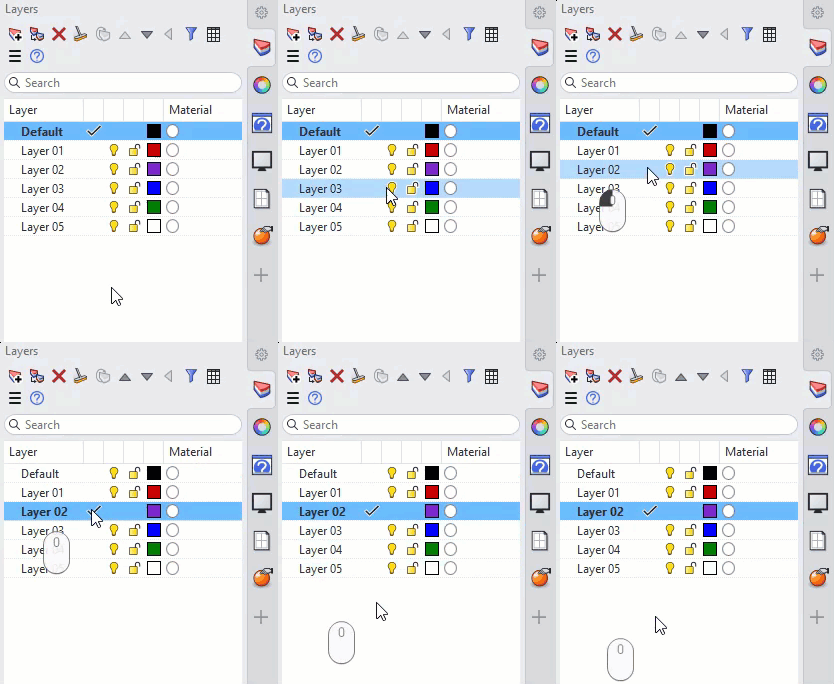
- The visibility of the Clipping Planes themselves can also be controlled per layer:
- Open the
 Layer
panel and
create a Layer
named
Layer
panel and
create a Layer
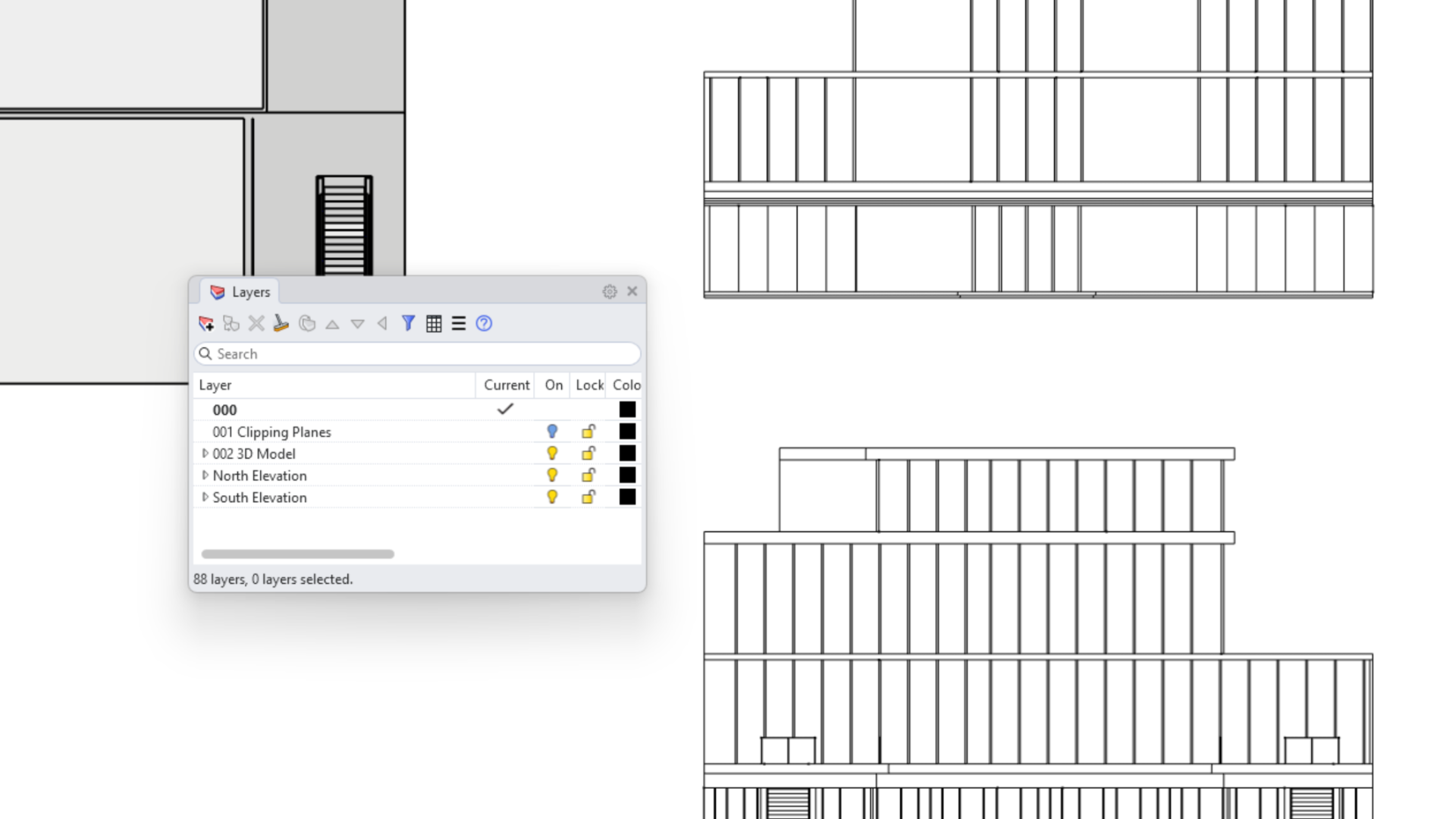
named 001 Clipping Planes. - Select the two Clipping Plane widgets.
- Right-click the
001 Clipping Planeslayer and select Change Object Layer. - Turn off this layer to simplify the view. This doesn’t affect the visibility of the 2D Drawings.
- Open the
- The file now has 88 layers. Thanks to parent layers and sublayers, you can collapse the layer stack to just five main layers.
Add and Remove Content
Because we selected all the geometry when we created the Clipping Section, we can use layer visibility to control what is clipped and shown in the drawing. We can also add or remove objects one by one.
- Continue with your file or download and open the model Elevation Drawings 02.
-
Set 4 Views
:
- Make sure the building model is visible in the viewport
- Make sure the
South ElevationClipping Drawing is visible in the viewport.
- In the Layer
panel:
- Expand
002 3D Model -
Turn off sublayer
002-01-010 Stairs Ground to First - Turn
001 Clipping Drawingslayer back on.
- Expand
- Run
 UpdateClippingDrawings
and select
UpdateClippingDrawings
and select Allin the prompt . TheSouth ElevationClipping Drawing updates.
UpdateClippingDrawings
to refresh the drawing after showing or hiding layers.Next, let’s remove some objects one by one:
- Turn
002-01-010 Stairs Ground to Firstback on and update the drawing. All objects are shown again. -
Select
the
South ElevationClipping Plane widget. - Go to the Properties
panel → Clipping Plane Properties page, under Objects Clipped:
- Change
AlltoExclude Selected. - Then, select the Objects button.
- At the
Select objects for custom clippingprompt, select one of the concrete stairs on layer002-01-010-01 Stair Concreteand press .
- Change
- The 2D Drawing updates automatically, removing the stair.
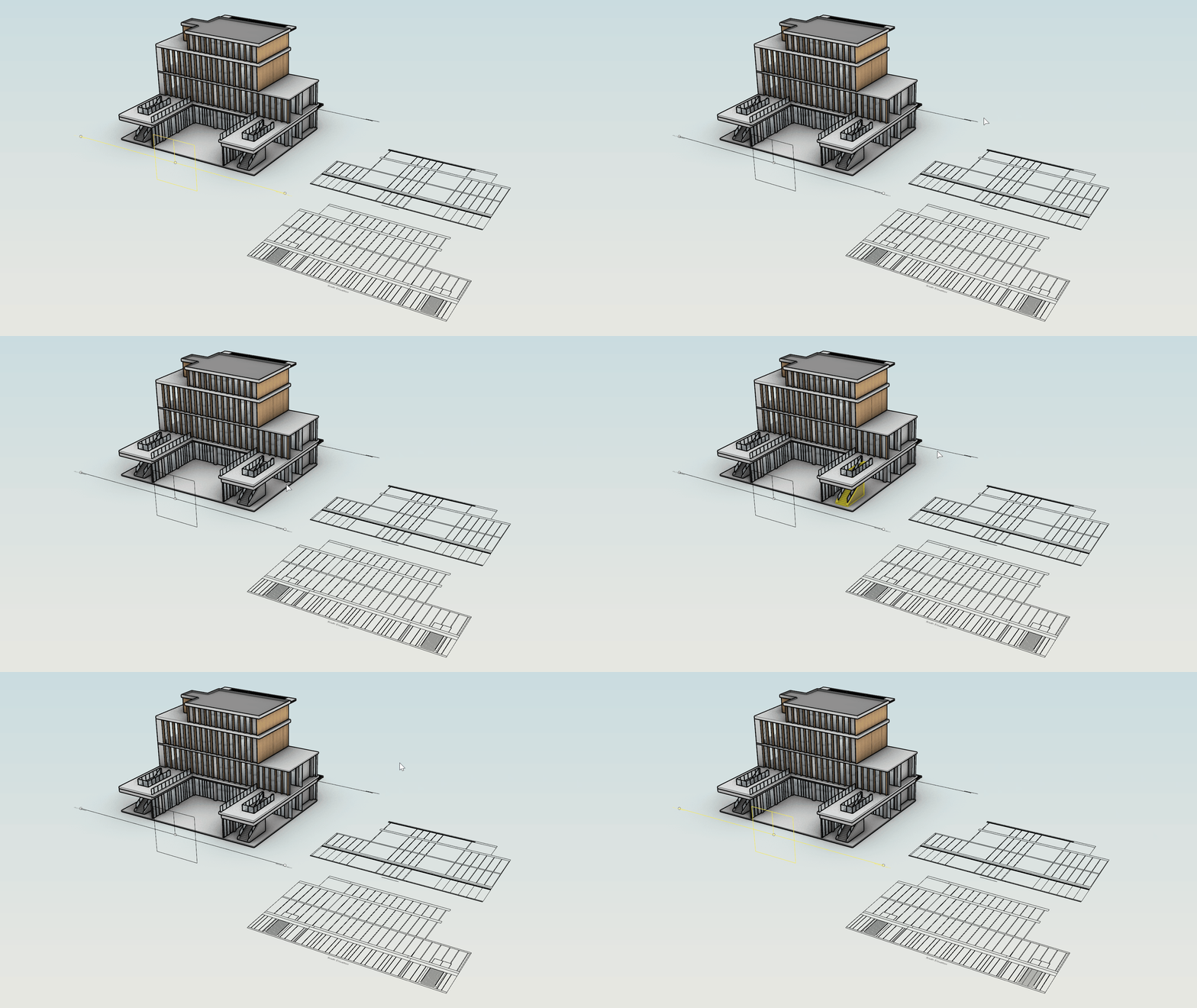
Now let’s add objects one by one:
- Select
South ElevationClipping Plane widget. - In the Properties
panel → Clipping Plane Properties page, under Objects Clipped:
- Select the X next to Objects to clear the excluded objects.
- Set Objects Clipped to
Include Selected. - The
South Elevation2D Drawing disappears because no objects are included in the selection yet. - Select the Objects button.
- At the
Select objects for custom clippingprompt, window select the whole building in the viewport - Press to end the command.
- The
South Elevation2D Drawing reappears, now with 797 objects included in the selection.
- Make
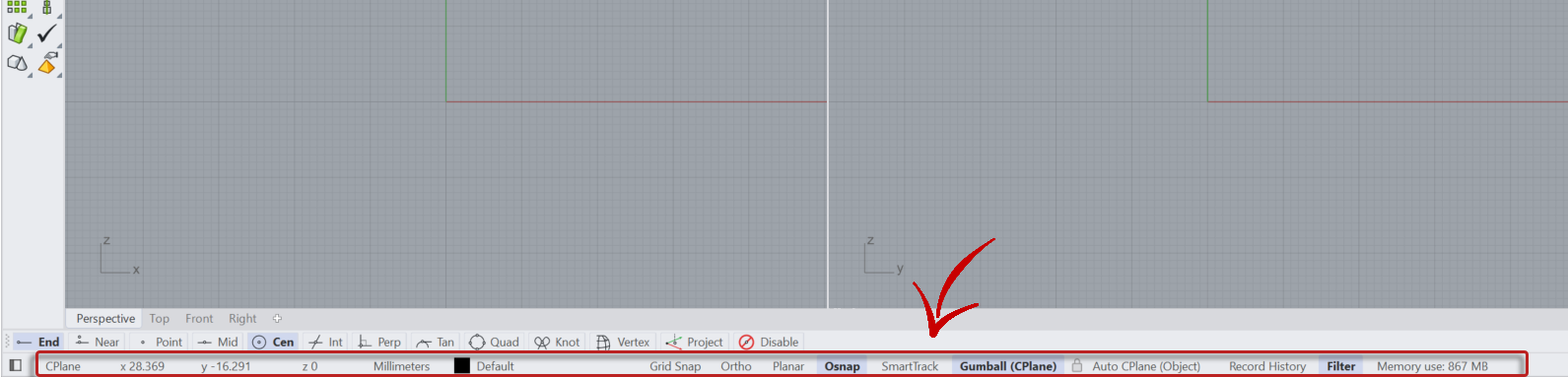
002-01-001 Floorthe current layer . - In the
Status Bar
, activate
 AutoAlignCPlane
. Right-click and set the alignment to Align to World.
AutoAlignCPlane
. Right-click and set the alignment to Align to World. - In the viewport, sub-object select the upper surface of the ground floor slab. Then, lock the Auto CPlane by selecting its lock icon in the Status Bar .
- Still in the viewport, add some simple solids, similar to the example below.
- Select the
South ElevationClipping Plane widget and go to the Clipping Plane Properties page in the Properties
panel. - Under Objects Clipped, select Objects and follow the prompt to add some (but not all) of the new solids.
- The South Elevation Clipping Drawing automatically Updates to include the new selections.
- To include all objects again, go back to the Clipping Plane Properties page, in the Properties
panel:
- Select the X next to Objects to clear the included objects. The 2D Drawing disappears again.
- Set Objects Clipped to
Allto bring the drawing back.
- Delete the new solids and turn off Auto CPlane.
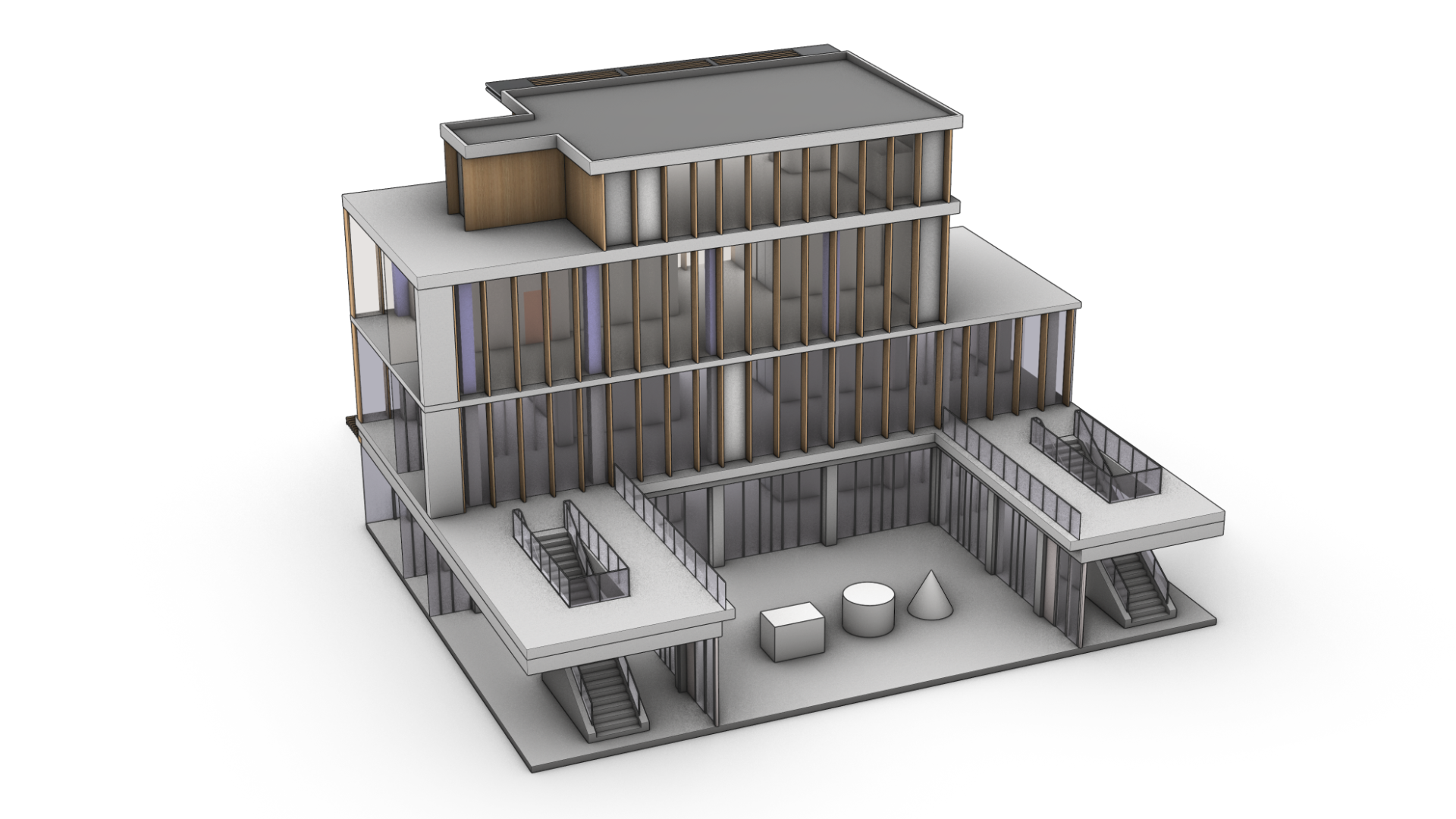
Use Curves in Clipping Drawings
Clipping Drawings support curves and linework. With layers and selections, you can quickly add alternative information to a scheme. Let’s look at an example.
- Continue with your file or download and open the model Elevation Drawings 03.
- Change to the viewport and make sure you’re in Shaded mode .
- Run ClippingSections
to create a horizontal section.
- At the
Select objects to sectionprompt , drag a rectangular selection around the building and press . - At the
Place sectionsprompt, set the following options:- Direction =
World - Custom Depth =
No - Clip =
No - Name =
Access - Label Mode =
Text - Saved to Named View =
No - Flip =
No
- Direction =
- Place the section about halfway up the first floor. Press .
-
Select
the new Clipping Plane:
Access_00. - Run the Copy
command. Follow the
prompt
to create a copy 1000 mm above.
- You should have two sections that produce essentially the same Clipping Drawing, which we can then vary by adding or removing content.
- Change to the viewport.
- Run ClippingDrawings
to create a new 2D Drawing.
- At the
Select clipping planesprompt, select theAccess_00Clipping Plane widget and press . - In the Clipping Drawings dialog, use the same options as before:
- Auto-Update =
Yes - Project in Place =
No - Output to Clipping Drawings layer =
No - Label =
Text - Properties =
By output layers - Create section hatch =
Yes - Create section surface =
No - Add background =
Yes- Tangents =
No - Hidden =
No - Silhouette =
No - Projection =
Parallel
- Tangents =
- Add annotations =
Yes- Dimensions =
Yes - Text =
Yes - Leaders =
Yes - Dots =
Yes
- Dimensions =
- Auto-Update =
- Press OK to confirm.
- At the
Placement pointprompt, select a point in the viewport. - Repeat the process for
Access_01and place the two Clipping Drawings side by side. - Select the
Access_01Clipping Plane widget. - In the Clipping Plane Properties page of the Properties
panel, select Objects.
- At the
Select objects for custom clippingprompt: - The 2D linework on
002-02-011 Alternative Accessis now visible in theAccess_01Clipping Drawing. Notice that the text, dimensions, and leaders are carried over to the 2D Drawing too. - Now let’s clear some 3D geometry on the second floor to make the drawing easier to read. In the Clipping Plane properties:
- Change Objects Clipped to
Exclude Selected. - Select the X next to Objects to clear the selected objects.
- Select Objects and, at the
Select objects for custom clippingprompt, use the Layers panel as above to select all the geometry on these layers:002-02-004-01 Wood002-02-004-02 Glass002-02-007 Elevator
- Press to confirm the selection.
- Change Objects Clipped to
- We now have drawings of two alternative access configurations, generated from the same core data.
- Double-click the
Access_01Clipping Drawing and try turning some of the annotation types on and off. The dimensions, text, and leaders in the referenced 2D information all respond. - The two elevations and two sections created in this tutorial are each stored on their own set of layers, so print width, linetype, and print color are easy to configure per drawing.
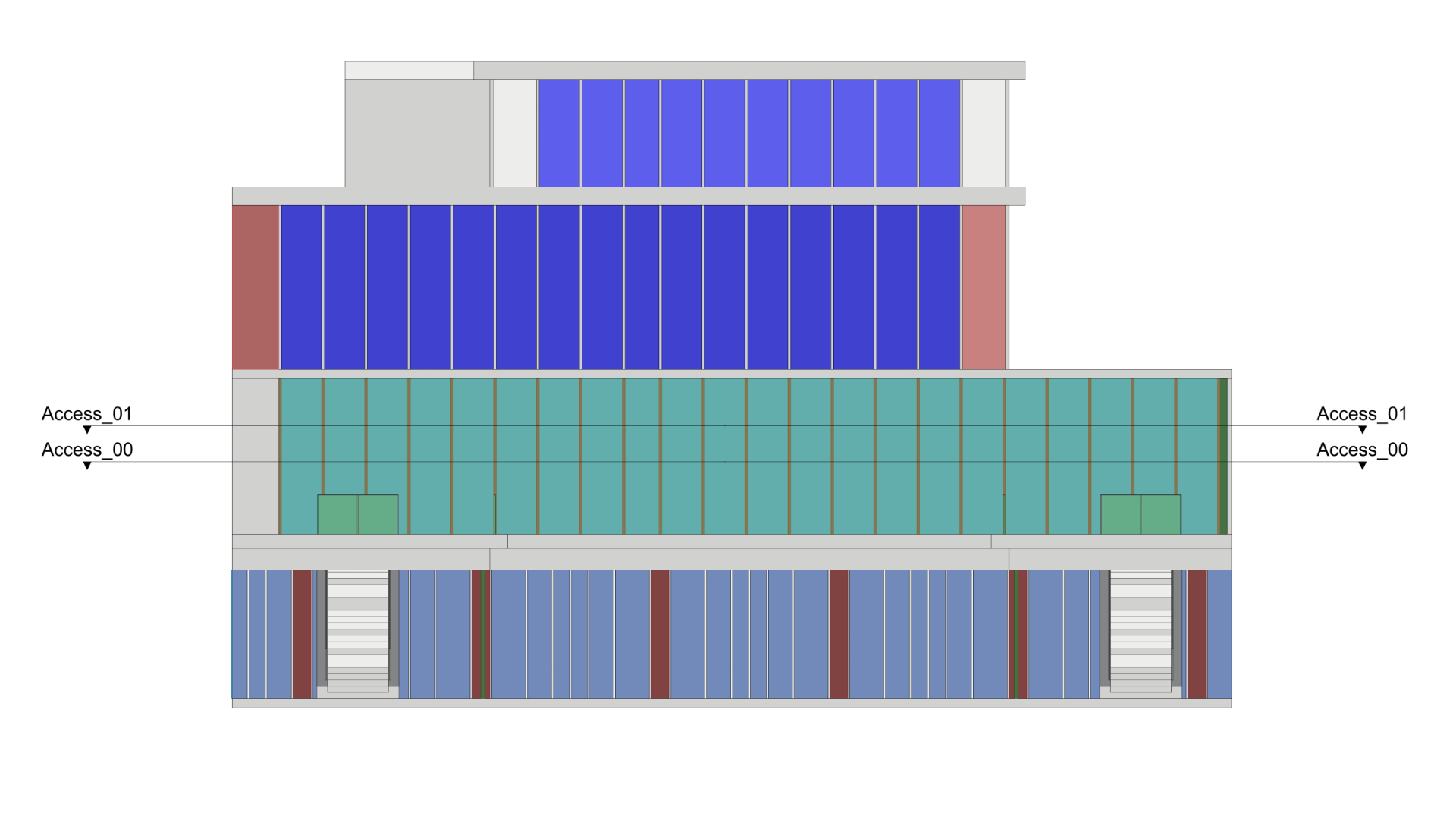
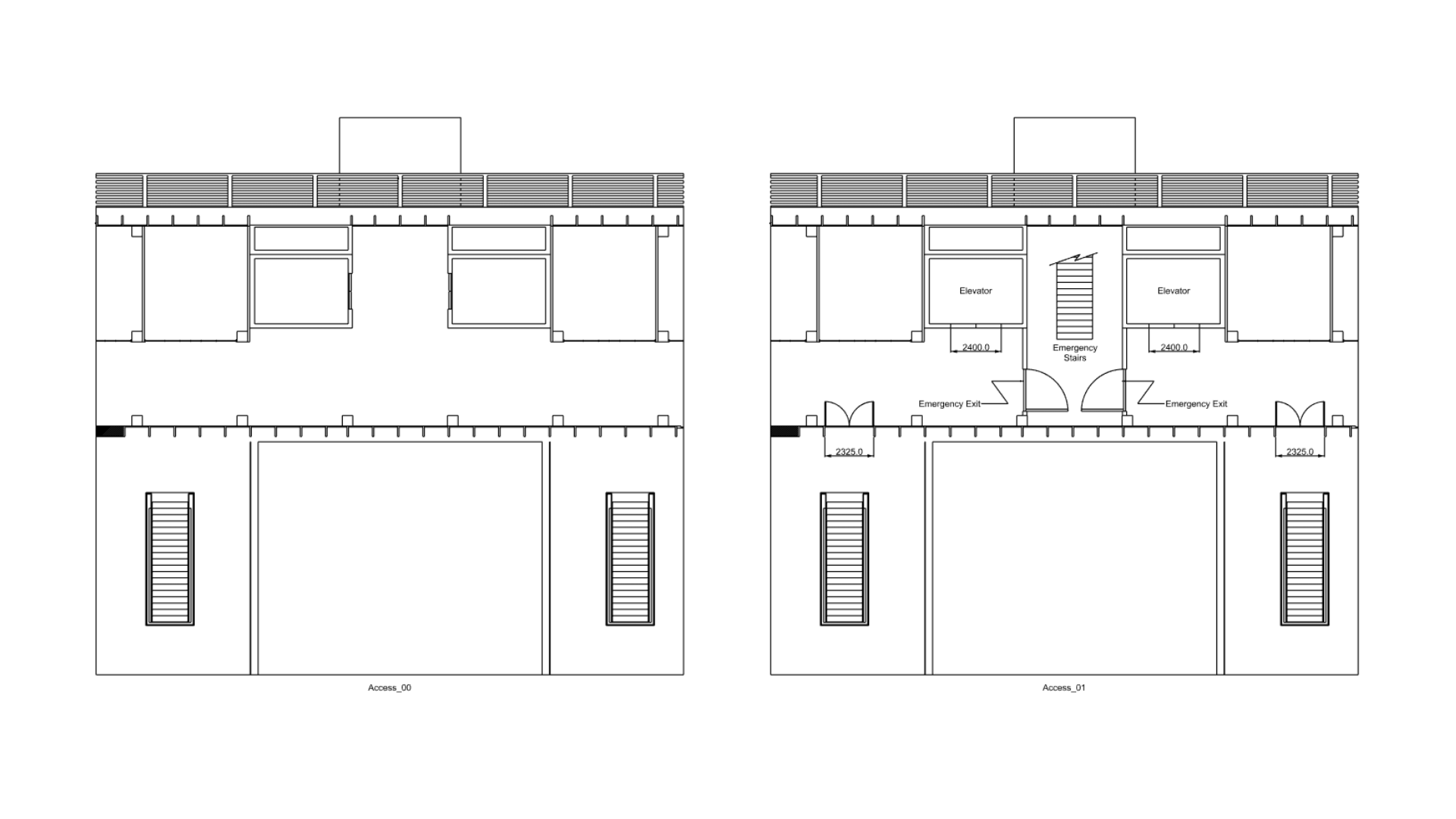
Support for curves means you can quickly add design information or suggestions to an existing model, without changing the model itself or its layouts.
Clipping Drawing Options
Clipping Drawing options are set when you run ClippingDrawings
, but they can all be edited afterward. Double-click a 2D Drawing to edit its properties. This section serves as a reference to what the options do:
Drawing Options
- Auto-Update: updates the 2D Drawing in Model Space and Layout Space when the corresponding Clipping Plane moves, or when geometry included in the selection changes in any way. This can slow down performance on large models. If unchecked, run UpdateClippingDrawings
to update the drawing.
- Project in-place: Aligns the 2D Drawing with the Clipping Plane. Useful together with Create section surface.
- Output to Clipping Drawings layer:
- When checked, every 2D section is placed on a single set of nested layers, with a parent layer named
Clipping Drawings. - When unchecked, each 2D section gets its own set of nested layers, for example
Section_00,Section_01,Section_02. This makes it easier to control the visibility, line weight, and other properties of individual drawings.
- When checked, every 2D section is placed on a single set of nested layers, with a parent layer named
- Label: Select Text (uses the Text Style and scaling set in Annotation Properties), Dot, or None.
- Properties:
- By output layers: Output layers control Display Color, Linetype, Print Color, Print Width, and other properties.
- From input objects: Those properties come from the source model layers instead. The output layers still control visibility.
- Use source layers: Creates no new layers. Object properties are controlled entirely by the model layers.
Output options
- Create section hatch: Creates hatches in the 2D Drawing, controlled by the Section Styles. Section Style hatches are always shown in clipped Model Space views.
- Create section surface: Creates a physical surface that caps any open boundaries created by the section. Useful together with Project in Place for visualization.
- Add background: Shows detail behind the section, rather than just the section slice.
- Tangents: Shows the start and end of, for example, a filleted corner.
- Hidden: Shows detail hidden behind the section.
- Silhouette: Creates a thicker line around the perimeter outline of the 2D Drawing.
- Projection: Select Parallel, Perspective, Reflected, or Parallel and Reflected. See also the Reflected Ceiling Drawing tutorial.
- Add annotations: Adds any of the checked annotation types (Dimensions, Text, Leaders, Dots) captured by the Clipping Section to the Clipping Drawing.