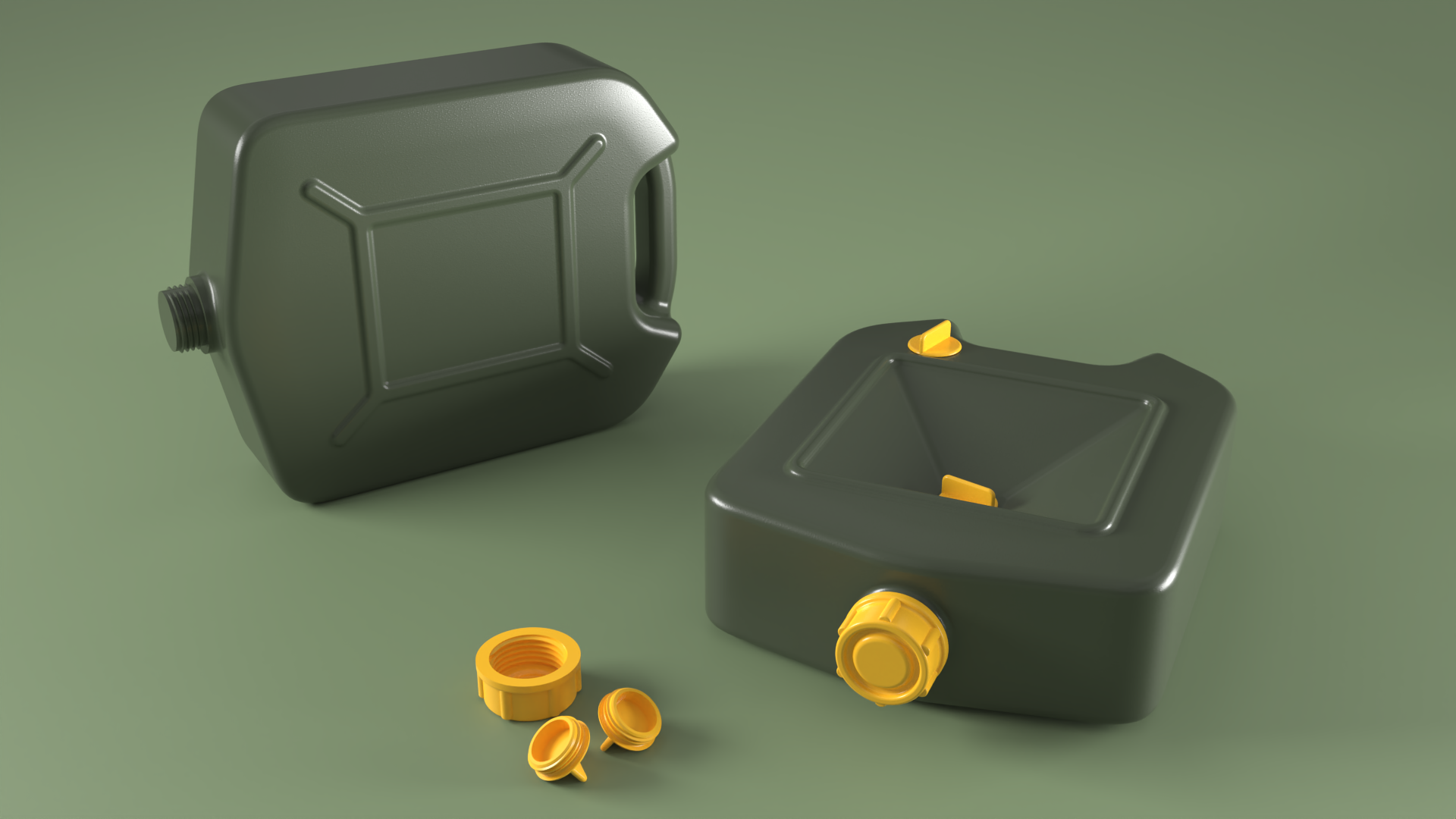
In this tutorial, you’ll learn how to leverage the different options in the  FilletSrf
command to create smooth, tangent-continuous transitions between different parts of a product. We’ll cover construction strategies to make filleting easier. The result is a closed, watertight object you can use for visualization or further detailing and refinement.
FilletSrf
command to create smooth, tangent-continuous transitions between different parts of a product. We’ll cover construction strategies to make filleting easier. The result is a closed, watertight object you can use for visualization or further detailing and refinement.
What you'll learn
- Create clean G1 (rolling ball) transitions with FilletSrf
, even between surfaces that don’t share an edge.
- Chain fillets around a body and let them automatically trim the surfaces they meet.
- Fillet between a surface and a curve or edge using
 FilletSrfCrv
.
FilletSrfCrv
.
Fillet the Top Half Body
The base surfaces for the model have been created. Notice how the vertical surfaces already have fillet transitions. This lets us create a single fillet chain to the top horizontal slab using the Continue across faces option. Modeling the object in separate logical parts and then adding fillet transitions to join them is a good construction strategy.
- Download and open the model JerryCan.
- Run the FilletSrf
command. Press Enter.
- At the
Select first surface to fillet (Radius=1)prompt , select the top handle surface. - At the
Select second surface to fillet (Radius=1)prompt, select the inner handle surface. - In the Fillet Surface dialog:
- Double-click the slider and increase the radius to Radius 10.
- Make sure the following options are selected:
- Trim
- Join
- Extend
- Continue across faces
- Press OK to create the first fillets and close the dialog.
- Following the same steps as above, create the fillets that connect the handle to the vertical part of the cutout, on both sides. Use Radius 10.
- Create the fillets that connect the cutout to the body. This time, use Radius 15.
The Slider TrickDouble-click the slider to enter a value and press Enter to validate. Push the slider to the far right or left to increase its range. Alternatively, enter a higher value to automatically increase the range.
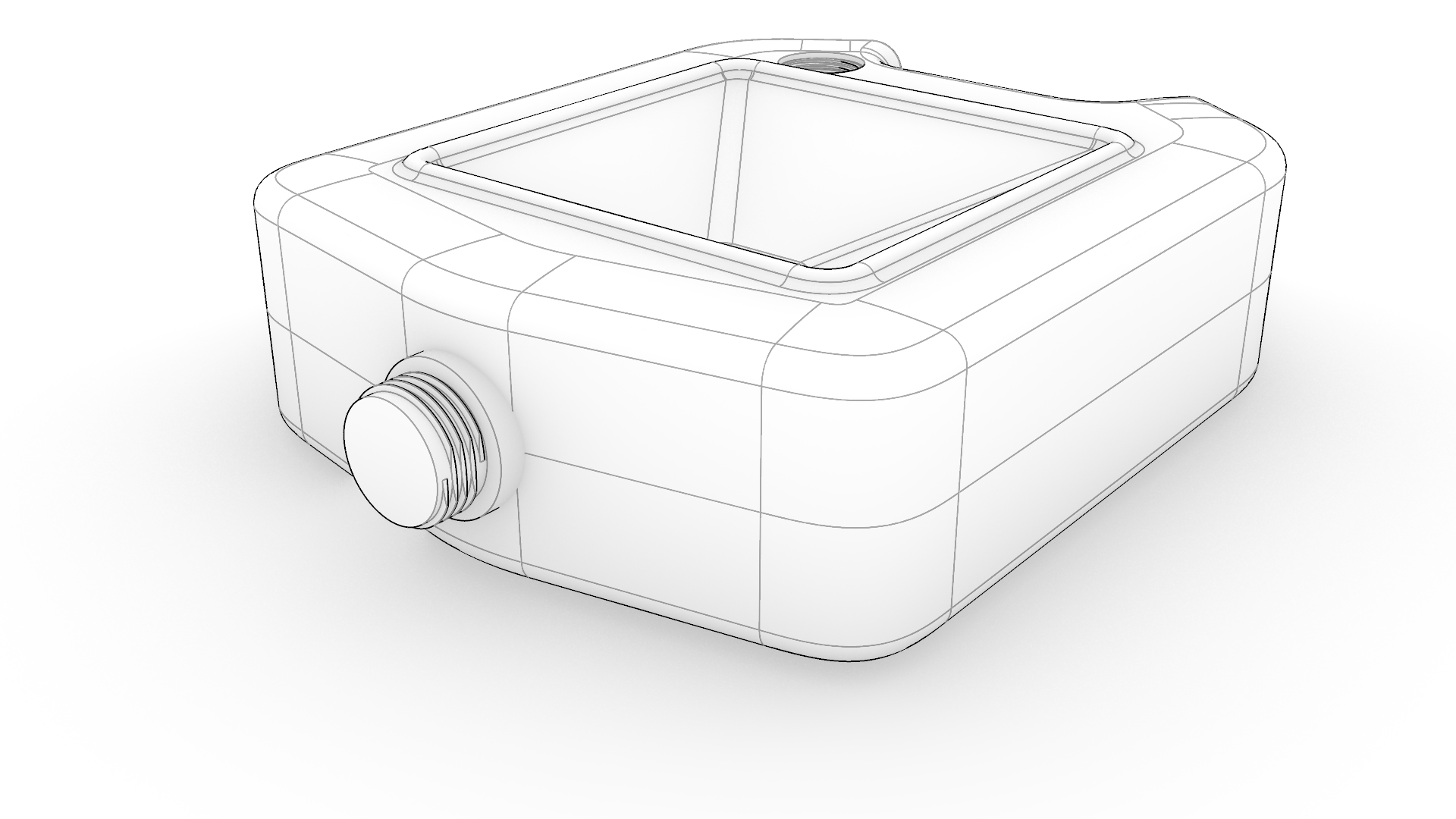
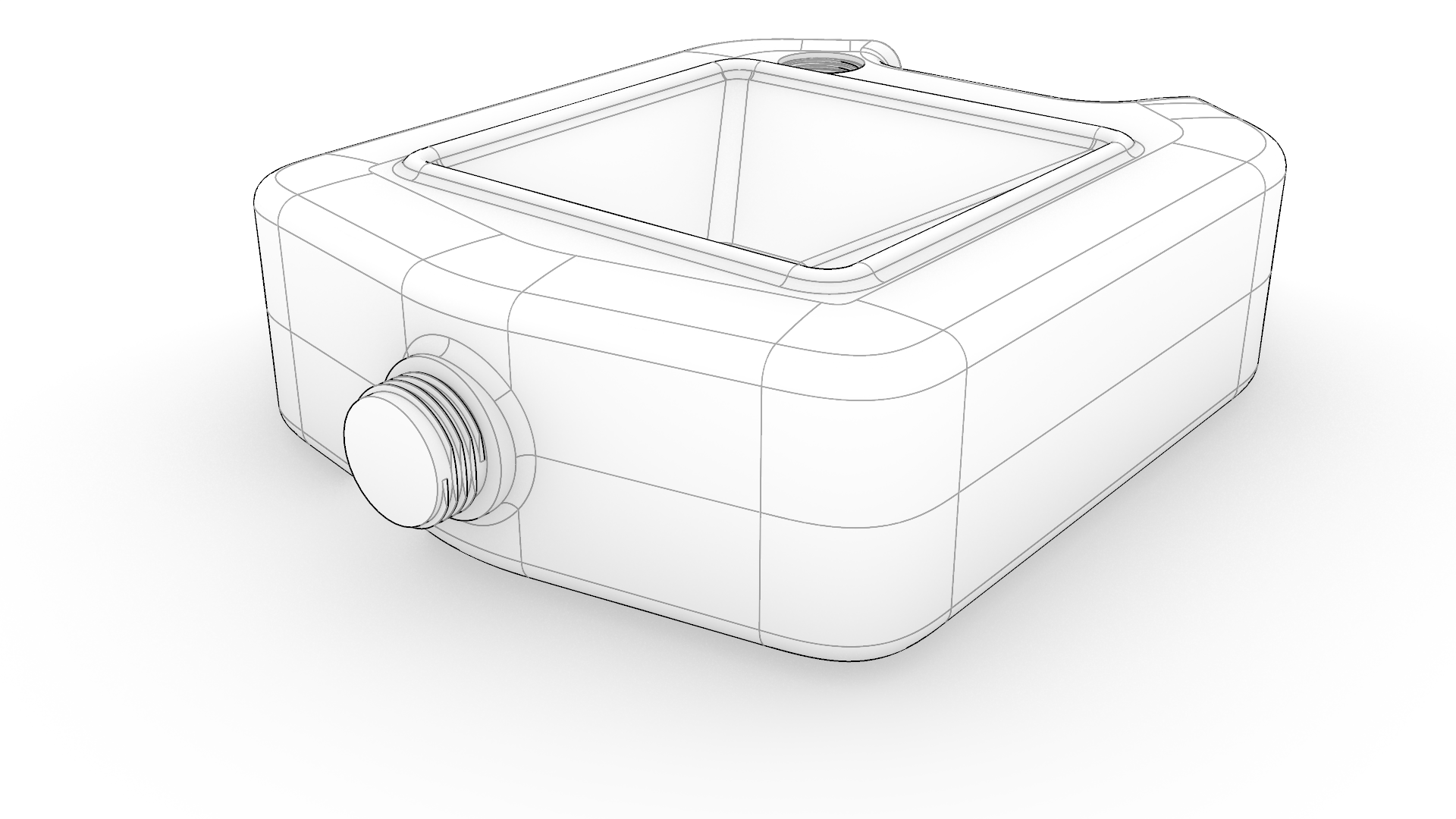
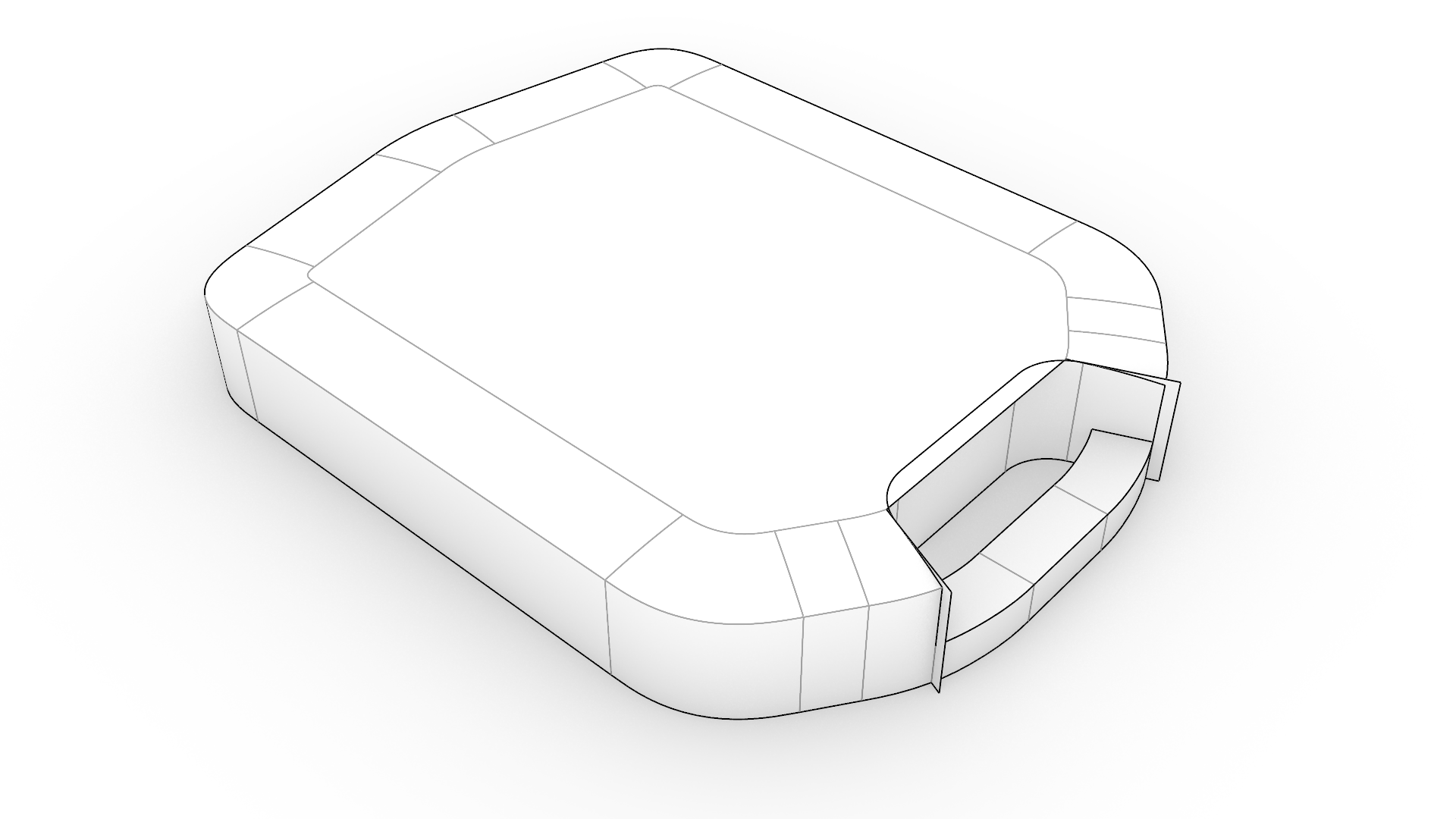
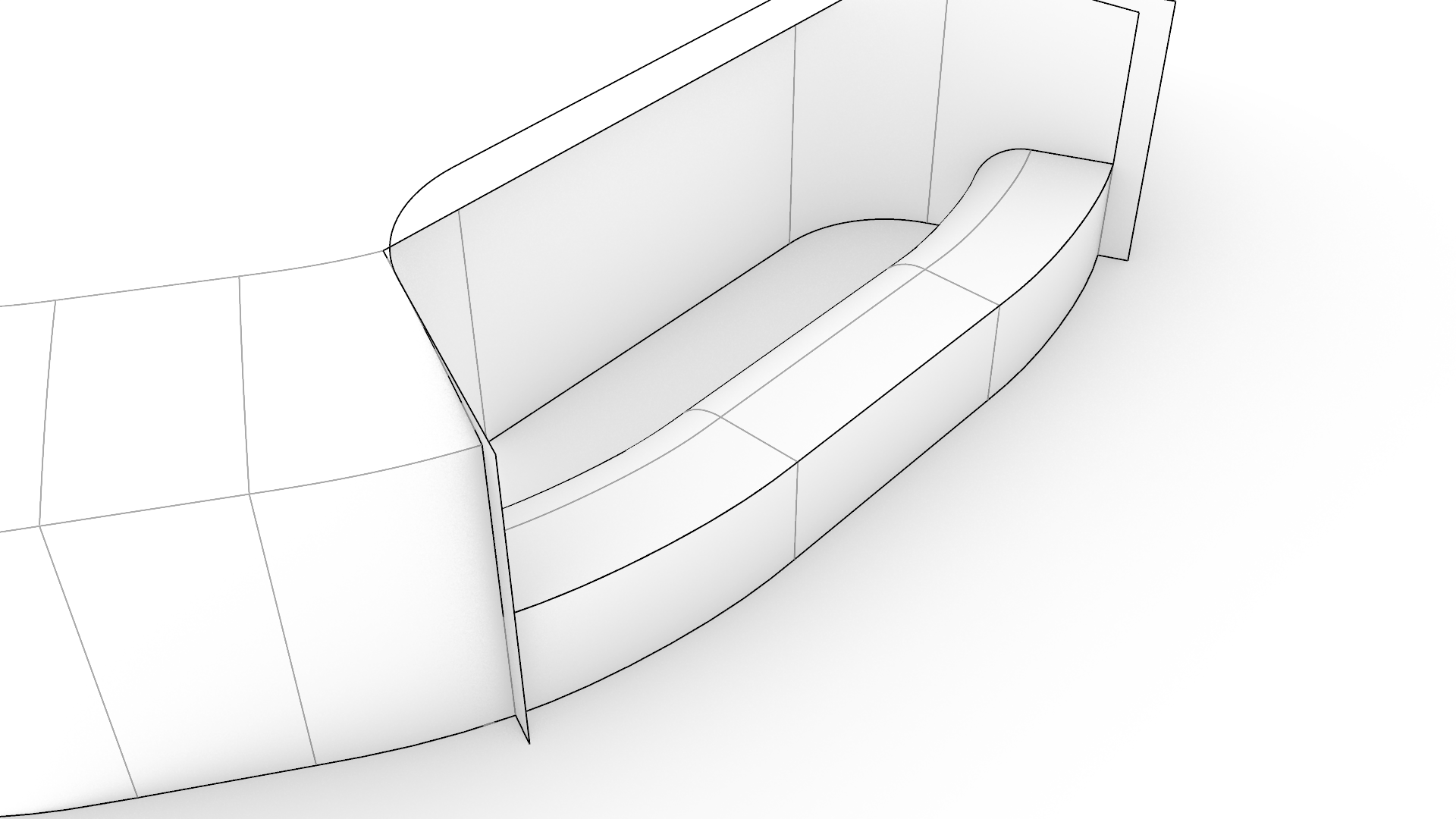
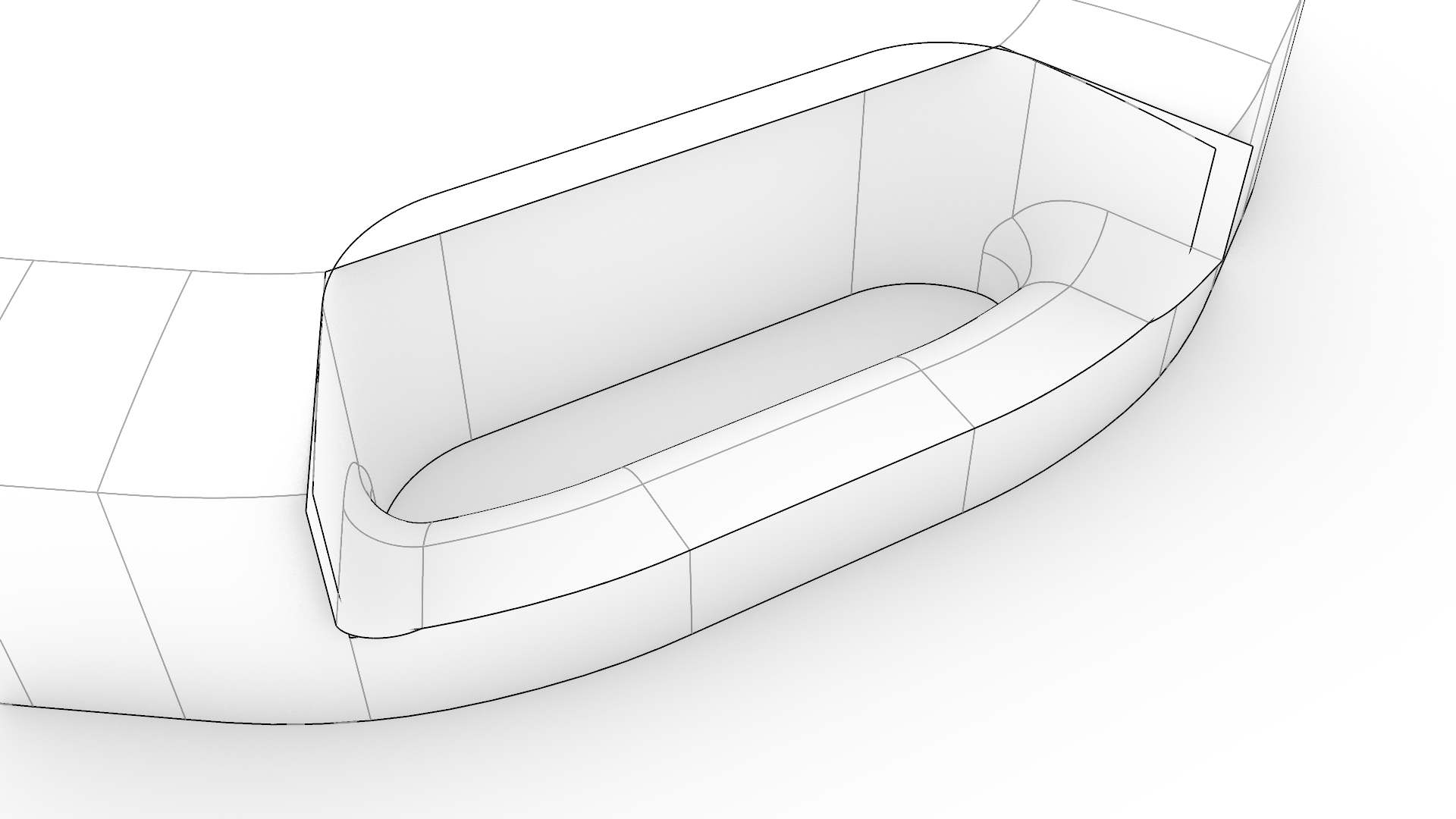
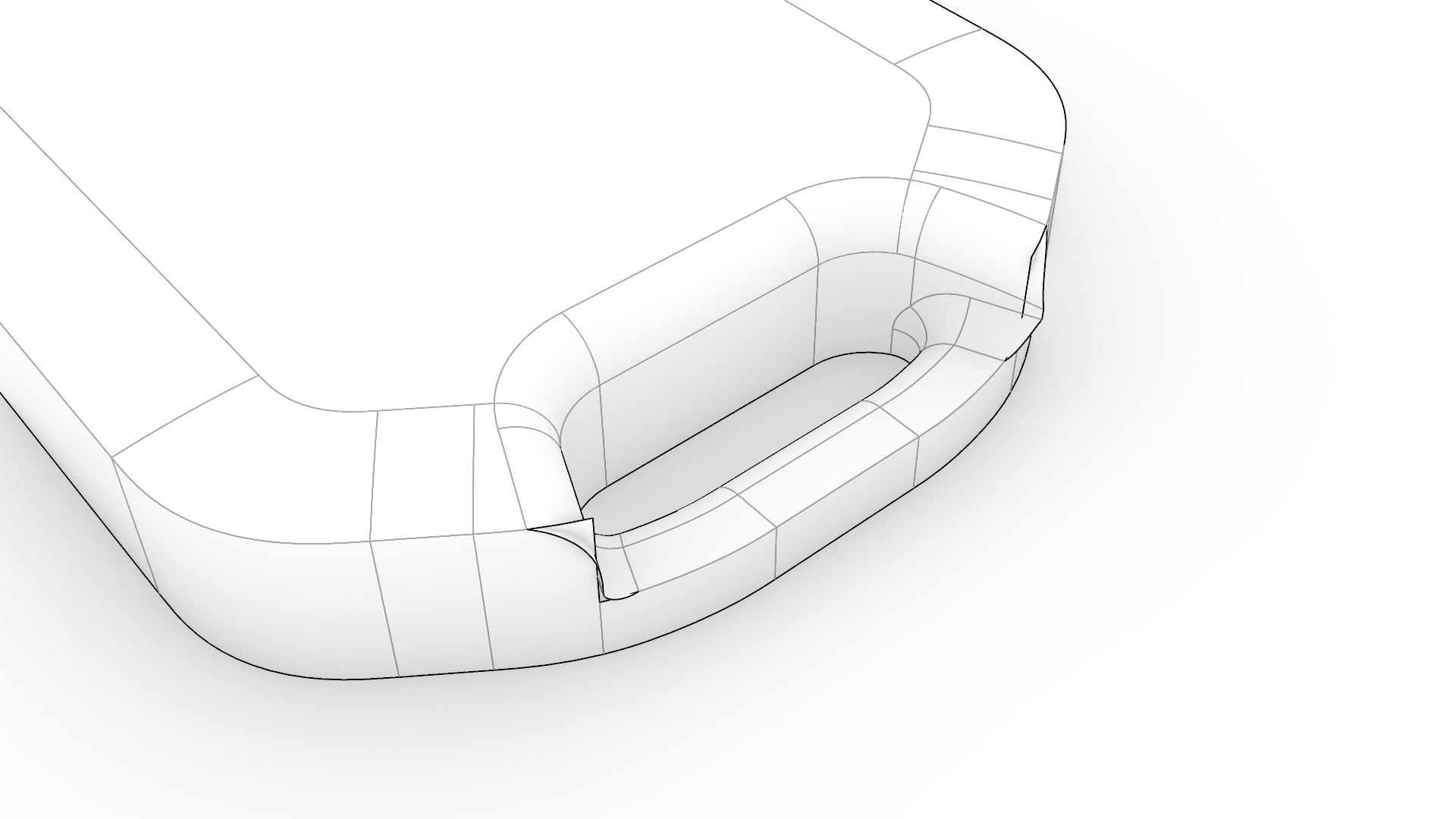
- Now, finish the remaining open and sharp edges with one continuous chain of fillet surfaces. Use Radius 10. Select and deselect the Continue across faces option in the dialog. Notice how this option runs the fillet continuously around, even where there are no matching edges. This is the true power of FilletSrf
over
 FilletEdge
.
FilletEdge
.
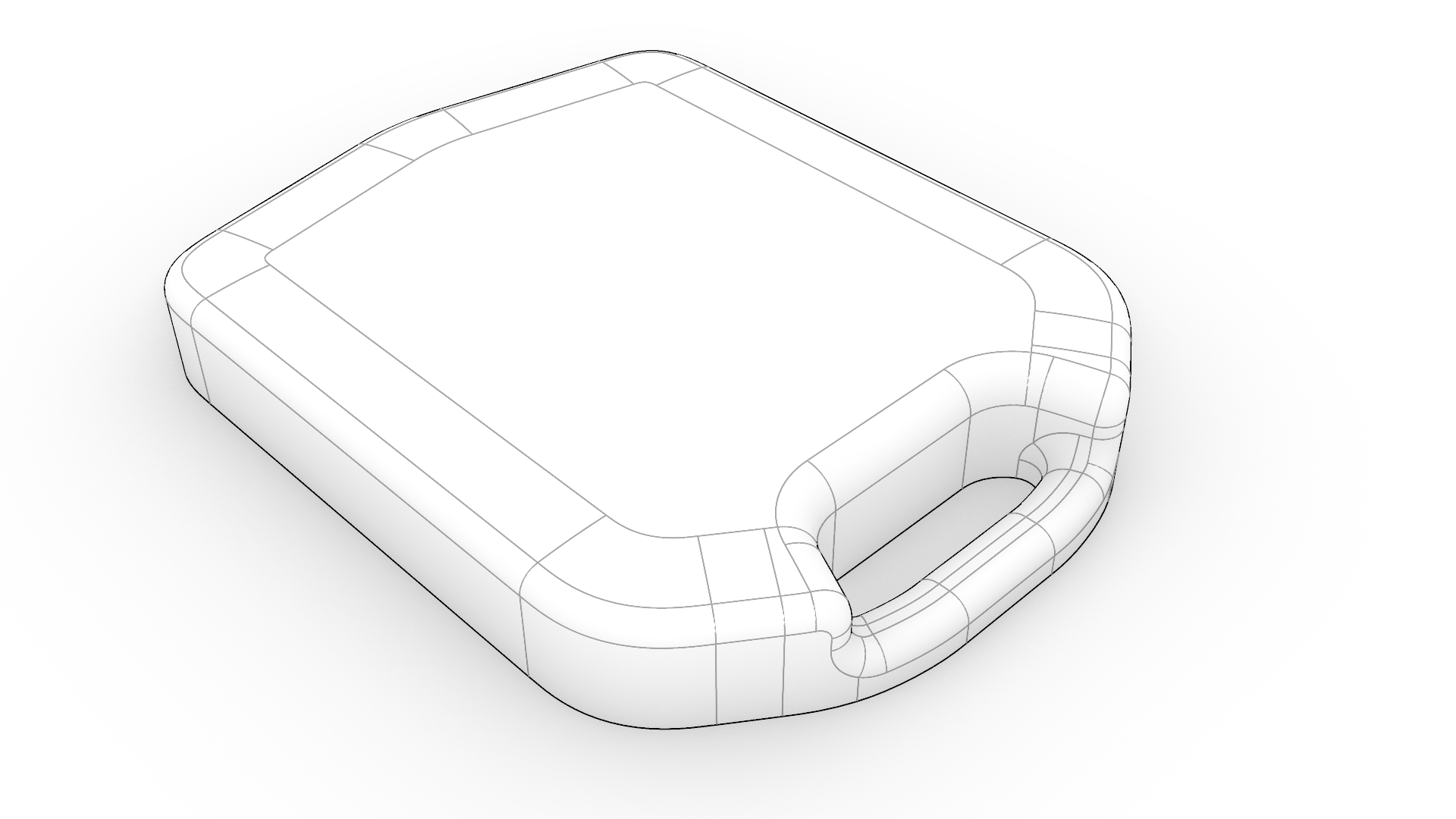
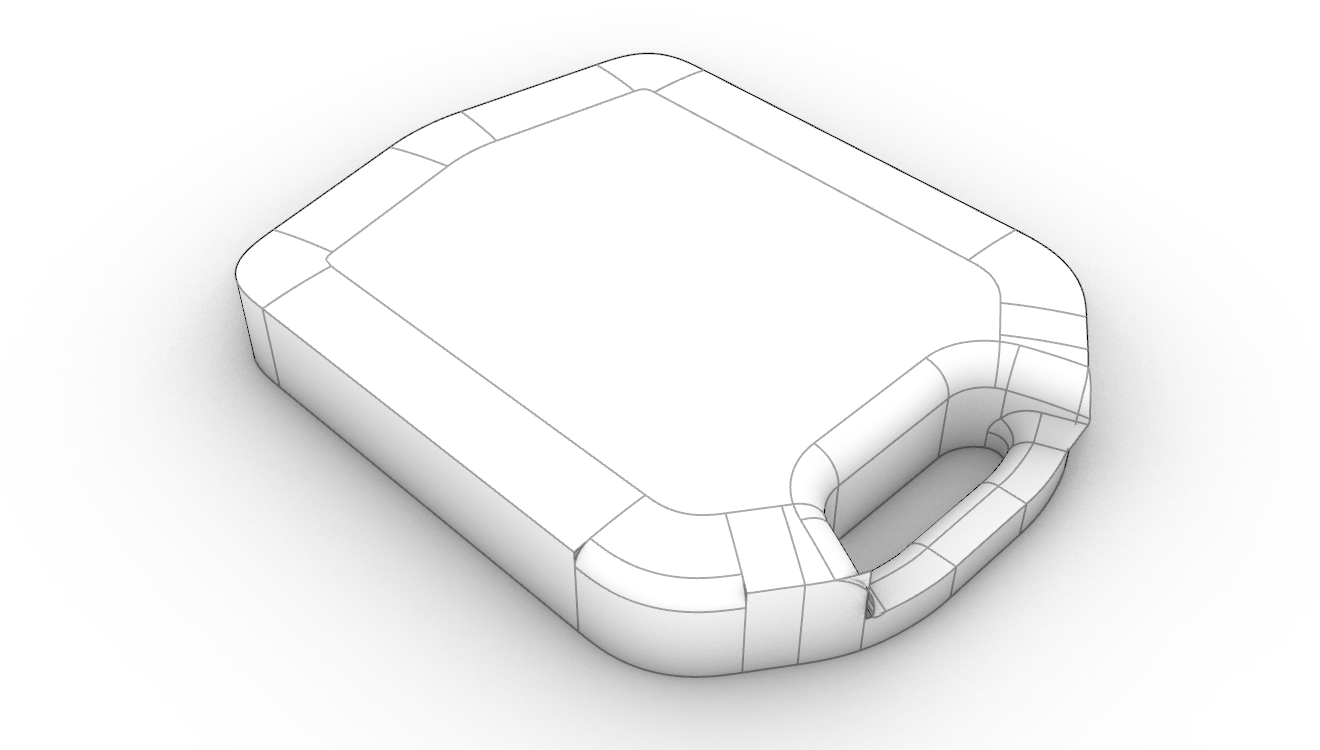
Continue across faces option enabled
Continue across faces option disabled
Create the Funnel
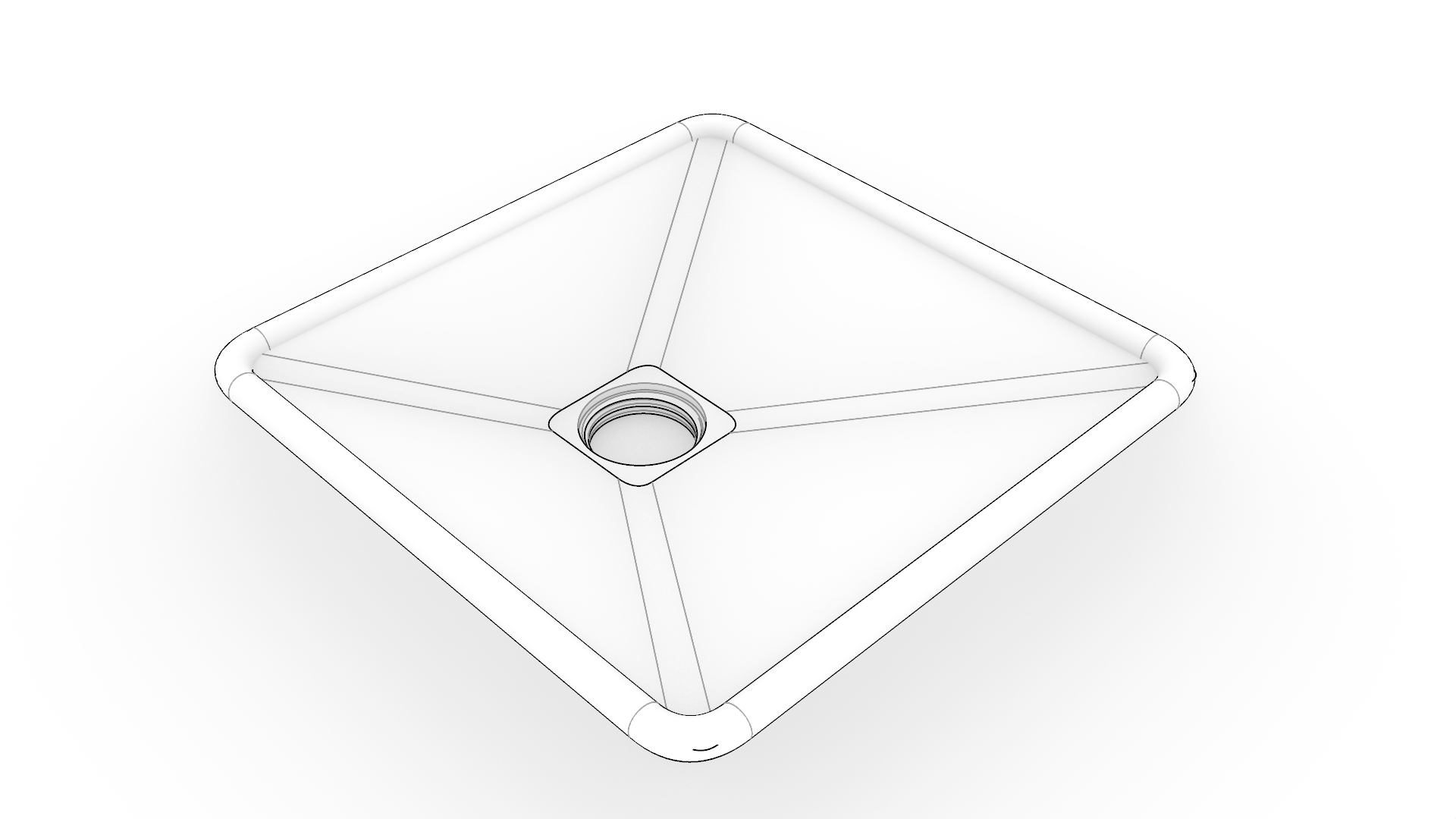
There are three polysurfaces in this step that we prepared, and we will connect using only FilletSrf
. We use a radius of 5 for all connections in this step.
- Continue with your file or download and open JerryCan 01.
- Run
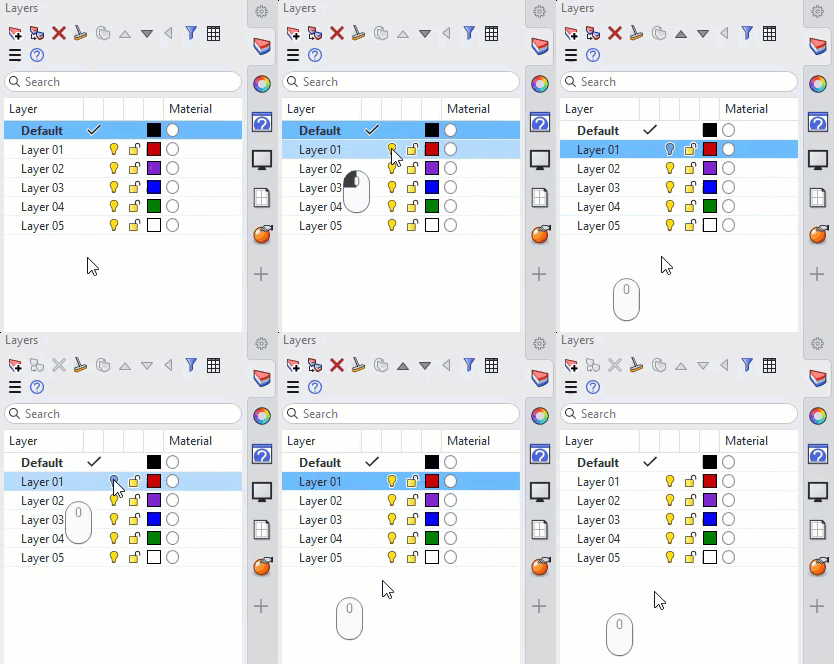
 OneLayerOn
and select sublayer
OneLayerOn
and select sublayer 02→1. - Run FilletSrf
to make a chain of fillets between the pipe and the funnel. Keep all the options in the dialog selected, as in the step above. Use Radius 5.
- Create another chain between the funnel and the surfaces around the threaded opening. Use Radius 5.
-
Turn on layer
01. It contains the model created in the previous section. - Connect the funnel to the body with another FilletSrf
chain. Use Radius 5. Notice the fillet chain automatically trims the body’s top surface to make room for the funnel and joins it into a single
polysurface
. This is thanks to the Trim and Join options in the dialog.
- To complete the top half of the body, turn on layer
02→5. It contains the third polysurface. - Run the
 Trim
command and follow the
prompts
to create a hole in the top surface of the body using the circular object.
Trim
command and follow the
prompts
to create a hole in the top surface of the body using the circular object. - Then, run the
 Join
command and follow the prompts to join the two polysurfaces into a single one.
Join
command and follow the prompts to join the two polysurfaces into a single one.
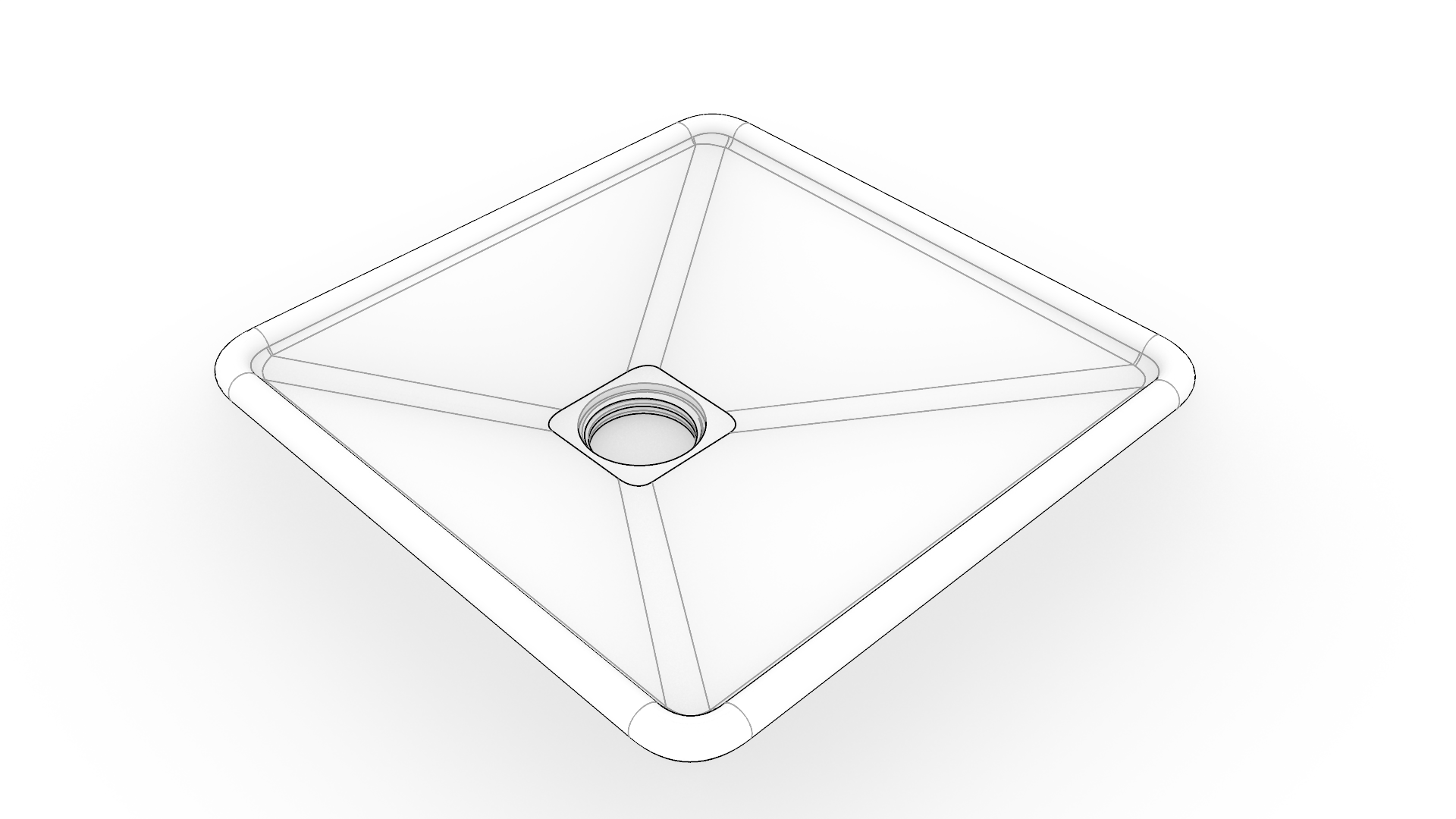
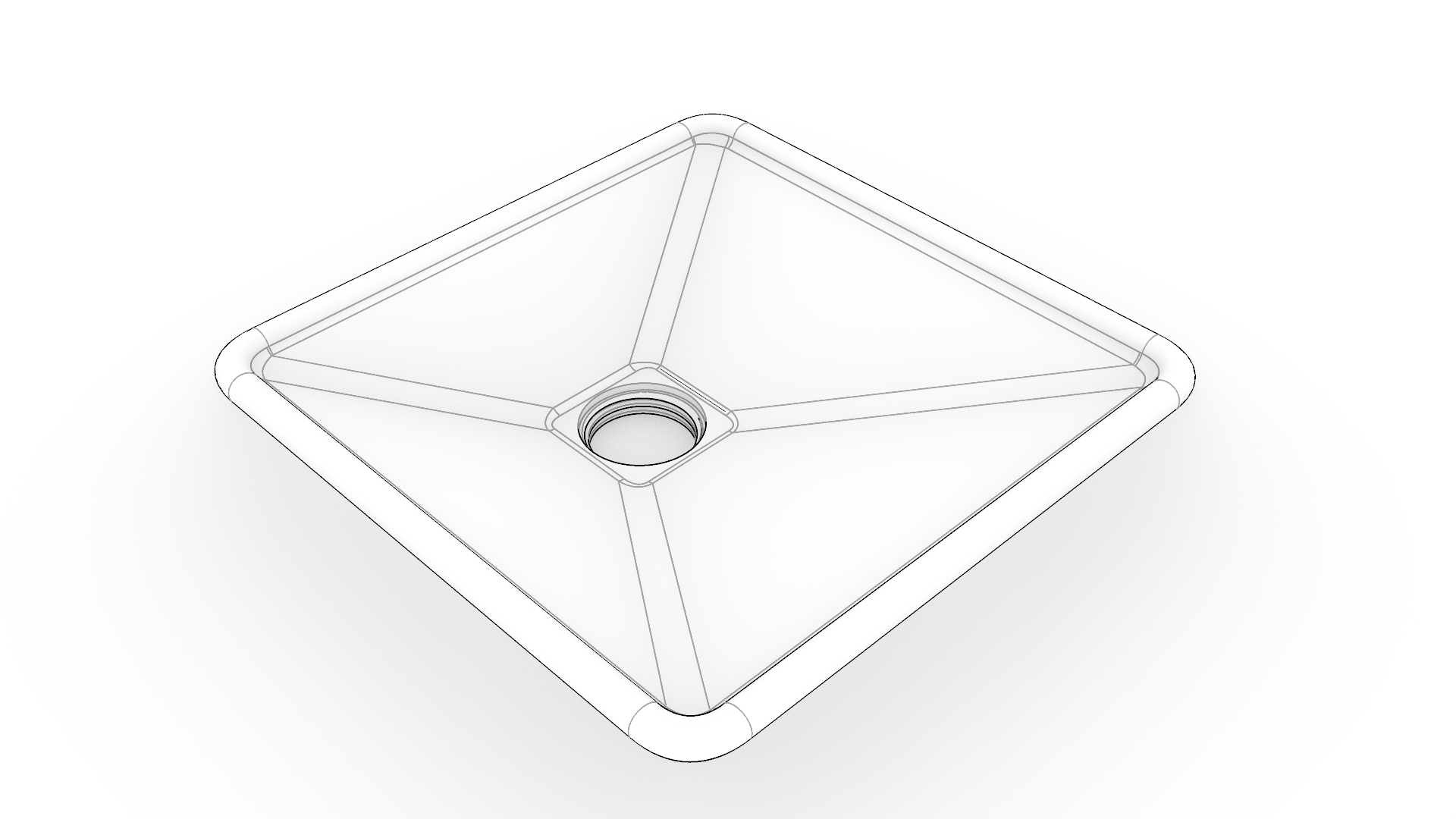
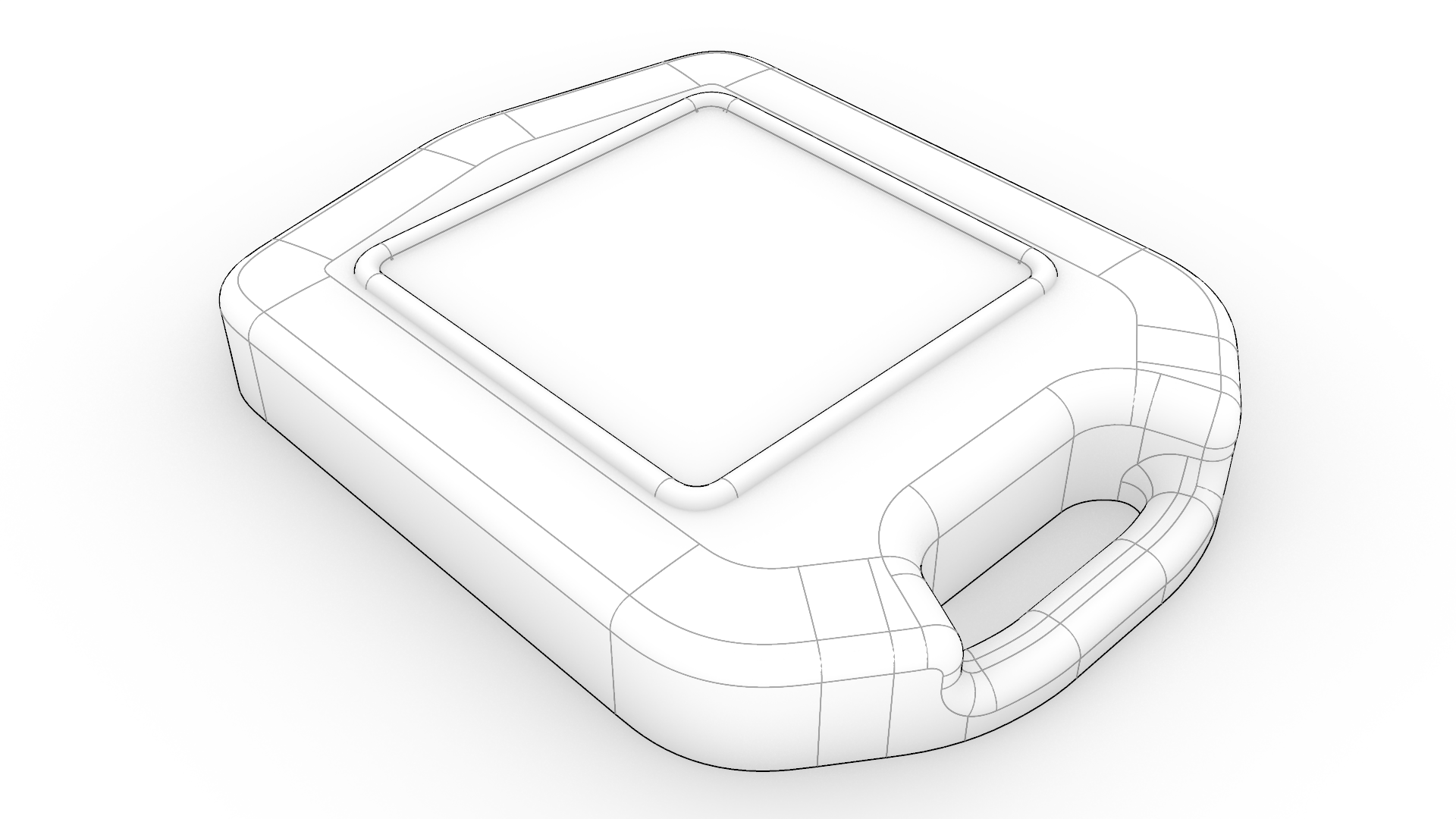
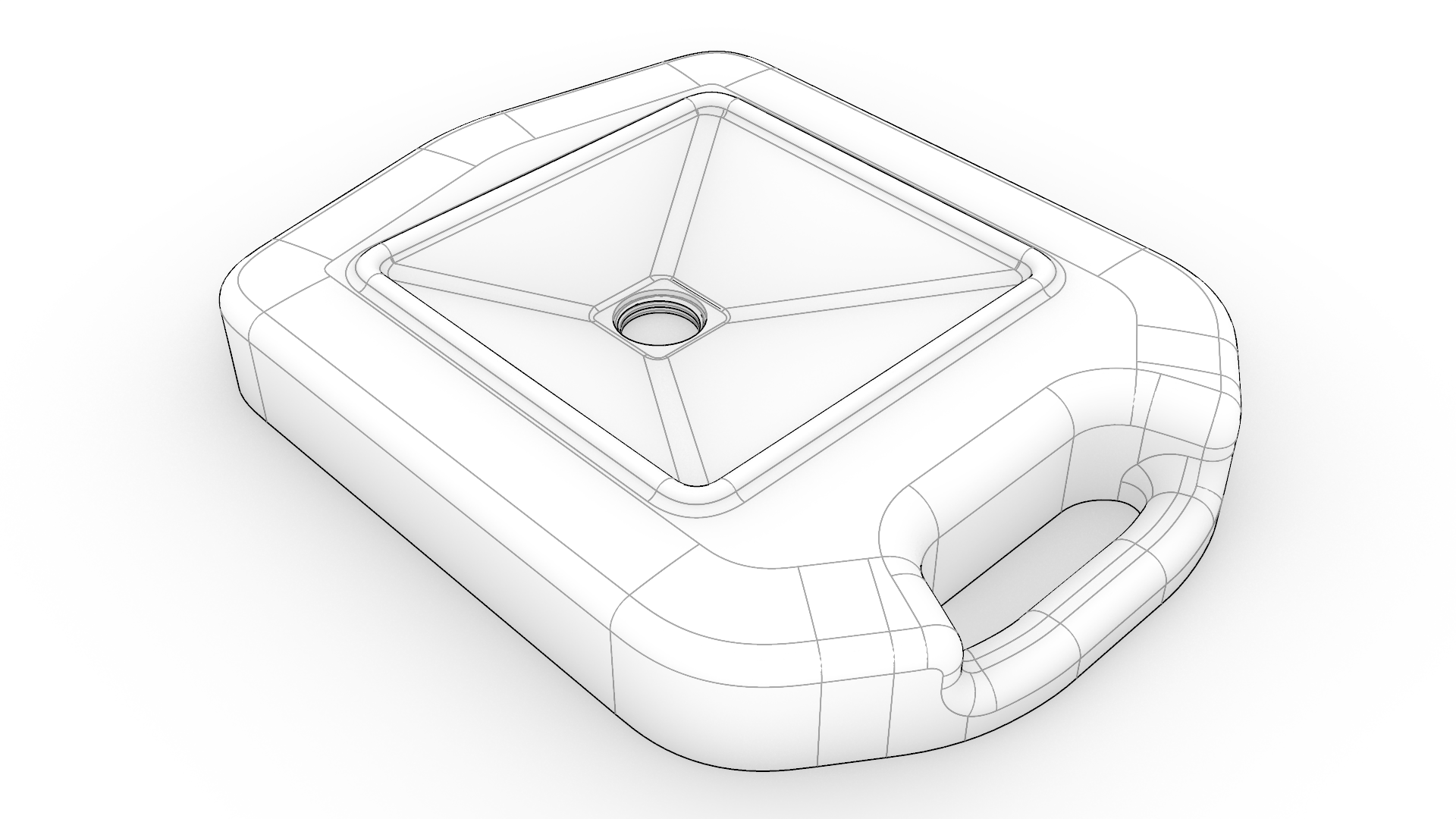
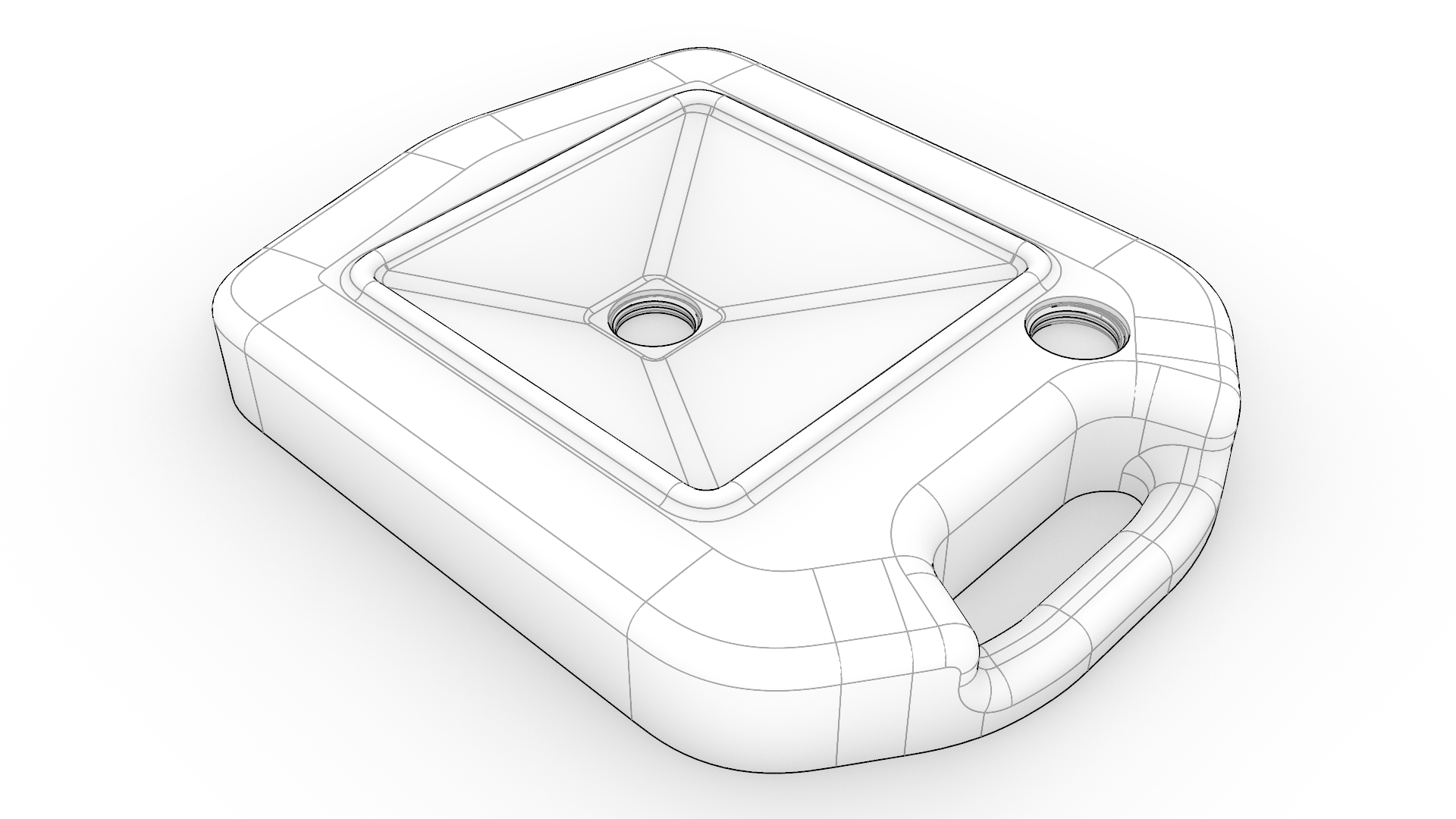
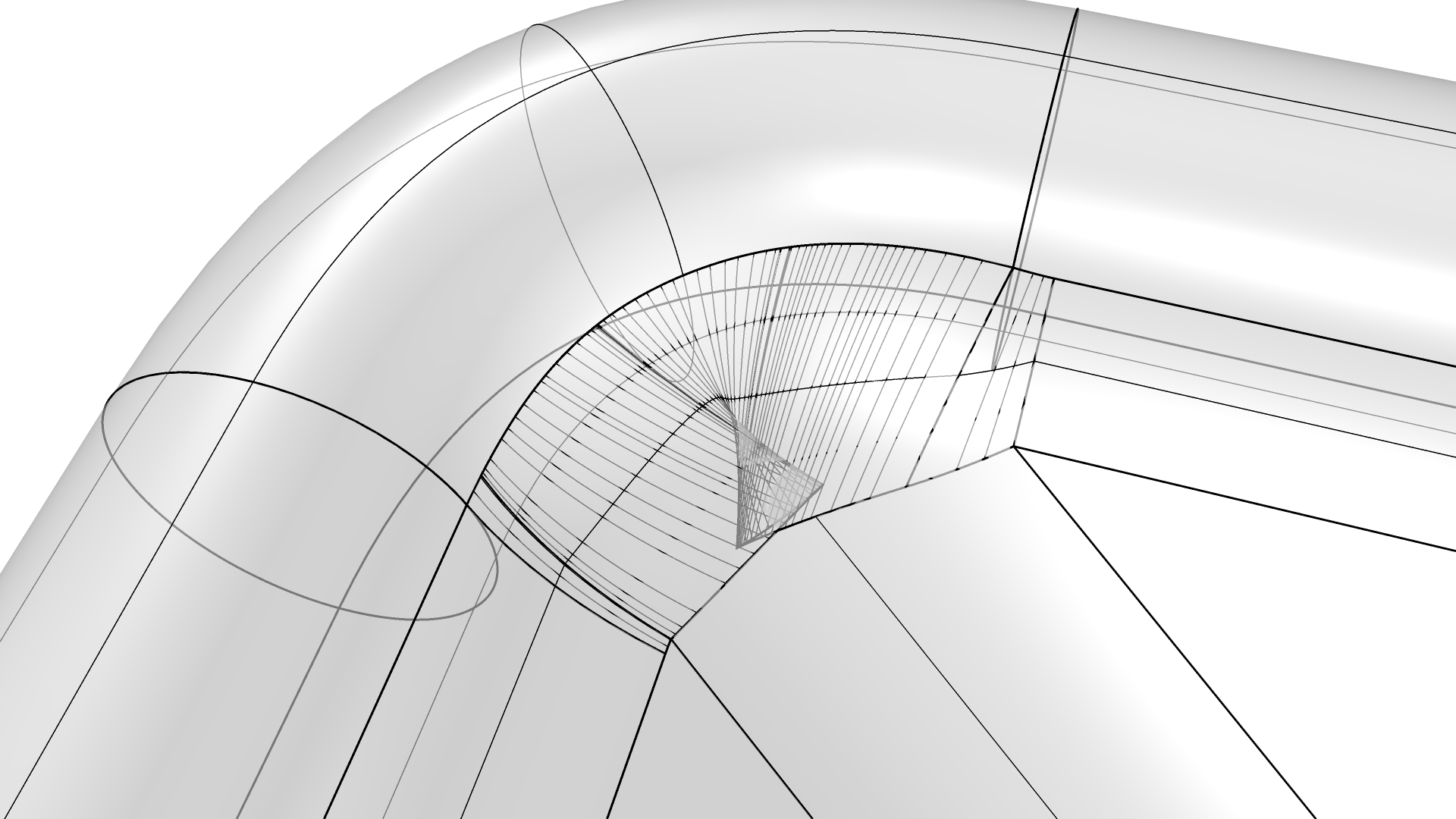
Keep the fillet radius equal to or smaller than the radius of curvature of the filleted surfaces. Otherwise, the fillets start to self-intersect. You can easily see this in #3 above, when filleting the pipe and the funnel. The pipe corners start to self-intersect when you use a fillet radius of 10 instead of 5. The pipe surface has a smaller radius of curvature in the middle, so a rolling ball fillet of 10 will not fit.
Create the Bottom Half of the Body
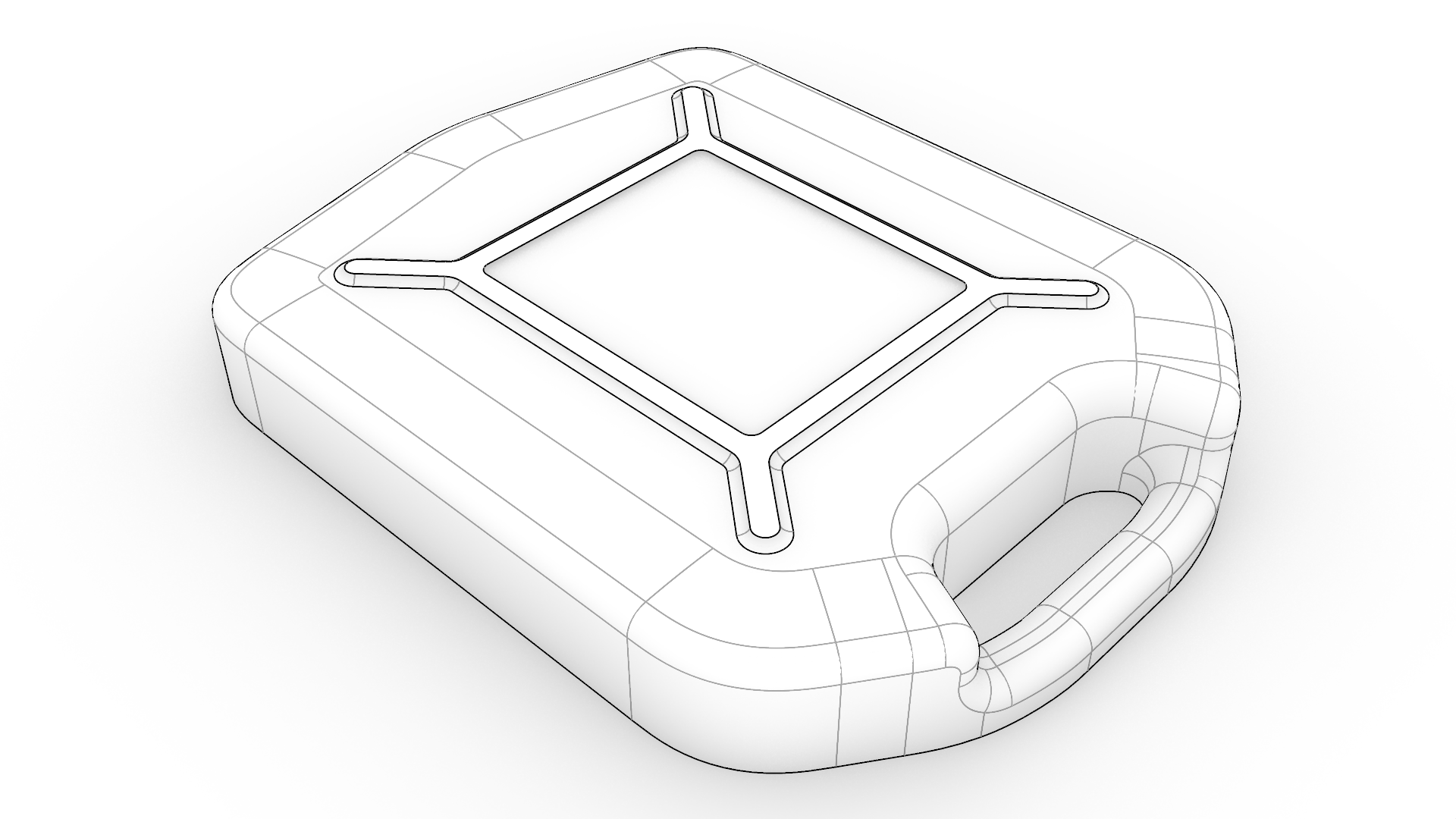
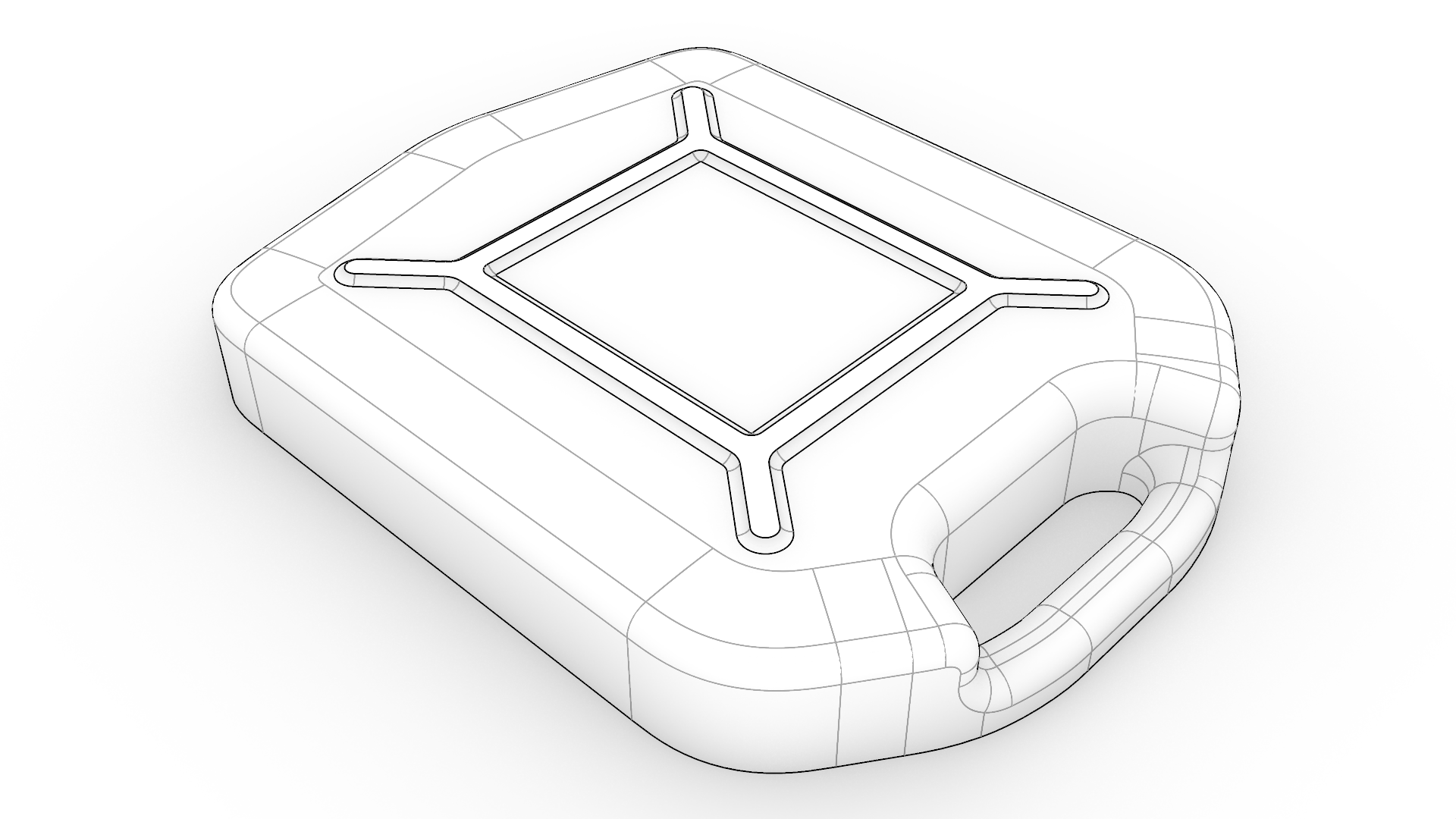
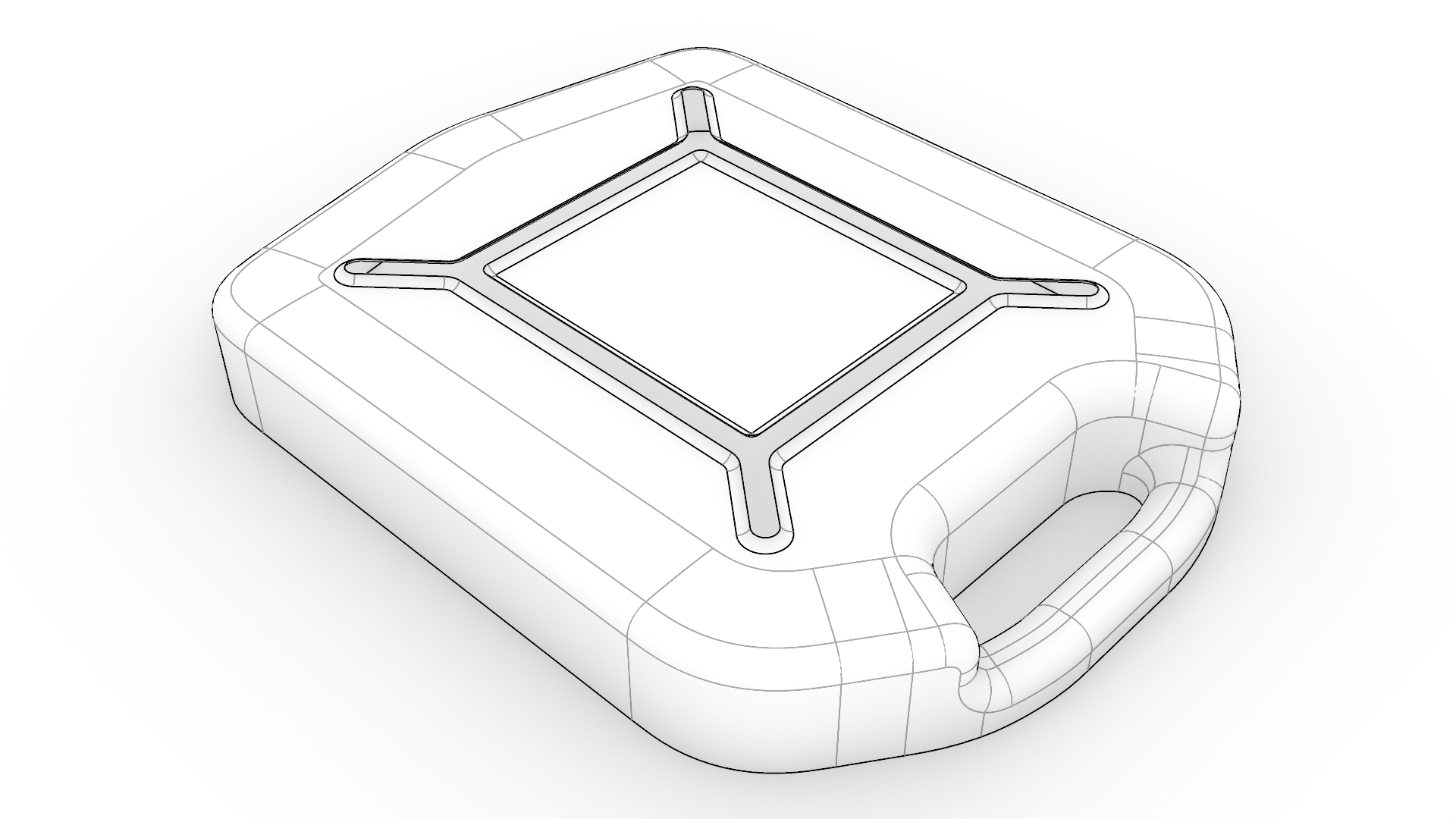
You’ll find a surface floating above the jerrycan. We’ll use FilletSrfCrv
to create a fillet around its edge and connect it to the main body. Unlike traditional fillet commands, which calculate the rail from a defined radius, FilletSrfCrv
lets you define the rail directly with a curve. It then creates the fillet between the curve and the horizontal slab surface.
- Continue with your file or download and open JerryCan 02.
- Run OneLayerOn
and select layer
03→1. - Run FilletSrfCrv
.
- At the
Select a surface near a curve (Radius=1)prompt , select the top surface close to its border. - At the
Select a curve near the surface selection point (Radius=1)prompt, double-click the edge of the open surface to select the whole outer loop. Press Enter. - In the Fillet Surface to Curve dialog:
- Double-click inside the Radius slider and set it to 5. Press Enter.
- Deselect the Trim option.
- Press OK to validate.
- Repeat the process for the fillet on the inner side of the surface.
- Run the
 Hide
command and follow the prompts to hide the “floating” surface.
Hide
command and follow the prompts to hide the “floating” surface. - Select the two fillet chains created in the previous steps.
- Run the Trim
command.
- At the
Select objects to trimprompt, select the top surface, in between the two fillet chains to trim that part away. Press Enter to end the command. - Run the
 Show
command to show the previously hidden surface.
Show
command to show the previously hidden surface. - Run the Join
command and follow the prompts to join all the parts into a single polysurface.
- Run the FilletSrf
command and follow the prompts to fillet the remaining sharp edges of the bottom support.
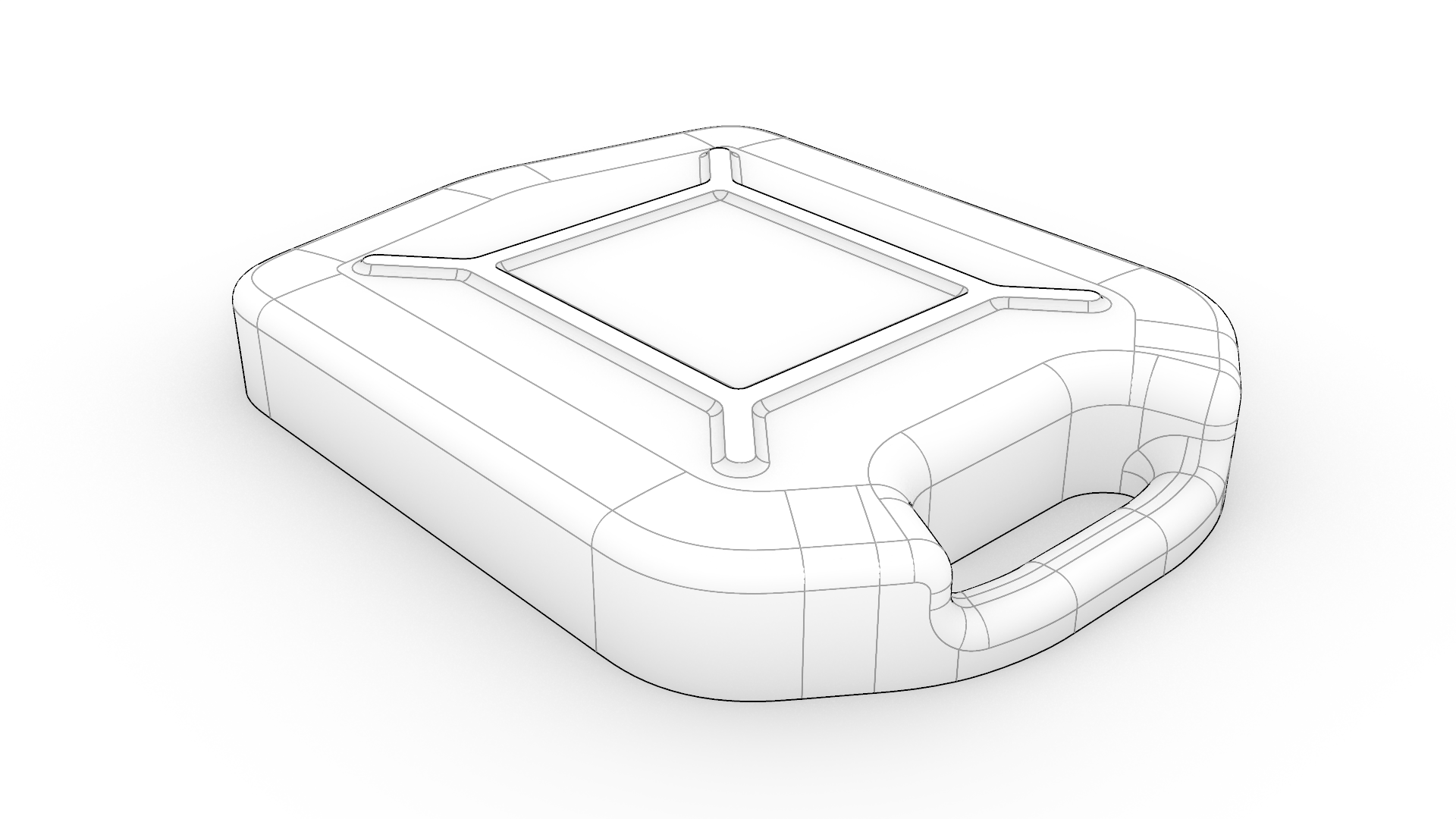
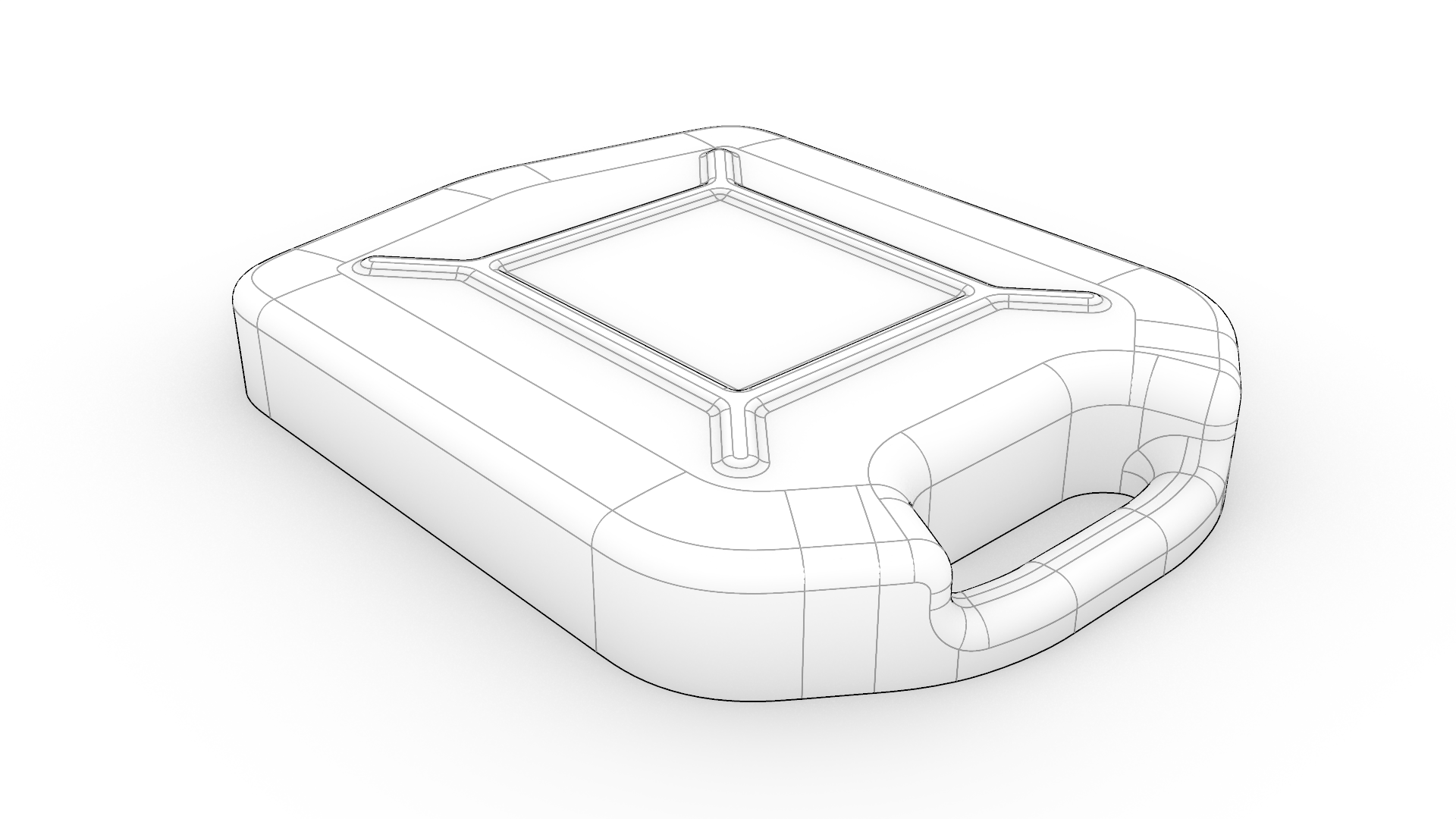 FilletSrfCrv
was satisfied when we selected the edge loop of the floating surface when it prompted to
FilletSrfCrv
was satisfied when we selected the edge loop of the floating surface when it prompted to Select a curve.The Finish Round
In this section, we will mirror the bottom part to position it in its true location. We will add the final details, such as the outlet and screw thread. We will join it into a single solid.
- Continue with your file or download and open JerryCan 03.
- Run the
 Mirror
command.
Mirror
command. - At the
Select objects to mirrorprompt , select the lower half of the body and press . - At the
Start of mirror planeprompt, set Copy=No, and select ZAxis. -
Turn off layer
02→5. - Select all polysurfaces and run the Join
command to turn them into a single closed polysurface (solid).
- Turn on layer
04→1. It contains the screw thread. - Run the FilletSrf
command and follow the prompts to select the outlet and body surfaces as the surfaces to fillet. Press Enter.
- In the Fillet Surface dialog:
- Double-click the slider and set Radius 5. Press Enter.
- Use the same dialog options as above.
- Press OK.