Here are some of the elemental aspects of creating technical documentation for Rhino. Technical documentation includes tutorials, guides and videos in some instances. It is meant to guide McNeelians into having a common language: verbal, visual and stylistic, to produce consistent content for learning Rhino.
What is a Tutorial Guide?
TO DO!!
Template for Tutorial Guides
TO DO!!
What is a Workflow Guide?
TO DO!!
Capturing Visuals
The rules of thumb for capturing visuals:
- Whether a video, clip or an image, the resolution is Full HD (1920 x 1080).
- Preferably use the PNG format.
- Always capture the viewport:
- Strip any user interface elements as most as possible (dialog boxes, command prompt, panels, icons).
- This is primarily due to simplify the localization process.
- See below details on capturing UI elements if need be.
User’s Guide Display Modes
We are using special display modes for capturing visuals. This is specific to the User’s Guide!.
Please download these display mode files and import them in
 Options
> Diplay Mode page.
Options
> Diplay Mode page.
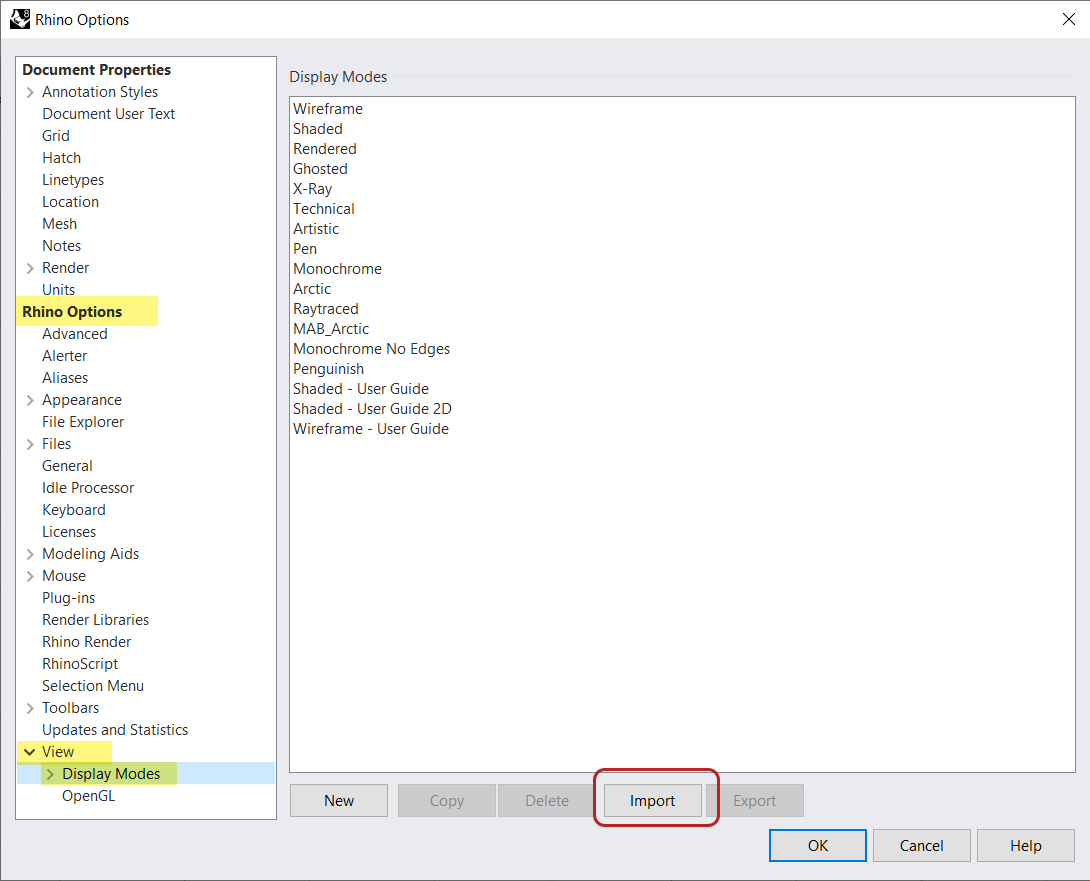
Download from here:
The main changes are that sizes of curves, edges and points have increased. This is so they pop out more when screen capturing. The background color of the viewport has also changed to . (hex #E6E6E6).
User’s Guide Template
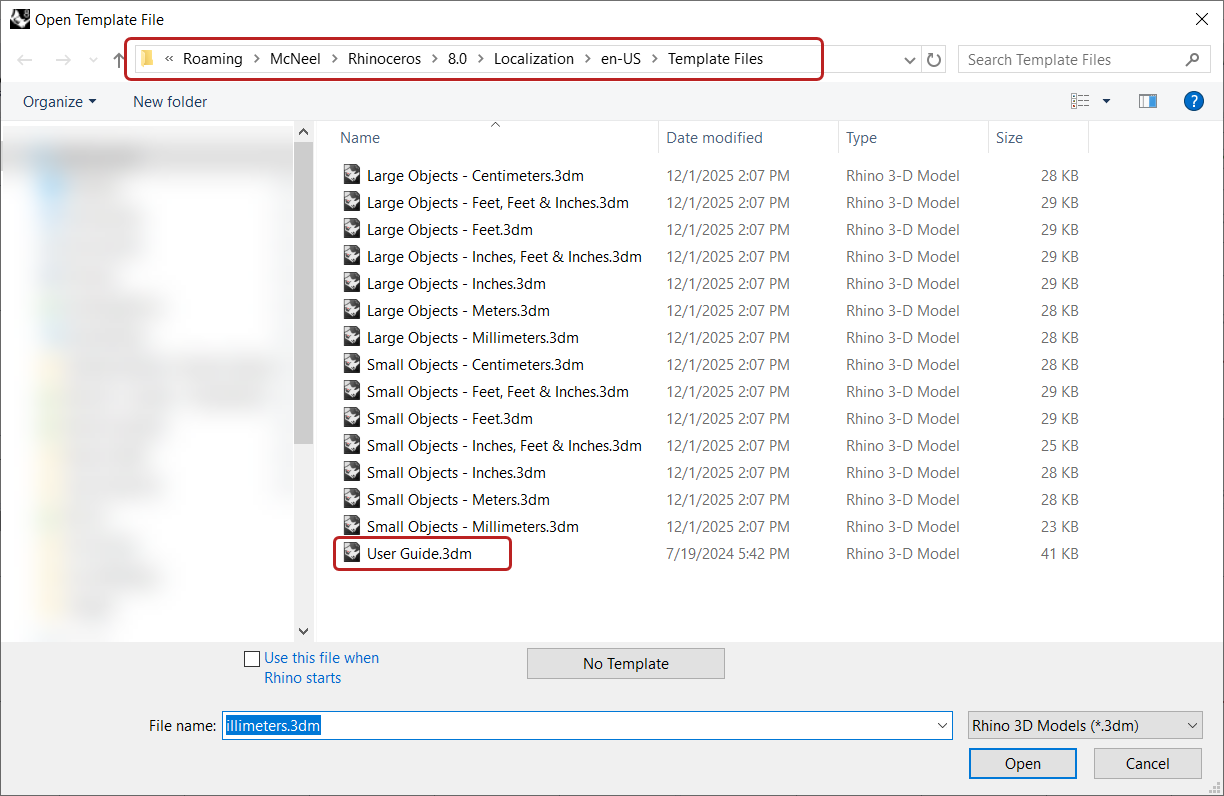
We are using a specific 3dm Template for the User’s Guide. The main change is the Grid Size.
You can add it to Rhino Template Files Folder:
C:\Users\[USER_NAME]\AppData\Roaming\McNeel\Rhinoceros\8.0\Localization\en-US\Template Files
Layer Color Suggestion
TO DO!!
Images
Images are captured in Full HD. Use your capturing program of preference. I recommend Snagit.
Viewports
A few tips & tricks to capture Rhino viewports for Clips:
- Use a 2k or higher res screen, so you can easily capture in Full HD.
- Move Rhino to that screen.
- Maximize the viewport you want to work on.
- Use Snagit or ScreenToGif to define the 1920 x 1080 (Full HD) window.
- Align and center your viewport in it.
- Capture your GIF using ScreenToGIF.
A few tips & tricks to capture Rhino viewports for Images:
- Capture your image using Snagit with the method above or…
- Use ViewportCaptureToFile
Clips (GIFs)
Feel free to capture your GIFs with your prefered capturing program, except for Snagit or Camtasia. Something happens when encoding with these programs that a white background ends up with a yellowish tone.
I recommend using ScreenToGIF!!
Transitions in between images
TO DO!!
Transitions at the end
TO DO!!
Save Settings
TO DO!!
Videos
Captue in Full HD.
Mouse, Keyboard
Capture mouse movement and keyboard strokes with SpotOnTheMouse. Here are the settings used: TO DO.
Panels, Dialog Boxes
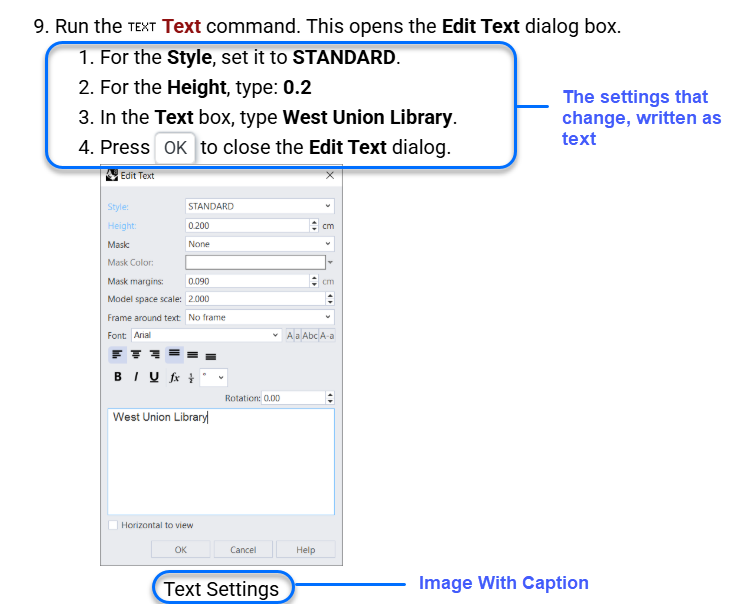
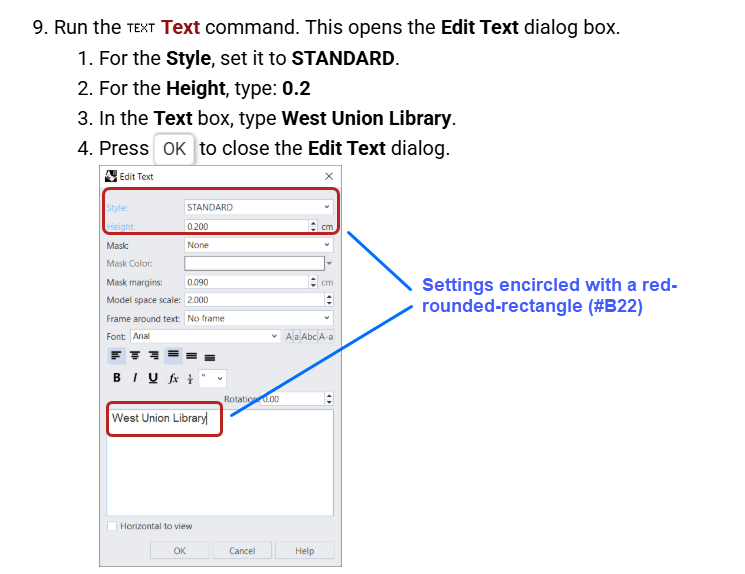
If you do need to add a UI element such as a Panel or Dialog Box, because it simplifies the explanation process of the tutorial, here’s the process to follow:
- Write in text the options of the dialog you’re changing
- You may want to encircle these options with a red rounded rectangle. In this case use
- Capture th dialog.
- Add it beneath the text
- Example 1:
- Example 2:
Annotations
Snagit Quick Styles
TO DO: share annotation styles
Colors
1 1 1 1 1 1
Shortcodes, Unfurls, Snippets
TO DO!!