Create an ergonomic brush handle
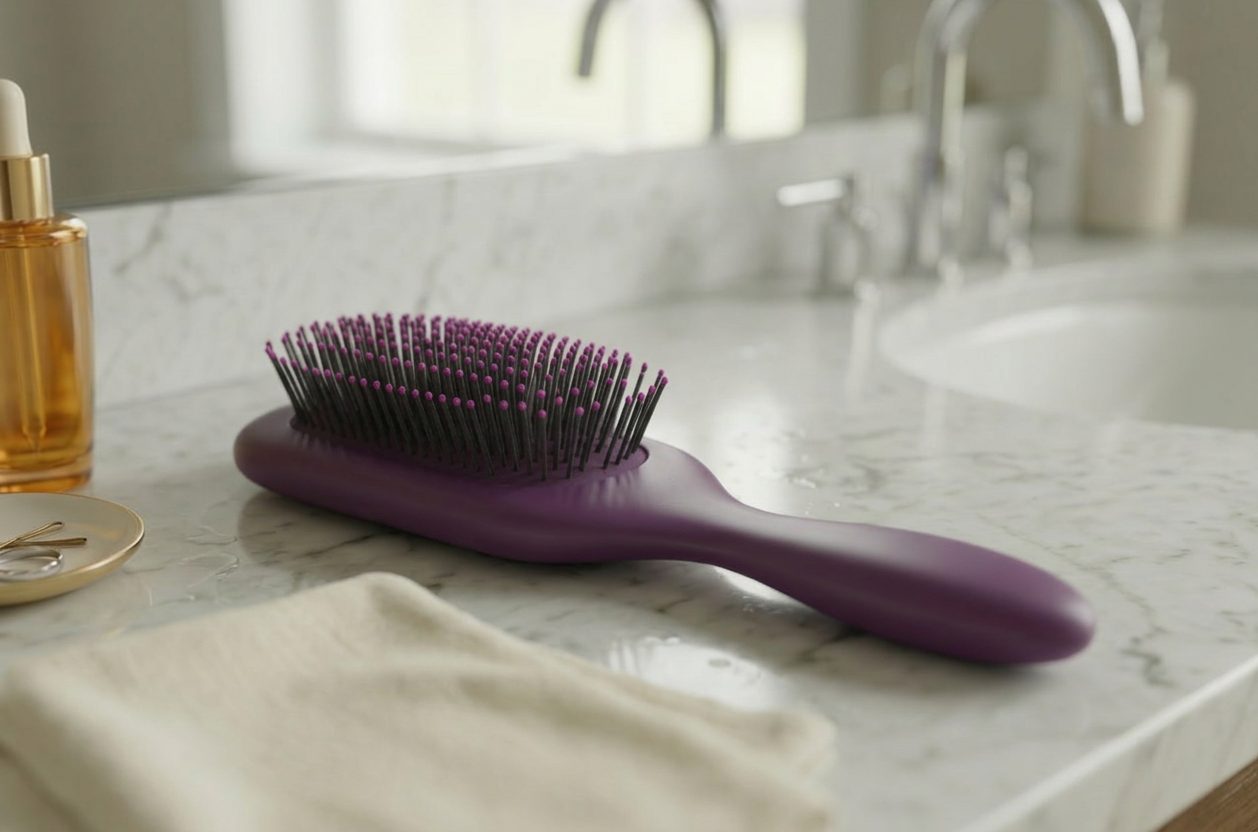
Brush handle patch
- Download and open the model Patch Brush.
- Run the
 Patch
command.
Patch
command. - Select the indicated edges and curve object.
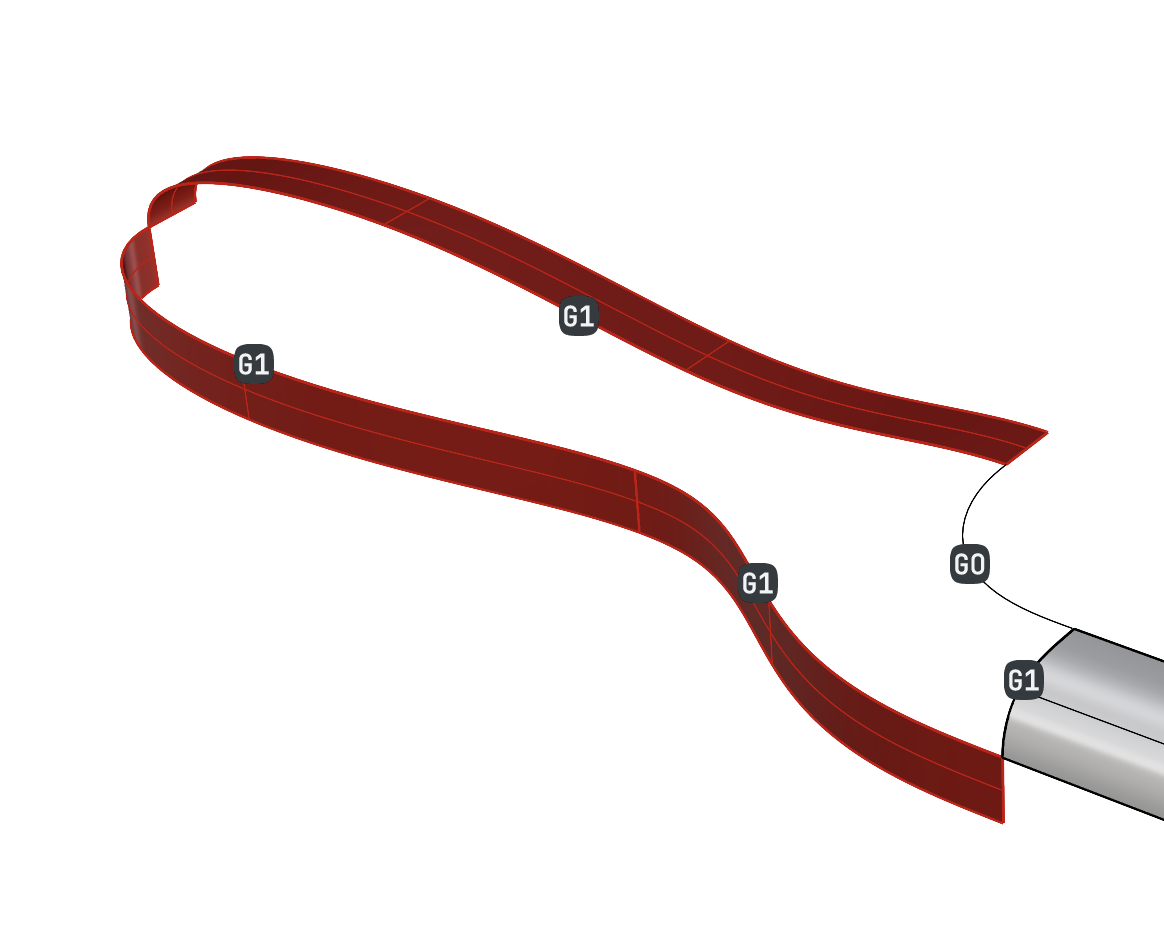
- In the viewport, click on the dot that is over the shortest edge to change its continuity to G2 . Left mouse cycles up, right mouse cycles down. The continuity dots can be changed at all times during the Patch command. Note that edges can have G0, G1 or G2 continuity, curves can have G0 continuity or set to internal, and points can only be interal.
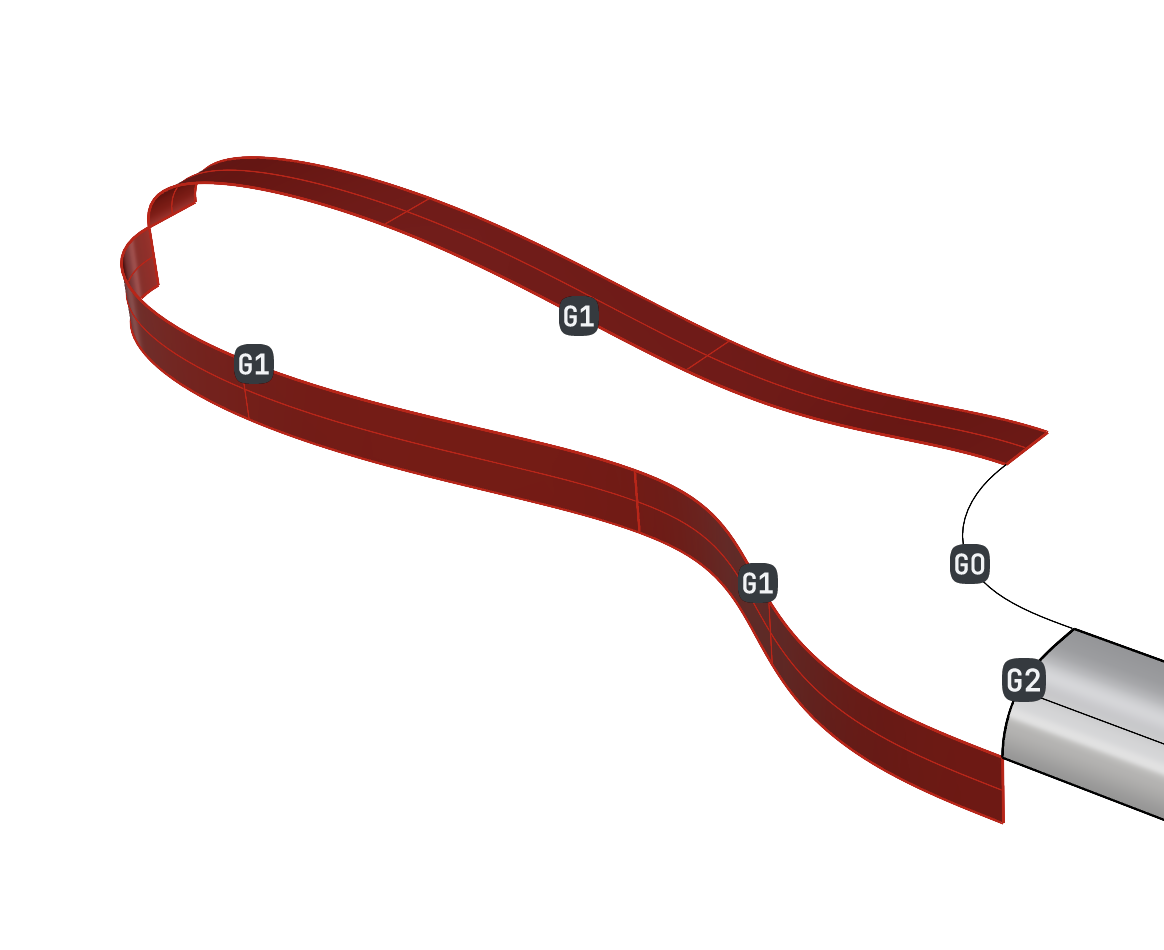
- Press to show the Patch dialog.
- Change the Domain to Molded.
- Turn on Preview and Refine.
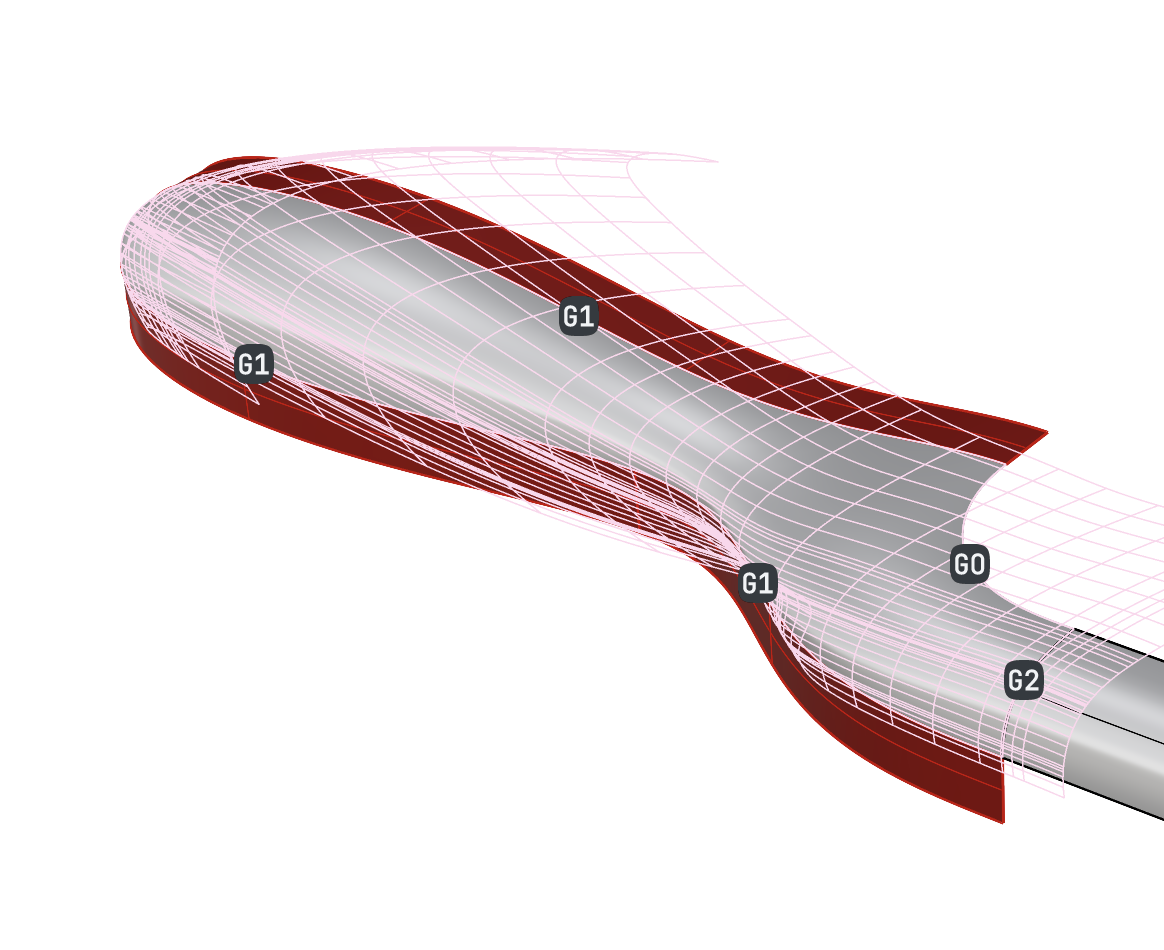
- Press to create the Patch.
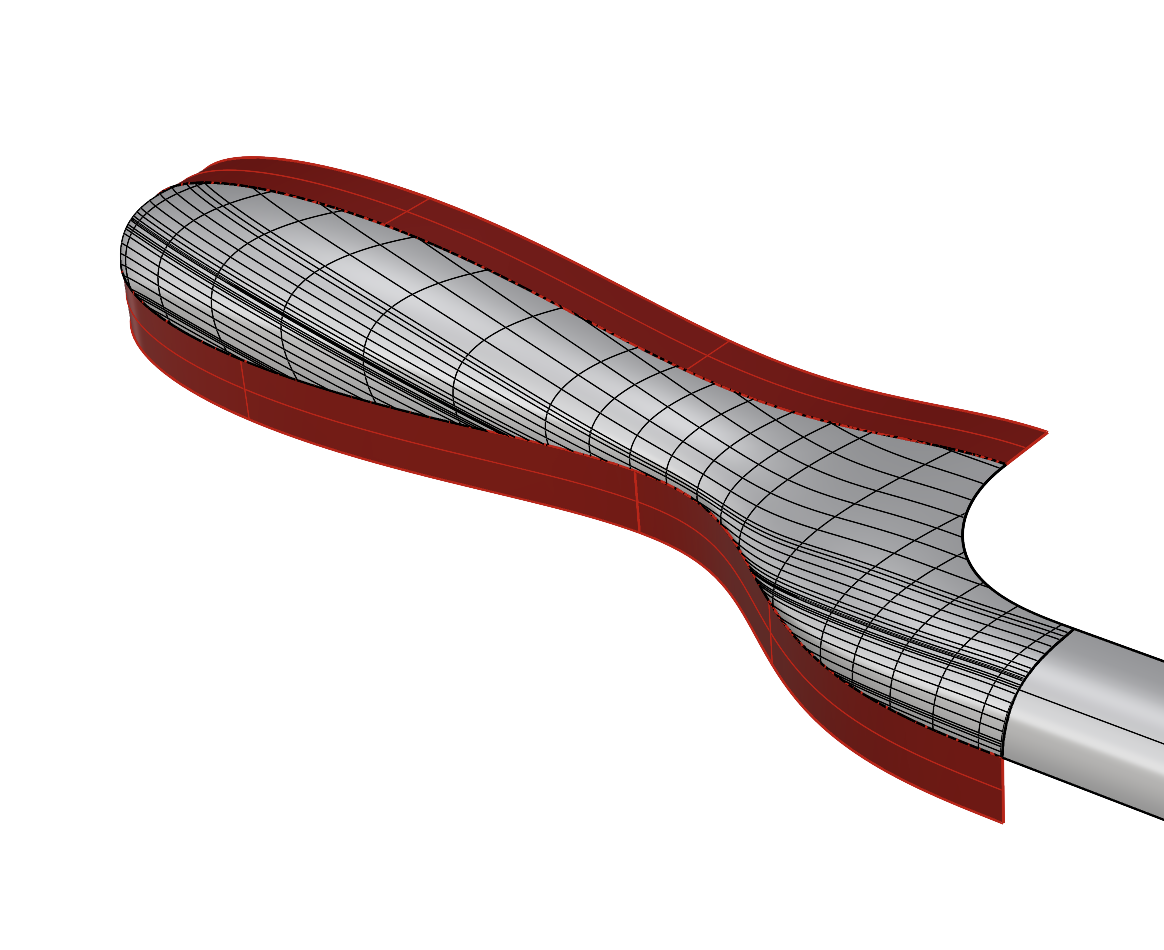
Brush head untrimmed surface
- To create the second patch for this brush, we will now create an untrimmed patch.
- Run Patch and select the indicated edges. Note the edge that is set to G2.
- Turn on Preview and Refine.
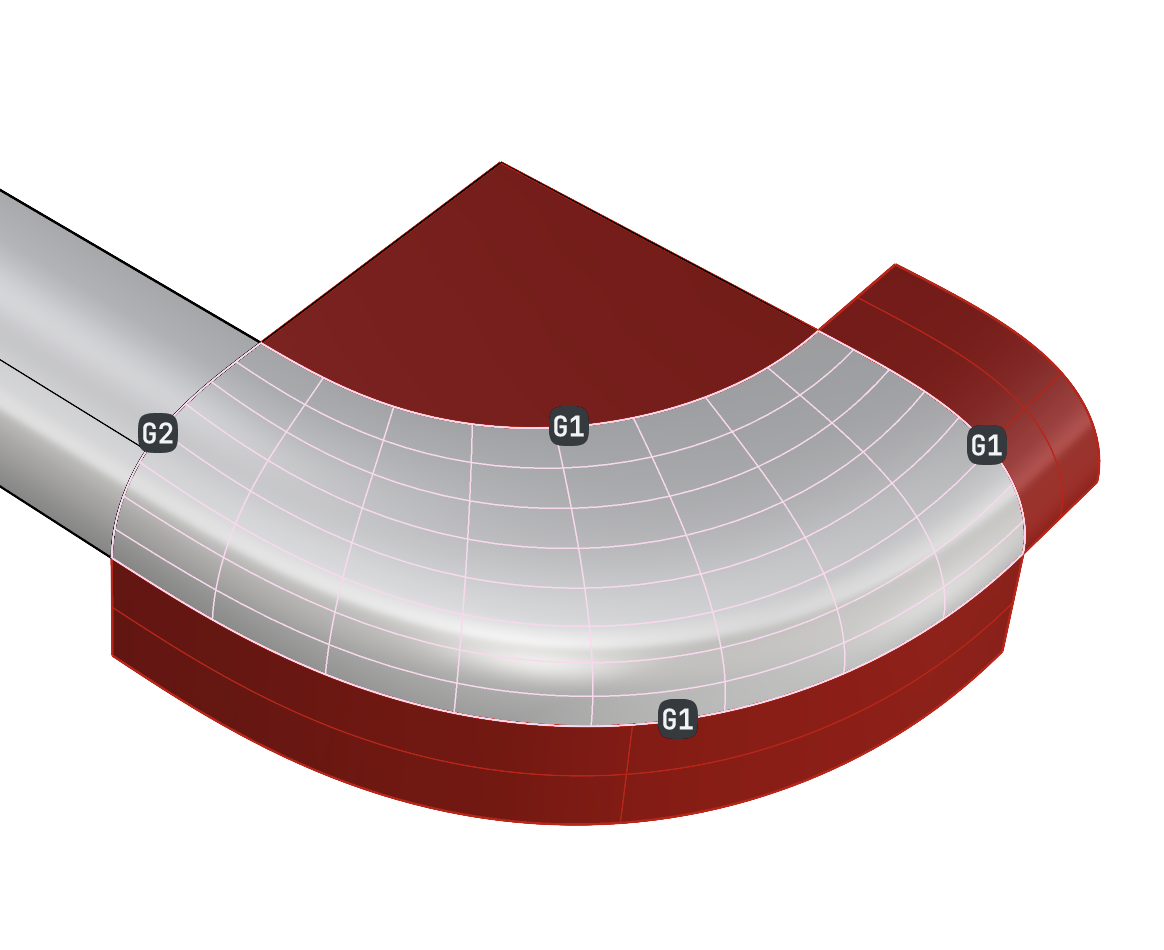
- In the layer panel, turn on the layer Starting surface.
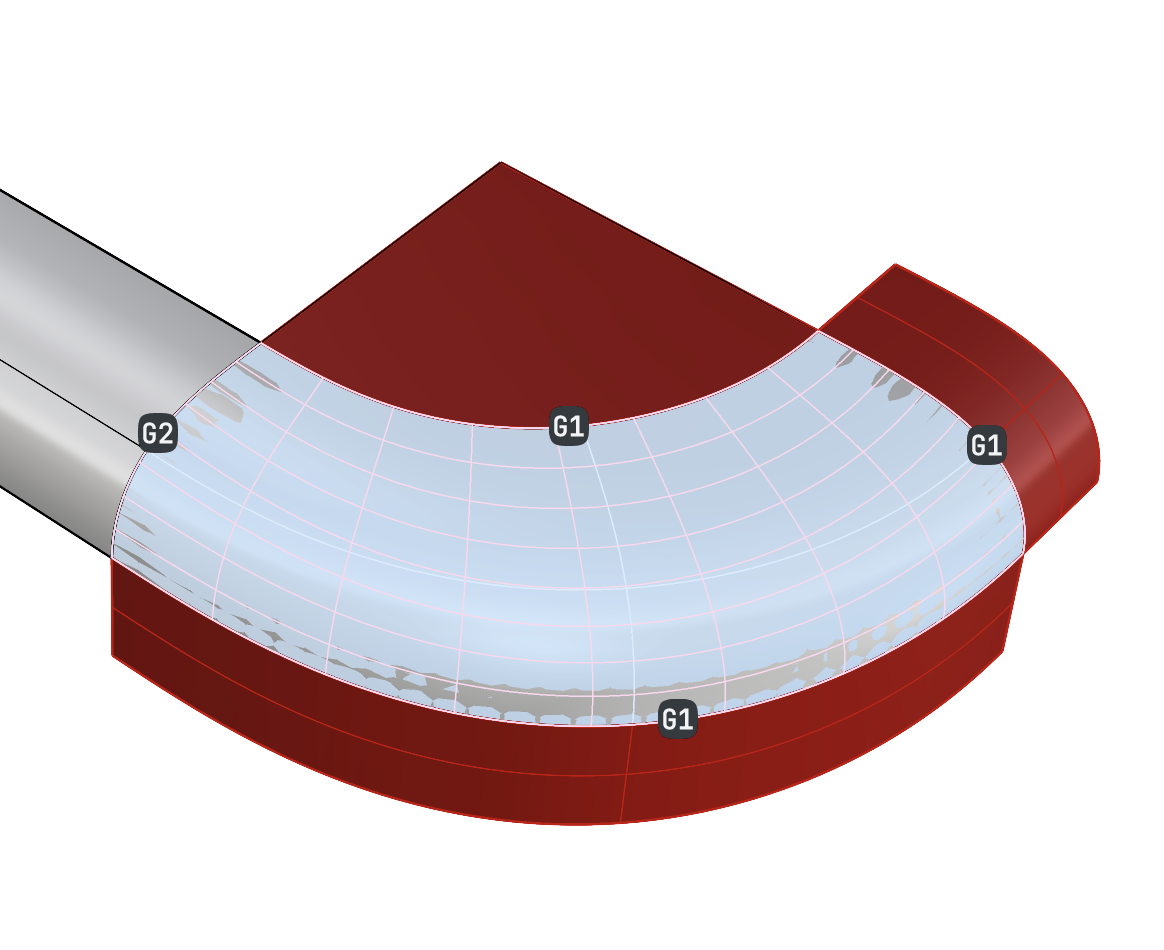
- Although the surface is quite good, we can make it less complex by using a starting surface. The starting surface was created with
 EdgeSrf
. In the Patch dialog, open the UV section and press
. Select the starting surface and hide the layer again. This starting surface is now used as a reference surface for creating the Patch and refines it to meet the boundary conditions.
EdgeSrf
. In the Patch dialog, open the UV section and press
. Select the starting surface and hide the layer again. This starting surface is now used as a reference surface for creating the Patch and refines it to meet the boundary conditions.
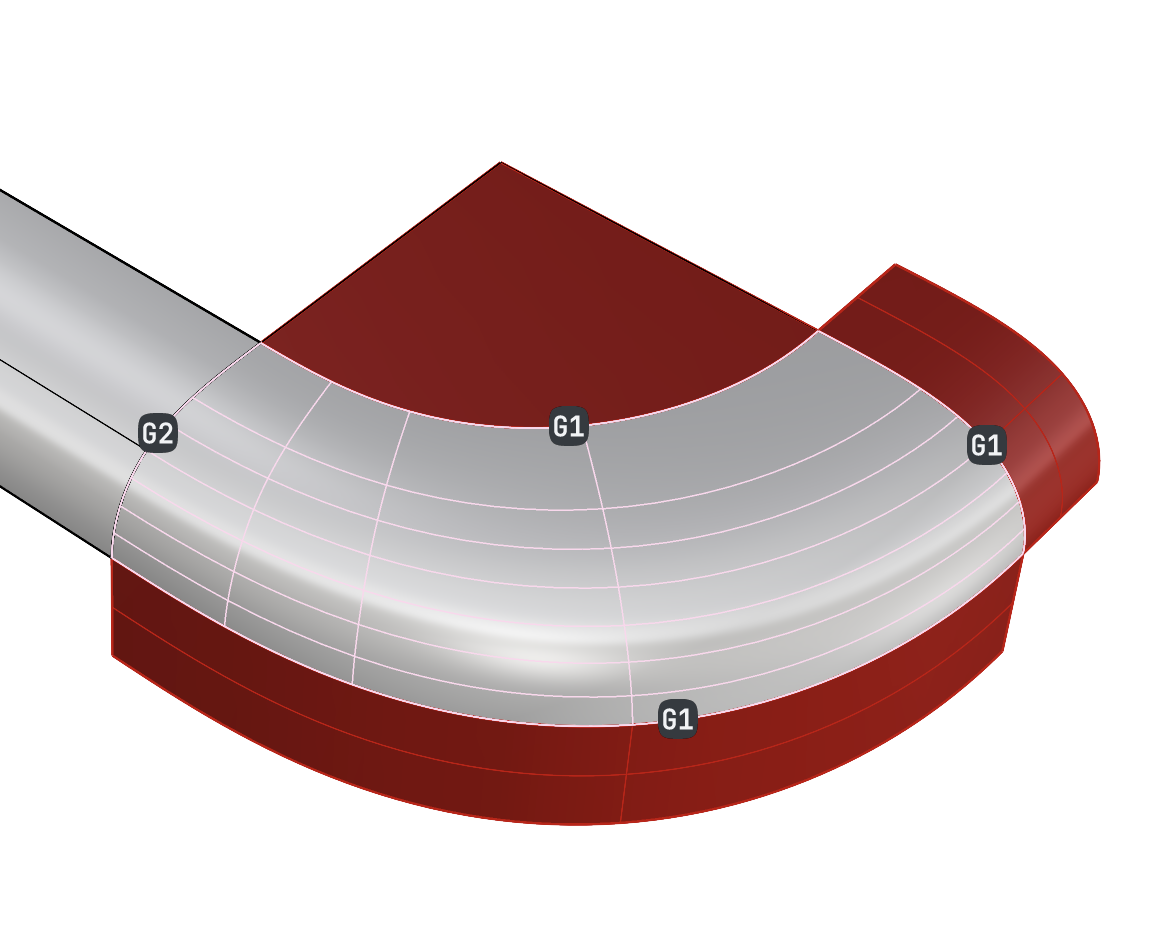
- Press to create the Patch.
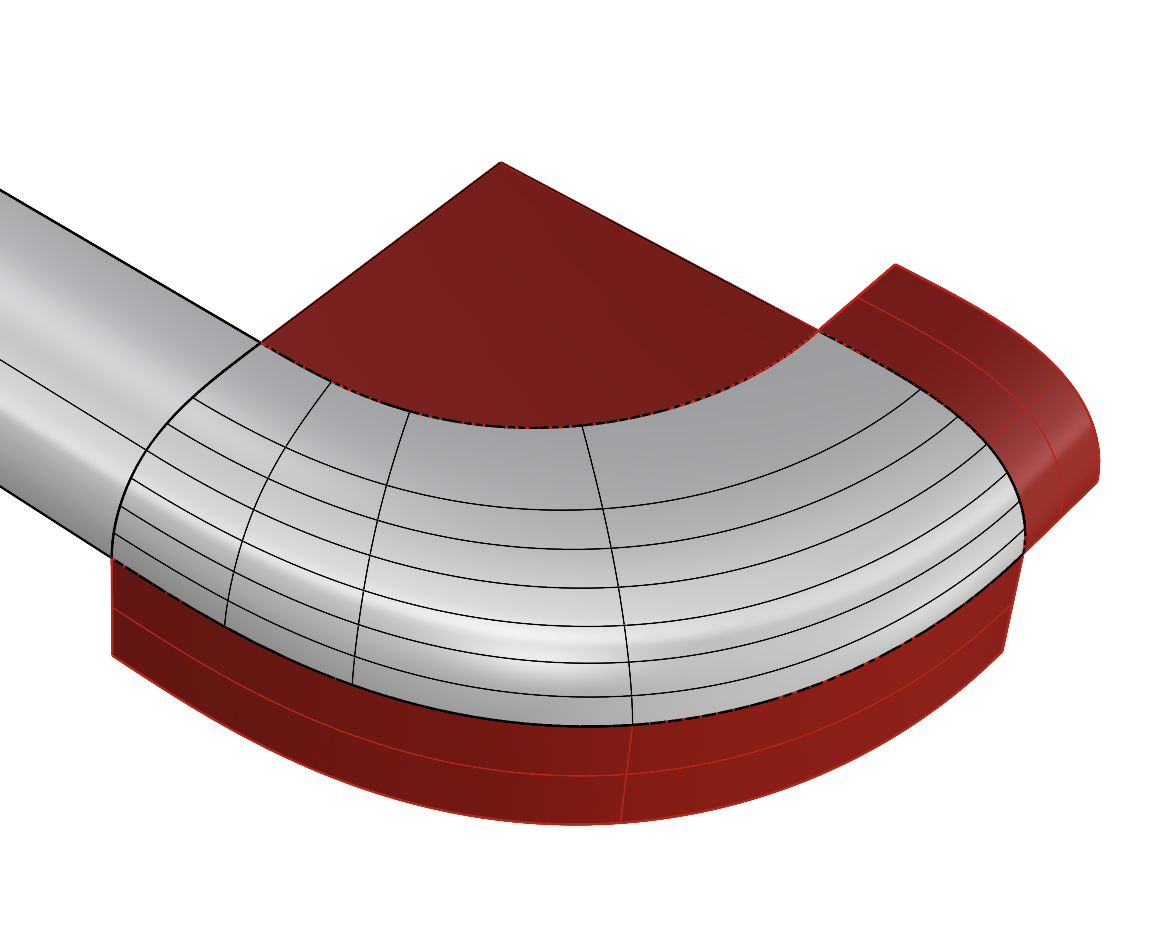
Complete the brush
- Turn off the layer helping-surfaces
- Select the all remaining surfaces. Run the
 Mirror
command. In the command line click the X Axis option.
Mirror
command. In the command line click the X Axis option. - Select all the surfaces and run Mirror again. This time choose the Z Axis option.