

Interactive Control Point Massaging
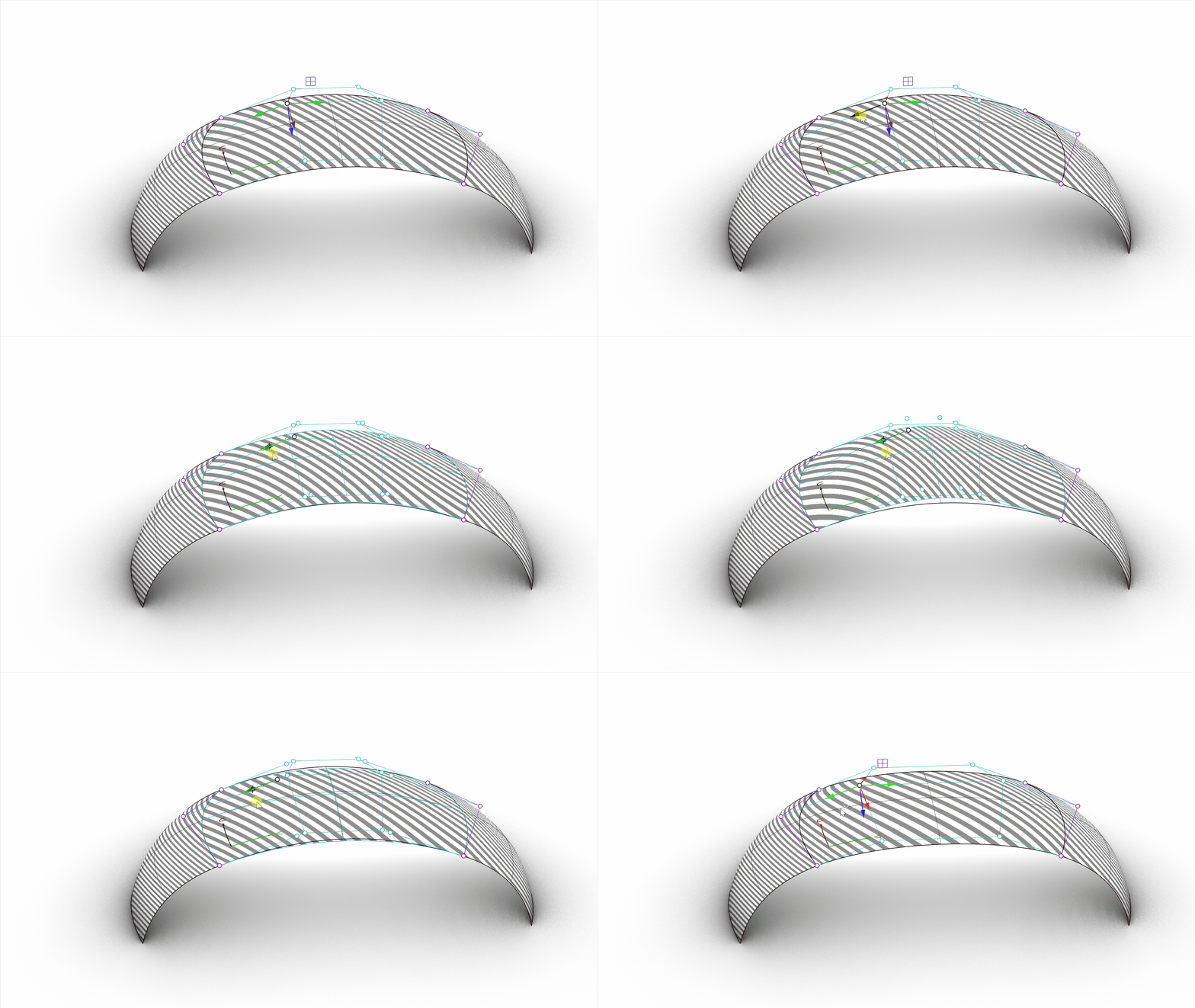
Form-finding has become more intuitive with Rhino’s interactive  Gumball UVN
mode! Surface
control point
editing is a daily task for designers. Edit your product’s shape directly in the viewport without leaving the model to switch to the MoveUVN panel. Simply select control points while having the Gumball set to
Gumball UVN
mode! Surface
control point
editing is a daily task for designers. Edit your product’s shape directly in the viewport without leaving the model to switch to the MoveUVN panel. Simply select control points while having the Gumball set to Align to Object, and it will align to the points’ control polygon (UVN) direction.
Maintain Surface Continuity
Gumball UVN
is a game changer for adjusting your design’s shape. In conjunction with  SoftTransform
, preserve your G0, G1, or G2 continuity to surrounding surfaces while making subtle changes to your product’s shape.
SoftTransform
, preserve your G0, G1, or G2 continuity to surrounding surfaces while making subtle changes to your product’s shape.
Move Points Symmetrically
Products are often symmetrical by nature. Maintaining symmetry as you modify their shape is key. Gumball UVN
allows a mirrored drag of
control points
by holding down the
key.
Try It
- Download Rhino 9 WIP for Windows or Mac.
- Download and open UVN_Gumball_TryIt.3dm in Rhino.
- Window-select all the surfaces.
- With the surfaces selected, run the
 Zebra
command. It opens an analysis panel that displays stripes to understand surface continuity:
Zebra
command. It opens an analysis panel that displays stripes to understand surface continuity:
- Enable
Show wires - Set the
Backgroundcolor toGray.
- Enable
- Run the
 GlobalEdgeContinuity
command. It opens an analysis tool that displays edge deviation between surfaces.
GlobalEdgeContinuity
command. It opens an analysis tool that displays edge deviation between surfaces. - Select the surfaces again.
- Run the
 PointsOn
command to turn on their
Control Points
.
PointsOn
command to turn on their
Control Points
. - Activate the Gumball in the Status Bar .
- In the Status Bar , right-click Gumball (CPlane) and select Align to Object.
- Select a control point in the middle surface. The Gumball arrows are aligned to the control point’s U, V and N (Normal) direction.
- Drag any Gumball arrow: it stays constrained to move along the U, V, or N axis. Watch the Zebra analysis and the GlobalEdgeContinuity statistics update dynamically in real time.
- Try it on your own! Experiment with your own models.
- Share comments and feedback on the Rhino Forum.


