

RhinoAI connects an AI assistant directly to live Rhino and Grasshopper documents, internally or via MCP. Ask for geometry, and it appears in the viewport; describe a Grasshopper definition, and it gets built on the canvas; point the assistant at what is already on screen, and it can read the model, the selection, and the view. It runs inside Rhino in its own panel, or externally from the AI assistant you already use.
RhinoAI is included by default in Rhino 9. In Rhino 8, install it from the Package Manager by searching for Rhino-MCP-Platform and installing version 3.0 or newer.
Download a fully functioning 90-day evaluation…
RhinoAI
RhinoAI is open source and in active development. It is available now for anyone who wants to work with it early and tell us what you think.
Inside Rhino
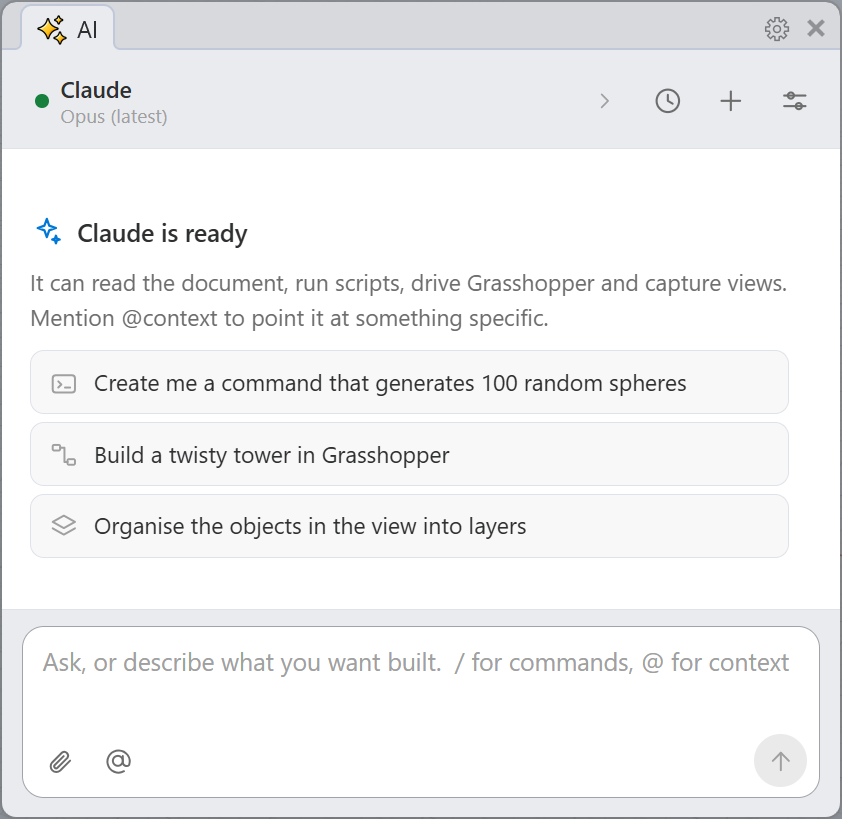
Run the AI command (formerly AIPanel), and the assistant can dock alongside your other Rhino panels. The panel connects directly to Rhino, Grasshopper, and the Script Editor. Describe what you want built, and watch it happen in the document: no copying code between windows, no switching applications, no second copy of your model.
- Pick your agent - Claude, Codex, or Gemini are selectable in the panel header and switchable per conversation.
- Point at what matters - type
@to hand the assistant a specific object, layer, or view instead of letting it guess. - It can see the result - the assistant reads the document and captures the viewport, so it works from what is actually there rather than from your description of it.
- Reach your other tools - the panel can call other MCP servers already set up on your computer.
- Prompt to macro - save a prompt as a macro that runs an agent interactively, or as a new Rhino command.
- Runs in Rhino 8 and Rhino 9 - creating a reusable Rhino command from a prompt requires Rhino 9.
The bottom line: the panel is your hands-on modeling partner. There is no separate client to set up, and the assistant stays beside your cursor, so you model, iterate, and experiment together without leaving the viewport.
You decide what it can touch
The AISettings command is where you set the boundaries. Every tool the assistant can reach is listed and grouped by what it does to your work, and each one can be switched off individually.
- Read-only - inspect the document, list objects, search Grasshopper components, read the canvas; nothing changes
- Modify - place and wire components, solve the canvas, set the camera, capture a view
- Destructive - run scripts, run Rhino commands, open, save, or close documents, clear a canvas
- Your agents, your keys - configure Claude, Codex, and Gemini independently, each with its own model and its own standing instructions
Unchecking a tool hides it from agents running in the panel. External clients connected over the Model Context Protocol (MCP) still see every tool.
Bring your own assistant
Outside Rhino, RhinoAI works through the RhinoMCP server. Run the MCPConnect command, and Rhino becomes a Model Context Protocol (MCP) tool server. From there, the AI assistant you already work in can drive Rhino and Grasshopper from whichever surface fits your setup: a terminal, a desktop app, or your code editor.
| Surface | MCP-Compatible Clients |
|---|---|
| Terminal | Anthropic Claude Code CLI (claude), OpenAI Codex CLI (codex), Google Antigravity CLI (agy), xAI Grok Build CLI (grok), Block Goose CLI (goose), Cognition Devin CLI (devin) |
| Desktop | Claude Desktop, ChatGPT Desktop, Antigravity App, Goose Desktop, LM Studio |
| IDE | VS Code, Antigravity IDE, Cursor, Devin Desktop (formerly Windsurf), Zed |
- Quickest start - in Claude Desktop, install the connector, and it sets up the Rhino plugin for you.
- Rhino on demand - the assistant can start, close, and restart Rhino, and open, save, and switch between files.
- Parallel agents - work with several copies of Rhino 8 and Rhino 9 at the same time.
- Survives a crash - the server reaches Rhino through a router, so it can load, test, and debug plugins and keep working even if Rhino goes down.
- One conversation, many tools - combine Rhino with the client’s other tools and connections.
- Local models - run an open-weight model on your own machine, and work without sending anything over the Internet.
The trade-off: the RhinoMCP server requires a separate AI client and some setup, but moving the AI outside the Rhino window turns it from an in-canvas assistant into an autonomous director. It keeps your viewport clean, stays alive if Rhino crashes, and can coordinate Rhino alongside the rest of the tools on your computer.
What you can ask it to do
The documented examples are deliberately ordinary: the work you would otherwise do by hand.
- Model from an image - hand it a reference and get geometry back.
- Build a Grasshopper definition - describe the behavior you want, and it places and wires the components, then solves the canvas.
- Sketch to model - drop in a sketch, agree on an interpretation, get a first-pass parametric build.
- Organize a document - sort what is in the view onto sensible layers.
The forum is already pushing further: modeling architecture, modeling within an interior photograph, inferring features to reverse engineer and defeature a model, creating and managing BIM schedules, reducing STEP file size, and remodeling meshes as NURBS.
AI in the Design Process
An assistant that can read your model and act on it changes what is worth trying. These are the places it shows up first.
Design Iteration
Parametric models were always meant to be explored rather than admired. The bottleneck was never the solver; it was the time it took to build and rebuild the definition. An assistant that can place components, wire them, and solve the canvas takes that cost down far enough that trying new ideas stops being a decision.
- Build the definition by describing it - state the behavior you want; let the assistant assemble the graph.
- Rebuild rather than patch - restructuring a definition stops being a reason not to change your mind.
- Move between Grasshopper versions - port a definition onto a Grasshopper 2 canvas and check that both solve to the same result.
- Stay in review - the assistant does the assembly. The judgment about whether it is any good stays yours.
Visualization
RhinoAI is not just an image generator. What it does is see: it can frame a view, set the camera, and capture the viewport, which means the assistant works from the model as it actually looks rather than from a description of it. That closes the loop on everything else on this page.
- Set up the shot - describe the view you want, and let the assistant position the camera.
- Capture and compare - take viewport screen captures as you iterate, and put versions side-by-side.
- Hand it back - give the assistant a render, and ask what is wrong with it.
- Bring your own renderer - the growing ecosystem of AI imaging tools for Rhino sits alongside this rather than inside it.
Model Organization
Some of the most useful work an assistant does is the work nobody wants to do. Layers, names, materials, and the state of an imported file are exactly the kind of structured, tedious, rule-following tasks that a model is good at and a designer resents.
- Sort what you have - organize a messy import onto sensible layers by name, type, or location.
- Query the model - ask what is on a layer, what is currently selected, or what a given object actually is.
- Set up the document - layers, materials, and named views described rather than clicked.
- Handle the batch - open, process, and save across a set of files.
Building with AI
Rhino has always been scriptable. What is evolving is who writes the script.
AI-Assisted Scripting
- Python 3 and C# - the assistant writes and runs scripts against the open document, reads back what happened, and fixes what did not work.
- Discover before you write - it can list the available Rhino commands and look up Grasshopper components by name, category, and parameters.
- Make it reusable - turn a working prompt into a proper Rhino command, complete with an icon and a shareable plugin, available immediately using Rhino 8 or 9.
- You stay the reviewer - scripting tools sit in the Destructive group, switchable to OFF in
AISettings.
Vibe Coding
The term is loose; what it means in Rhino is specific. You describe the outcome in plain language, the assistant writes and runs the code against your live document, and you judge the result by looking at it rather than by reading the source. It works because the feedback loop is short and visual: if the geometry is wrong, you say so, and it will help you make more attempts.
- Describe, run, look, adjust - the loop is conversational, not a specification handed over a wall.
- The model is the test - correctness is visible in the viewport, not buried in a log.
- Keep what works - a prompt that produces the right result can become a saved command.
- Know the limits - it is fast at the first eighty percent and still needs you for the rest.
For Developers
RhinoAI is as useful pointed at a plugin project as at a model.
- Upgrade a plugin to .NET Core - move a
net48project onto current targets with an assistant doing the mechanical work. - Port components to Grasshopper 2 - scaffold the equivalents and verify them side-by-side on both canvases.
- Let it run the test loop - from your IDE, an agent can start Rhino, load your Rhino or Grasshopper plugin, test commands and components, read the crash info, and iterate.
- Extend it - our RhinoAI project is open source under an MIT license, with issues and pull requests open.
- Add your own servers - merge additional MCP servers alongside the built-in Rhino server so agents reach your tools, too.
Learn Resources & More
RhinoAI is moving quickly and most of what is worth knowing is being worked out in the open, right now, by the people using it.
Documentation
The RhinoAI documentation covers installation for each assistant, a first prompt to confirm everything is wired up, basic examples, and troubleshooting.
Community
Start with the RhinoAI beta announcement and its side-by-side comparison of the panel and the RhinoMCP server. Then join the conversation in the AI category on the Rhino forum, where RhinoAI is discussed, debugged, and developed by the people building it and the people using it. Bug reports and feature requests are welcome on GitHub.
Case Studies
Read Rhino user stories about AI, and see how designers are putting RhinoAI to work.
Source
RhinoAI is developed in the open at github.com/mcneel/RhinoAI under an MIT license.

