
Gumball
Quickly Move, Rotate, Scale, Extend, Copy, Cut, and Extrude geometry in the viewport.
Gumball: A Widget for Manipulating Geometry
Modify geometry without typing commands or clicking a toolbar button. The
Gumball
is a versatile direct modeling tool for concept modeling interior and exterior architecture forms, furniture, SciFi models, and working with SubD objects.
Gumball Actions
- Move: move selected geometry freely or using a specific distance.
- Rotate: rotate selected geometry freely or using an angle.
- Scale: scale selected geometry freely or using a scale factor.
- Copy: copy selected geometry by pressing
Altas you move the selection.
- Cut: split by dragging a curve through an object.
- Boss: emboss any shape curve by dragging it onto an object.
- Extrude: extrude any curve or face freely or to a specific distance.
- Extend: extend adjacent faces while moving or rotating it.
Keep Your Walls Straight
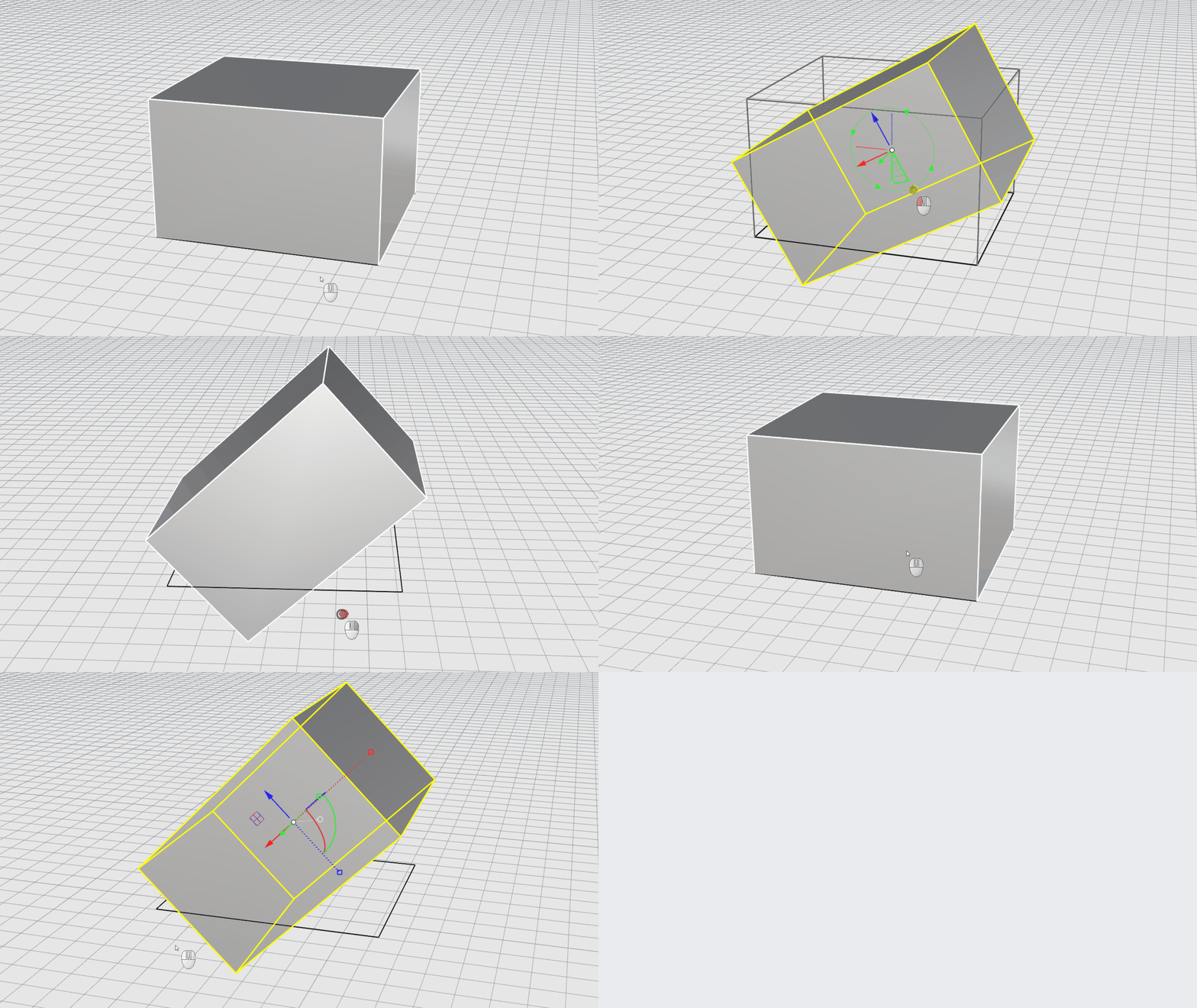
Enable Rotate-Extend by holding down ctrl + shift as you drag the
Rotate handle
. Rotate a face and have adjacent faces extend in their own natural direction.
Relocation Remembered
The
Gumball
now remembers its orientation and location for SubD
Sub-Object Selections
and Groups. This is a time-saver when working back and forth with selection sets and multiple objects.
Intuitive Use
An improved user-experience that guides you through its use:
Snappy / Smooth Mode
The Gumball menu ball changes from a circle to a diamond shape as a visual cue to which drag mode it’s in.
Dynamic Relocate
Relocating and reorienting the Gumball is now done by double-clicking any of the handles.
Tooltips
The Gumball has been made more accessible to both new and existing users. Tooltips explain the function of each handle and show the various key presses to change the function.
Simplified Keypresses
The double function of the Ctrl key (Cmd key on Mac) has been eliminated, making the Gumball functions easier to memorize.
Try It
In this exercise, try the
Gumball
Rotate-Extend mode.
- Download Rhino 8 Evaluation for Windows or Mac.
- Download gumball-rotate-extend.3dm in Rhino .
- Activate the Gumball .
- Sub-Object Select one of the vertical faces.
- Hold down + while dragging the Gumball Rotate handle. Then, let go.
- The face has been rotated while adjacent faces extend without deforming!
- Try it on your own! Experiment with your own models.
- Share comments and feedback on the Rhino Forum.