Create Once, Use Everywhere
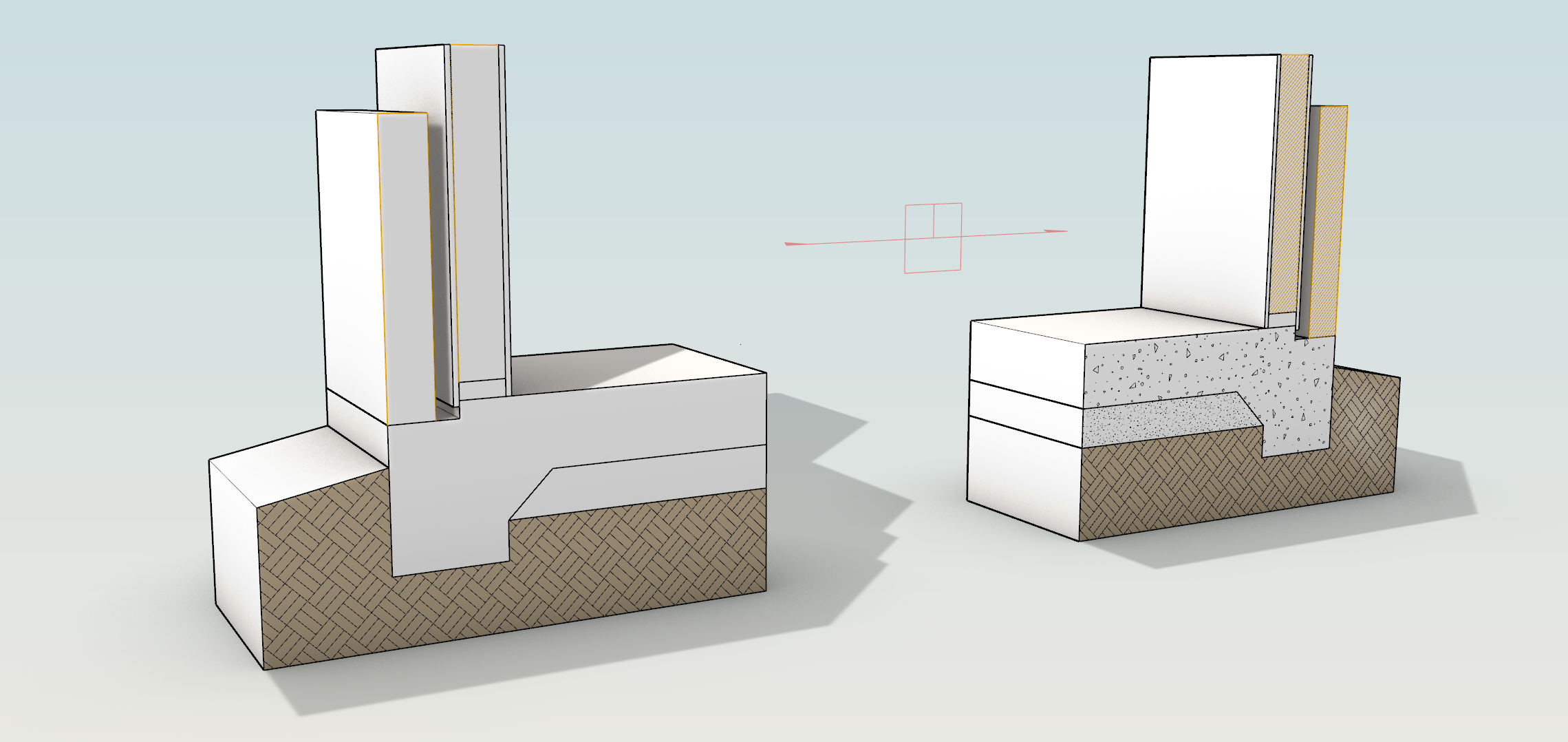
For architects and designers who produce plans, sections, and elevations from their models, save your Section Styles and reuse on any object, layer, or clipping plane. Previously, every custom style was a one-off. Ten layers of concrete meant ten styles to edit. Now it is one.
One style named Concrete holds the hatch pattern, background fill, boundary linetype and color, and print colors. Change its hatch pattern scale and every section in the drawing set follows.
Try It
- Download Rhino 9 Evaluation for Windows or Mac.
- Download and Open DocumentSectionStyles-TryIt.3dm in Rhino .
- To create a style:
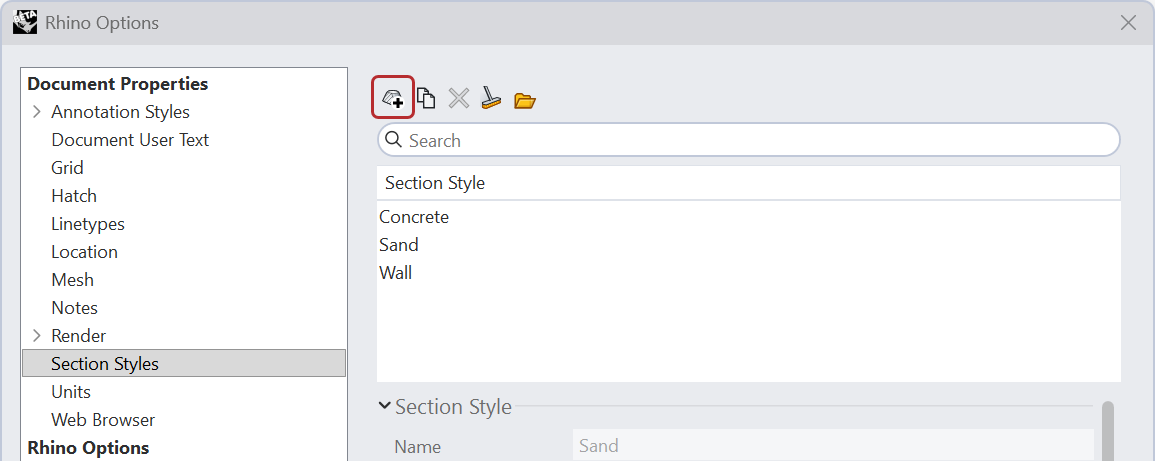
- Go to the File menu > Properties > Section Styles.
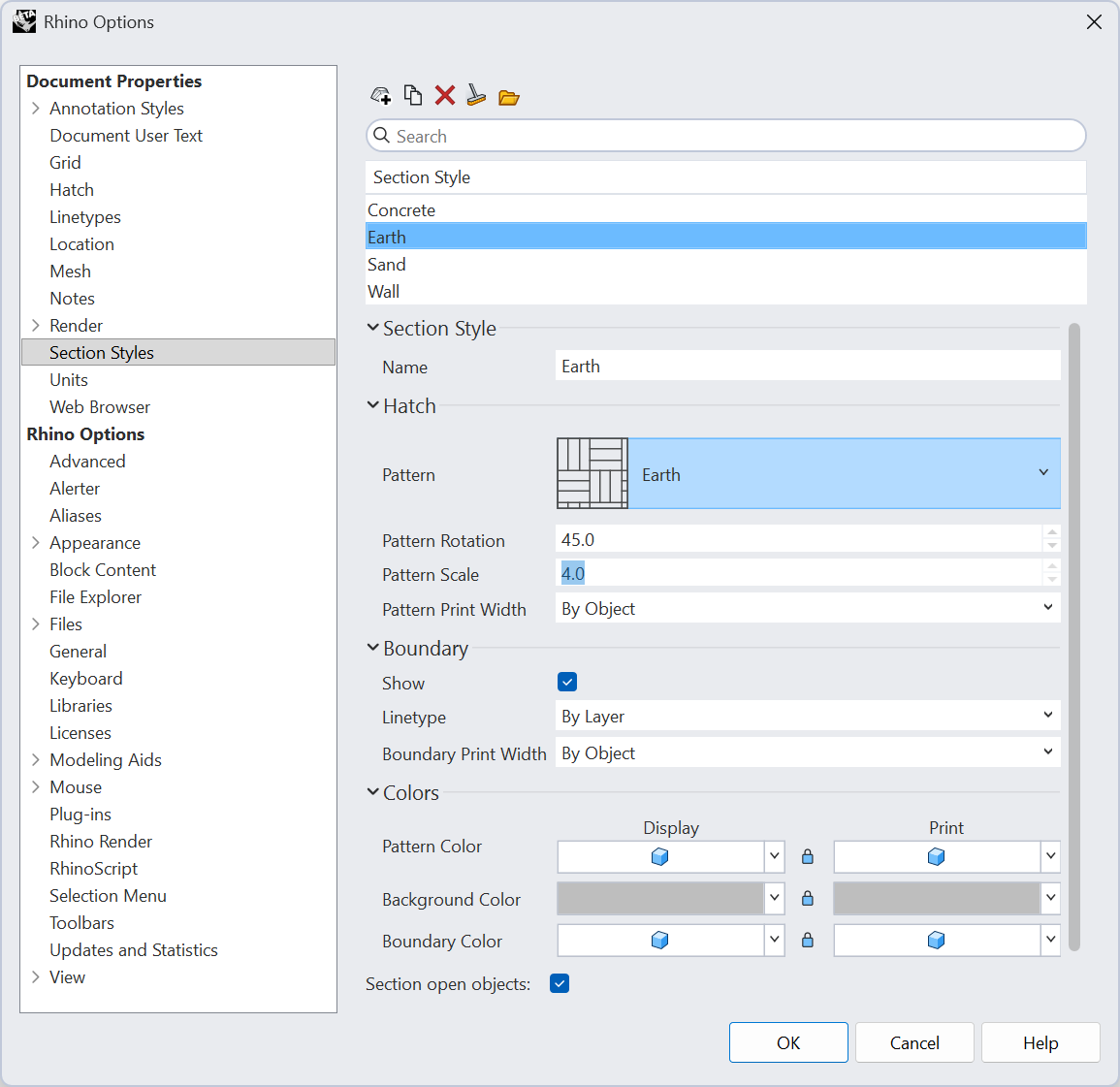
- Select the New icon to create a new Document Section Style.
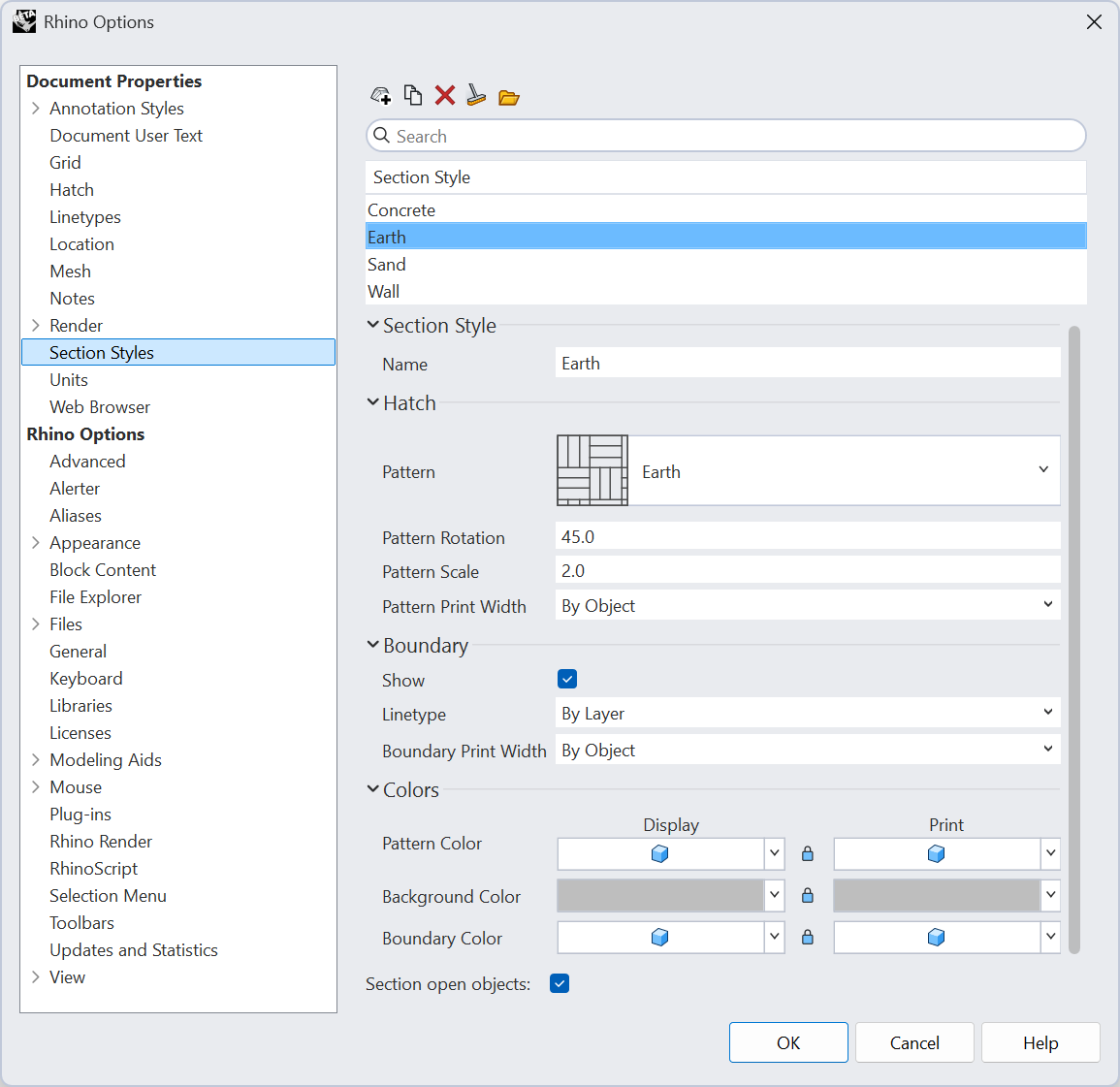
- In the dialog:
- Rename the style from
Section Style 01toEarth. - Set the Hatch Pattern to
Earth. - Set the Pattern Rotation to
45degrees. - Set the Pattern Scale to
2. - Set the Background Color to
Gray. - Press OK.
- Rename the style from
- Apply the style to an object:
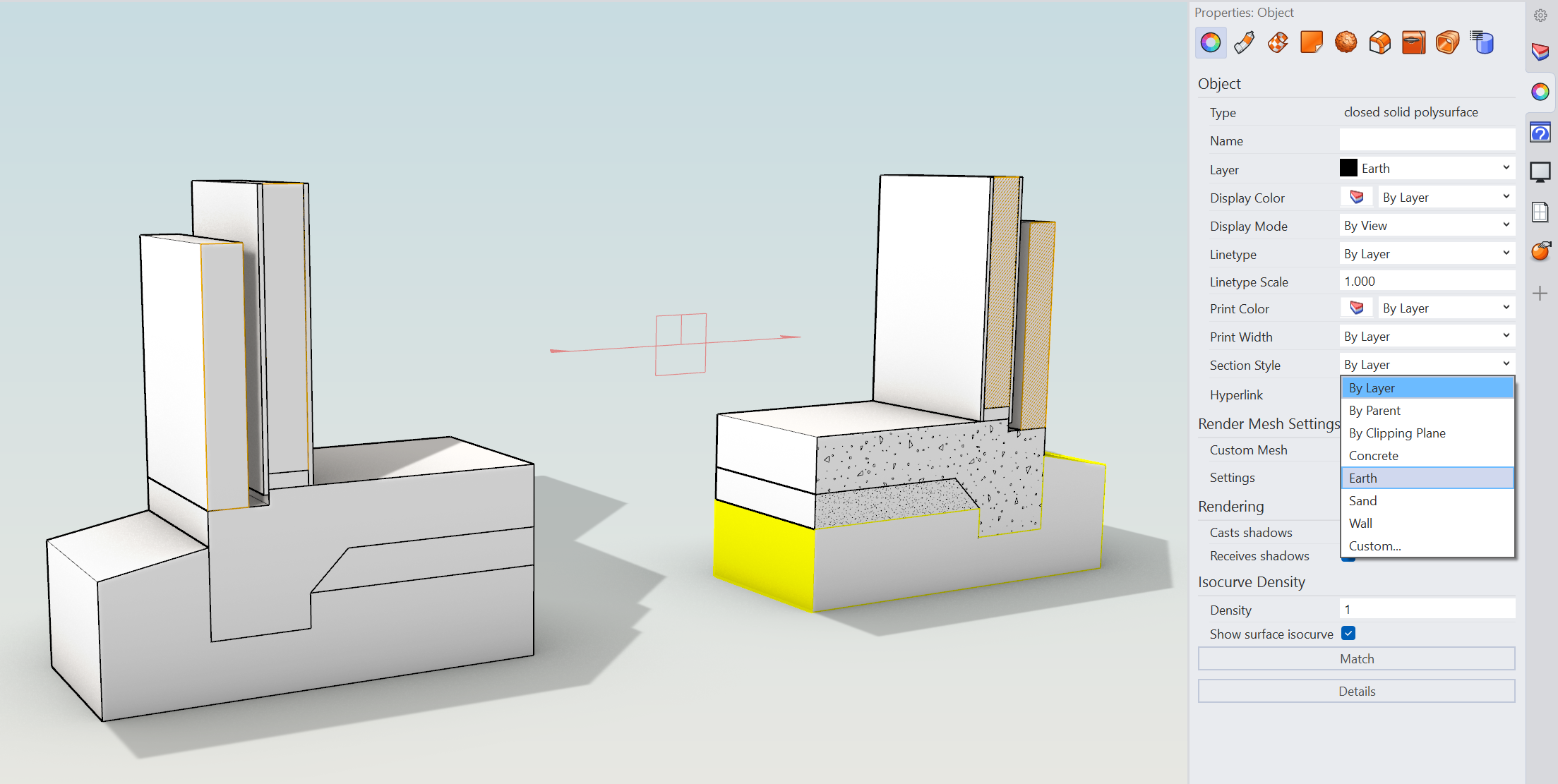
- Select the bottom base object in the model-
- Open the
 Properties
panel.
Properties
panel. - In the Section Style drop-down, choose
Earth.
- Apply the style to a second object:
- Select the matching object on the opposite side of the model.
- In Properties
, select
Earthfrom the Section Style drop-down list.
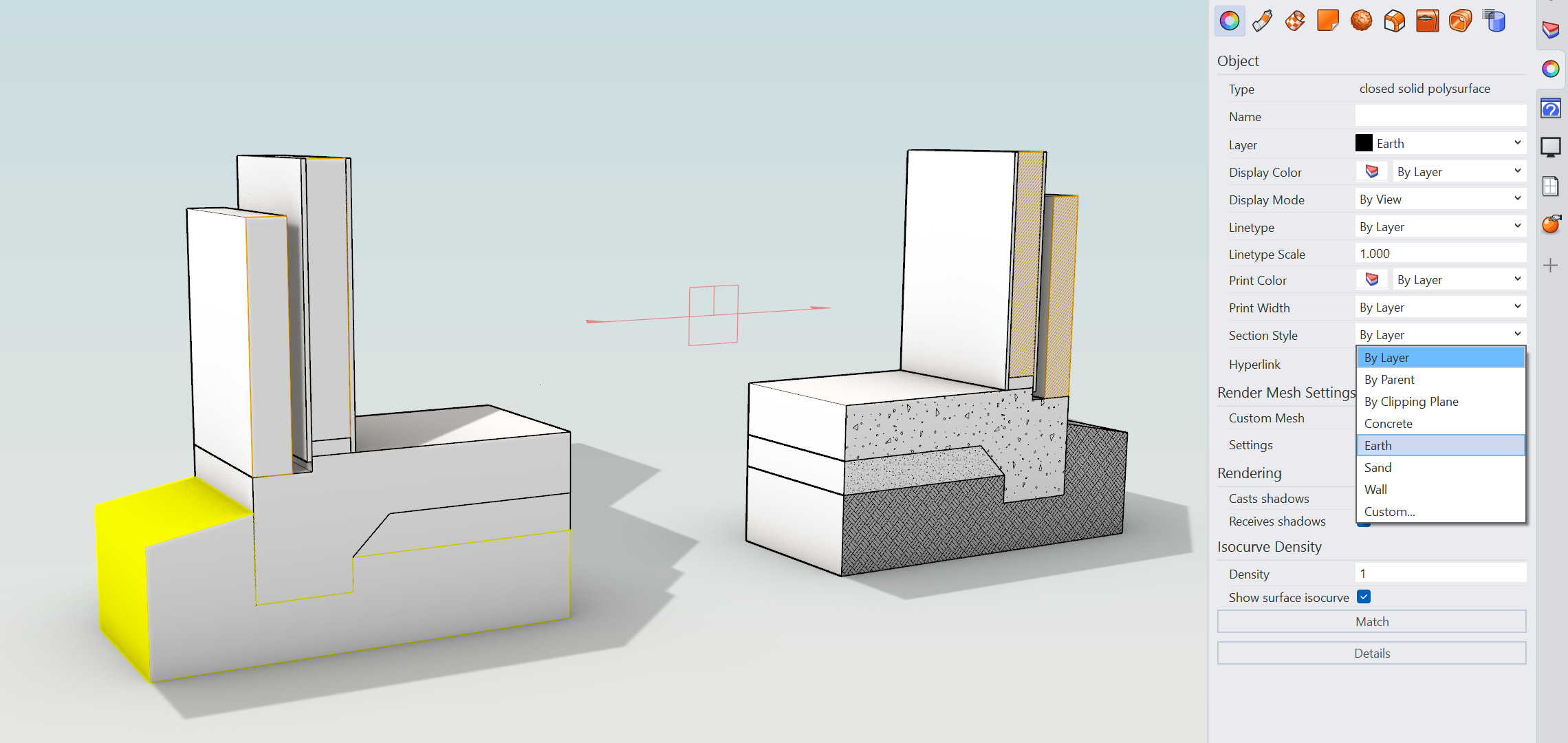
- Edit once, update everywhere:
- Go back to Document Properties > Section Styles page
- Select
Earth - Change one of its settings, such as Pattern Scale or Background Color.
- Both objects using the
Earthstyle update at the same time.
- Apply the remaining Document Section Styles. The objects on the right side of the model already use the
Sand,Concrete, andWallstyles. - Try it on your own! Try applying Section styles per layer on your favorite models.
- Share comments and feedback on the Rhino Forum.