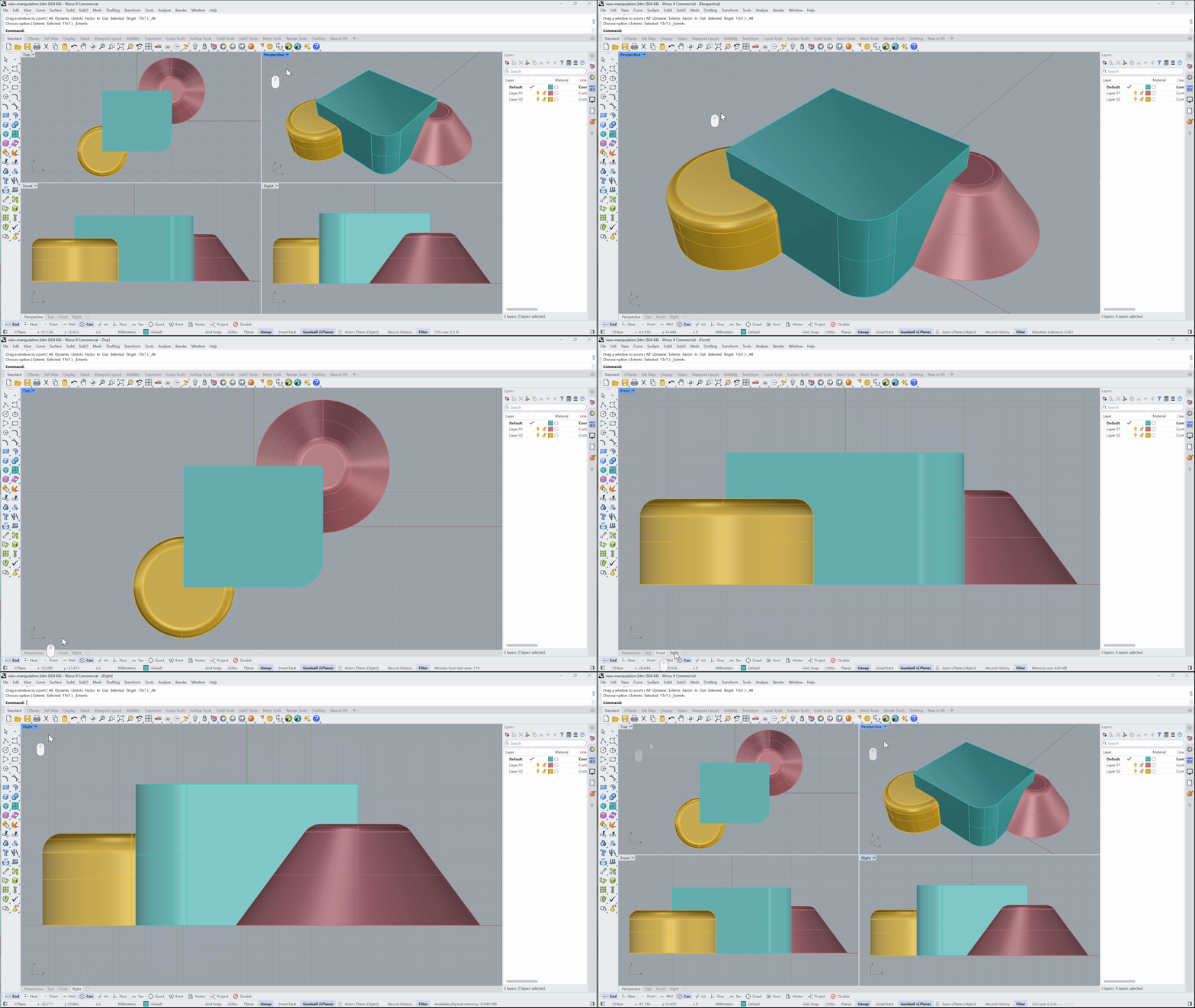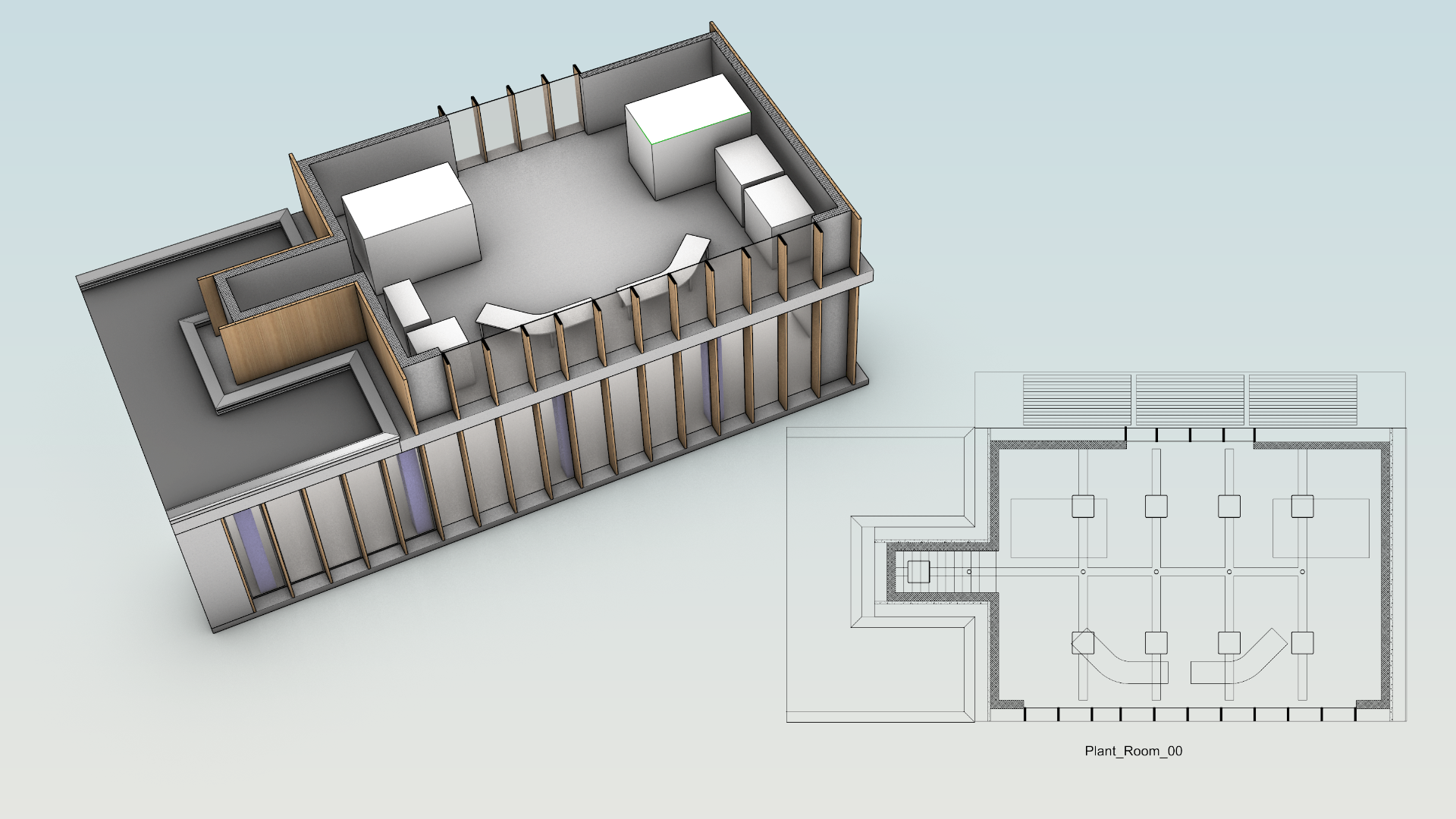
In this tutorial, we’ll create a Reflected Ceiling Plan (RCP) to communicate the lighting fixtures and electrical installation items on the ceiling of a commercial building. We’ll also look at the various 2D projection methods and how to add and remove content to and from existing sections. We’ll focus on using the  ClippingSections
and
ClippingSections
and  ClippingDrawings
tools.
ClippingDrawings
tools.
What you'll learn
- Creating a Section with ClippingSections
.
- Creating a 2D drawing with ClippingDrawings
.
- Defining an RCP and how it differs from other projection styles.
- Adding and removing content to the Section and Drawing on a per Layer and per Object basis.
- Adding, updating, and controlling the visibility of annotation items in the model to the Clipping Drawing.
Create the Section
- Download and open the model RCP Tutorial.
- Maximize the viewport, and make sure it’s in Shaded Display Mode
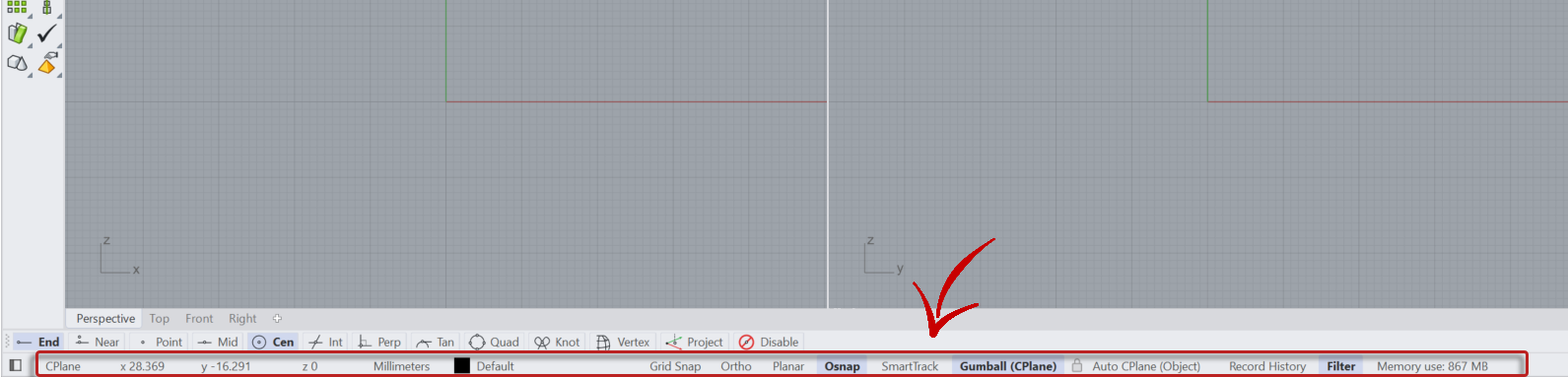
- Enable Ortho constraint in the Status Bar .
- Enable the
PointOsnap - Run the
 AddGuide
to create an infinite horizontal guide:
AddGuide
to create an infinite horizontal guide:
- At the
New guide base pointprompt , left-click on the Point visible to the left of the building. - At the
Guide directionprompt, pull the cursor right in an Ortho-constrained direction and left-click. - Press to end the command.
- At the
- Create a section by running ClippingSections
.
- At the
Select objects to sectionprompt, press to select all the geometry. - At the
Place sectionsprompt, choose the following options:- Direction =
World - Custom Depth =
No - Clip =
No - Name =
Plant_Room - Label Mode =
Text - Saved to Named View =
No - Flip =
No
- Direction =
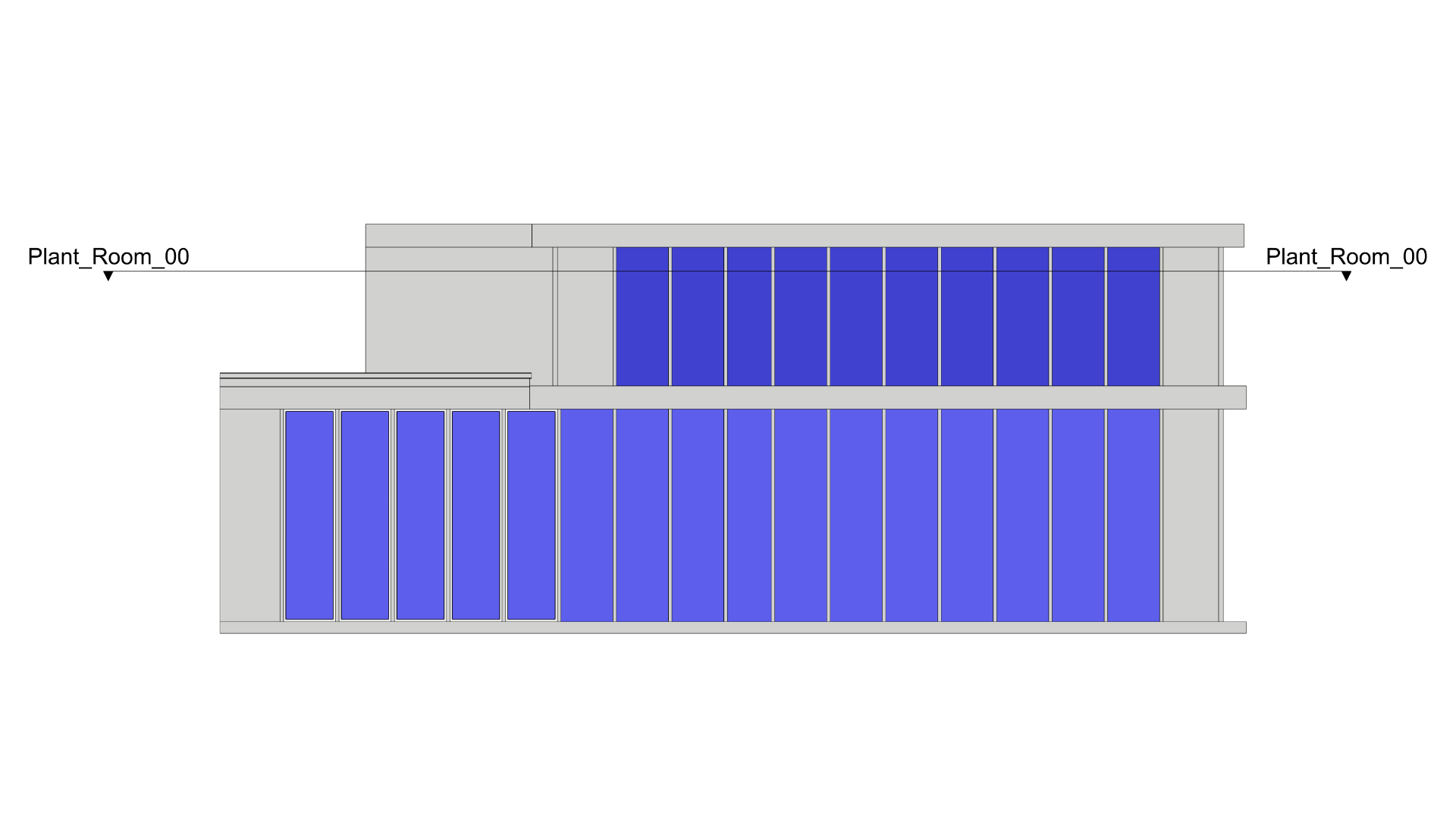
- Place the section, snapping to the horizontal guide to constrain the height.
- Press to end the command.
Create the Drawing and Projection
- Continue with your file or download and open the model RCP Tutorial 01.
- Run ClippingDrawings
to create a new 2D Drawing. We’ll start by creating a conventional section looking down at the floor.
- At the
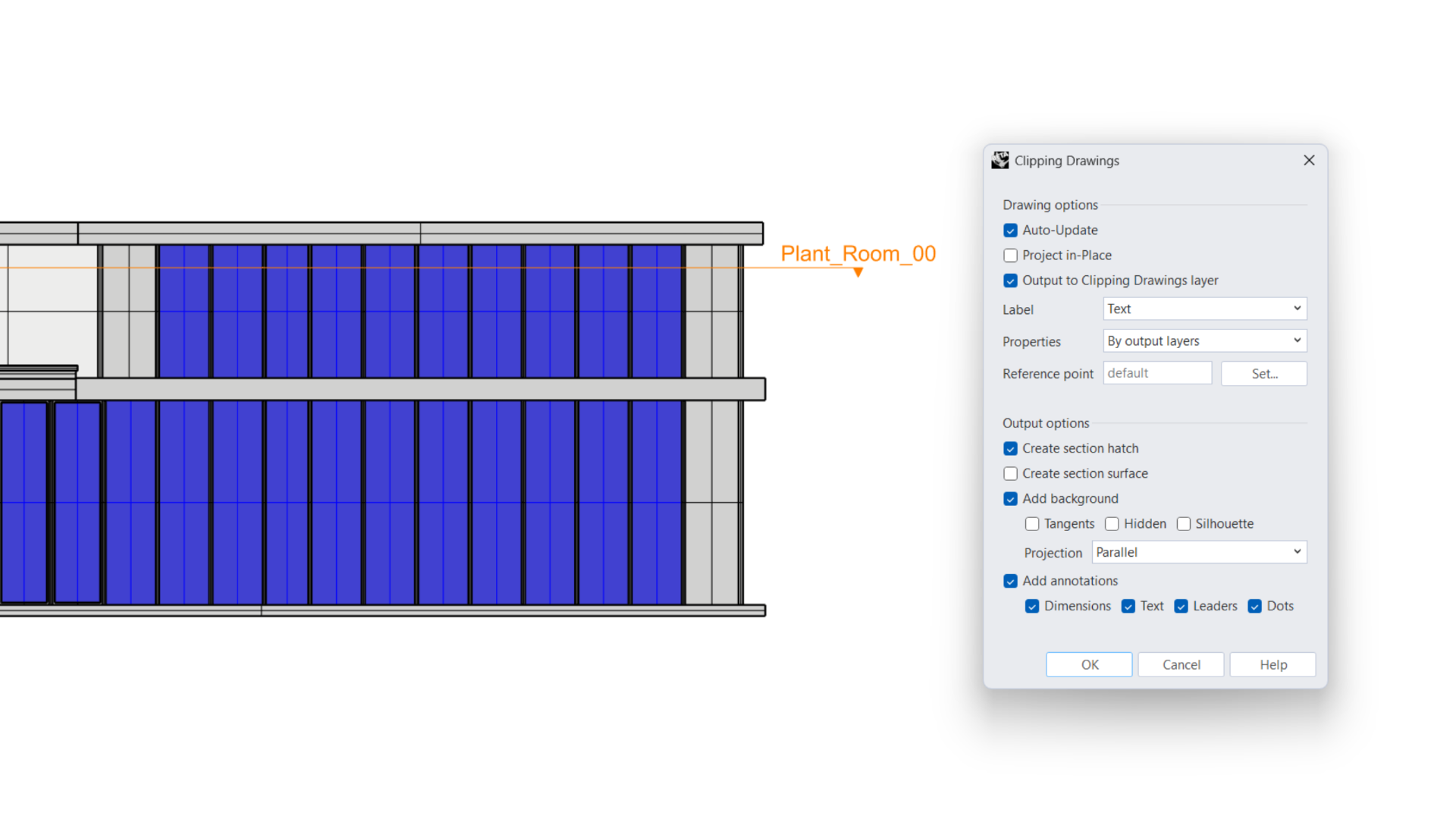
Select clipping planesprompt , select thePlant_Room_00section in the viewport and press . - In the Clipping Drawings dialog box, set the following options:
- Auto-Update =
Yes - Project in Place =
No - Output to Clipping Drawings layer =
Yes - Label =
Text - Properties =
By output layers - Create section hatch =
Yes - Create section surface =
No - Add background =
Yes - Tangents =
No - Hidden =
No - Silhouette =
No - Projection =
Parallel - Add Annotations =
Yes- Dimensions =
Yes - Text =
Yes - Leaders =
Yes - Dots =
Yes
- Dimensions =
- Auto-Update =
-
Press OK to confirm these selections.
-
At the
Placement pointprompt, select a point in the viewport . You might need to zoom out to avoid overlapping the model. -
The drawing will now be created. This is a parallel section looking downwards, as indicated by the arrows on the Clipping Plane indicator in the viewport.
-
In the viewport, select the Clipping Plane widget and in the
 Properties
panel select Flip Direction.
Properties
panel select Flip Direction. -
Run
 UpdateClippingDrawings
.
UpdateClippingDrawings
. -
At the
Select clipping planes or drawingsprompt, select the Clipping Plane widget and press . Note that the 2D drawing updates. -
We have now created a parallel section looking upwards at the ceiling. Note that, due to drawing conventions, the stairwell is now on the right of the 2D drawing. This makes it difficult to show, for example, the ceiling contents overlaid on the floor contents.
-
Flip the section again and update the drawing to return to the parallel section looking downwards.
-
Double-click on the 2D drawing and in the Edit Clipping Drawings dialog box, change the Projection from
ParalleltoReflectedand confirm by pressing OK. The drawing now updates, creating the Reflected Ceiling Plan that shows detail above the section plane only. Note that the stairwell is now on the left; hence, the projection is reflected. -
Note also that Clipping Drawings support curves visible in the model.
 Layer
Layer
002-04-009-003 Tray Outlinecontains only a polyline. You can see the polyline in the viewport by momentarily hiding layer002-04-007 Roof (Simplified). -
To overlay the ceiling details with geometry underneath the section, double-click on the 2D drawing again and in the Edit Clipping Drawings dialog box, change the Projection from
ReflectedtoParallel and Reflectedand confirm by pressing OK. The drawing now updates, creating the Reflected Ceiling Plan overlaid over the parallel section.
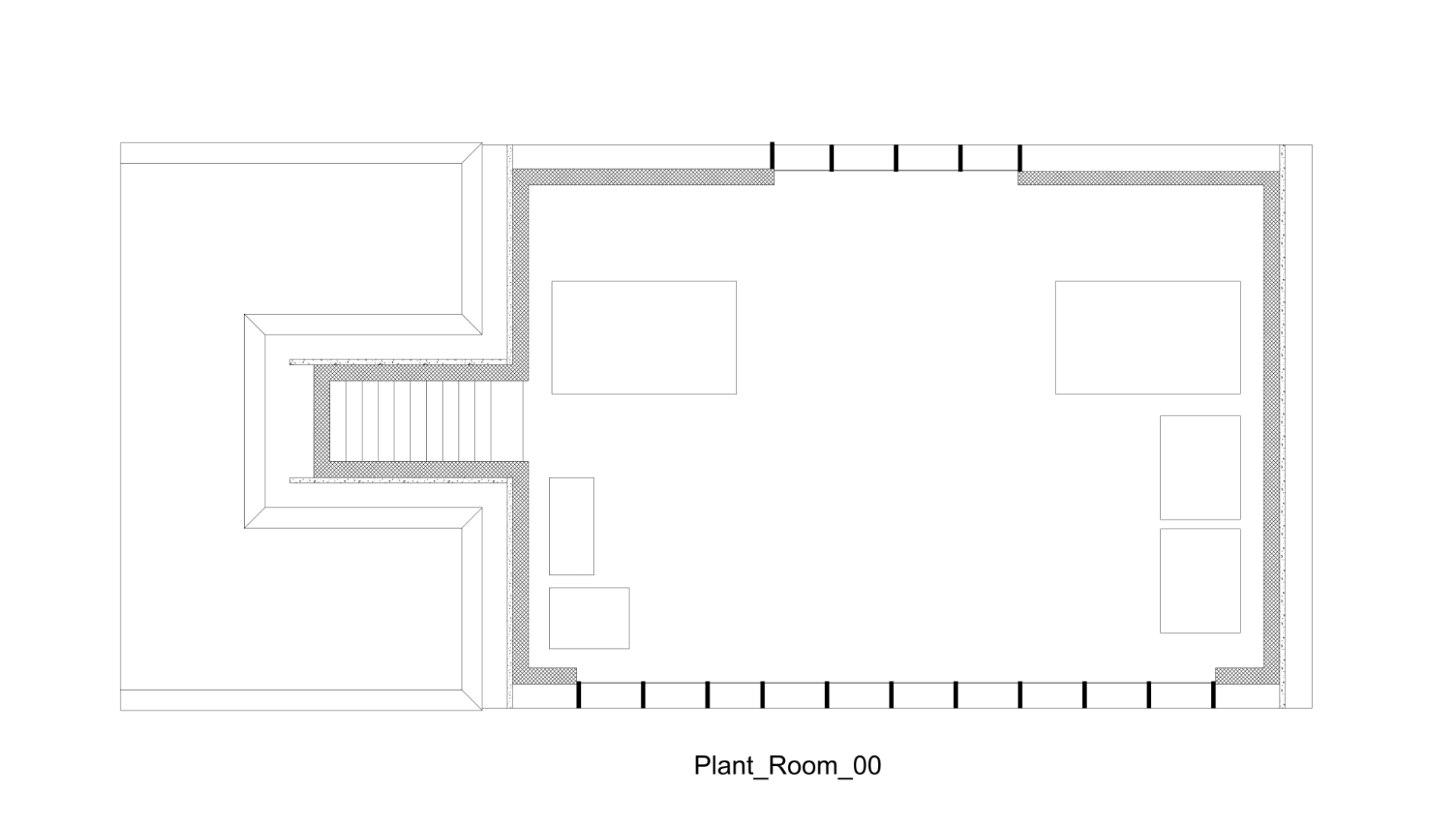
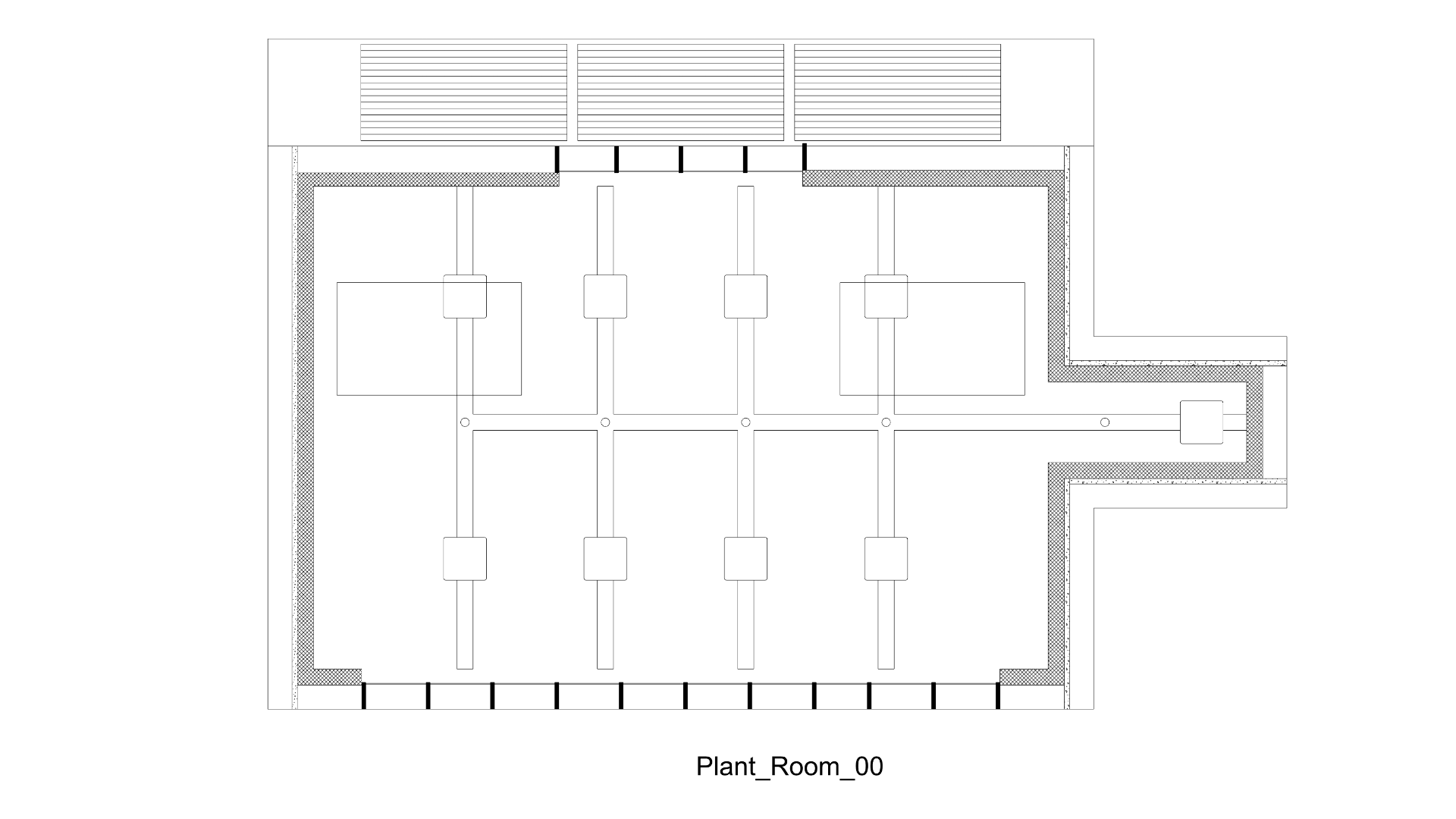
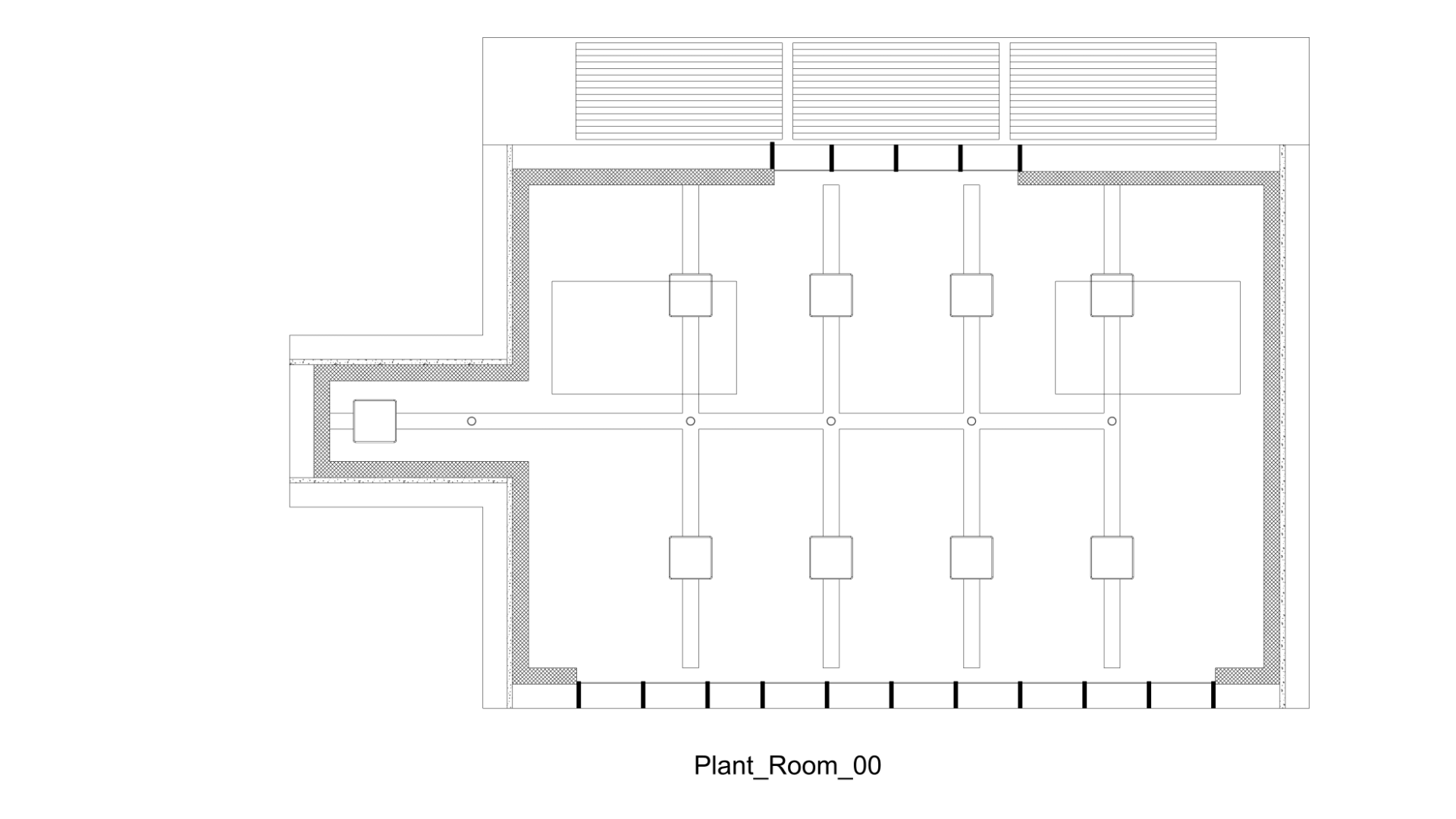
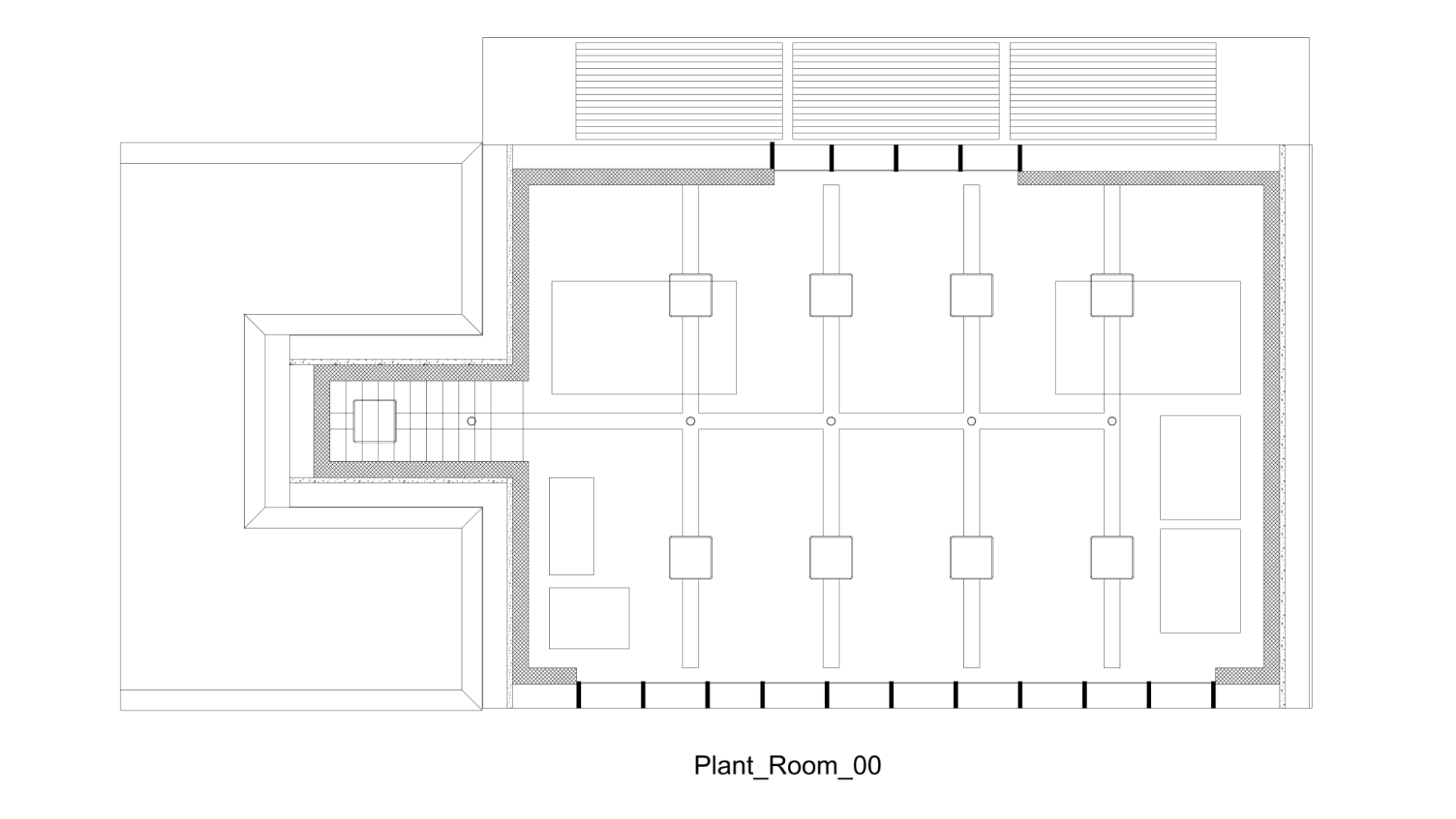
Add and Remove Content
Because we used the All option when we created the Plant_Room_00 Clipping Section, we can use
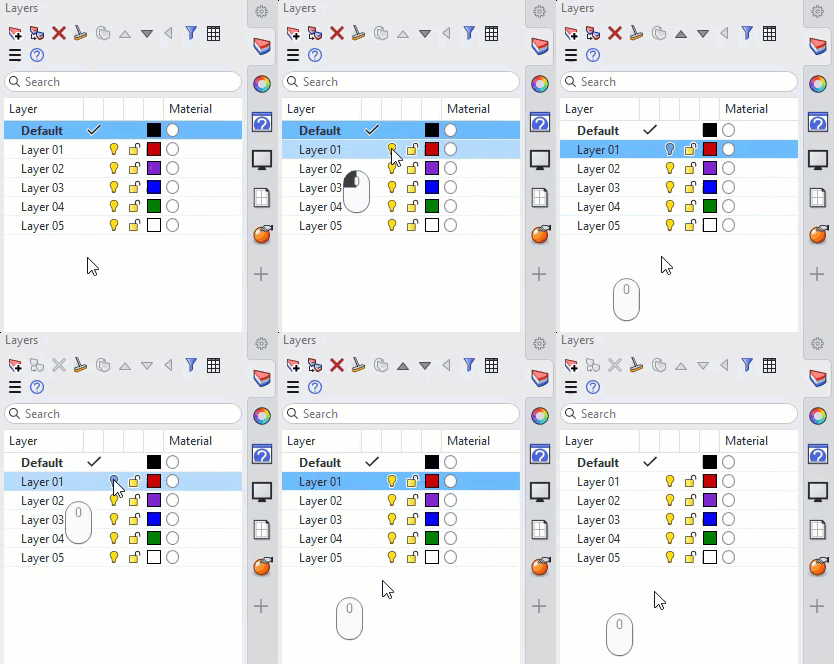
Layer Visibility
to control what is clipped and shown on the drawing.
- Continue with your file or download and open the model RCP Tutorial 02.
- Maximize the viewport and Zoom Extents so that the model and 2D drawing are both visible.
- Set the Display Mode to Wireframe.
-
Turn on layer
002-04-008-004 Control Kiosk. Two purple crescent-shaped desks will become visible in the model.
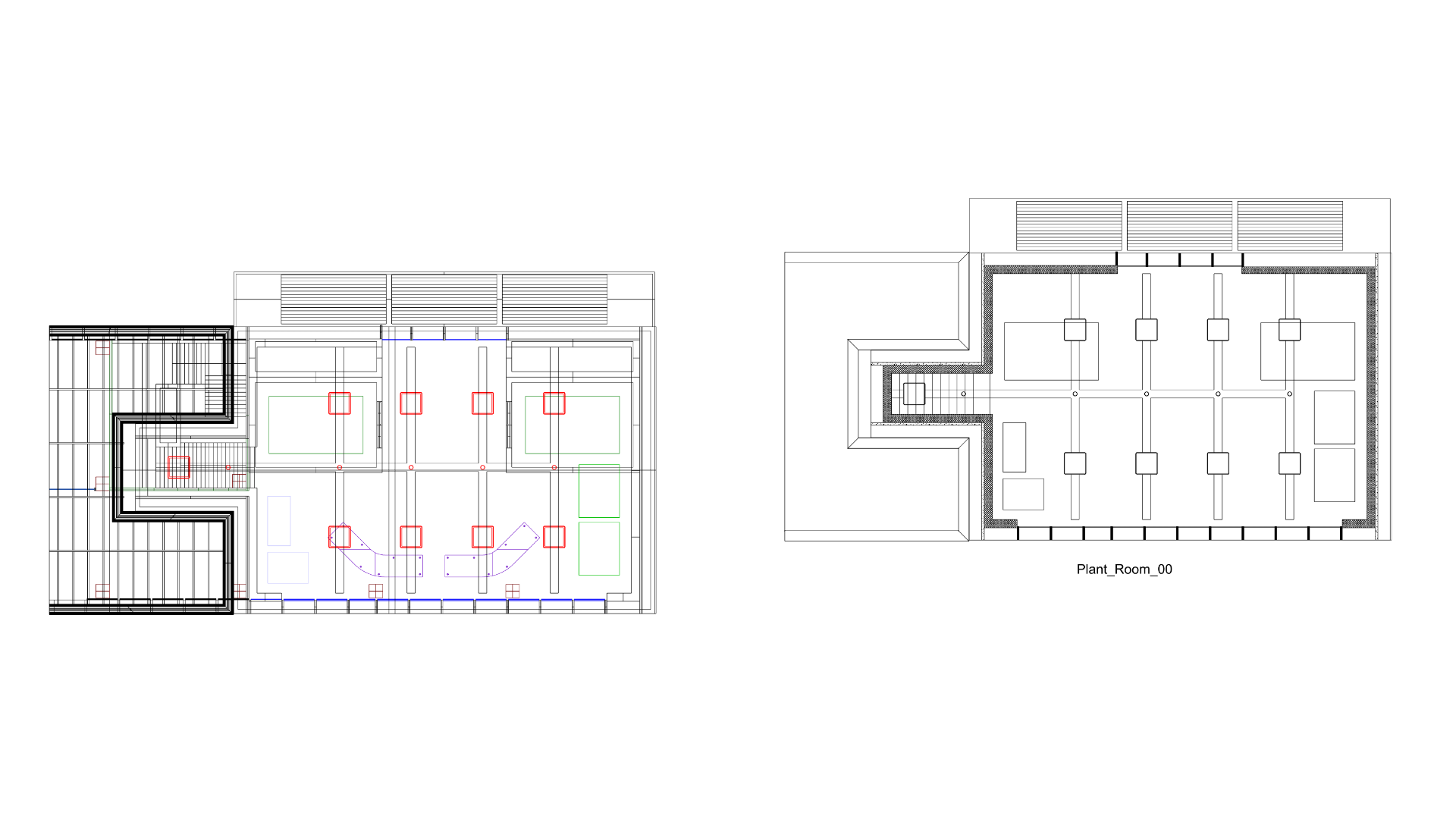
- To add these to the clipped drawing, run UpdateClippingDrawings
and, at the
Select clipping planes or drawingsprompt , select the drawing and press . The drawing will now update showing the two desks.
All at the Select clipping planes or drawings prompt to update all of the drawings. Alternatively, you can left-click on the drawings you want to update at the prompt; unselected drawings will remain unchanged.- Now,
hide layers
:
002-04-008-001 Electrical Cabinets002-04-008-003 Comms Cabinets
- Run UpdateClippingDrawings
and, at the
Select clipping planes or drawingsprompt, select the drawing and press . The drawing will now update, removing the hidden layer content.
Now let’s remove and add objects on a per-object basis, starting with removing one of the purple crescent-shaped desks from the drawing.
- Select the Clipping Plane widget and go to the Properties
panel. On the Clipping Plane Properties page:
- Change Objects Clipped from
AlltoExclude Selected - Select the Objects button. At this stage, the button will read Objects (0).
- At the
Select objects for custom clippingprompt, select the left purple desk and press . The 2D drawing will update accordingly. Note that the Objects button will now read Objects (1).
- Change Objects Clipped from
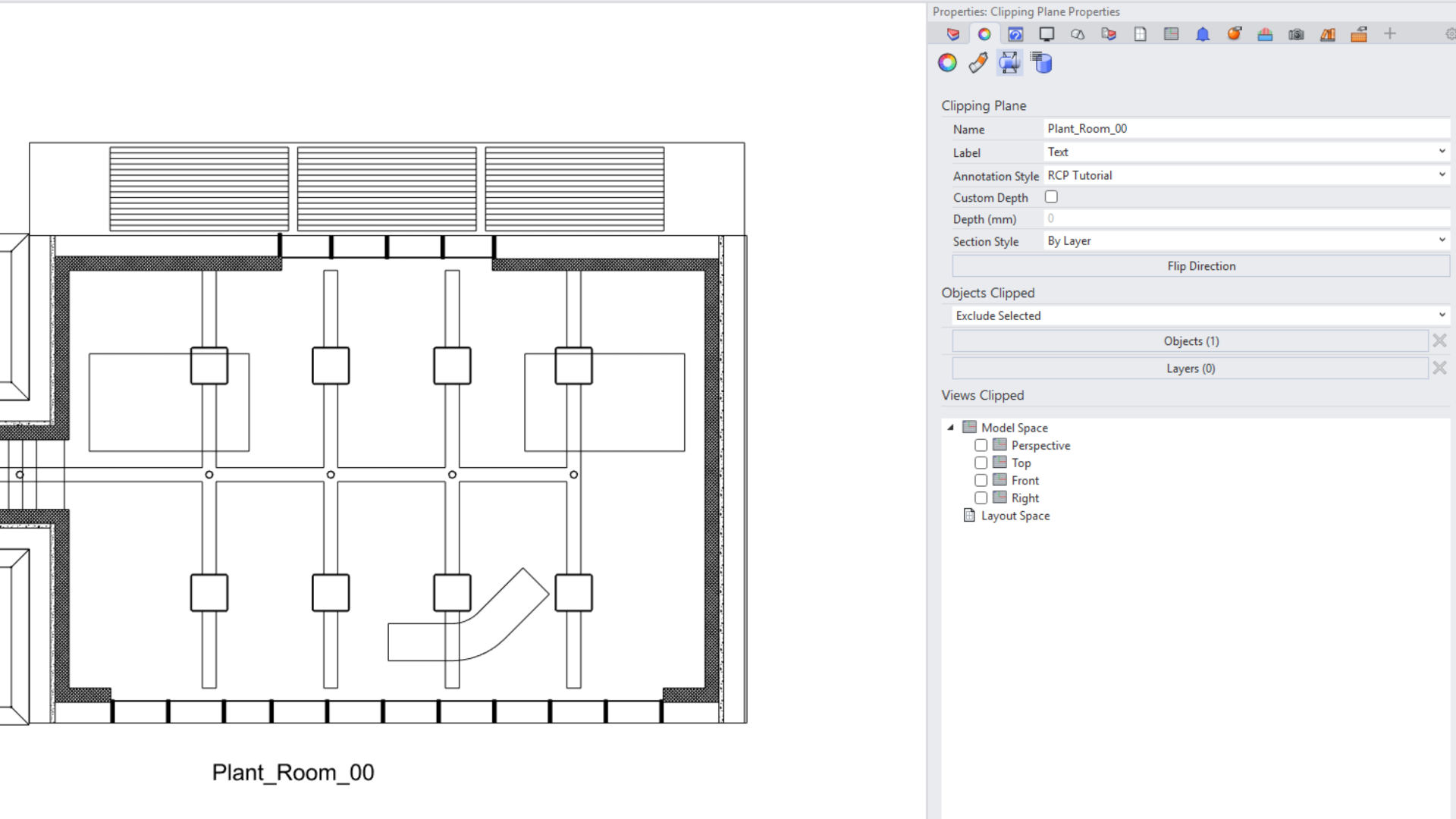
- To add the desk back into the drawing, select the Clipping Plane widget, then on the Clipping Plane Properties page, select the cross next to the Objects button. This clears the excluded object selection, and the button now reads Objects (0). The 2D Drawing will now update accordingly.
To add objects to the Clipping Sections and Drawings on a per-object basis, do this:
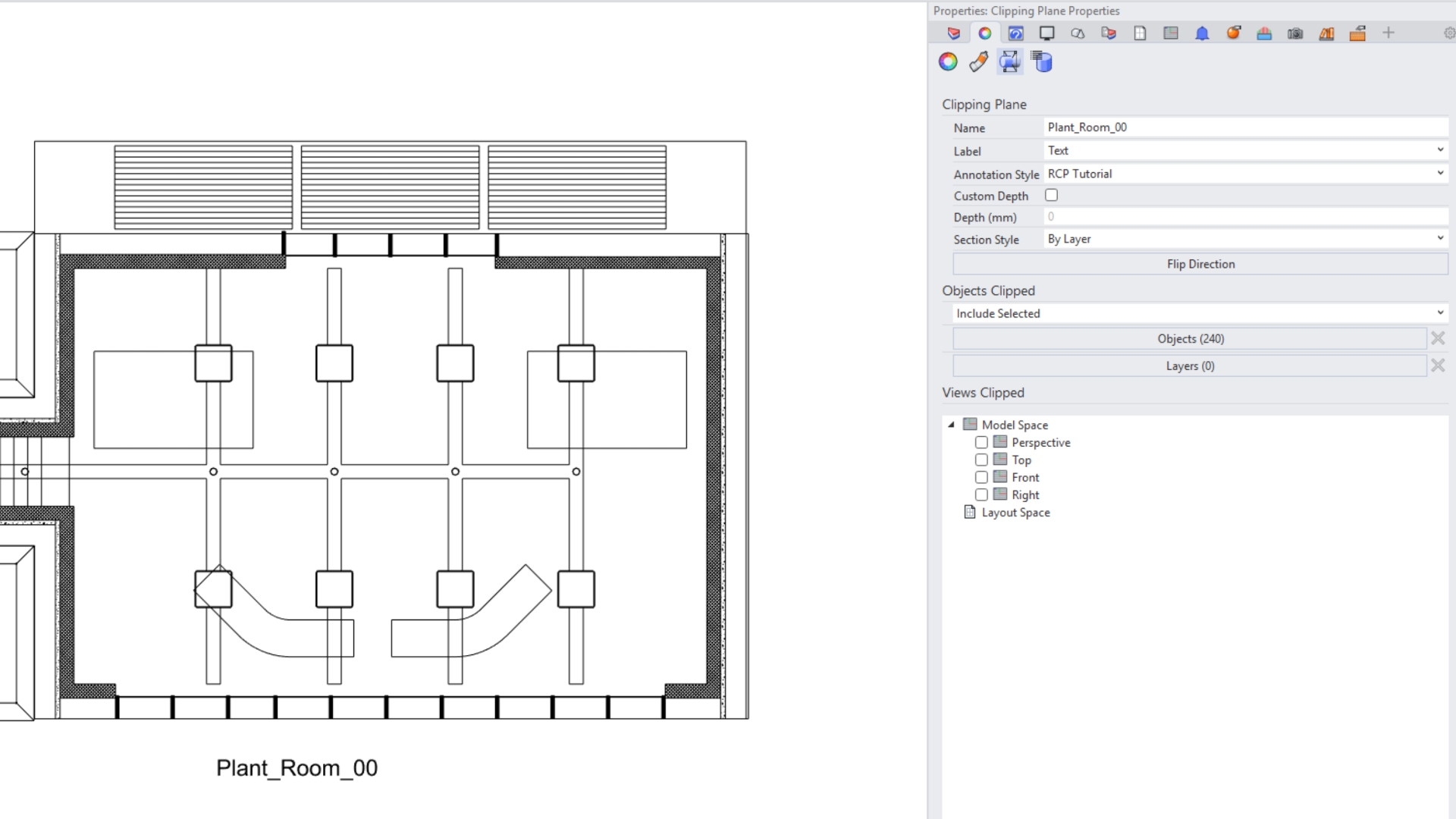
- Select the Clipping Plane widget, and in the Clipping Plane Properties page, change Objects Clipped from
Exclude SelectedtoInclude Selected. Note that now the 2D drawing disappears as it updates to show the 0 objects included. - Next, select the Objects button and, at the
Select objects for custom clippingprompt window select the model and press . The clipping drawing will update, and the Objects button will show that 240 objects are in the clipped selection.
- Next, turn on the following layers:
002-04-008-001 Electrical Cabinets002-04-008-003 Comms Cabinets
- Return to the Clipping Plane Properties page and select the Objects button. Note that all the geometry included in the clipped section is now highlighted.
- Select one object from each of the Electrical Cabinets and Comms Cabinets layers and press . The 2D Drawing will now update accordingly, and 242 objects will be shown as clipped in Clipping Plane Properties.
Text and Annotations
- Continue with your file or download and open the model RCP Tutorial 03.
-
Select
the Clipping Plane widget and go to the Properties
panel. On the Clipping Plane Properties page:
- Select the X next to Objects to clear the selection.
- Change Objects Clipped from
Include SelectedtoAll. This will clip all objects in the view.
-
Turn on layer
002-04-008-005 Annotations. - Run UpdateClippingDrawings
and, at the
Select clipping planes or drawingsprompt , select the drawing and press . The drawing will now update, adding the annotations. - Working in the viewport, turn on Project in the Osnap Control .
- Select the Electrical Cabinet
PX13in the bottom right-hand corner of the model. - Run
 SolidPtOn
.
SolidPtOn
. - Window select the two upper solid points.
- Adjust the size of the cabinet with the
 Gumball
. Note that the dimension changes on the model, and both the drawing and the associated dimension change on the Clipping Drawing.
Gumball
. Note that the dimension changes on the model, and both the drawing and the associated dimension change on the Clipping Drawing. - Double-click on the Clipping Drawing and in the Edit Clipping Drawings dialog box. Under Add Annotations uncheck Leaders. Note that the leader and
JB14 Commstext are removed from the drawing but still visible in the model.
 Purge
or delete them using the
Purge
or delete them using the  BlockManager
.
BlockManager
.