
Markups
Markups are an easy way to communicate changes with your design team or client. Annotate or redline directly on your model or drawing.
Collaborative Tool
For architects and designers, Markup
is an easy way to communicate with the design team directly on the model! Whether giving feedback on the 3D model or redlining 2D drawings, Markups are a great tool for collaboration.
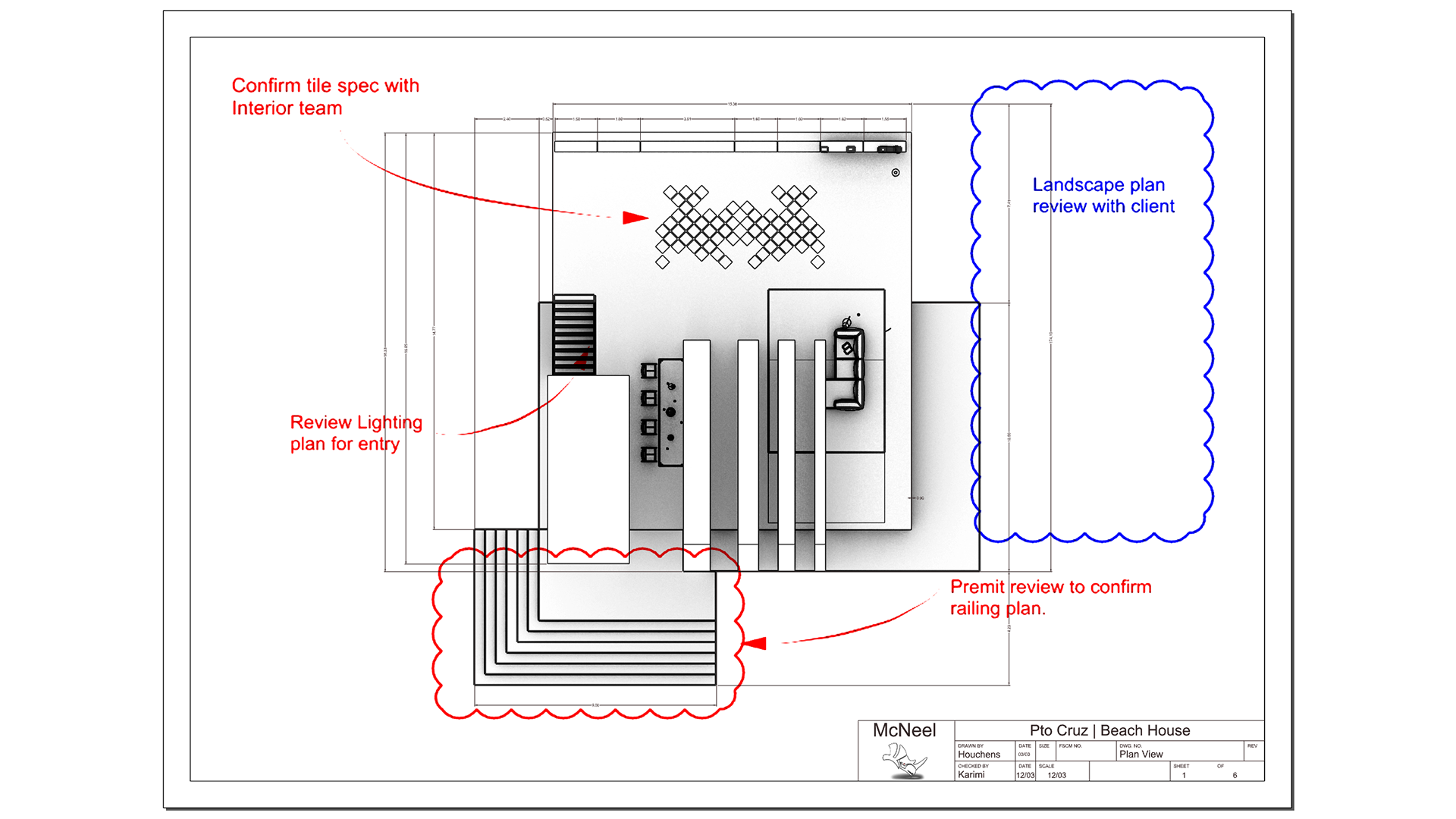
Redline your 2D Drafting Sheets.
Visual Feedback
Save, restore, and edit: a Markup
is associated with the model’s views and travels in the 3DM file. Export your Markups as separate images to send to your clients. Feedback and revisions made easy!
Interactive User Interface
With its HUD, Markup
offers a user-friendly interface to add text and annotations, indicating where changes are needed. You can modify and delete these elements by restoring the Markup.
Try It
- Download Rhino 9 WIP for Windows or Mac.
- Download and open the subd-car-seat.3dm model.
- Run the Markup
command, and the Markup HUD will appear.
- Choose the Sketch icon at the top of the HUD.
- Change the line thickness using the Thickness slider at the bottom of HUD.
- Begin drawing in the viewport. Press Enter when done.
- Select the Text icon.
- Select a point to place the text in the view.
- Type your text. Press Enter when done.
- Select the green checkmark at the bottom-right corner of the view.
- The Markup
is created and the Markups Panel opens.
- Edit, delete or restore a Markup from the panel.
- Try it on your own! Experiment with the other tools within the Markup HUD.
- Give us feedback! Ask questions on the Discourse Forum.