

Linetypes are curve styles with pattern, width, and taper properties. Enhanced linetypes are assigned to curves, surfaces, solids, and more. Linetypes communicate your design with an artistic flair.
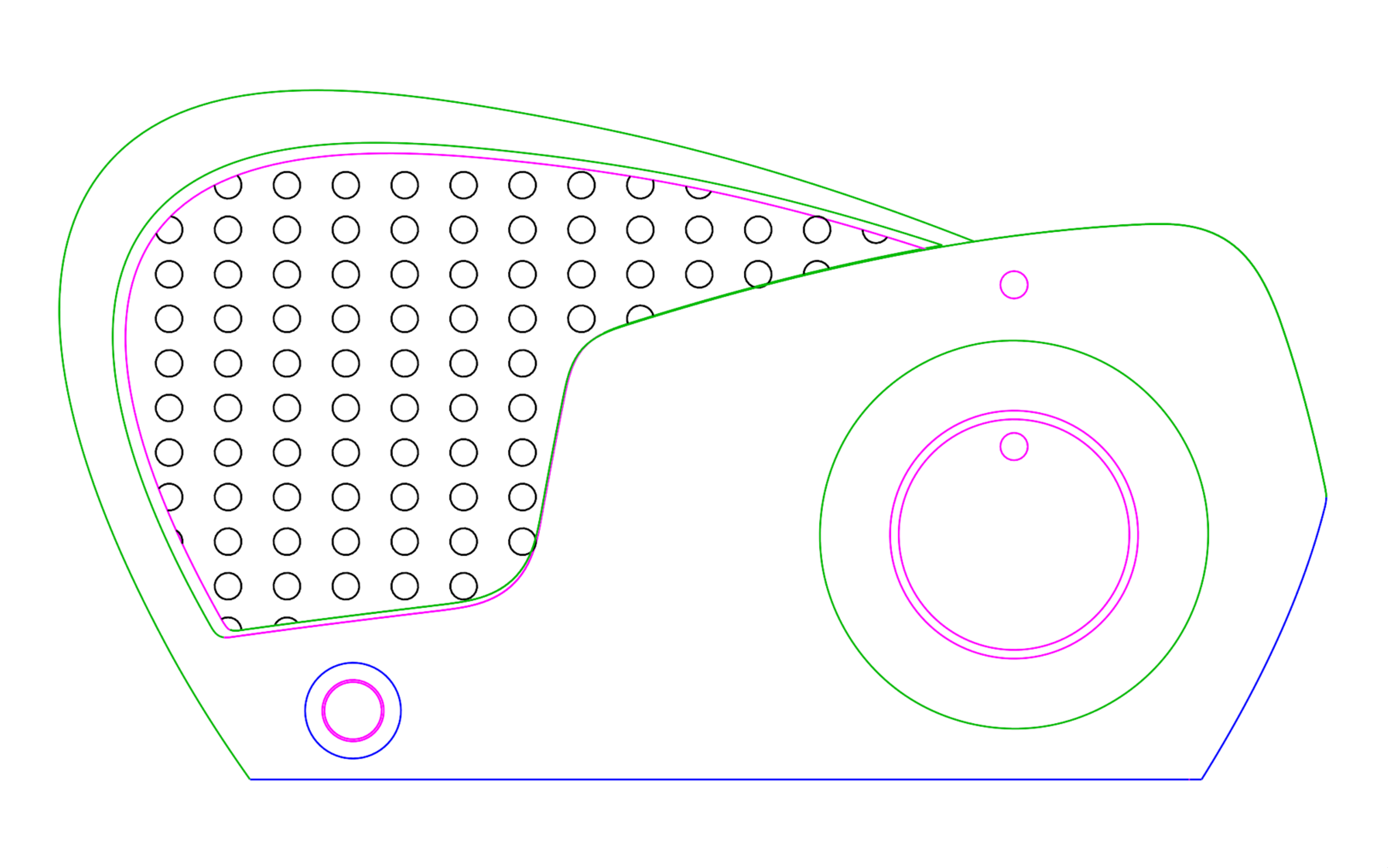
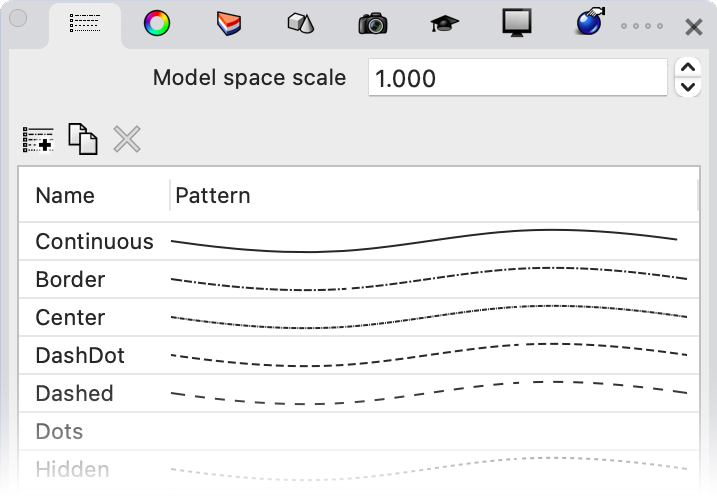
Standard Linetypes
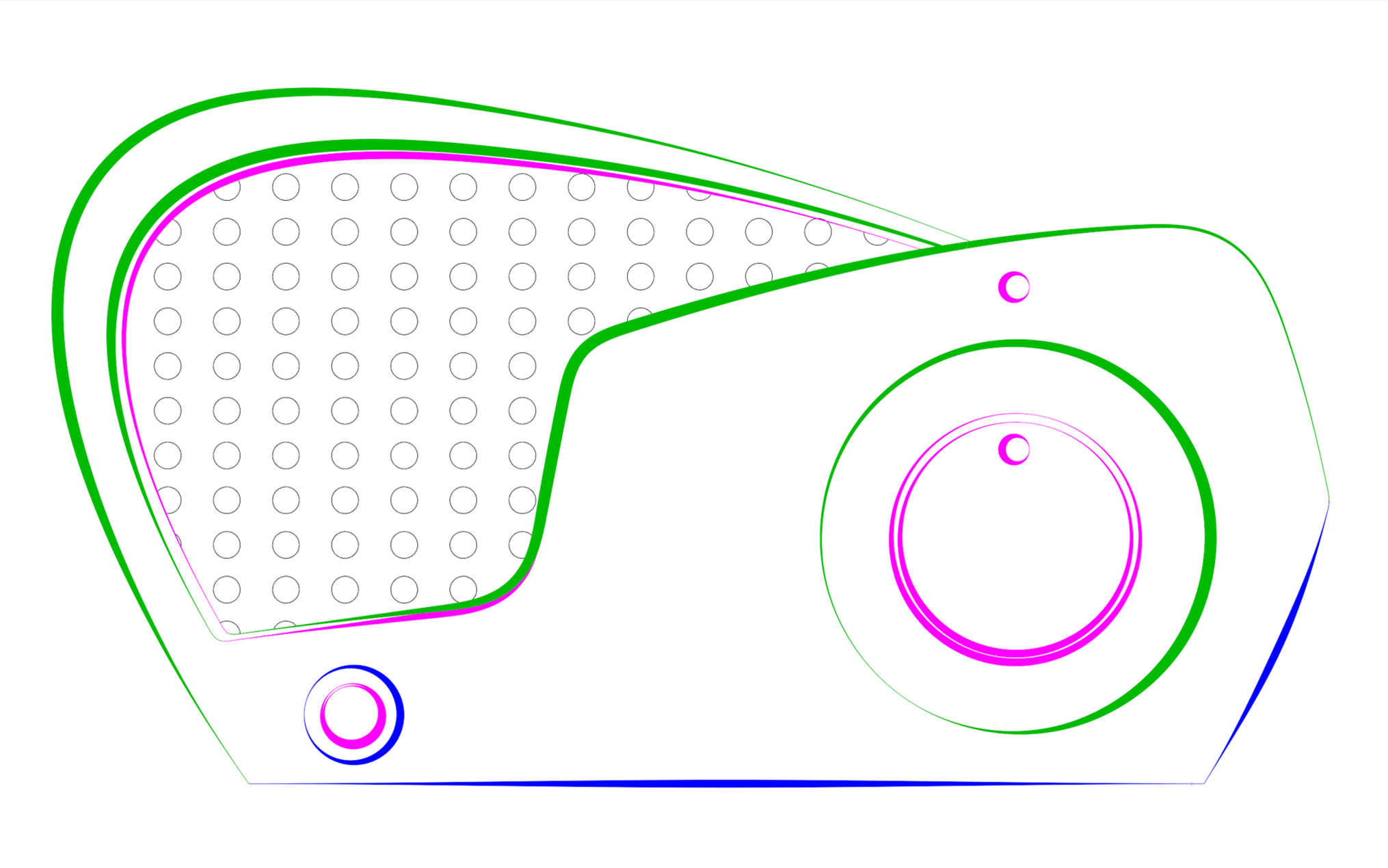
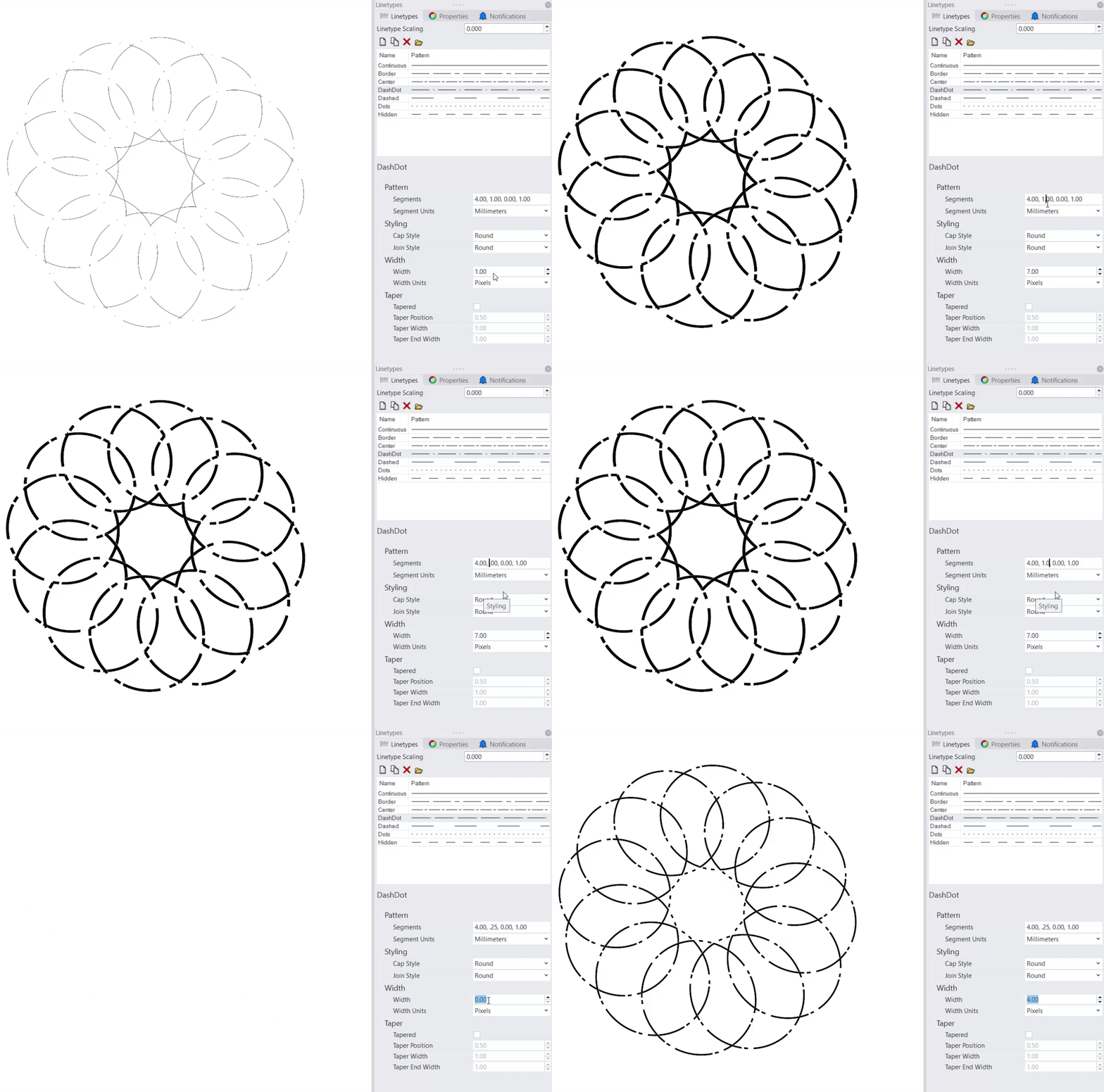
Enhanced Linetypes
Enhanced Linetypes
More Than Just Curves
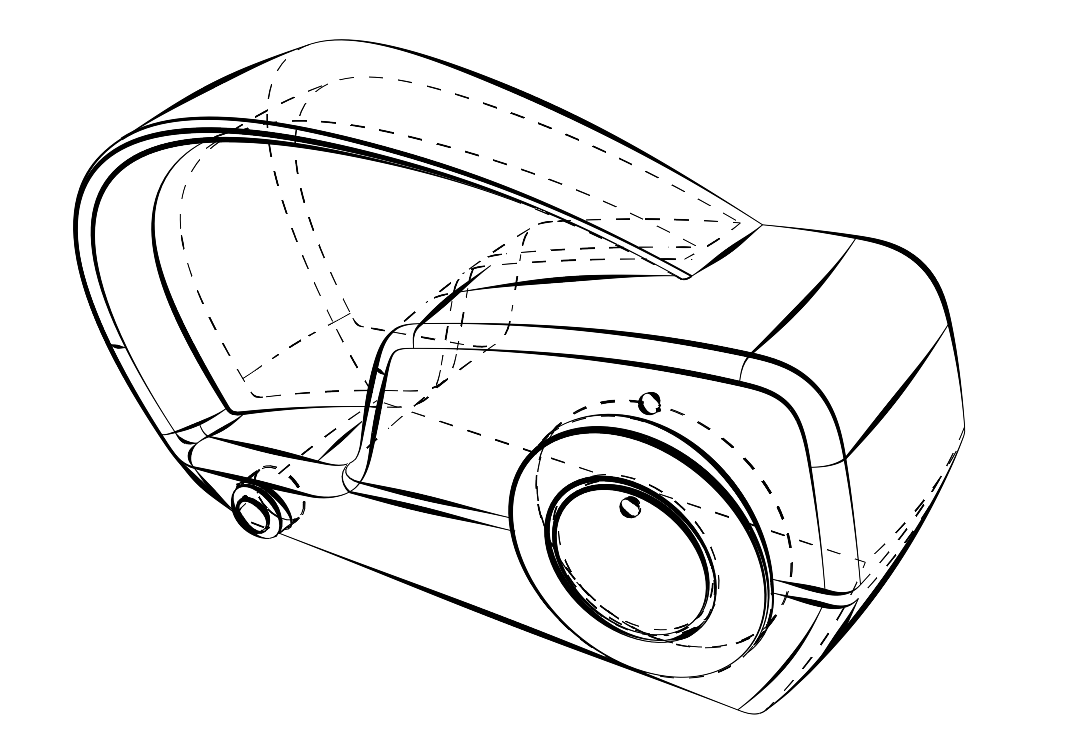
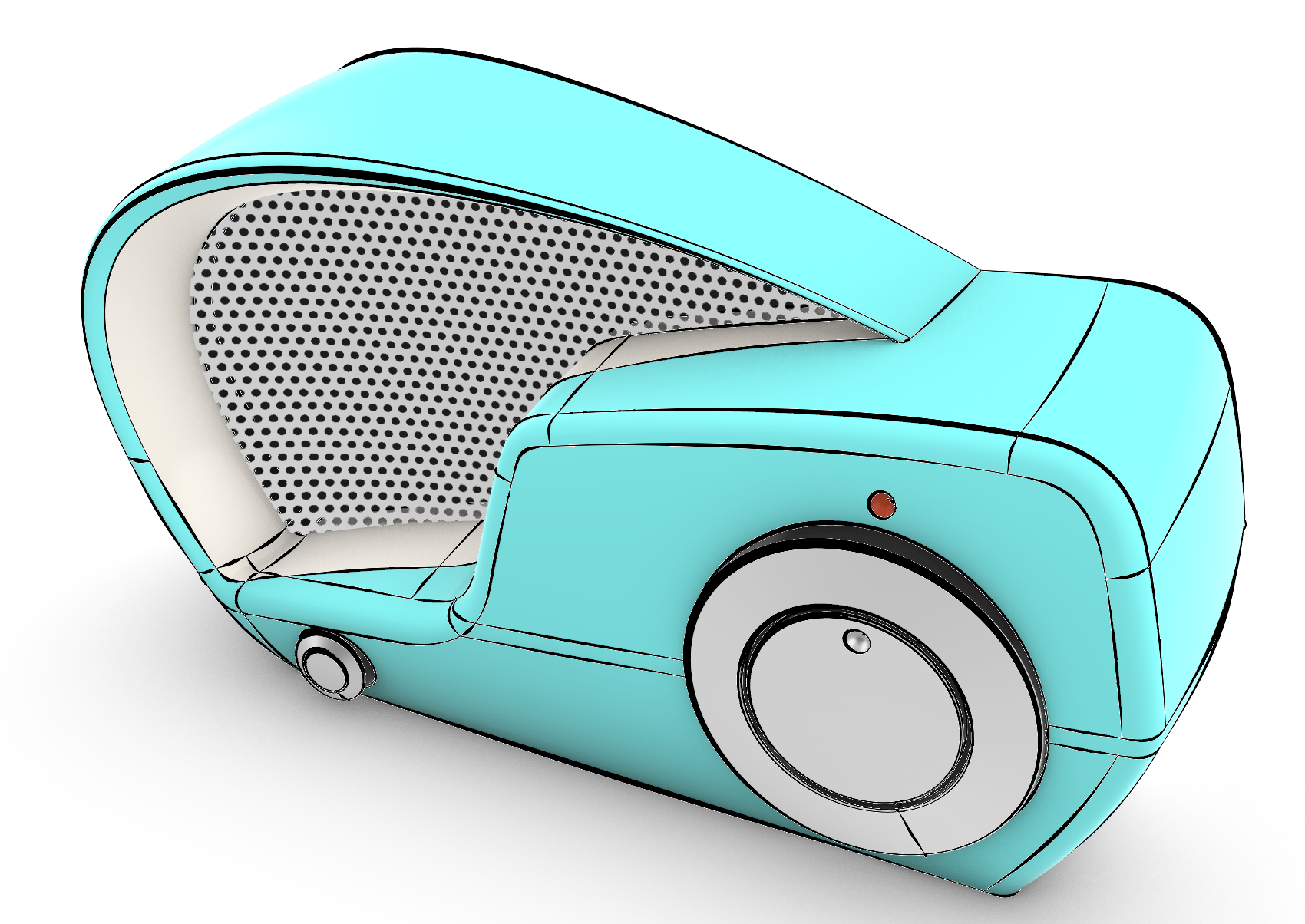
Enhanced linetypes work with curves, surfaces, polysurfaces, extrusions, SubDs, dimensions, and more. Customized control of linetypes for objects and sub-objects is available in the display mode configuration.
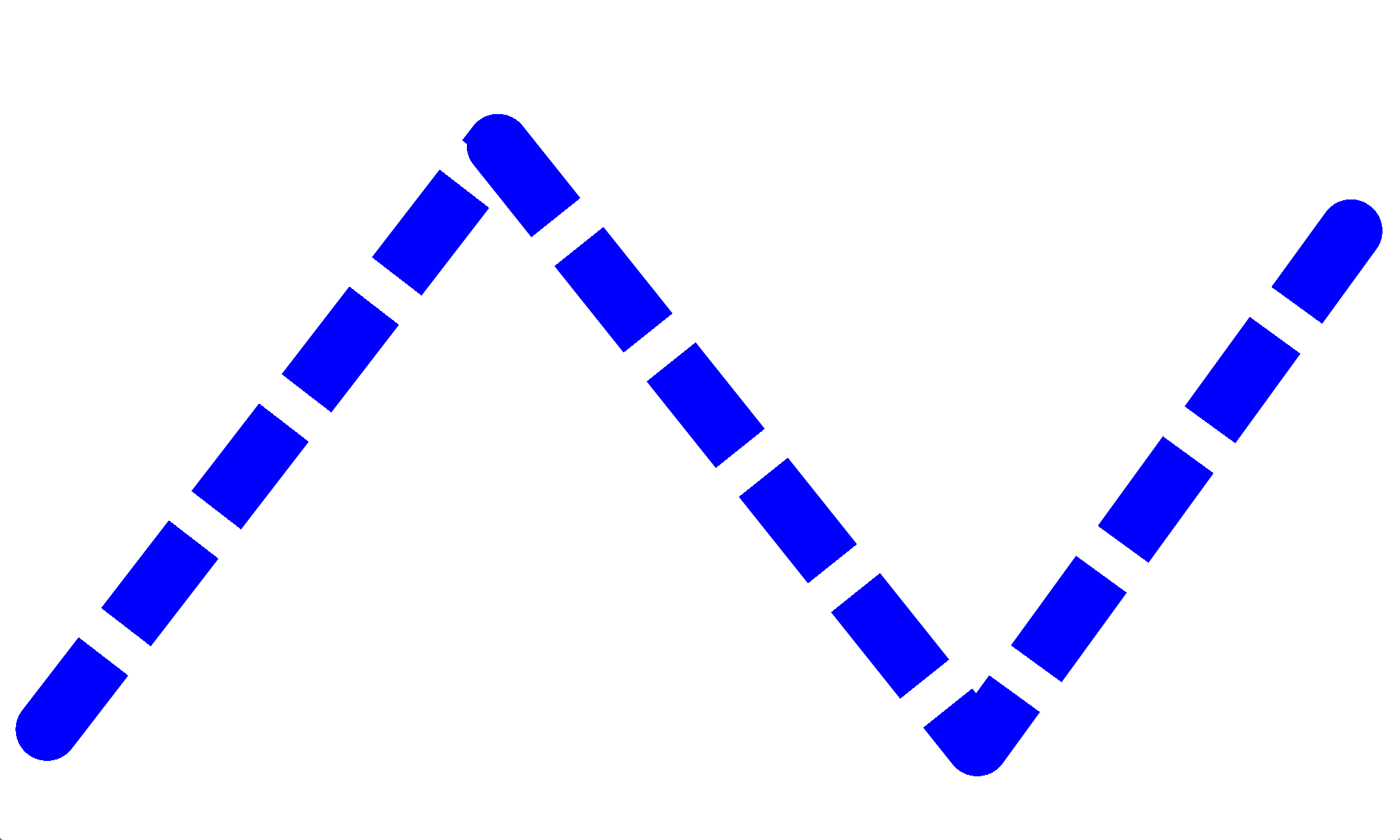
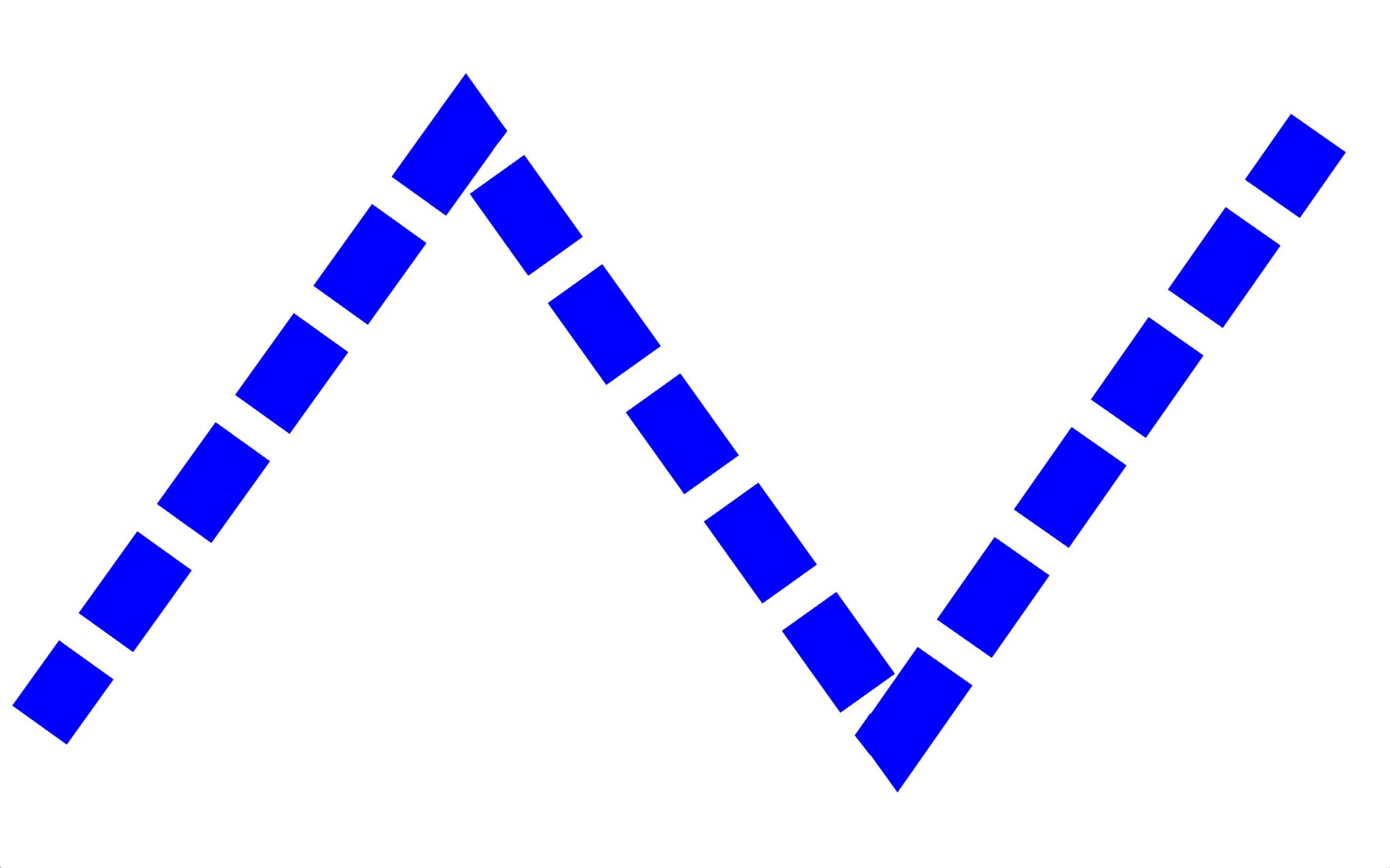
End Caps and Join Styles
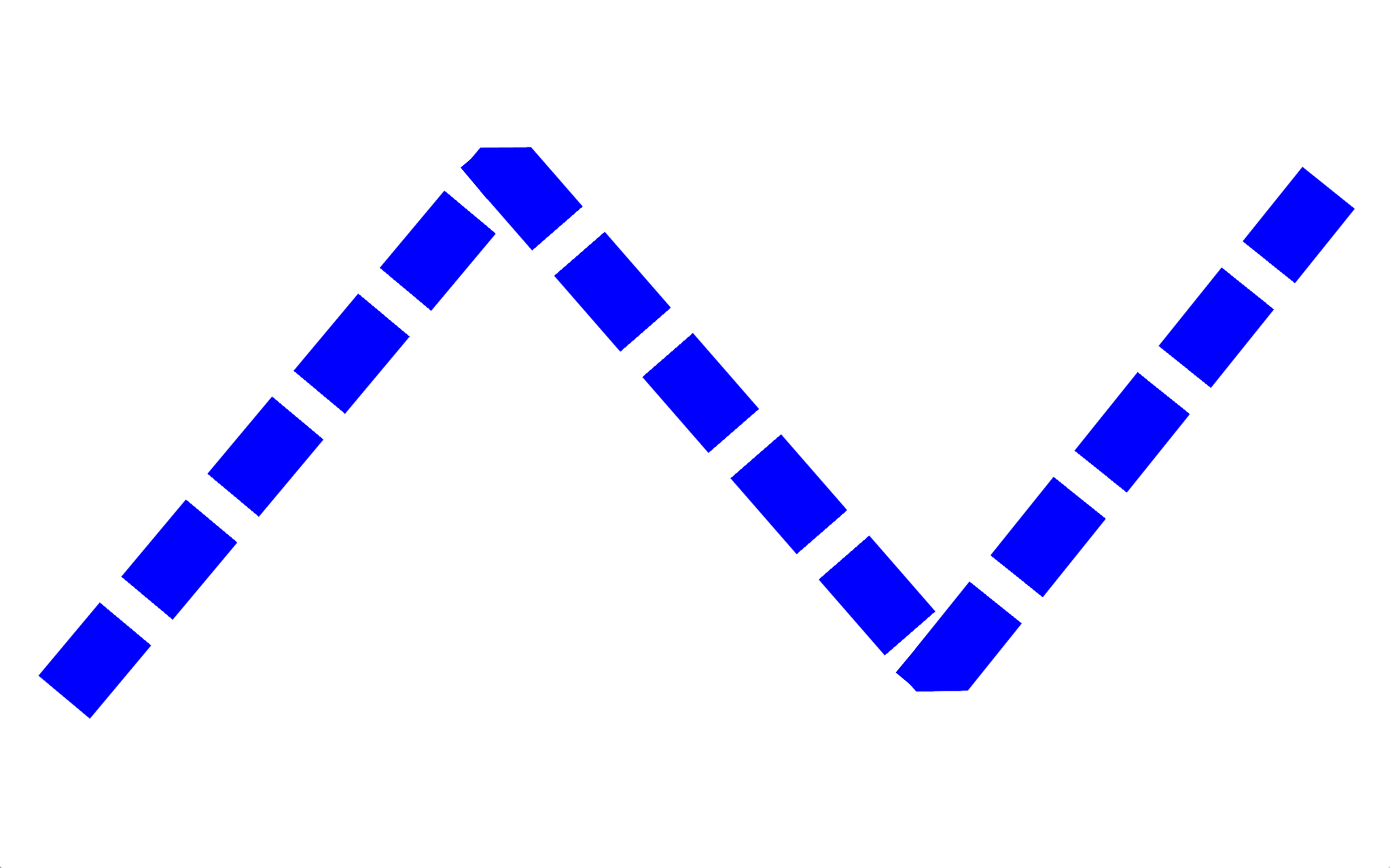
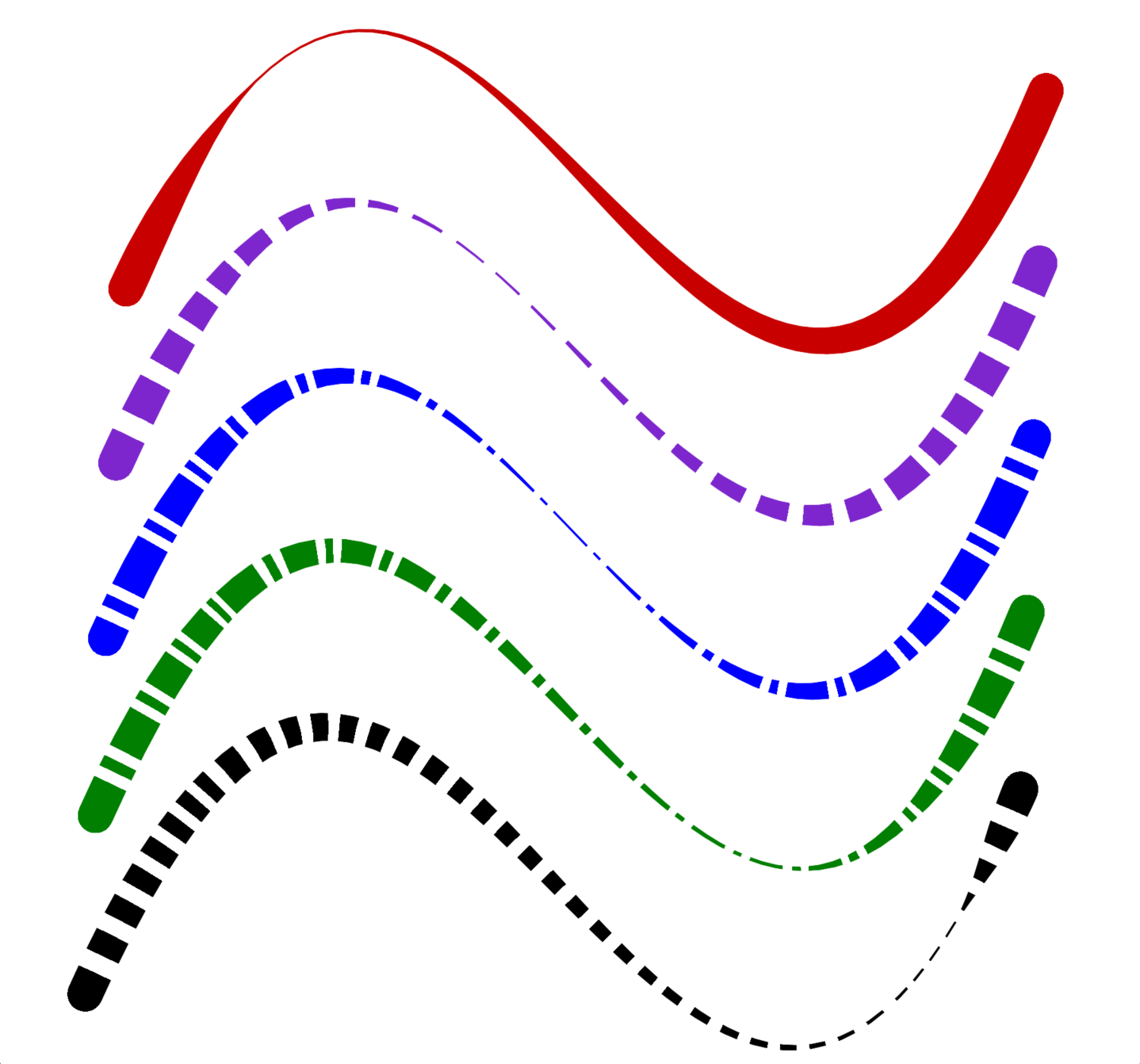
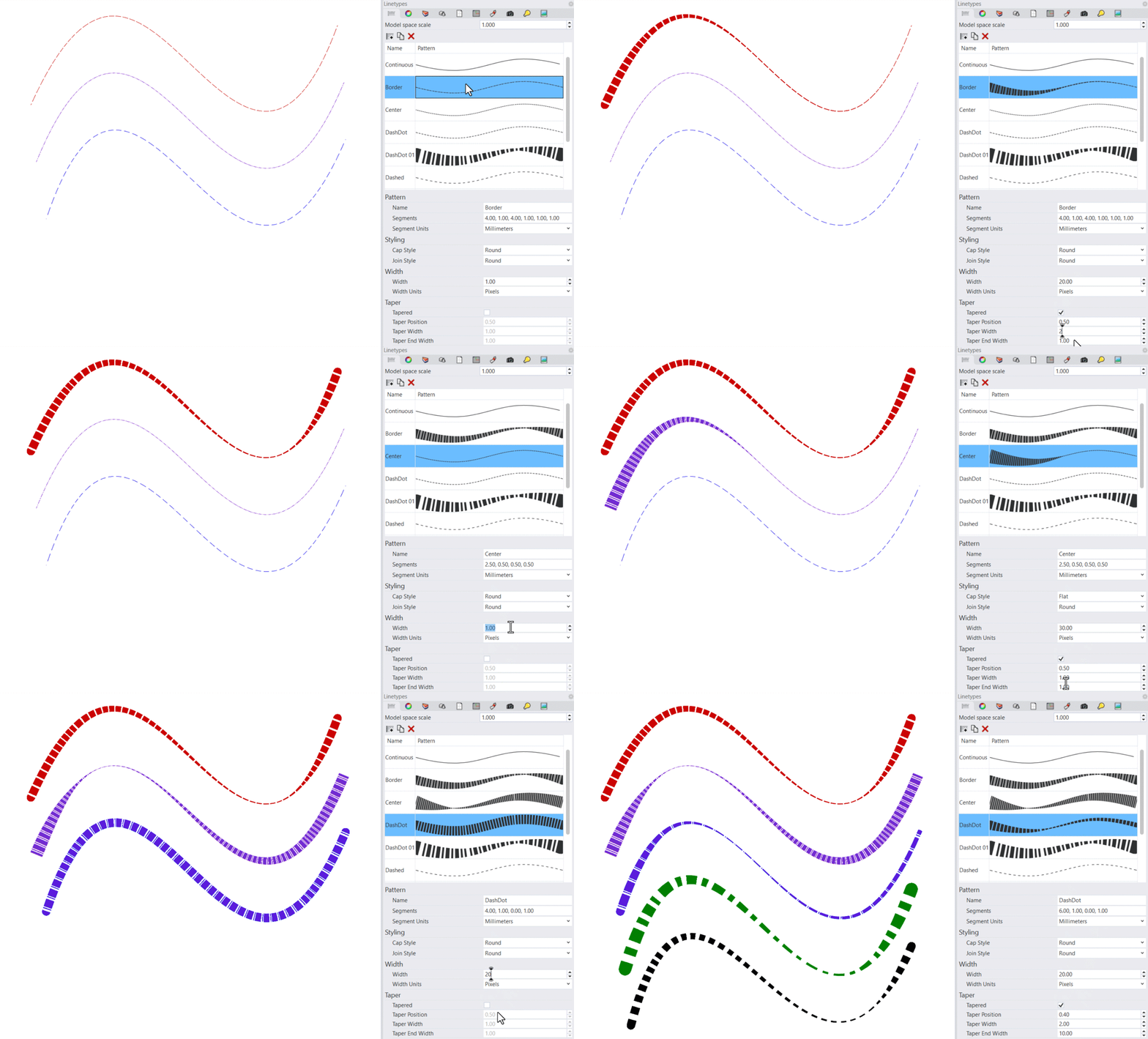
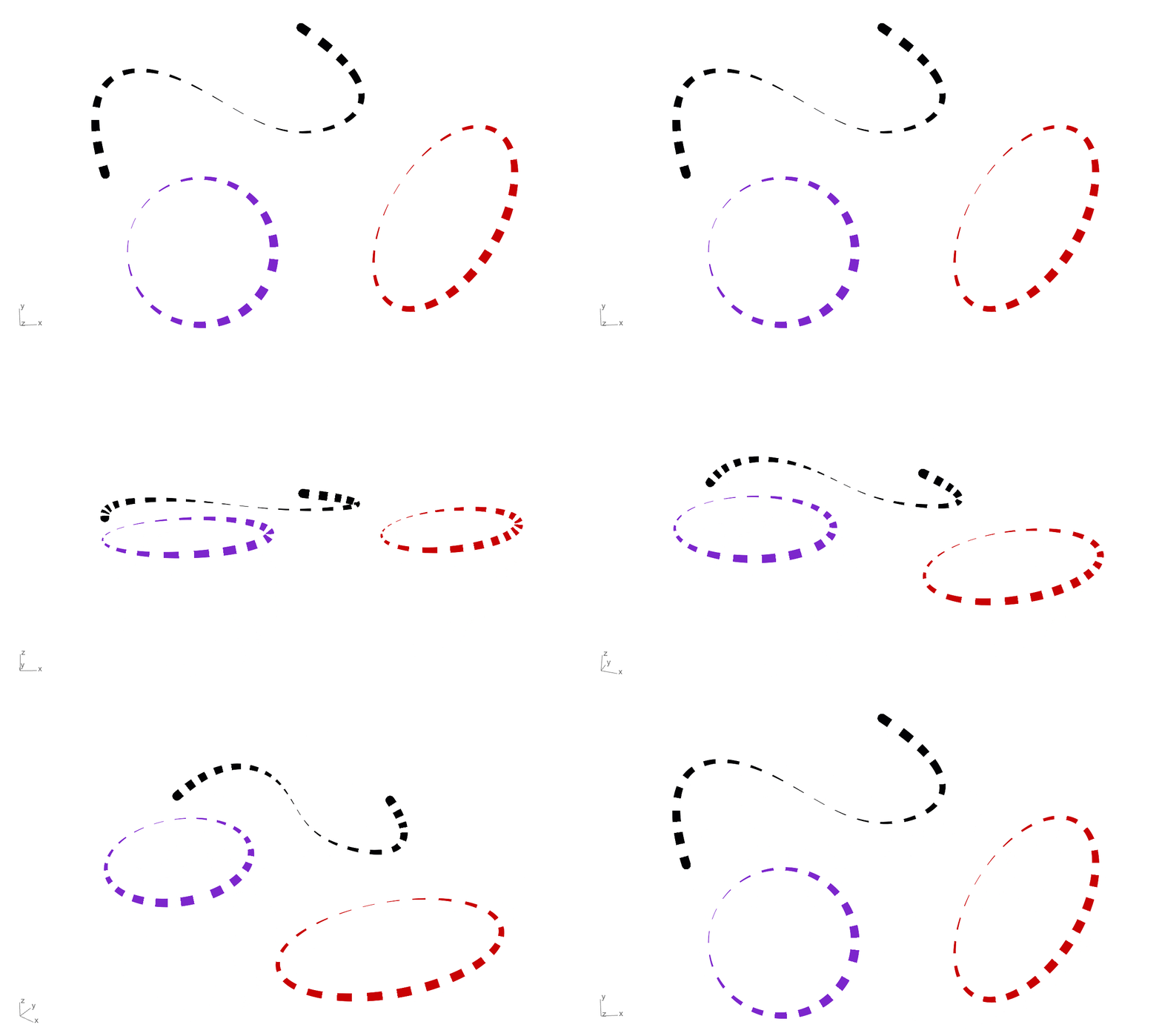
Linetypes with Taper
These settings work together to configure the artistic taper. Options include pattern, width at the taper, and the location of the taper at a percentage along the overall curve length.
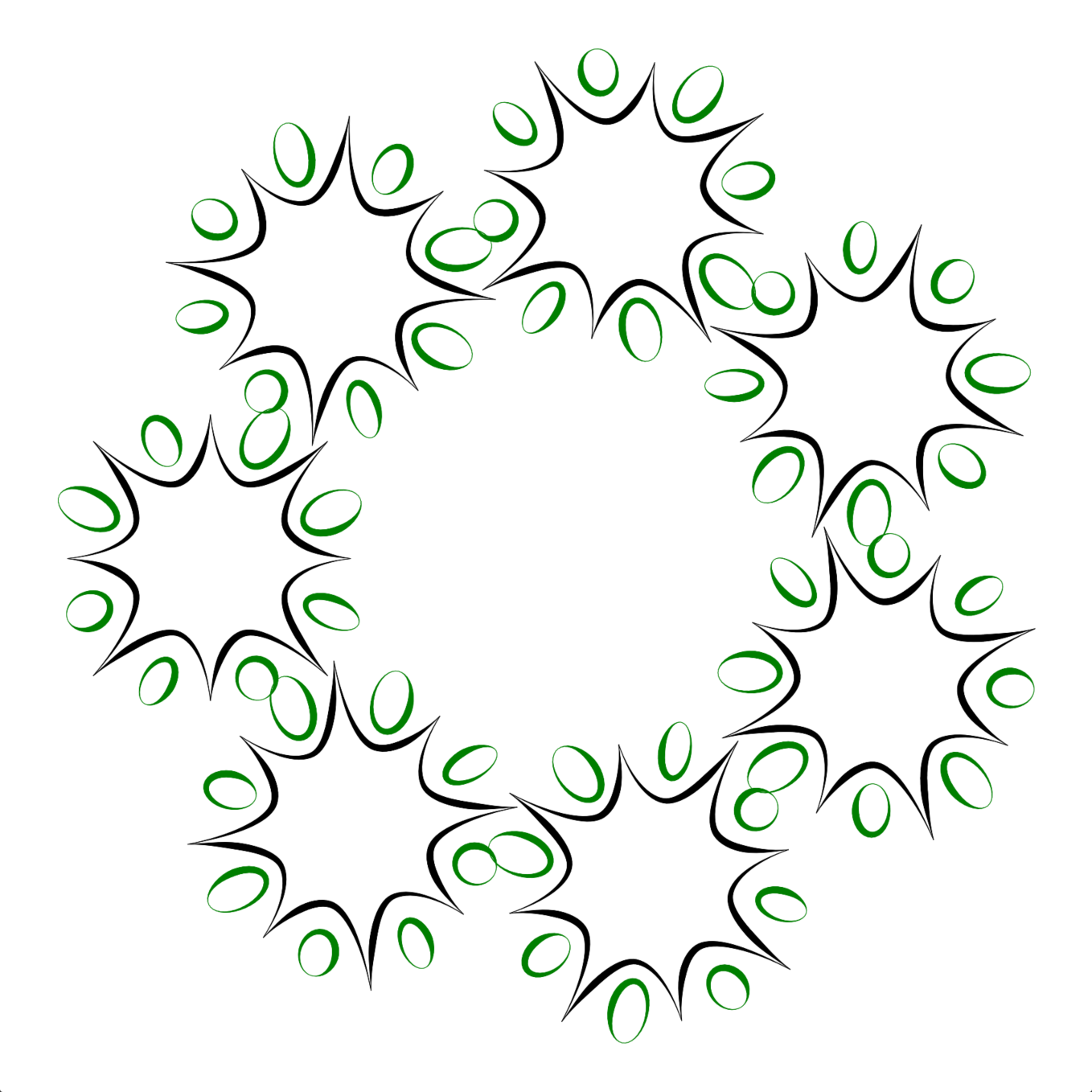
Shapes in Linetypes
Custom linetypes are more than simple geometry; they embed meaning and convey a visual message. Include text or geometrical symbols that get distributed and spaced out along your linework.
Smarter Linetypes
Shapes and Text in Linetypes help architects and drafters turn complex drawing conventions into reusable line styles. Represent utilities, fences, wall types, and other repeated linework while keeping it connected to the curve.
Create or Modify Linetypes
Create new linetypes from selected text or curve shapes, or edit existing linetypes to include them. Text, symbols, and shapes become part of the line style, not objects placed along the curve.
Edit Without Rebuilding
Move, stretch, rotate, or edit the curve and the linetype updates with it. Change the linetype definition once to update every curve or layer using it.
Try It
- Download Rhino 9 WIP for Windows or Mac.
- Download and open the Shapes_Text-in-Linetypes.3dm model in Rhino.
- Run the
 Linetypes
command to open the Linetypes panel.
Linetypes
command to open the Linetypes panel. - In the Linetypes panel, click the
 New
button to create a new linetype.
New
button to create a new linetype. - Name the new linetype
Storm Drain. Press Enter. - In the panel, scroll down to the Shapes section:
- In the
 Layer
panel:
Layer
panel:
- Find the
Storm Drainlayer. - Open the Linetype property for this layer.
- In the Select Linetype dialog, select
Storm Drain. - Press OK.
- Find the
- The green curve is in the
Storm Drainlayer. It will automatically update to the newStorm Drainlinetype. - Try it on your own!
 Unlock
the rest of the geometry and repeat the same process for Gas Line, Fence1, and Fence2. Assign each newly created linetype to its corresponding layer.
Unlock
the rest of the geometry and repeat the same process for Gas Line, Fence1, and Fence2. Assign each newly created linetype to its corresponding layer. - Share comments and feedback on the Rhino Forum.
Grasshopper: Create Model Linetypes
You can also use Grasshopper to create custom linetypes with the Model Linetype component:

