
Nested Blocks
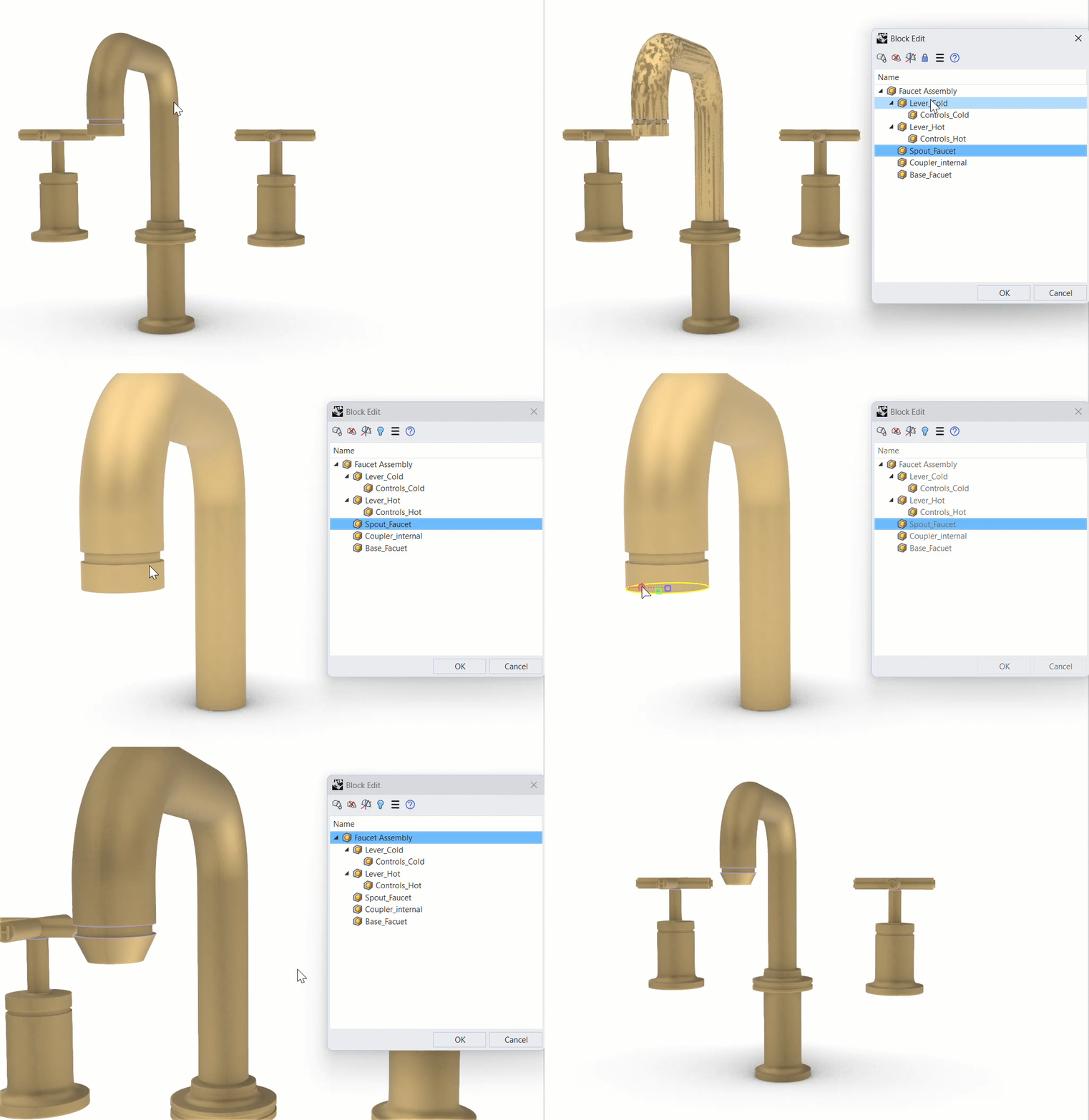
Edit blocks inside blocks without leaving the session. While using  BlockEdit
, double-click a sub-block in the model to make it the active editing block. Double-click anywhere else in the viewport to step back up to the parent block. When you are back at the top-level block, double-clicking again finishes the session.
BlockEdit
, double-click a sub-block in the model to make it the active editing block. Double-click anywhere else in the viewport to step back up to the parent block. When you are back at the top-level block, double-clicking again finishes the session.
Hide & Show
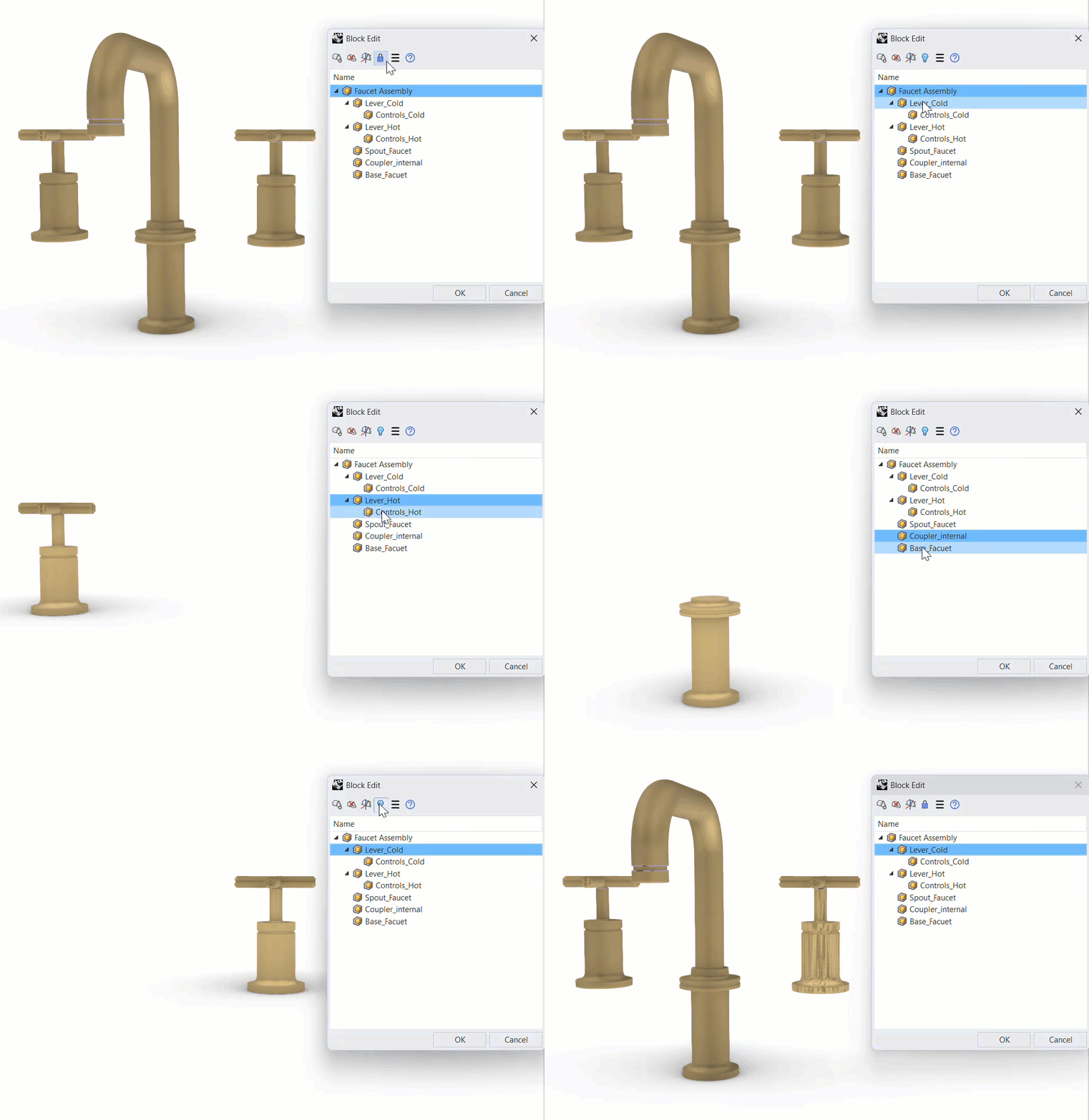
Focus on the block you are editing, even in busy scenes. During a BlockEdit
session, toggle the surrounding non-block objects between locked and hidden with a single click in the Block Edit toolbar. Hide the rest of the model to work without distractions, or lock it to keep the context visible for reference.
Non-Uniform Scale
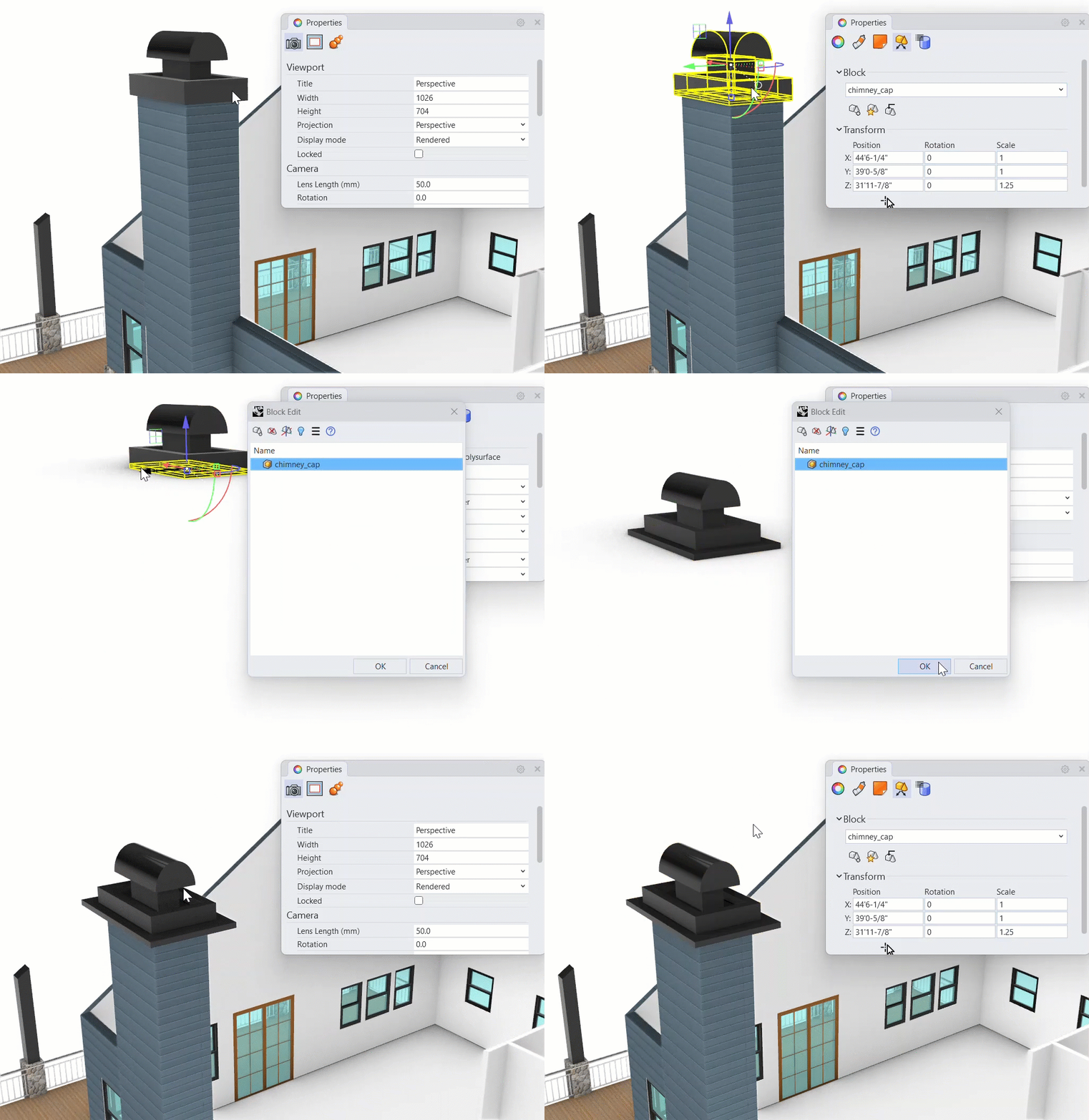
Block instances that have been non-uniformly scaled can now be selected and edited with BlockEdit
. Stretch an instance to fit its location, then open it to make changes to the block definition. When you are finished, use  BlockResetScale
to return the instance to uniform scaling.
BlockResetScale
to return the instance to uniform scaling.
Try It
- Download Rhino 9 WIP for Windows or Mac.
- Download and open the Try-It-BlockEdit.3dm model.
- In the Top viewport, double-click the Faucet Assembly block.
- In the Block Edit toolbar, pick the lock icon. It changes to a blue light bulb.
- Make the Perspective viewport active.
- Click the Lever Cold\Controls Cold nested block and use the
 Gumball
to rotate it 45 degrees.
Gumball
to rotate it 45 degrees. - Click the Lever Hot\Controls Hot nested block and rotate it 45 degrees with the Gumball
.
- Double-click in the viewport twice to step back up and exit BlockEdit
.
- Use the Gumball
to stretch the faucet in the X direction so it is non-uniformly scaled. This will distort the faucet assembly, stretching it in one direction.
- Double-click the Faucet Assembly block to open BlockEdit
again.
- Click the Spout Faucet nested block.
- Press
Ctrl + Shiftand pick the edge curve at the end of the spout to sub-object select it. - Use the Gumball
to move the edge
-0.5units in the Z direction. - Double-click in the viewport twice to exit BlockEdit
.
- Run BlockResetScale
to return the Faucet Assembly block to uniform scaling.
- Try it on your own! Experiment with your own models that use blocks.
- Share comments and feedback on the Rhino Forum.

