
 ArrayCrv
makes it easy to distribute and align objects along any curve, with interactive control over spacing, scale, orientation, and repetition. Industrial designers can quickly create patterns for products like speaker grilles, footwear, tire treads, or textured surface finishes, while automatically adapting objects to the shape of the geometry.
ArrayCrv
makes it easy to distribute and align objects along any curve, with interactive control over spacing, scale, orientation, and repetition. Industrial designers can quickly create patterns for products like speaker grilles, footwear, tire treads, or textured surface finishes, while automatically adapting objects to the shape of the geometry.
Interactive UI
The new in-viewport controls provide an intuitive way to quickly adjust scale, span, positioning, and more. These controls sync with the settings in the ArrayCrv dialog and command line, providing a seamless transition between control methods.
Added Flexibility
ArrayCrv
gives you interactive control over how objects are distributed along curves, with real-time adjustments for count, spacing, offsets, rotation, and scale. Jewelry designers can quickly create gemstone layouts, prong settings, chain links, and decorative patterns that automatically follow the design’s curvature.
For Architectural Details
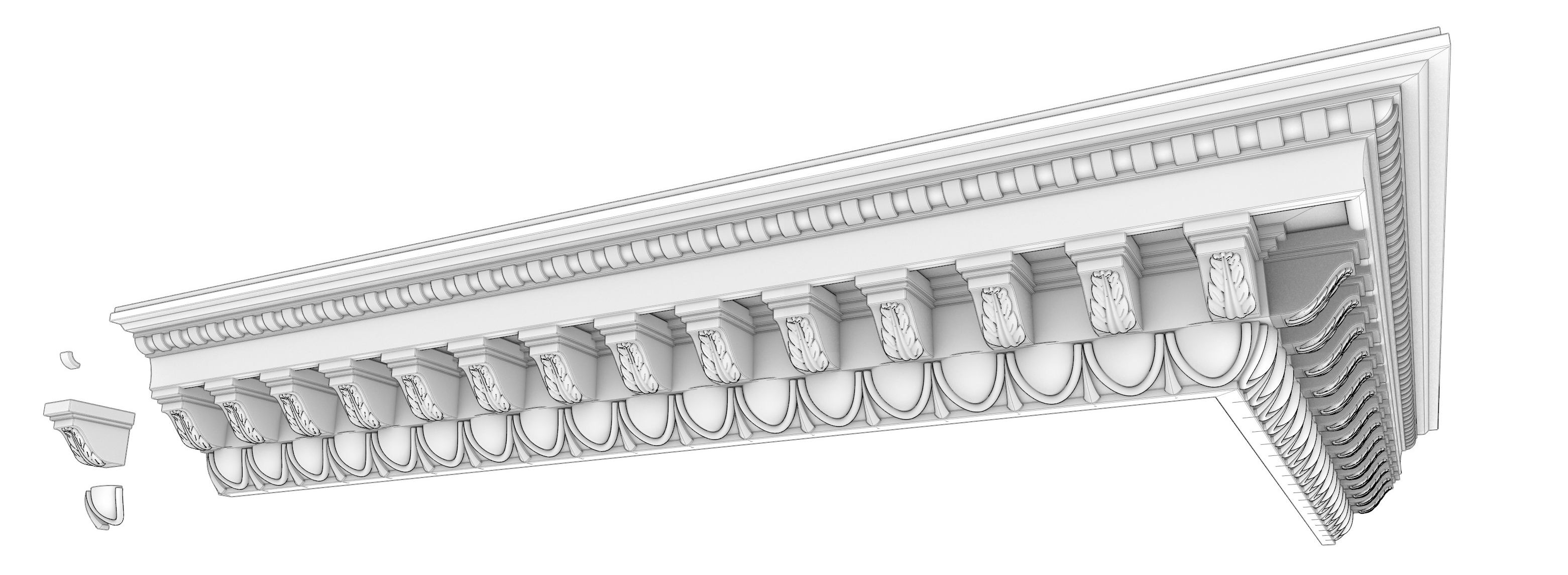
ArrayCrv
provides a streamlined approach to creating architectural details and repeating elements in interior and exterior design.
Try It
- Download Rhino 9 WIP for Windows or Mac.
- Download and open the Try_ArrayCrv.3dm model. This file includes a sneaker sole model and tread pattern object.
- Run the ArrayCrv
command.
- Right-click or press Enter twice to open the ArrayCrv dialog.
- In the Curve Selection section of the ArrayCrv dialog, select
Select Curve. - Select a curve on the sneaker sole. The ArrayCrv dialog will reappear.
- In the Object Selection section of the ArrayCrv dialog, select
Select Objects. - Select the tread pattern object to the side of the sole. Press Enter. The ArrayCrv dialog will reappear.
- In the Curve Selection section:
- Deselect
On Ends. The objects centered at the ends of the curve will move inward. - Drag the
Span Rangevalue handles to change where the first and last arrayed object is located on the curve. Alternatively, use the in-viewport widgets to adjust.
- Deselect
- In the Orientation section:
- Select the Orientation Object icon in the
Orientation Directionsetting. - Select the sneaker sole surface to force the array’s orientation to its surface normal direction.
- Change the
Vertical Alignsetting toBottom.
- Select the Orientation Object icon in the
- In the Transform Adjustments section, set the
N offsetvalue to -.02. It will sink the tread pattern objects slightly into the sneaker sole. - Try it on your own! Experiment with your favorite models.
- Share comments and feedback on the Rhino Forum.

