
Grasshopper: Viewport Widgets
Drive your Grasshopper definitions directly in the Rhino viewport.
With the Interactive Viewport Widgets use any curve to control your
Grasshopper
definitions in any
Rhino Viewport
. Enable more intuitive visual workflows that are easier to use and share, especially with non-expert users.
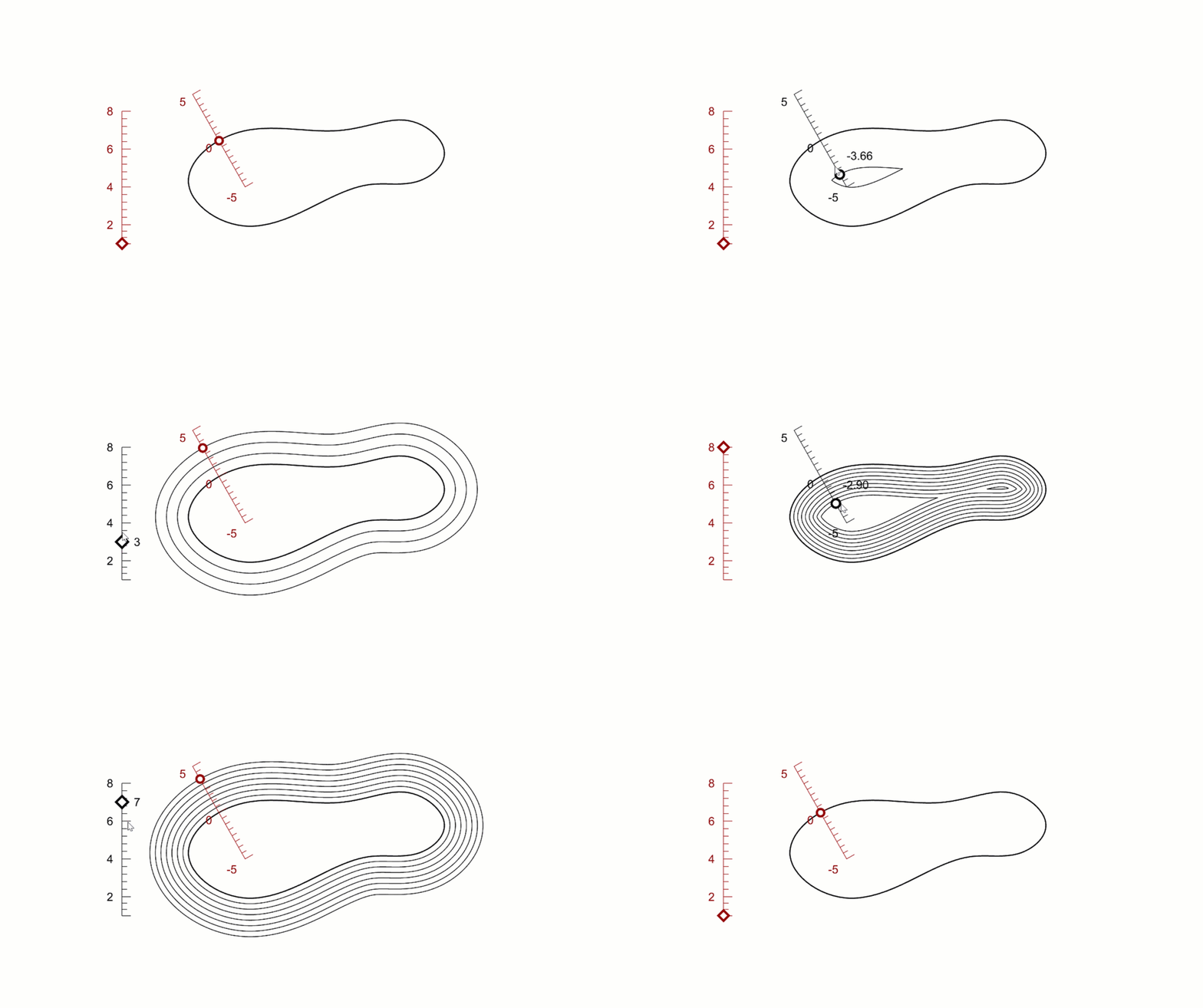
Curve Widget
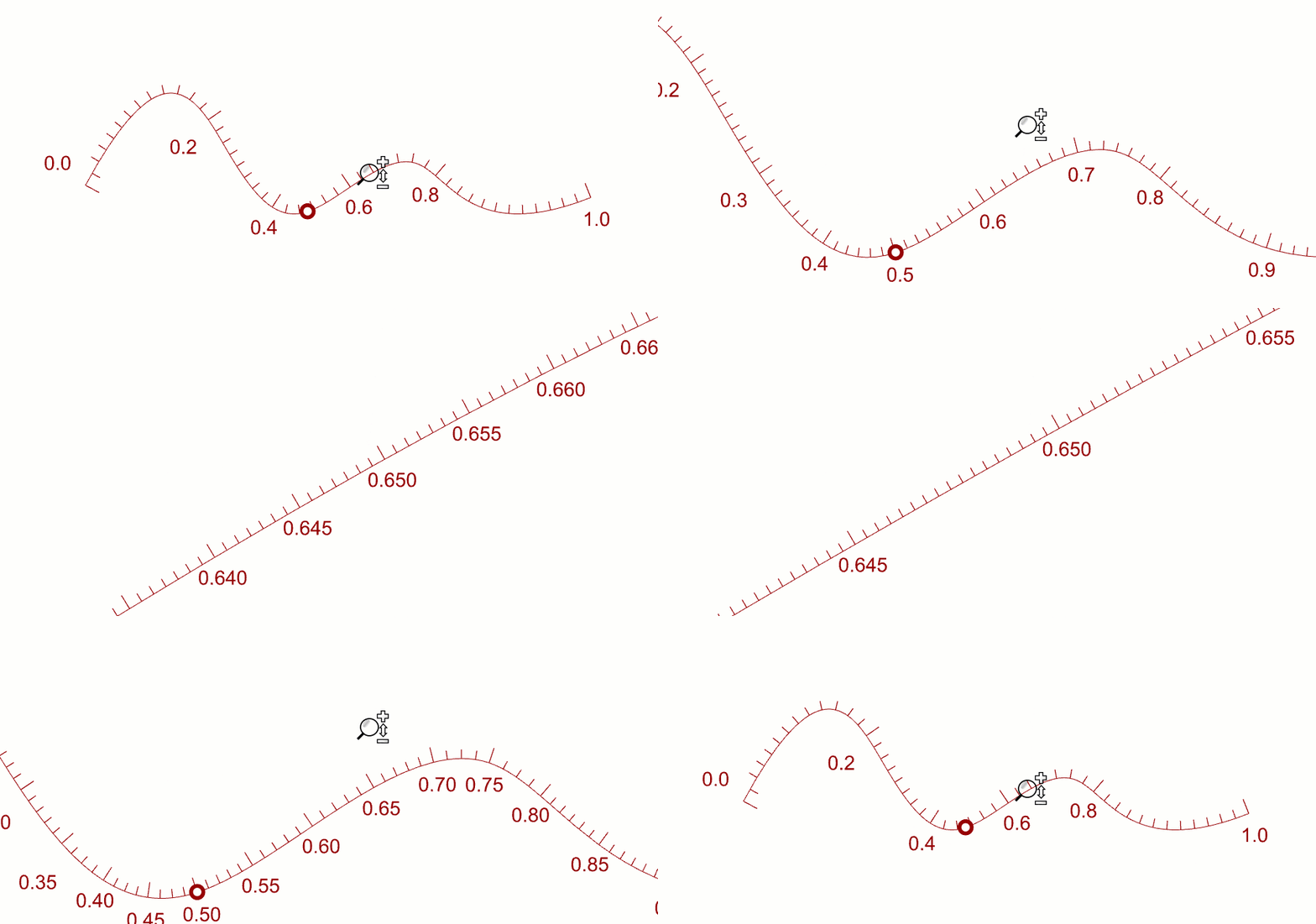
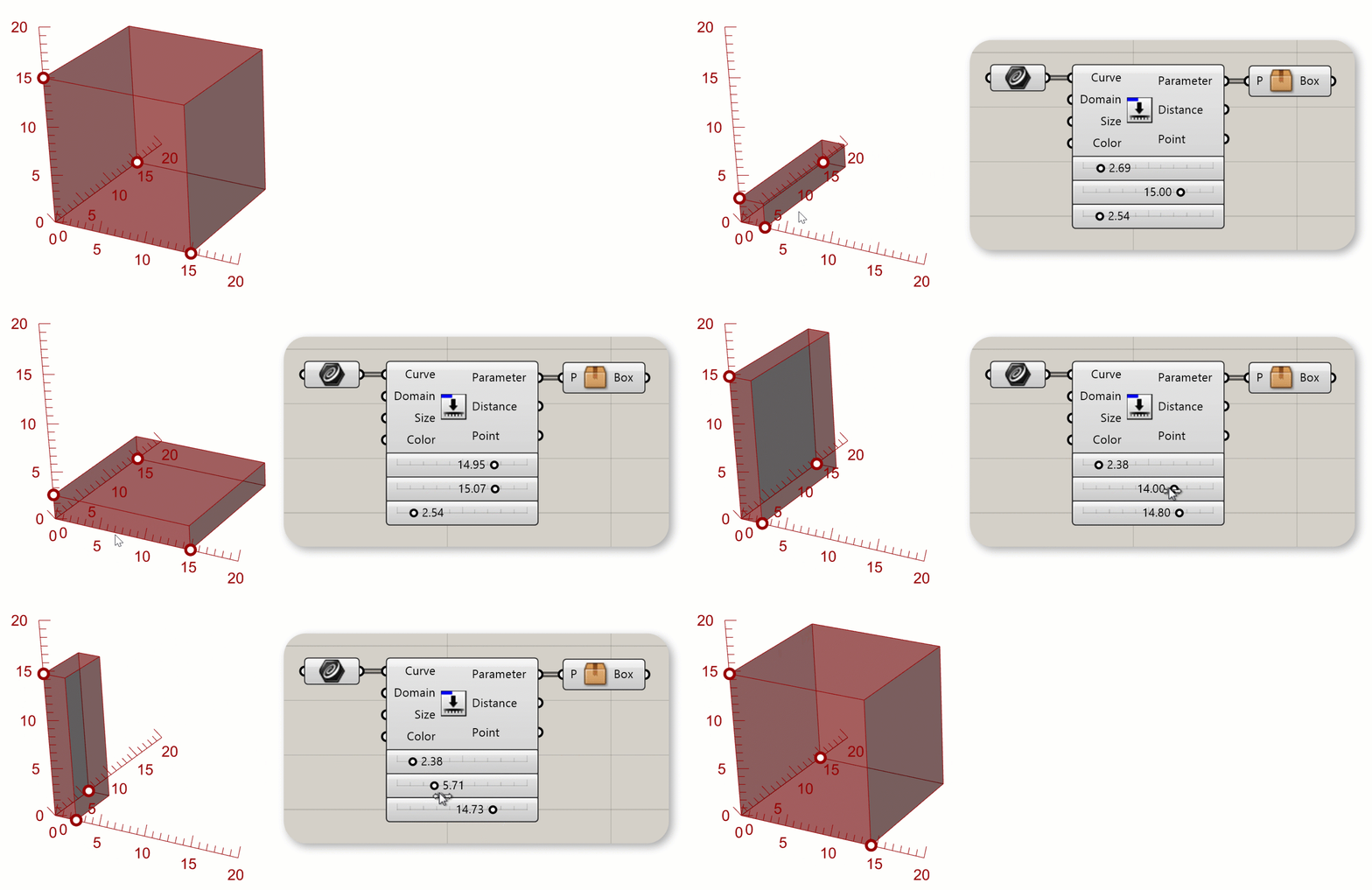
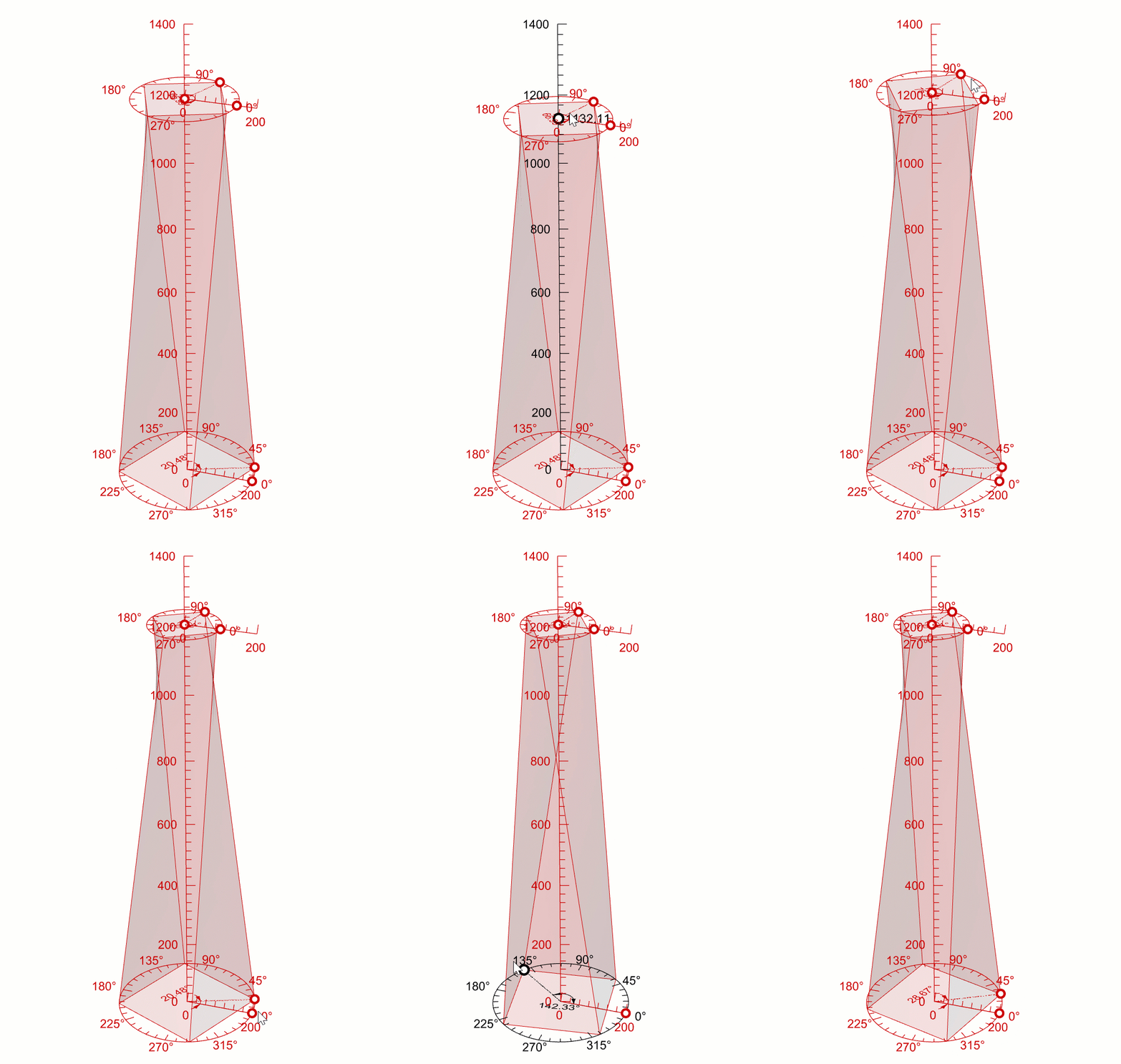
Turn any curve in your model into a numeric slider. Create a slider directly in the viewport that stays in sync with the component, and vice versa.
- Dynamic precision: Zoom in to increase accuracy automatically.
- Multiple curves: One component manages several input curves at once.
- Viewport sync: Move the slider in the viewport and the value is reflected in the component and vice versa.
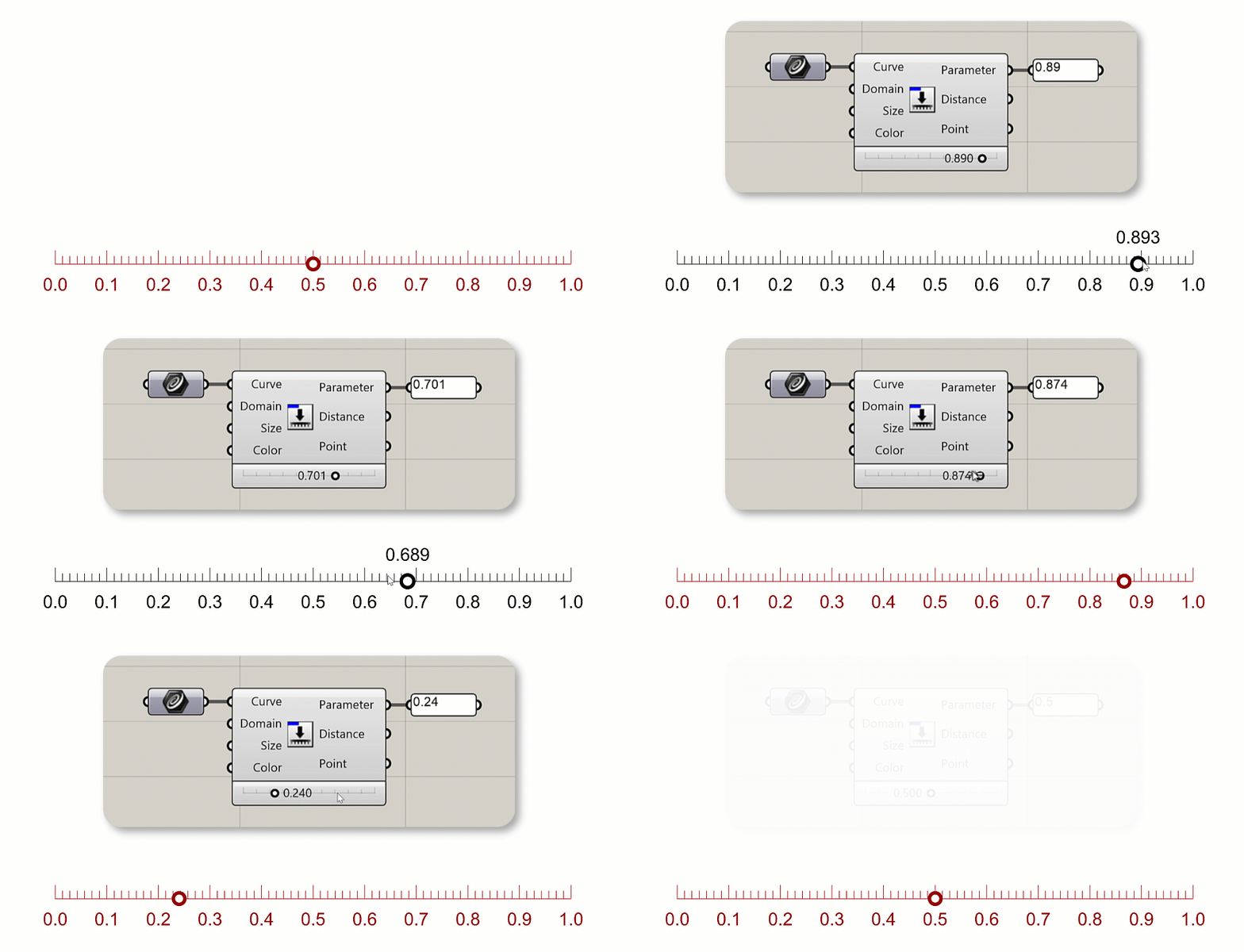
Angular Widget
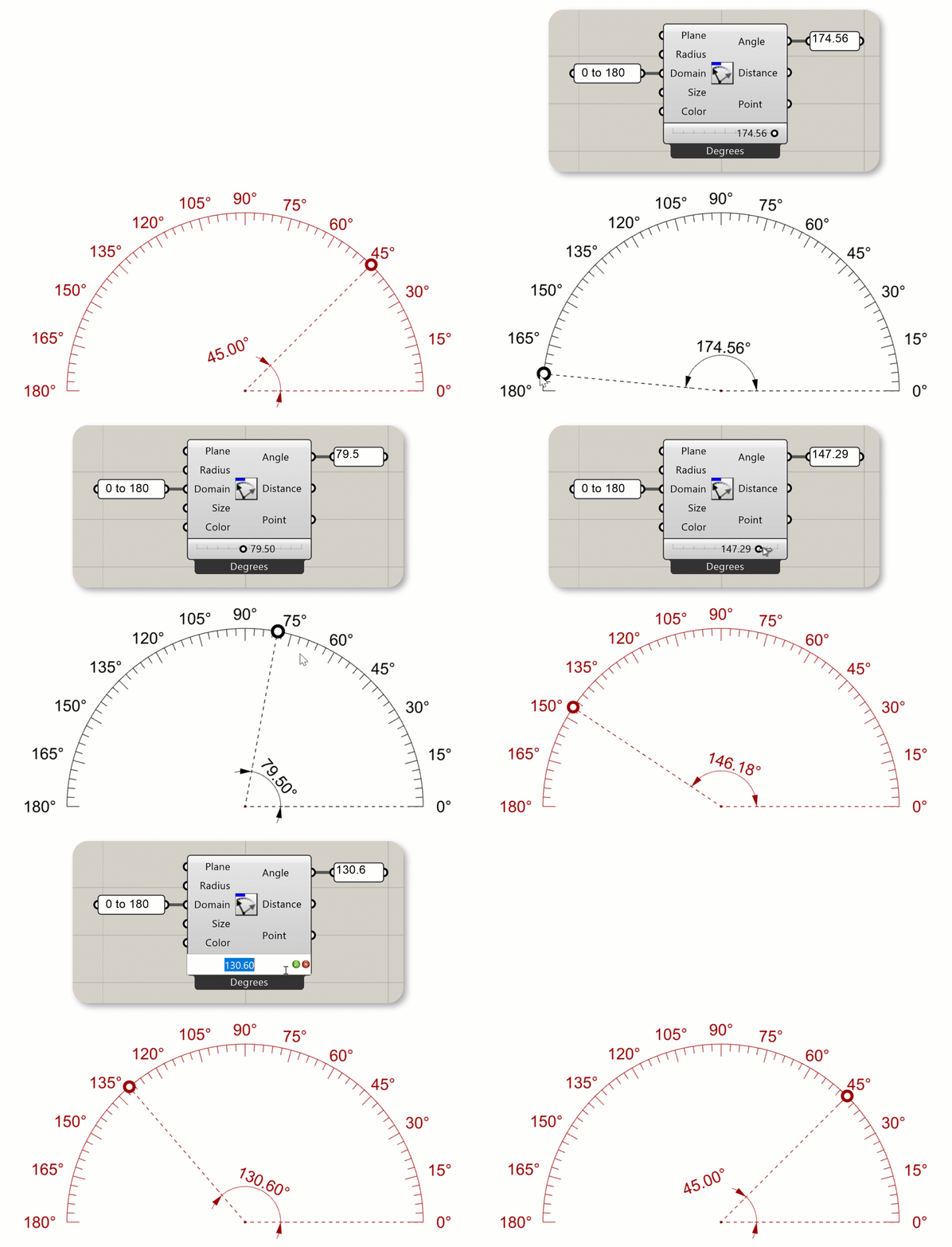
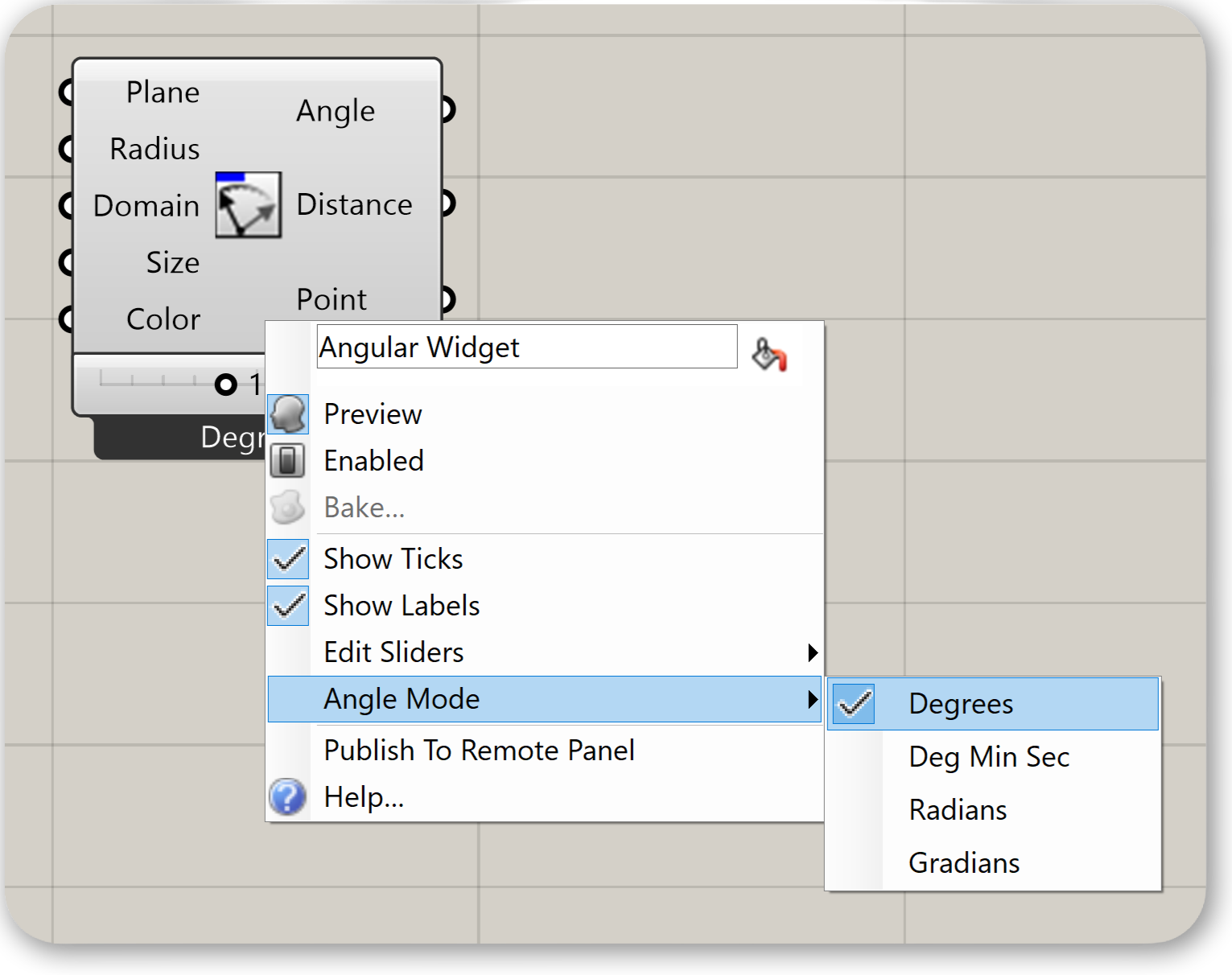
The Angular Widget lets you fine-tune angles directly in your model. Create in-viewport angle controls with adjustable range and radius. Select between four angle modes:
- Degrees
- Degrees / Minutes / Seconds
- Radians
- Gradians
Share With Anyone
Interactive Viewport Widgets bridge
Grasshopper
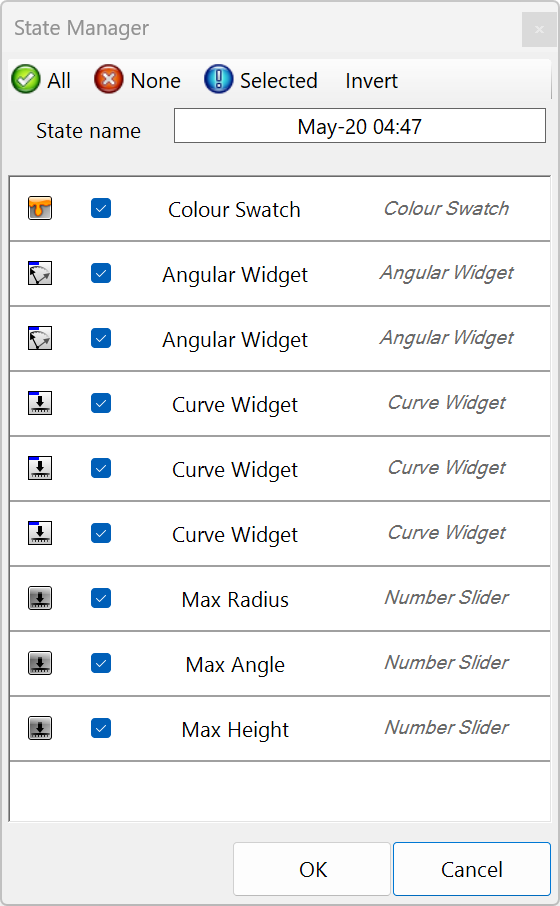
and Rhino for users who never touch the canvas. Share a definition with colleagues and let them drive the model directly in the viewport. Save and restore widget configurations using Grasshopper Solutions menu > Save State and Restore State.
Try It
- Download Rhino 8 Evaluation for Windows or Mac..
- Download the WidgetTower.gh example file.
- Drag and drop the file inside Rhino. It will load
Grasshopper
and you will preview the tower and
widgetsin the viewports. -
Maximize
the Perspective
viewport
. Then:
- Drag along the vertical curve to adjust the tower height with the
Curve Widget. - Double-click a
widgetto edit its value. - Use the
Angular Widgetto rotate the panels interactively.
- Drag along the vertical curve to adjust the tower height with the
- Try it on your own! Experiment with your own models.
- Share comments and feedback on the Grasshopper Forum.