
Unified Script Editor
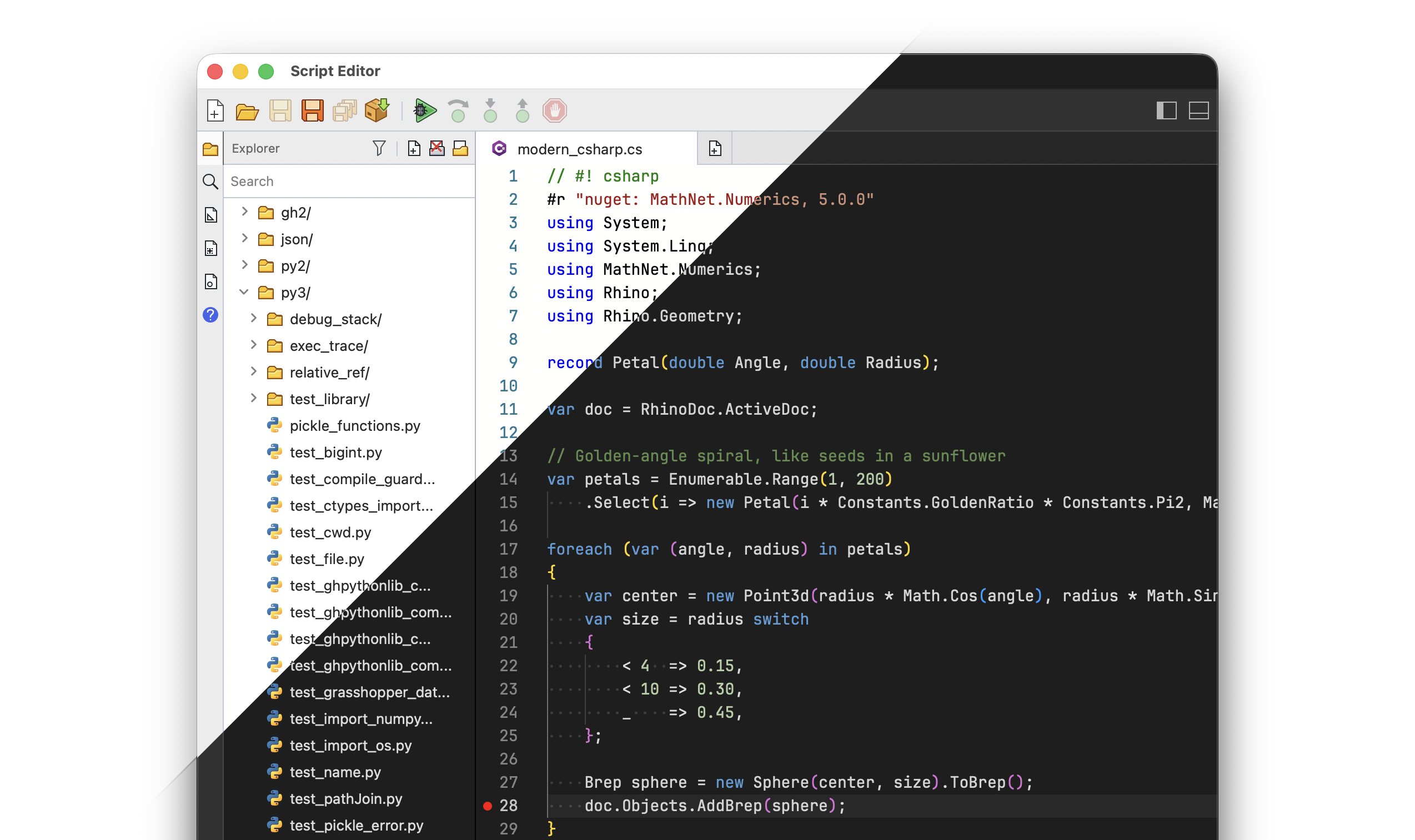
Customize and extend Rhino to suit your workflows using Python 3 and .NET, in a single editor that works the same in Rhino and Grasshopper (1 and 2), on Windows and macOS. Write, run, and debug your scripts: set breakpoints, step through your code, and inspect variables while your script runs, right inside Rhino.
Python 3
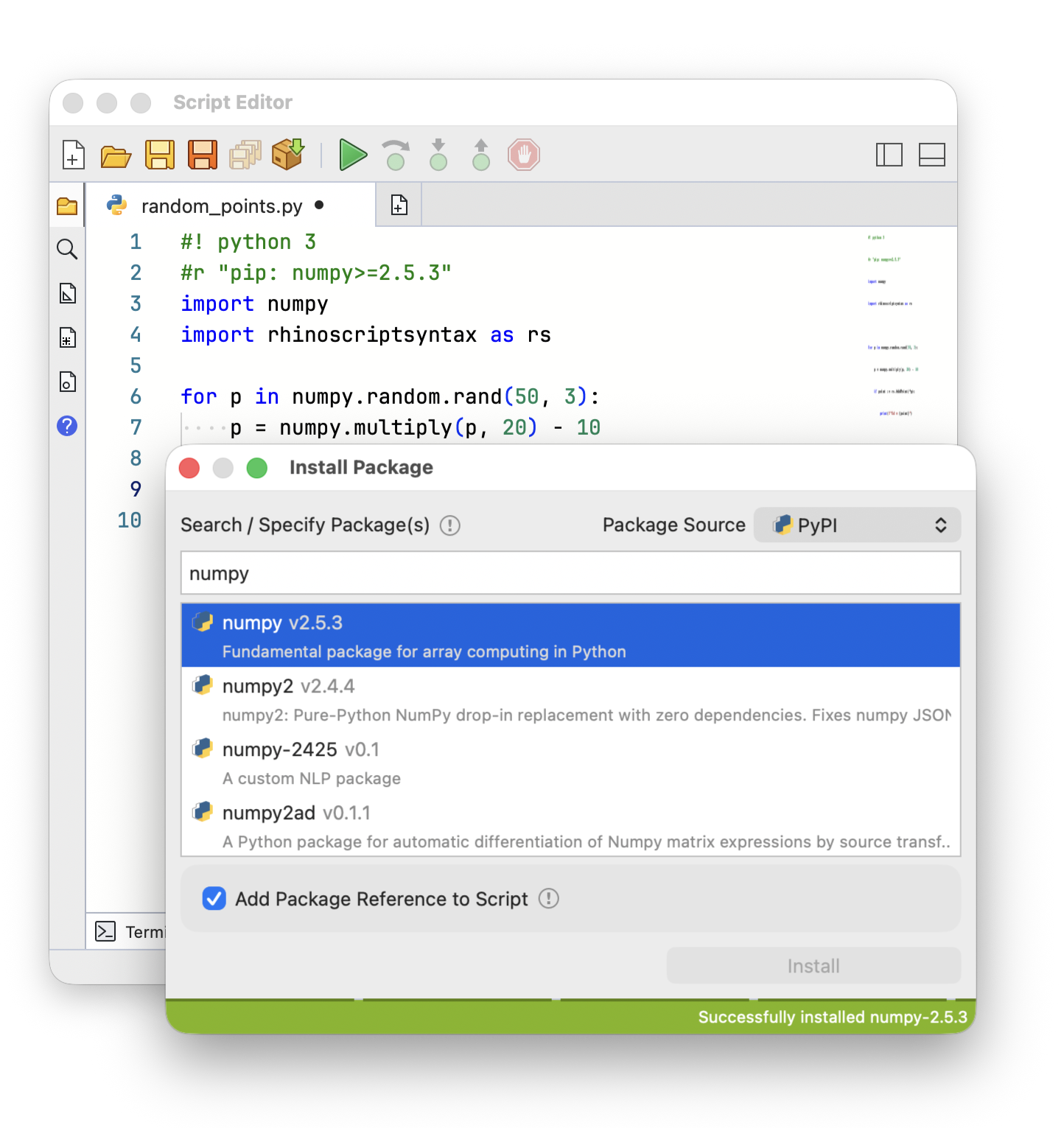
Use scientific libraries like NumPy and OpenSeesPy alongside Rhino geometry. Add any package from PyPI with a single line at the top of your script and the editor installs it for you. No setup, no separate environments to manage.
Modern C#
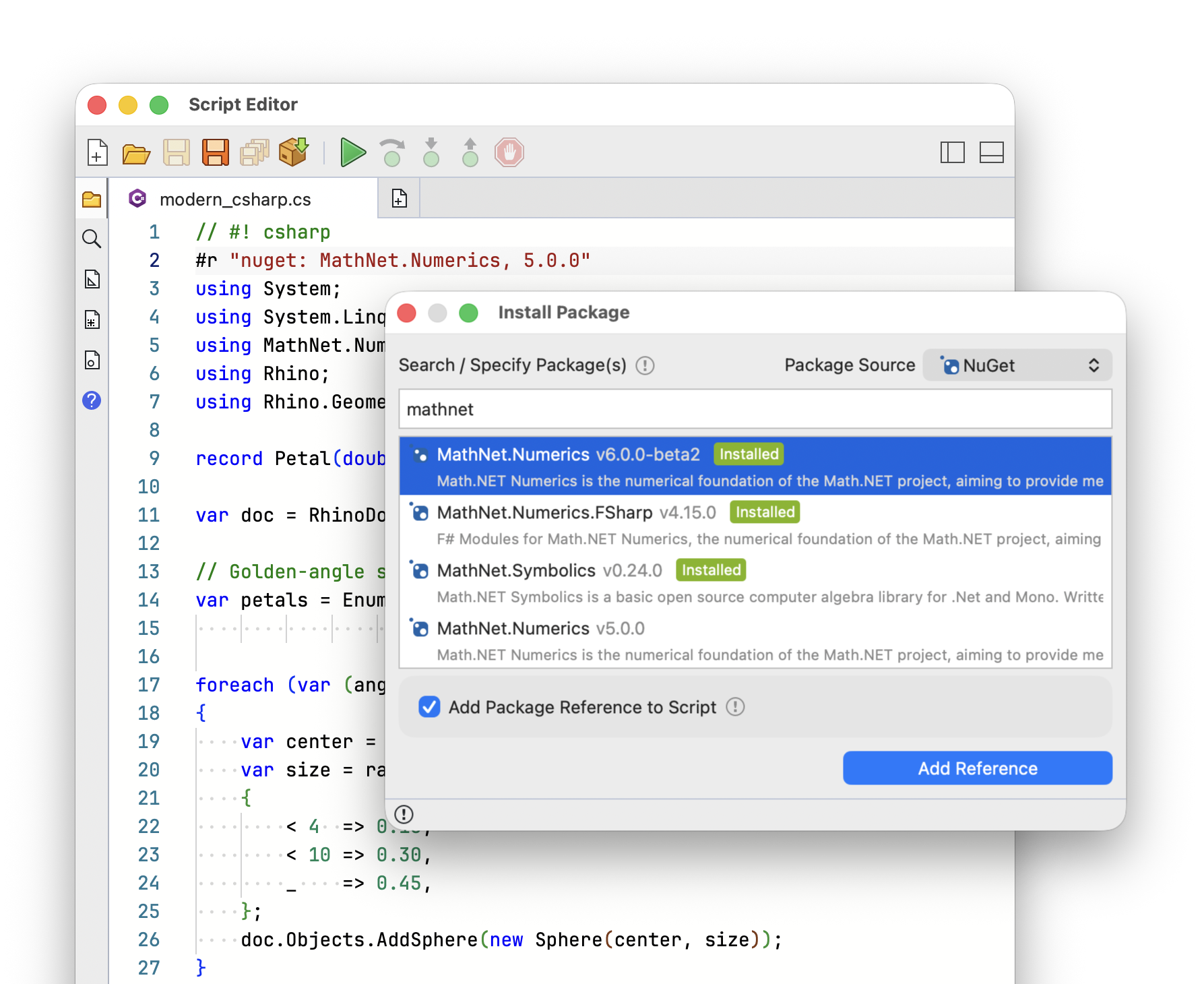
Script in modern C# with the full power of .NET and RhinoCommon. Reference NuGet packages directly from your script and get to work without building a project or leaving Rhino.
Debugging
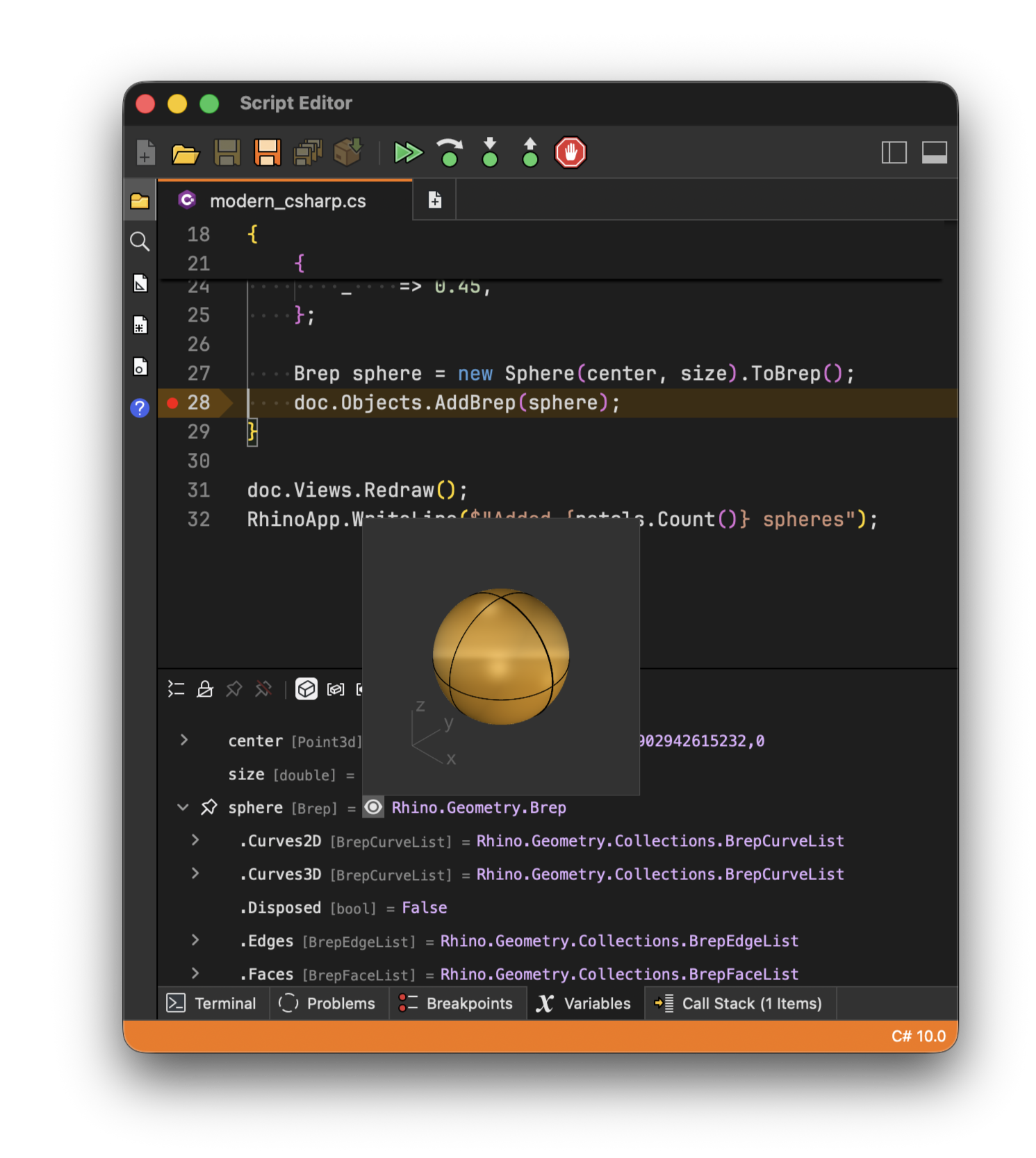
Set breakpoints, step through your code line by line, and inspect variables as your script runs. Debugging works the same in Grasshopper: pause a script component mid-solution and see exactly what flows in and out, right on the canvas. You can even preview geometry in Variables panel.
Testing
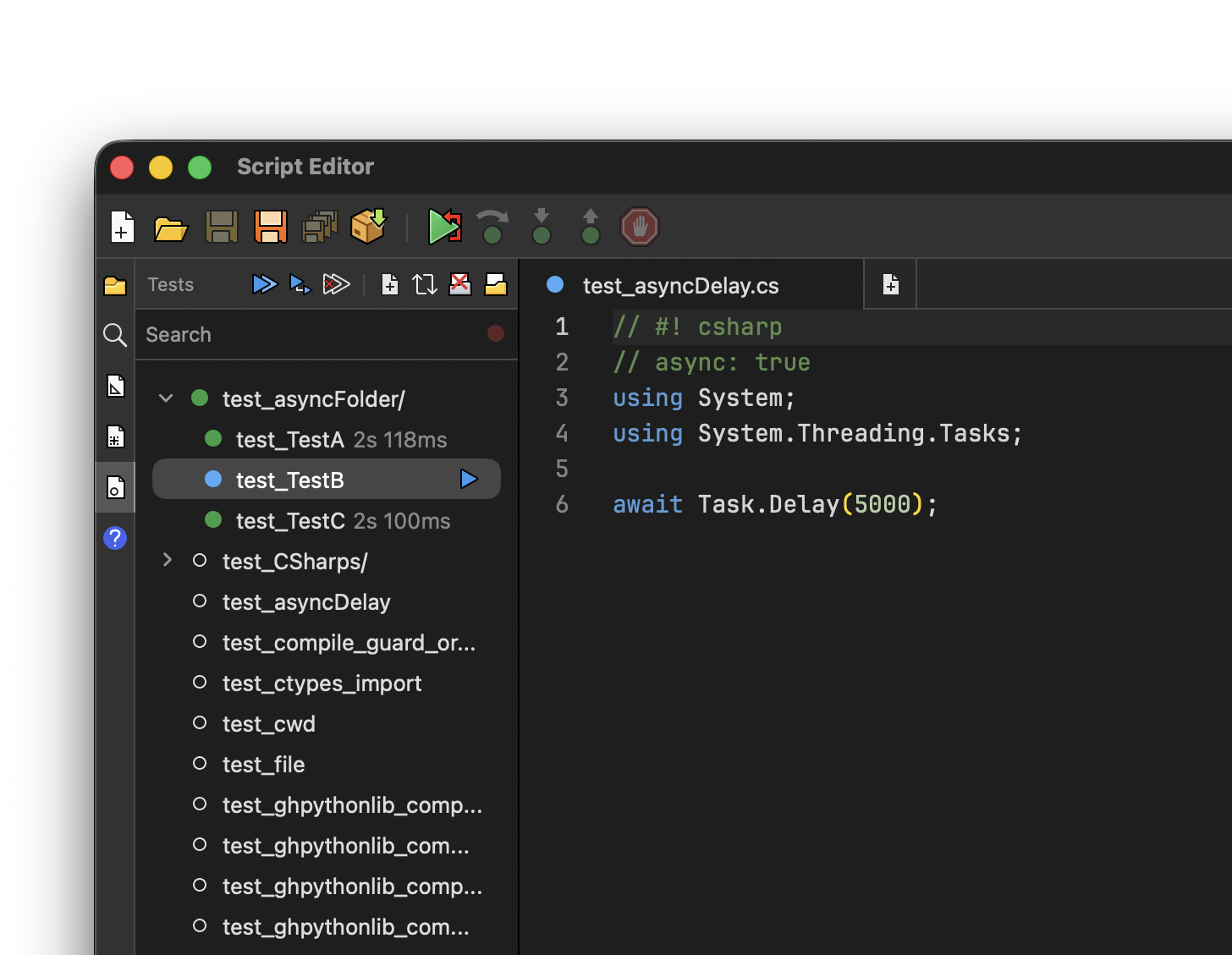
Write unit and regression tests in any editor language and run them from the Tests panel. Catch problems early, see results at a glance, and keep your tools working as they grow.
Publishing
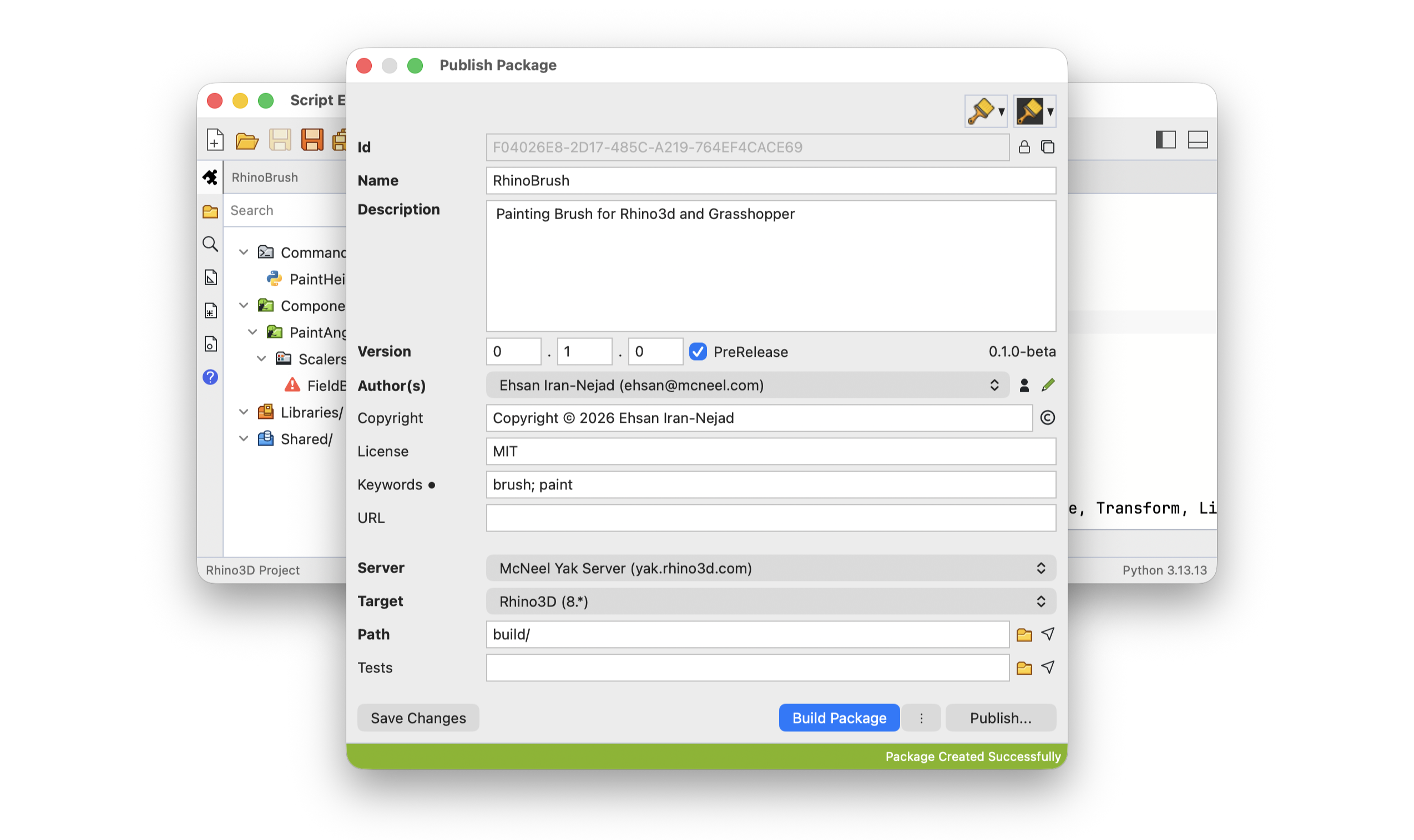
Turn your scripts into Rhino commands and Grasshopper components, then package them as plugins to share with your team or publish on the Rhino Package Manager. Your users install them like any other plugin, no scripting required.


Rhino 7 Scripting ToolsStill Available |
|
Try It
In Rhino
- Type
ScriptEditorin the command prompt to open Script Editor. The Editor begins initializing Python 3 runtime (this only happens after a fresh install and can take a few moments to complete). - When ready, click the New button and create a new Python 3 or C# script from Examples.
- Click the Run (play) button to execute the script.
- Explore other examples to see how you can use third-party packages in your scripts.
- See how to use ScriptEditor command in macros
In Grasshopper 1
- Type
Grasshopperin the command prompt to open Grasshopper. - When ready, from the Maths panel, add a new Script component to the canvas. The Editor begins initializing Python 3 runtime (this only happens after a fresh install and can take a few moments to complete).
- On the script component, click on a language to start a new editor with a default script.
- Add a few inputs and outputs to the component. Pass data to the inputs.
- Now click the Solve button in Grasshopper.
In Grasshopper 2
- Type
GH2in the command prompt to open Grasshopper 2. - When ready, from the Maths panel, add a new Script component to the canvas. The Editor begins initializing Python 3 runtime (this only happens after a fresh install and can take a few moments to complete).
- On the script component, click on a language to start a new editor with a default script.
- Add a few inputs and outputs to the component. Pass data to the inputs.
- Now click the Solve button in Grasshopper menus.
For more extensive tutorials and documentation see the Scripting Guides.
Ask questions and give feedback on the Discourse Forum.

