|
Overview:
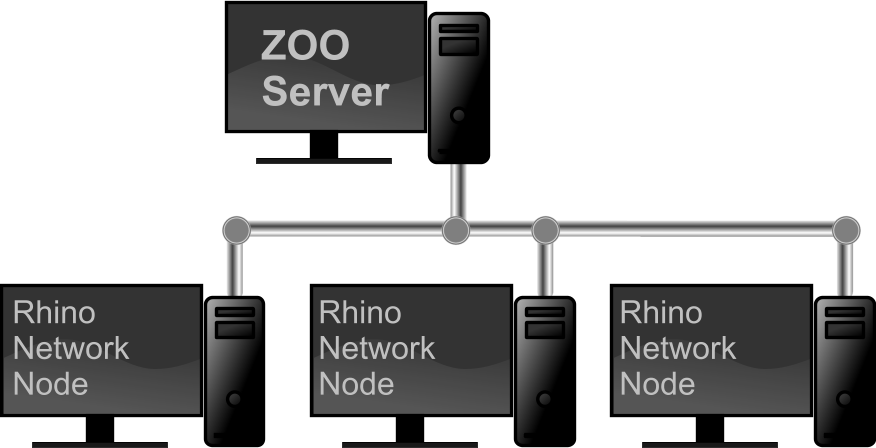
The Zoo lets you share Rhino, Flamingo, Penguin, Brazil, and
Bongo licenses (CD-Keys) among users on the same network workgroup. When
these products are installed as the workgroup nodes instead of
stand-alone, it works like this:
- When a workgroup node starts, it
requests a license from the Zoo.
- An unused license is assigned to the node.
- When a node shuts
down, the license is returned to the Zoo's license pool.
Features:
- Free - The Zoo is a free
download.
- No extra costs - Special versions of Rhino,
Flamingo, Penguin, Brazil, or Bongo are not needed.
- No special hardware is needed - The Zoo will
run on any system in the same network workgroup.
- Simple setup - Install the Zoo on any
system in the workgroup and type the license keys into the Zoo instead of
the individual systems.
- Check out - License keys can be checked out so
laptop users can disconnect from the network. The key can be checked in
again when the laptop is reconnected to the network.
- Robust - Workgroup nodes will keep working even if the network
connection or server is down, but workgroup nodes cannot start up without
access to the Zoo.
- Routable - The Zoo works on both single-segments networks, or
networks where systems are separated by routers.
- Multiple server - You can have more than one Zoo server
running at a time, with each serving different clients.
- Mixed environment - A mixture of Workgroup Nodes and
Standalone Nodes on the same Windows Domain or Workgroup is supported.
- A service -
If you reboot the system
with the Zoo, the Zoo will automatically start up.
Installation:
- Download
the Zoo
free of charge.
- Install the Zoo on any computer in your network workgroup.
- Install Rhino, Flamingo, Penguin, Brazil, and Bongo on
any or all of the computers in your network as workgroup nodes.
- Note: For routed networks, see the Zoo Help for
details.
Configuration:
-
The Zoo is designed to work right out of the box - there is no
configuring necessary other than adding your Rhino, Brazil, Bongo,
Flamingo and Penguin licenses (CD-Keys), and then configuring these
products to run as Workgroup Nodes.
- From the Zoo Edit menu, select Add and type the
CD-Keys.
License key numbers (CD-Keys) are located inside the back cover of
the application User's Guide or in the front of the CD case. (Tip:
Put all your CD keys into a text file with one on each line. Use
File>Import to import them into the Zoo.)
- Or, check in existing stand-alone licenses from Rhino's Tools
menu, select License Manager->Check-in license.
- See the Zoo Help for additional details.
Limitations:
- Domain/Workgroup solution
- The Zoo and all computers running the nodes must be in the same
Windows Domain or Workgroup.
- Firewall open - If the
computer running a node or the Zoo is using a firewall, be sure that
UDP Ports 137, 138 and TCP port 139
are open. These are the same ports used by Windows File and Print
Sharing.
- Rhino 2.0 or 3.0 Educational Lab License - The Zoo does
not work with Rhino 2.0 or 3.0 educational lab license.
- Flamingo 1.1, Bongo 1.0, and Penguin 1.0 Educational Lab
Licenses do not work.
- Rhino 2.0 or 3.0 on Asia Windows - The Zoo does not work
with Rhino 2.0 or 3.0 on Asian operating systems.
Troubleshooting:
Visit this
wiki page for troubleshooting tips.
|