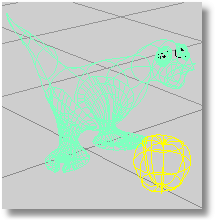
Sets the viewport display to unshaded wireframe.
Note: Viewport display modes can be customized. See Options > Appearance > Advanced Settings.
|
Standard > Wireframe Viewport (Right click) Shade > Wireframe Viewport (Right click) STL Tools > Wireframe Viewport (Right click) Organic > Wireframe Viewport (Right click) Popup > Wireframe Viewport (Right click)
View > Wireframe Viewport Title > Wireframe |
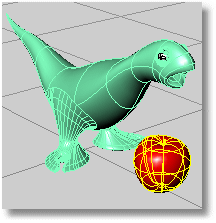
Sets the viewport to opaque shaded mode.
Note: Viewport display modes can be customized. See Options > Appearance > Advanced Settings.
Notes
If the objects you are rendering are very complex, Rhino may shade them more slowly than usual the first time. Rhino takes that time to calculate, from the smooth geometry, a hidden mesh that is used for the rendering. The next time you shade the same model, you will see improved performance.
Rhino needs adequate of RAM for shading in reasonable time. A recommended minimum is 512 MB.
If strange cracks show between surfaces when you shade them, try first increasing the density of the render mesh on the Document Properties dialog box, Mesh page. Also, some surfaces may need to be joined into polysurfaces. Then Rhino will mesh those surfaces so that the mesh vertices for each surface will be exactly shared along their common edge and there won't be any holes or cracking.
If you are using a shaded viewport, you can click on a shaded object to select it. You do not have to select an isoparametric curve. If the click is near curves, isoparametric curves, points, or annotation, the object will be selected. If there are several objects behind each other in the view, the object closest to your viewpoint will be selected.
Changing the mesh settings causes the viewports to reshade.
|
Standard > Shaded Viewport Shade > Shaded Viewport STL Tools > Shaded Viewport Organic > Shaded Viewport Popup > Shaded Viewport
View > Shaded Viewport Title > Shaded |
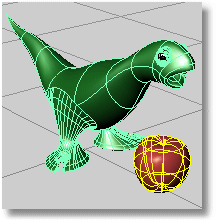
Shades the viewport with an OpenGL simulation of the rendered view.
You can pan, zoom, and rotate the viewport to see the model from different views.
The RenderedViewport command mimics, but does not exactly duplicate, what you will get in a Render.
Note: Viewport display modes can be customized. See Options > Appearance > Advanced Settings.
Notes
Uses the settings on the Document Properties dialog box Mesh page.
Does not show shadows or bump mapping.
Does a quick approximation of light behavior. Basically, you can use render preview to aim lights.
|
Shade > Rendered Viewport Popup > Render Preview Viewport
View > Rendered Viewport Title > Rendered |
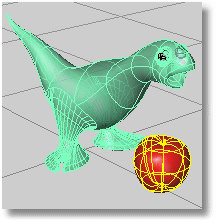
Sets viewport display to be translucent.
Note: Viewport display modes can be customized. See Options > Appearance > Advanced Settings.
Notes
Objects behind surfaces are somewhat obscured.
|
Shade > Ghosted Viewport
View > Ghosted Viewport Title > Ghosted |
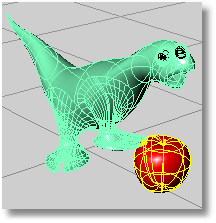
Shades with isoparametric curves not obscured by objects in front.
All wireframe and point objects are displayed, even if they would normally be hidden by surfaces that are in front of them in the viewport.
Note: Viewport display modes can be customized. See Options > Appearance > Advanced Settings.
|
Shade > X-ray Viewport
View > X-Ray Viewport Title > X-Ray |
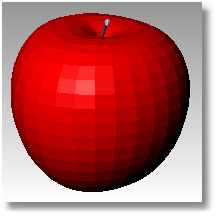
Toggles FlatShade mode.
Shades the current viewport with no smoothing so the individual render mesh faces are visible.
Note: Viewport display modes can be customized. See Options > Appearance > Advanced Settings.
The hyphenated version adds command line options.
On
Off
Toggle
|
Shade > Toggle Flat Shade Mode STL Tools > Toggle Flat Shade Mode
View > Flat Shade Viewport Title > Flat Shade |
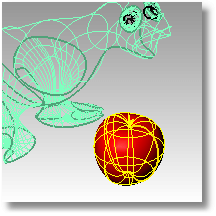
Toggles ShadeSelected mode.
Sets the viewport display mode to shade only selected surfaces, polysurfaces, and meshes.
Only selected surfaces, polysurfaces, solids, and meshes are shaded.
Note: Viewport display modes can be customized. See Options > Appearance > Advanced Settings.
The hyphenated version adds command line options.
On
Off
Toggle
|
Shade > Toggle Shade Selected Mode
View > Shade Selected Objects Only Viewport Title > Shade Selected Objects Only |
Temporarily shades the viewport. This is not a working mode.
Steps:
Click shade settings.
Click in the viewport, press Esc or start another command to cancel the shaded view.
Options
DisplayMode
DrawCurves
Displays curve objects.
DrawWires
Displays isoparametric curves and edges.
DrawGrid
Displays the grid.
DrawAxes
Displays the construction plane axes.
|
Standard > Shade Shade > Shade
Render > Shade |
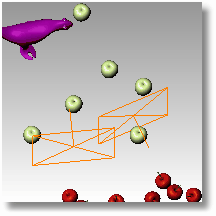
Creates a clipping plane object that represents a plane for visibly clipping away geometry in a specific viewport.
Steps:
Follow the prompts for the selected option.
If no option is selected, the default is used.
Notes:
The clipping plane is infinite. The clipping plane object represents only the location and direction of the clipping plane.
The clipping plane pointer faces toward the objects that will be visible.
Options
Note: The options for drawing a clipping plane are the same as for the Rectangle command.
|
Viewport Layout > Clipping plane
None |
Deletes render and analysis meshes from all surfaces and polysurfaces.
Render meshes are created automatically when you shade or render your model. They are not visible in wireframe view mode.
The ClearAllMeshes command turns off shaded working mode.
If you change your Render Mesh settings and render or shade the model, render meshes are cleared and recreated automatically.
If any viewports are in shaded or render preview mode, they are changed to wireframe mode. Switching back to shaded/render preview mode will create new meshes. To reduce the size of the model file, use the SaveAs command and check Save small.
To clear meshes from selected objects, use the RefreshShade command .
|
Utilities > Clear Render and Analysis Meshes
None |
Clears and regenerates the render mesh from selected objects so the shading refreshes.
Steps:
Select objects for clear mesh.
Render and analysis meshes are cleared and regenerated from the selected objects.
This mode is turned off in all viewports with the ClearAllMeshes command.
Notes
To avoid having to recreate the render meshes in your next session, do not clear meshes.
Render meshes are cleared and recreated automatically if you change your Render Mesh Properties and render or shade the model.
To reduce the size of the model file, use the SaveAs command and check Save small.
|
Shade > Refresh Shade (Right click)
View > Remesh Viewport Title > Remesh |
Displays objects using their Print Color and Print Width properties.
Note: This command can have significant effects on display speed.
Options
State
On/Off/Toggle
Turns print display on or off.
Color
Objects display using their Print Color setting.
Display
Objects display using normal display settings.
Thickness
Defines a screen resolution to multiply object's Print Width.
|
None
Viewport Title > Print Display |
Displays curves using their Linetype properties.
Options
DisplayLinetypes
Yes
Displays curves using their Linetype properties.
No
Displays curves using continuous lines.
|
None
None |


