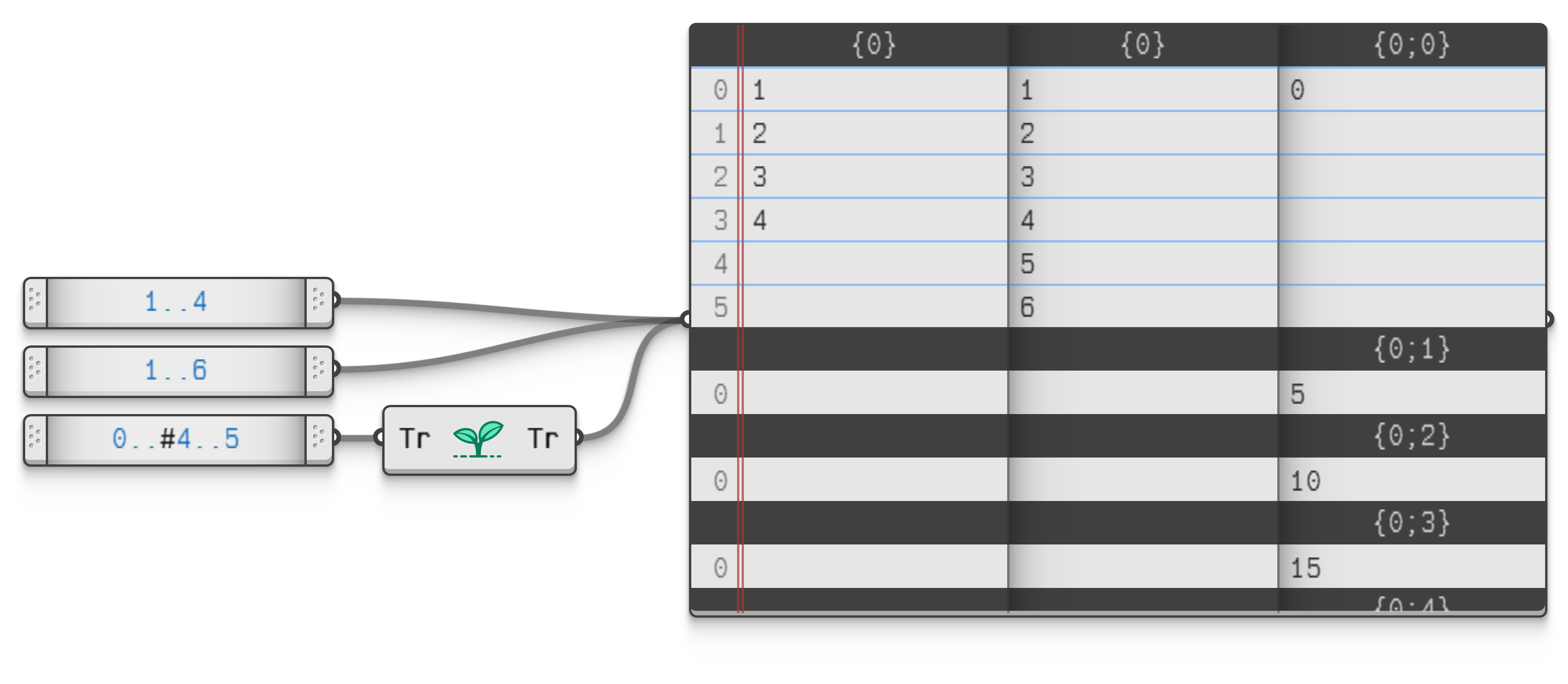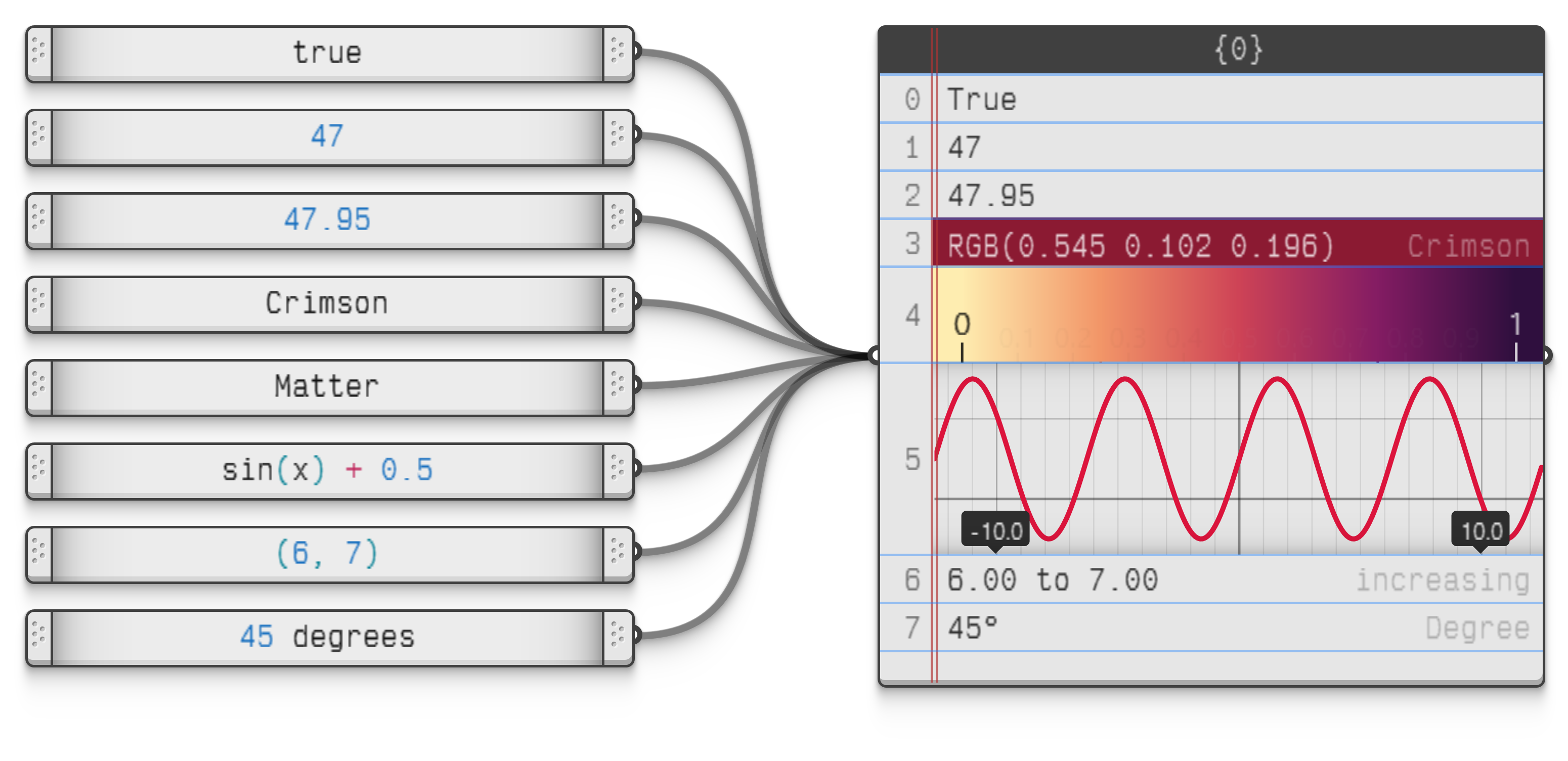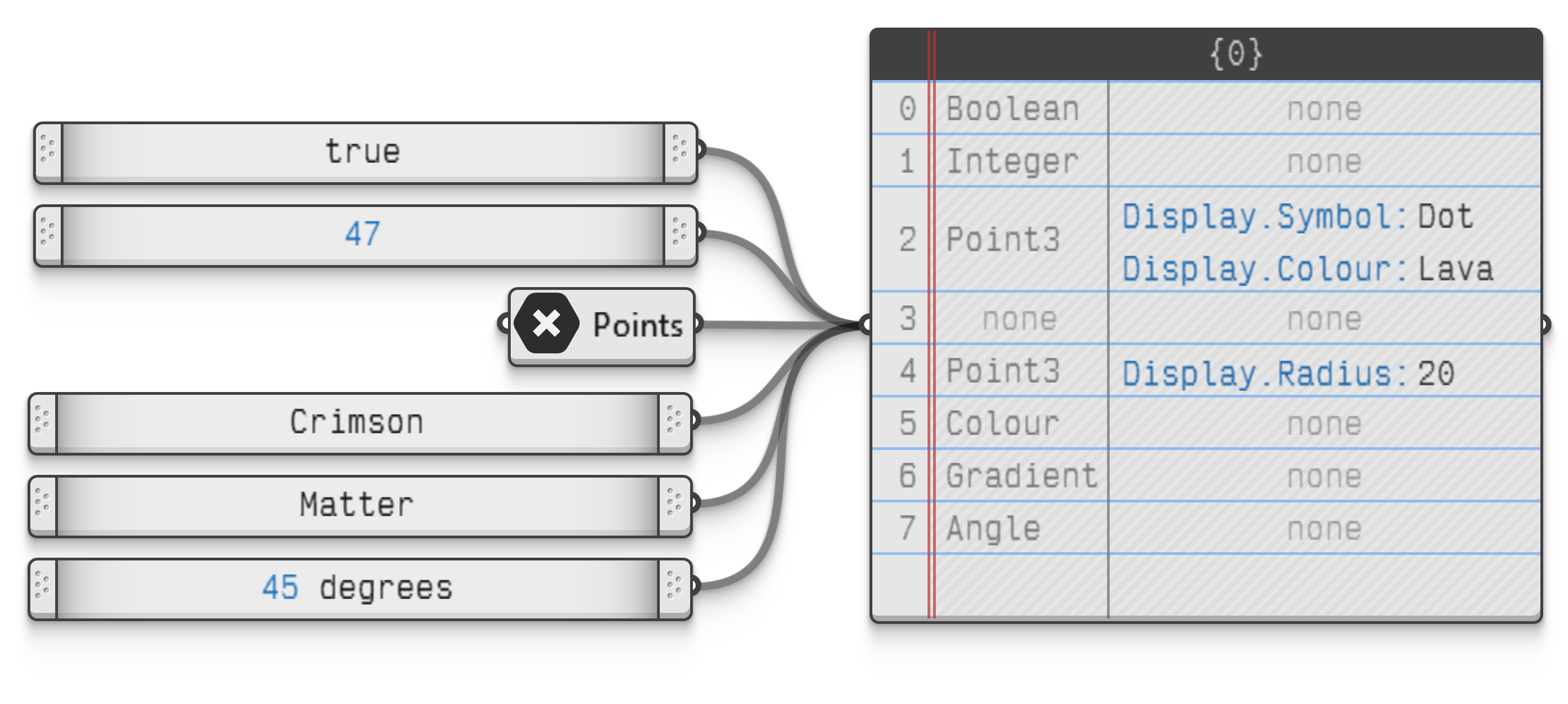
The data panel is the standard way of examining data in Grasshopper. The panel can display both the structure, the types, the values, and the meta data of items.
Grasshopper 2.0 panels no longer convert values into text, and as such can be inserted in the middle of a wire without ill effects. However we recommend not doing so as it makes it cumbersome to remove them from the file.
Also note that unlike the panels in Grasshopper 1.0, the new panel does not allow you to enter text as an input. It is strictly for inspecting data. Data can be entered using the Value or Text Input objects instead.
The panel contents can be moved up and down by holding SHIFT and then panning the usual way; by dragging with the RMB.
By default the panel will display each input in a separate column, even though it by necessity merges all the data into a single tree before outputting it. To view the data in its merged state, disable the Show Columns option in the panel menu.
When in multi-column mode, the items in all columns are horizontally aligned to show how they would be paired up were they to be combined in a component as separate inputs. Though do note that a component will repeat the last available value for as long as necessary when pairing inputs, but the panel will not show those repetitions.
The example files below show three different ways in which a panel can be set up to inspect data.