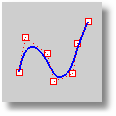
Displays control points or polygon mesh vertices.
Steps:
Select objects.
Notes
When you control-point edit curves that are smooth and consist of several curve segments joined together, the curve will fuse into a single curve that cannot be exploded. If necessary you can use the Split command with the Point option and Knot object snap to break the curve into segments.
To ensure the seams of polysurfaces do not accidentally crack open, polysurface control points cannot be turned on. To control-point edit a polysurface, Explode the object into separate surfaces first or use the ExtractSrf command to separate the surfaces you want to edit.
|
Main2 > Control Points On Point Editing > Control Points On Geometry Fix > Control Points On STL Tools > Control Points On Organic > Control Points On
Edit > Control Points > Control Points On
Keyboard Shortcut: F10 |
Turns off control point and edit points display.
|
Main1 > Points Off (Right click) Main2 > Points Off (Right click) Point Editing > Points Off (Right click) Geometry Fix > Points Off (Right click) STL Tools > Points Off (Right click) Organic > Points Off (Right click)
Edit > Control Points > Control Points Off
Keyboard Shortcut: F11 |
Turns off control points and edit points for selected objects.
|
Point Editing > Points Off Selected
None |
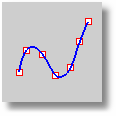
Displays points on the curve evaluated at knot averages.
Edit points are like control points except they are always located on the curve and moving one edit point generally changes the shape of the entire curve (moving one control point only changes the shape of the curve in a sub region). Edit points are most useful when you need a point on the interior of a curve to pass exactly through a certain location. Control point editing is preferred when you need to change the look of a curve and maintaining "fairness" is important.
Steps:
Select curves.
Note: The edit points in Rhino are points on the curve evaluated at knot averages. They are not knots themselves.
|
Point Editing > Edit Points On Main1 > Edit Points On
Edit > Control Points > Show Edit Points |
Toggles the display of surface or mesh control points so that only points on the side of the surface that face the camera are displayed. For open surfaces the normal direction of the surface will determine which points are visible to the camera.
This can make it easier to edit surface control points.
Options
Cull
No
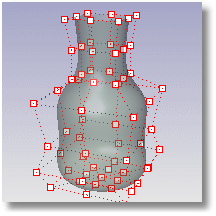
Yes
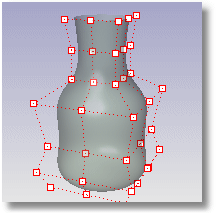
Toggle
|
Point Editing > Cull Control Polygon Backfaces
None |


